Knowledge Base Article
How to Create and Manage Checklists
Checklists help make sure the same steps get followed every time, on records like events, projects, tasks and mission trips.
Using checklists on a record
- Open the record and go to its checklists page in the workspace menu (on an event, Event Checklists).
- Click Add New to start a checklist, type its name, and click its save icon or Save All.
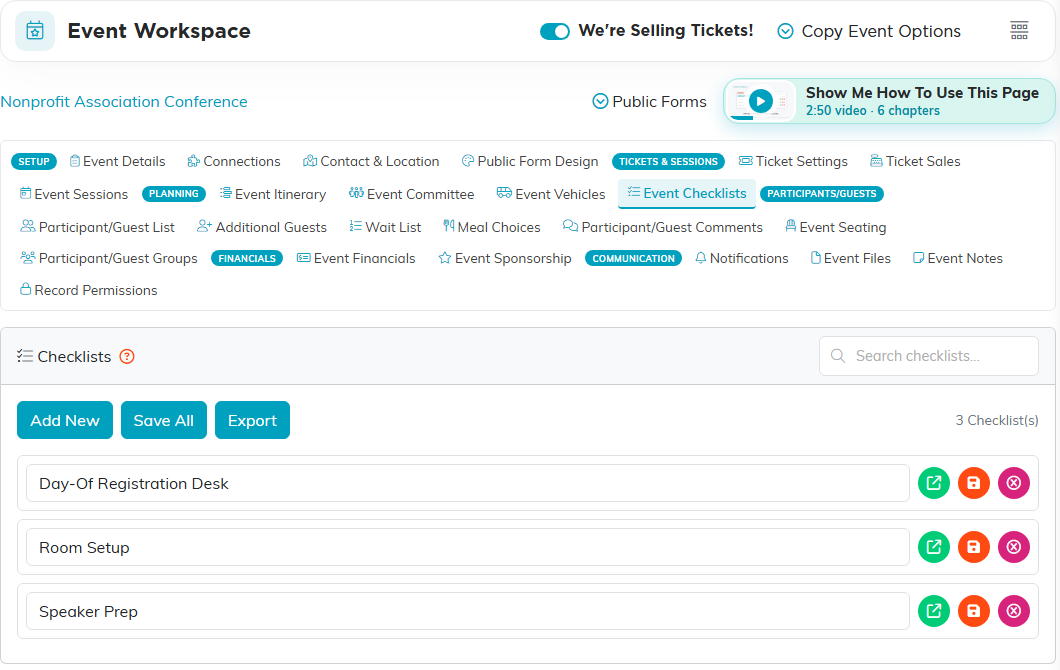
- Click the checklist's open icon. Its items take the place of the list of checklists; use Add New there to add each item, and save it.
- Tick an item off as it is done. The tick is saved straight away, and Toggle All ticks or clears every item at once. The save icon and Save All are for changes to an item's wording. Back To Lists takes you back to the checklists.
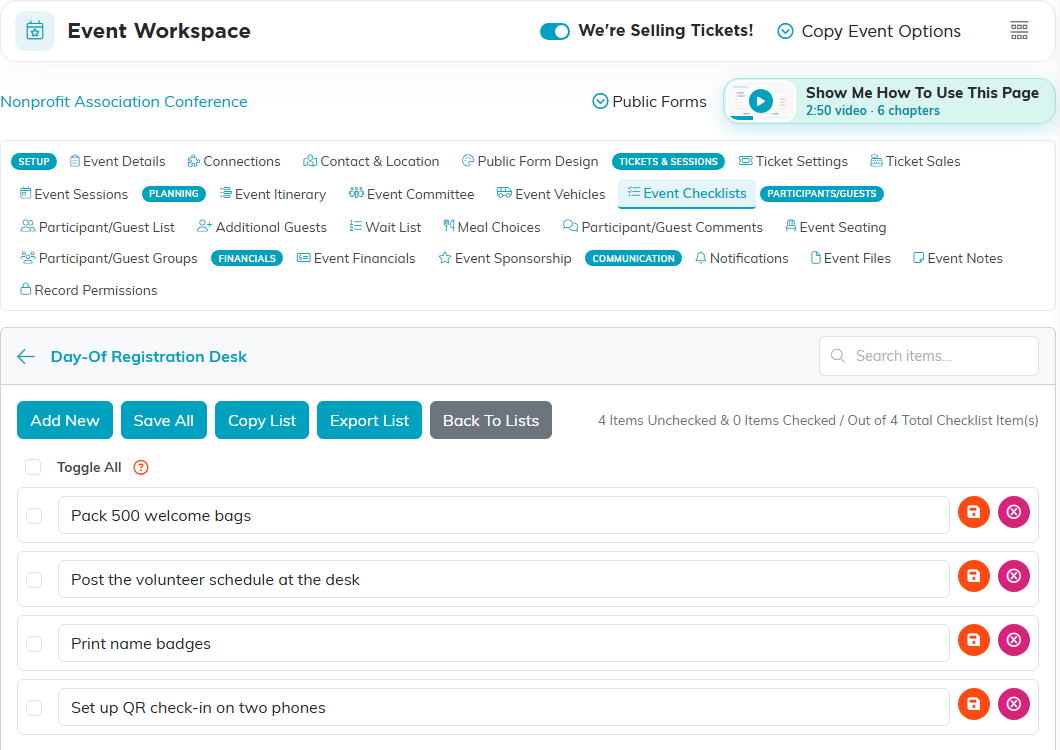
- Use the delete icon on a row to remove a checklist or an item you no longer want.
The list of checklists and each checklist's items have their own search box, which is worth knowing on a long list. Copy List, on an open checklist, makes a copy of it on the same record.
Worth knowing
- You build every checklist yourself on the record. Argenta does not ship pre-written checklists, and there are no reusable templates to apply to new records.
- An item is a name and a tick. There is no notes field on an individual item.
- A checklist belongs to the record it was made on, so the same one on another record is a fresh checklist.
Why bother: nothing falls through the cracks, new staff can see exactly what the steps are, and you can tell at a glance how far along a record is.
