Knowledge Base Article
How to Use Record-Level Permissions
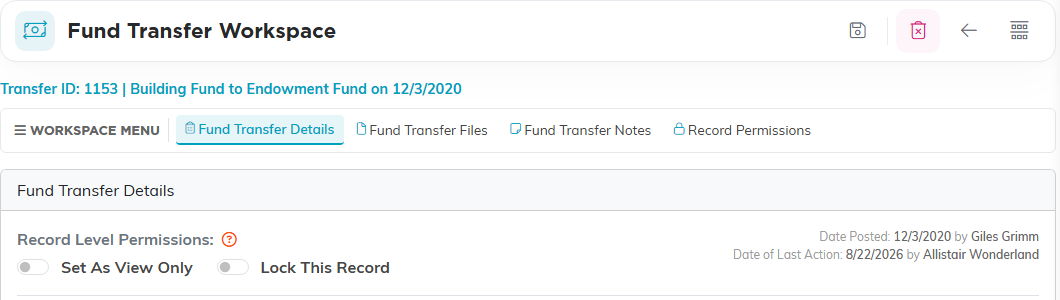
Beyond the module permissions on a person's account, an individual record can be restricted on its own. Two switches sit together at the top of the record's details page, under Record Level Permissions.
- Set As View Only. People can open and read the record but not change it.
- Lock This Record. People cannot open it at all.
Who keeps access either way
- Whoever created the record.
- A master admin.
- Anyone named on the record's Record Permissions page.
Naming someone on Record Permissions
Every record workspace has a Record Permissions page carrying two separate panels, one per switch. Each reads Enabled or Disabled depending on whether its switch is on.
- Go to Record Permissions.
- In View Only Access, to let somebody edit a view-only record, or Locked Record Access, to let somebody open a locked one, start typing the user's name in the Add User box and pick them.
- Click Add. They appear in the list below.
The pink icon next to a name takes their access away again.
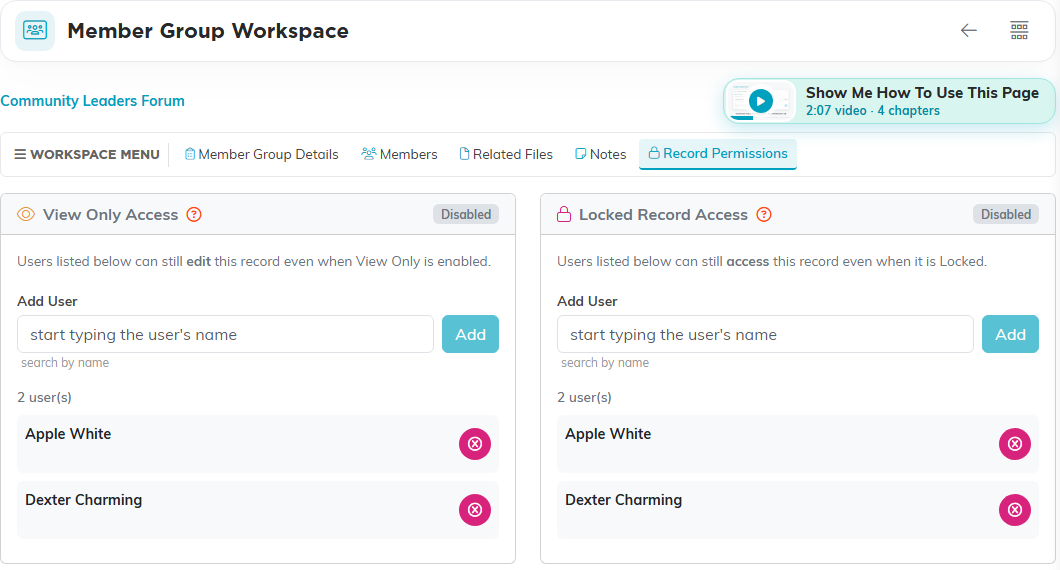
There is no access level to choose. A person is either named on a panel or not: the panel they are on is what decides what they can do.
