Knowledge Base Article
How to Set Up Follow-Up Reminders
A follow-up is a reminder attached to a record, so the next conversation is not left to memory.
- Open a record. Follow-Up sits on constituents and on most of the records built on them, such as donors, members, volunteers, clients, leads, staff members and board members.
- Click Follow-Up.
- Click Add New.
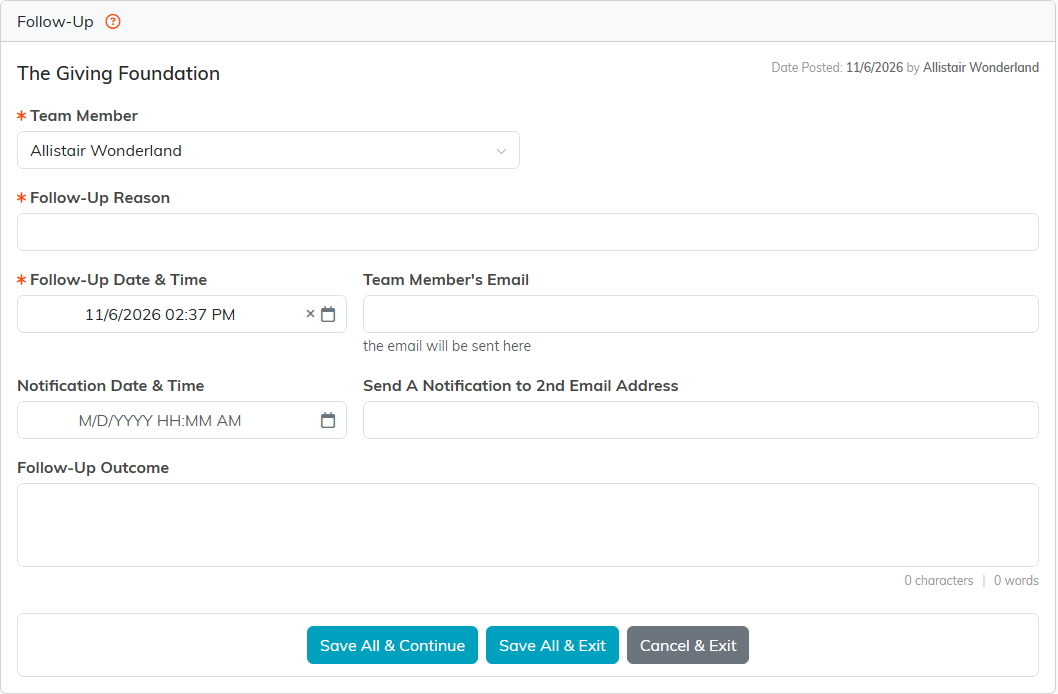
- Fill in the three required fields, each marked with an orange asterisk:
- Team Member - who is doing it.
- Follow-Up Reason - what needs doing.
- Follow-Up Date & Time - when.
- Fill in the rest if you want them: Team Member's Email, Notification Date & Time, Send A Notification to 2nd Email Address, and Follow-Up Outcome.
- Click Save All & Continue to stay on the record, or Save All & Exit to save and leave. Cancel & Exit backs out without saving.
Two things it does not have
There is no priority field, so put any urgency in the Follow-Up Reason where it will be read. There is no tick marking one complete either: write what happened in Follow-Up Outcome, which then shows on the entry in the list.
Getting reminded
Set the Notification Date & Time for the reminder to go out, and add a second address if someone else should get it too. Leave it empty and the follow-up is simply a note on the record for whoever opens it.
Seeing them together
Lead follow-ups appear in the Lead Opportunity Follow-Ups grid on the Marketing dashboard, where you can switch the period. Elsewhere, the list on each record has its own search and a CSV export.
Most useful for donor cultivation, volunteer coordination and lead management, where the timing of the next contact is the whole job.
