Knowledge Base Article
How to Use the Contact Log
The Contact Log records your interactions with a constituent in one place, so anyone picking up the relationship can see what has already been said.
Viewing the Contact Log
- Open a constituent record.
- Click Contact Log in the Workspace Menu.
Adding an entry
- Click Add New. The Add Contact Log Entry card opens.
- Fill in the four fields:
- Contact Date - when the contact happened.
- Team Member - who had the contact.
- Mark Contact As An Engagement? - whether this counts toward the constituent's engagement score.
- Contact Description - what was said. This is the one you cannot leave empty; Save stays grayed out until there is something in it.
- Click Save, or Cancel to drop it.
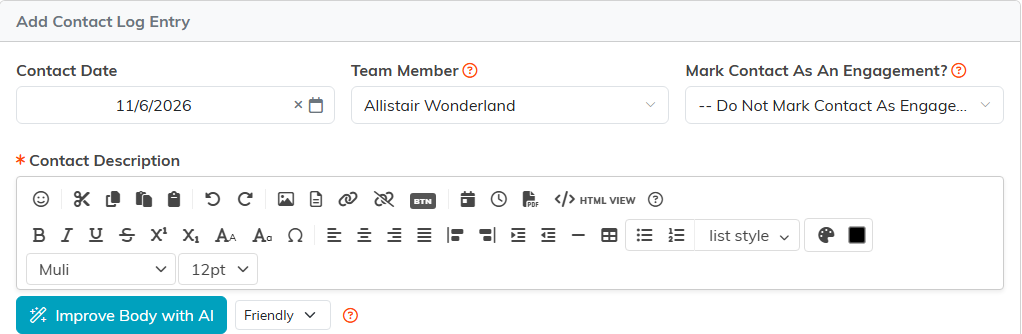
There is no contact type, direction or outcome field on the form. (An entry Argenta adds for you can show a Log Type line naming where it came from.) Put anything of that sort in the description, and keep the wording consistent so it is searchable later.
Editing an entry
Open an entry from the list to change its date, team member or description. Back To Contact Log returns you to the list.
What gets logged for you
Email sent to the constituent through Argenta adds a contact log entry by itself when it goes out, so those do not need entering by hand. Everything else is what you record yourself.
Use the Contact Log to keep a complete history of your relationship with each constituent.
