Knowledge Base Article
How to Use Bulk Note Entry
When the same note belongs on a lot of records at once, add it from the list rather than opening each record.
- Open a list page. Most of them offer this, including Constituents, Donors, Members, Leads, Clients, Grantors, Staff Members, Invoices, Expenses and the event lists.
- Filter the list down to the records you want.
- Tick the records, or use the bulk menu's own Select Records Only on This Page and Unselect All Records entries.
- Open - Choose Bulk Action - and pick Add A Note for Selected Records.
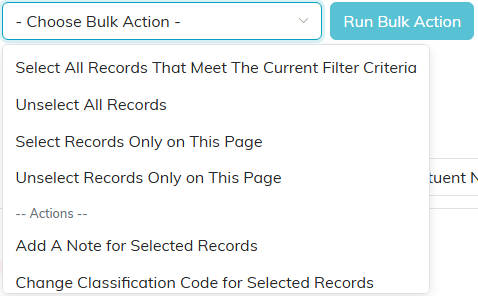
- Click Run Bulk Action. The Add A Note to Selected Records box opens.
- Type the note in Note Content. That is the only field; there is no subject and no note type.
- Click Apply to N Record(s), which tells you how many records it is about to touch. Cancel backs out.
Every selected record gets its own copy of the note, recorded against your name and the date. Locked records, and records set to View Only for you, are skipped unless you are a Master Admin, and Argenta tells you how many were skipped.
Worth using it for
- Recording a mailing that went to a group
- Marking that a batch of records was reviewed or verified
- Noting campaign participation across a set of donors
- Logging a phone banking session across many people
Read the count on the apply button before you click it. A bulk note cannot be undone in bulk, so it is worth being sure the selection is what you meant.
