Knowledge Base Article
How to Set Up Recurring Donations (Auto-Schedule)
A recurring donation tells Argenta that a gift repeats on a schedule. You create one from a donation you have already entered, and one also starts on its own when a donor picks Monthly or Annually on your public donation form.
Turning an Existing Donation Into a Recurring One
- Go to Fundraising > Donations and open the donation
- On Donation Details, click Make Recurring, on the line that reads This Donation IS NOT Auto-Recurring.

- In Add A New Recurring Donation, answer How Often Should This Donation Recur? by choosing Monthly or Annually.
- Click Add Recurring Transaction.
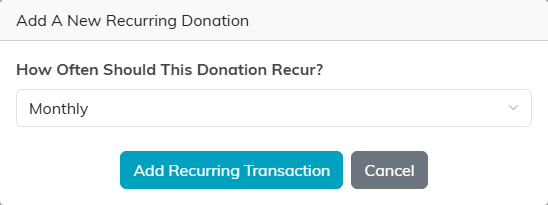
The Make Recurring button only appears on a donation that is not already part of a recurring series, so it disappears once the record has been converted.
Starting From the Recurring Donations List
Add New on Fundraising > Recurring Donations does not open a form. It explains that a recurring donation starts as an ordinary donation and, once you click OK, takes you to the Donations list: add the donation there, then use Make Recurring as above.
The same list is also reachable from General Financials > Recurring Donations, and a single donor's recurring gifts appear on their donor record.
How Often a Donation Can Recur
Monthly or Annually, the two choices Make Recurring offers. You cannot pick Weekly or Bi-Weekly here. A donation converted from a recurring pledge keeps the pledge’s own frequency, though, so it can recur Weekly or Bi-Weekly, and the donation says which. If the pledge has a Recurrence End Date, the gift stops there too.
Finding Recurring Donations Later
The Recurring Donations list can be filtered by donor, fund, account, campaign, department, donation category, payment method, payment point of entry, recurring frequency, donor type, donor category, donor level, a date range and an amount range.
