Knowledge Base Article
How to Add Notes to a Record
Most records have a Notes page in their workspace, listing every note with the newest at the top.
- Open the record and choose its notes page in the Workspace Menu, named for the record, such as Constituent Notes.
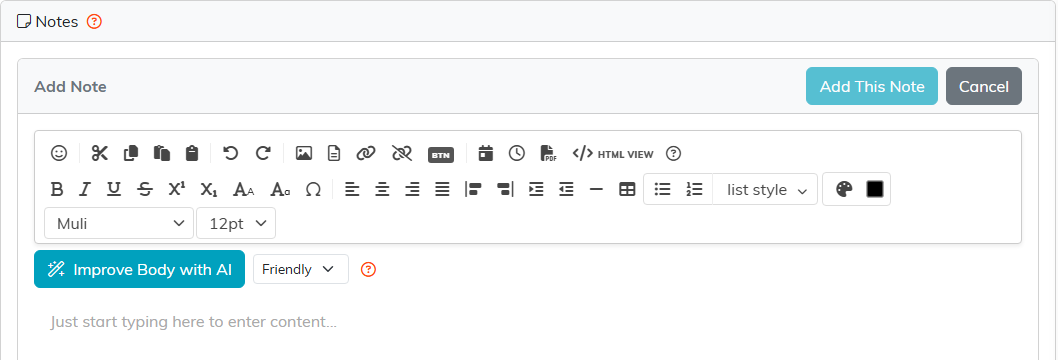
- Click Add A New Note. The full content editor opens, so you can format the text, paste in a table or add a picture.
- Click Add This Note, or Cancel to drop it.
To change a note later, click its edit icon. Save & Continue keeps it open for more editing, and Save & Exit closes it.
A note is one block of text and nothing else. There is no subject field, and no note type to categorize it. Everything you want the next person to see goes in the body.
Each note records the date and who wrote it, so the history reads clearly without anyone signing their name. Existing notes carry an edit icon and a delete icon.
Notes stay with the record, so whoever opens it next reads the same history you do.
