Knowledge Base Article
How to Run Reports
The Report Center is in the row of links at the top right of the screen, next to Help Center, and it opens on category tiles rather than a flat list. Pick a category, then the report.
- Open Report Center.
- Choose a category tile, or narrow the tiles with the filter at the top.
- Open the report you want.
- Set its filters. Most carry a date range, many add a team member, and each report has its own beyond that.
- Run it, then export to CSV or PDF if you need it out of Argenta.
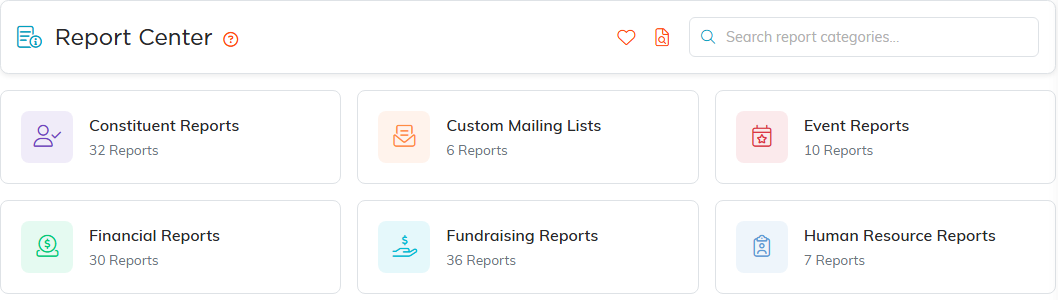
A report you use often can be marked a favorite, and your favorites are reachable from My Favorite Reports in your own profile menu, or from the heart icon at the top of the Report Center.
The Report Center only appears for an administrator, or for somebody with Report Manager set on their account. If it is missing from your menu, that is why.
Browsing the category you want is usually quicker than guessing at a report's name, because there are a great many of them and the names are specific. If you do know part of the name, the search icon beside the heart, Search All Reports By Name, finds it across every category.
