Knowledge Base Article
How to Add a New Constituent (Individual)
Adding an individual takes two short steps: pick the type, then give the name. Everything else goes on the record afterwards.
- Go to Constituents (CRM) > Constituent List.
- Click Add A New Constituent at the top of the list.
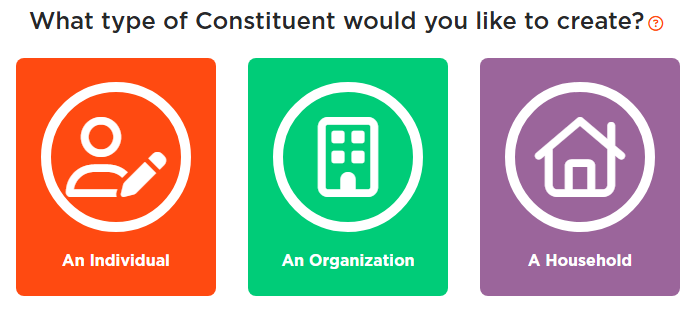
- Argenta asks what type of constituent you want to create. Click An Individual.
- Enter First Name and Last Name. Both are required and hold up to 50 characters. Until both are filled in, the button stays grayed out and a line above it says First Name and Last Name are required.
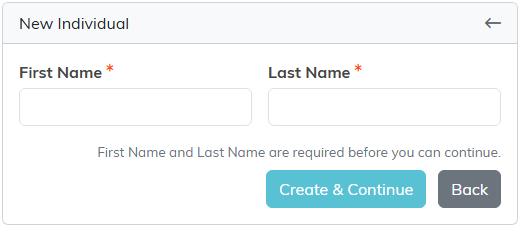
- Click Create & Continue. The record is created and opens in the Constituent Workspace.
Back, or the arrow at the top right of the card, returns you to the three choices.
The add screen asks for nothing but the name, so email, phone, address, prefix and suffix are all entered on the record afterwards. In the Workspace Menu, Contact Info holds email and phone numbers, Addresses holds mailing addresses, and Prefix and Suffix sit on the first section, Constituent Details.
The other two types work the same way. An Organization and A Household ask for a single name field instead of a first and last name.
