Knowledge Base Article
How to Set Up Your Organization Details
When you start with Argenta, set up your organization's basic information on the Subscription tab of Subscription Settings.
- Click Settings (the gear at the top right), then Subscription. Settings shows only to a Master Admin or a Subscription Admin.
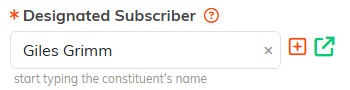
- In Designated Subscriber, start typing the name of the person who holds your subscription and pick them from the list. This field is required: the page will not save without it.
- Below Subscription Type, fill in your organization's details:
- Organization's EIN: your federal tax ID, which appears on your receipts and thank-you letters
- Registration #: your state registration number, if you have one
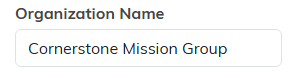
- Organization Name: your organization's official name
- Phone: your organization's main phone number
- Address, City, State and Postal Code
- Click Save All Changes at the bottom of the page, or the save icon at the top right.
Your logo, email color and signature
The panels on the right of the page save as you use them, without Save All Changes.
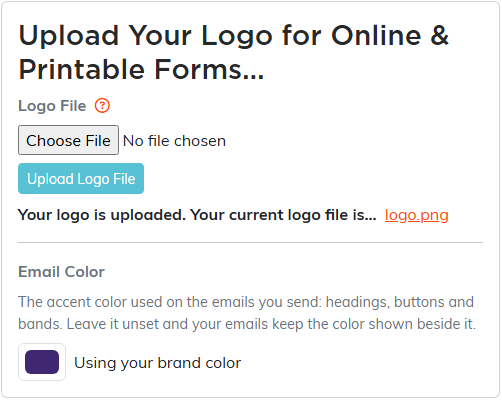
- Logo File: click Choose File, pick your logo, then click Upload Logo File. Your logo appears on your online and printable forms.
- Email Color: pick the accent color for the headings, buttons and bands on the emails you send. Use Argenta's puts the standard color back.
- Signature File: click Choose File, pick an image of the signature, then click Upload Signature File. It is used on your printable forms.
This information is used throughout Argenta for receipts, reports and communications.
