Knowledge Base Article
How to Add a New User
To add a new user to your Argenta system:
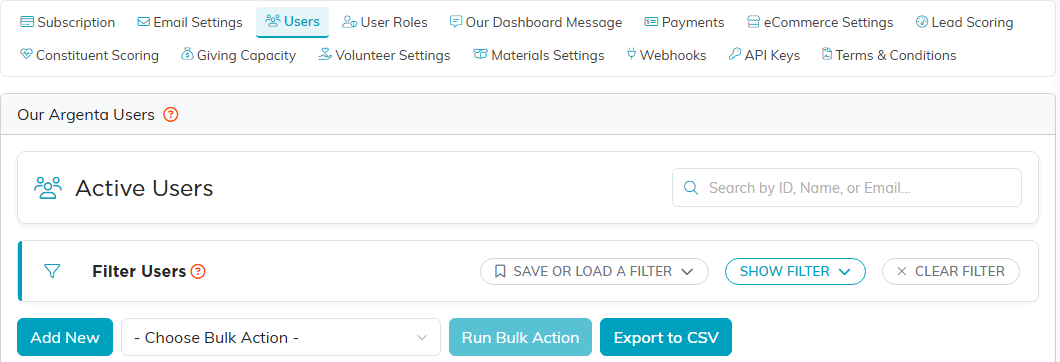
- Click Settings (the gear at the top right), then System Users. Settings shows only to a Master Admin or a Subscription Admin.
- Click Add New. It is grayed out once your active users reach the number your plan includes.
- Every user is an existing individual constituent. In Constituent, start typing the person's name, email or Constituent ID and pick them from the list.
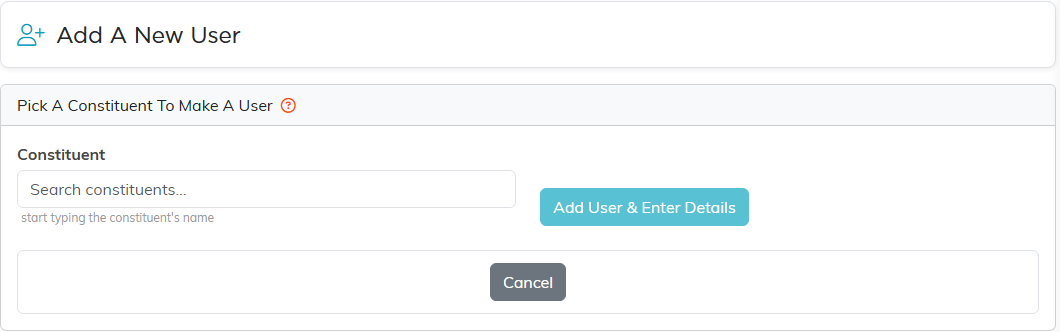
- Click Add User & Enter Details.
- On the User Details page, enter:
- User's ID: The login username
- User's Password: Must be at least 8 characters, including one number and one special character
- Master Admin (Y or N) and Subscription Admin (Y or N)
- Module permissions: Which areas of Argenta they can access
- Click Save All Changes & Exit, or Save All Changes & Continue to stay on the page
If you leave before saving, Cancel & Exit asks you first. A user record you have just created and not yet given a User ID and password to is offered for discarding, and it is deleted only when you confirm. The User List icon in the title bar only takes you back to the list, and never deletes anything. Once the user has been saved, neither one deletes it.
Tip: If the person doesn't exist as a constituent yet, add them as an individual constituent first; this lookup only finds individual constituents who are not already users.
