Knowledge Base Article
How To Send Text Messages in Argenta
How To Send Text Messages from Argenta
A guide for connecting Twilio and sending SMS text messages to your constituents.
Overview
Argenta partners with Twilio to send SMS (text message) communications. Texting is an effective way to reach your supporters. Argenta keeps its own record of anyone who has replied STOP, and checks every number against it before a message goes out. If someone has opted out, the message is not sent, and if that record cannot be read then nothing is sent at all. Getting and keeping consent to text your constituents stays with you.
Prerequisites: Connect Your Twilio Account
You need an approved Twilio account before you can send text messages in Argenta.
- In the left menu, open the Text Messaging section and click Send Text Messages. (You can also reach it from the Mail Room.)
- In the top right of the Text Messaging (SMS) card, click the Connect Twilio button.
- In the Connect Your Twilio Account window, enter the three values from your Twilio account:
- Twilio Account
- Twilio Auth Token
- Twilio Phone Number (the number your messages send from)
- Click Save. Argenta checks the details with Twilio first. If the account or token is wrong, the number is not on that Twilio account, or the number cannot send texts, it tells you which and saves nothing. When they check out, the card updates to show a green Twilio Connected badge, and you are ready to send.
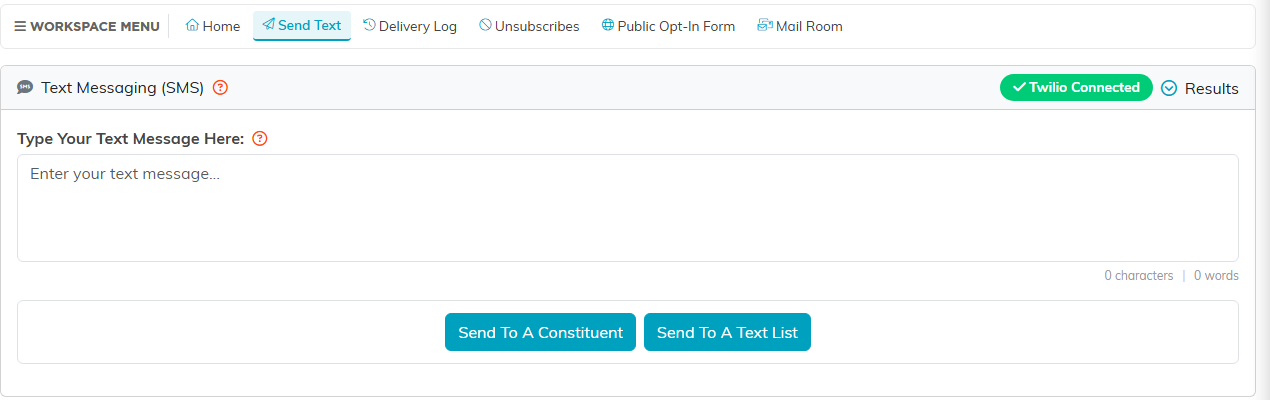
The Send Text page. The green badge shows Twilio is connected.
Sending a Text Message
You can send to a single constituent or to a saved text list. Type your message in the Type Your Text Message Here box, then choose one of the two options below.
To a Single Constituent
- Click Send To A Constituent.
- In Constituent To Send To, start typing the person's name and select them from the results.
- Click Send Text To This Constituent.
- Argenta confirms when the message has been sent.
To a Text List
- Click Send To A Text List.
- Under Select A Text List, choose your list from the dropdown (only text-eligible lists appear).
- Review the recipients in the preview. The Include "No Solicit" Constituents In List toggle starts off here, so the preview already leaves out people flagged No Solicit. Leave it off for anything that asks for money.
- Click Send Text To This List. Argenta tells you how many people the message is on its way to, and how many it skipped because they replied STOP. Sending carries on in the background, so you can close the page.
- Argenta confirms when the messages have been sent.
Checking Delivery and Unsubscribes
Use the Results menu at the top of the Send Text Messages page to open Delivery Results (the delivery log) or the Unsubscribe Log. The Text Messaging workspace menu also has Delivery Log, Unsubscribes, and a Public Opt-In Form.
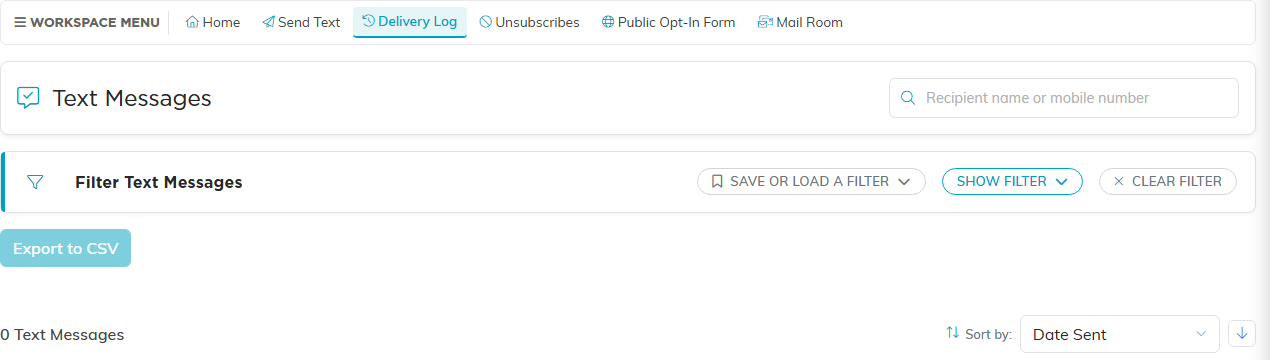
The Delivery Log, with search, filters and a CSV export.
About Text Lists
- Creating a list: Text lists are built from your constituent lists (volunteers, donors, members, and so on) using a bulk action. Filter your constituents first to target the right audience, then save them as a text list.
- Opt-outs: People who have opted out are automatically excluded, so you stay compliant.
- Managing lists: Review and manage your saved lists in the Mail Room.
