Knowledge Base Article
Creating and Managing an Installment Account
An installment account is any account with a fixed payment over a set period, like a loan or revolving credit. Argenta lets you set one up, record a starting balance, and add payments (decreases) and increases (such as interest) over the life of the account.
Add an installment account
- Select General Financials > Chart of Accounts in the left sidebar, then click Add New. This opens the Add A New Account screen.
- Fill in Account Number, Account Name, Account Type, and Account Detail Type, all required (you can add a new detail type with the add icon). Click Add & Enter Details, and Argenta creates the account and opens it.
- Set Loan/Installment/Revolving Credit Account to Yes. This is what makes it an installment account.
- Fill in the rest:
- Account Status (required).
- Date Opened, the institution's account number, contact name, phone, and address, and an account description are all optional.
- Click Save All Changes & Exit. Your new account appears in the Chart of Accounts list.

Step 1. Add New sits above the Chart of Accounts list.
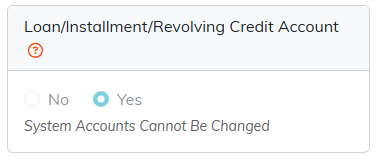
Step 3. Set to Yes, this is what makes the account an installment account.

Step 4. The orange asterisk marks a required field.

Account Type and Account Detail Type are both required. Date Opened is optional.

The institution and contact fields are all optional.
View and add transactions
Installment accounts have their own register. From the Chart of Accounts, click the register icon on the account's row to open its transaction register. (Argenta routes you to the right register for the account type.)

The register icon is the first of the four on the account's row.
- Your starting balance appears in the list as an increase, since it increases what you owe.
- Add transactions using the General Financials tools (the General Journal, Deposits, Expenses, and Withdrawals), recorded against this installment account.
- For each transaction, set whether it is a Payment/Decrease or an Increase: payments or credits are decreases, while interest or added charges are increases.
- Enter the constituent in the Constituent Payee or Payor field, the transaction date and amount, the fund and account, the payment method, and a Check/Reference # if you have one. Note whether it has been reconciled.
- Click Save All Changes & Exit to save and return to the account's register.
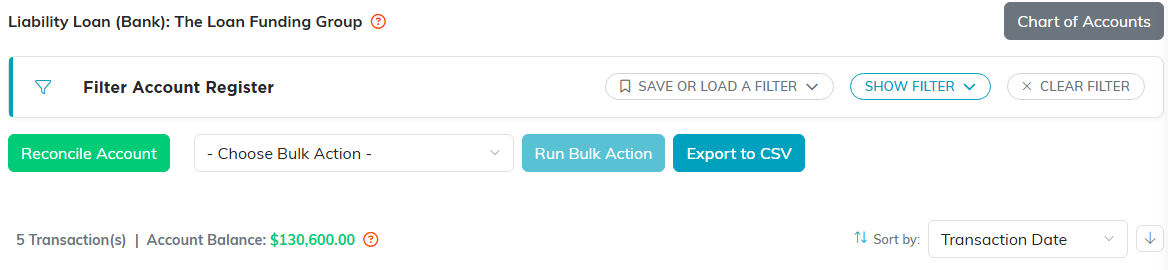
An installment account's register names the account type and carries its balance.

This register shows Decrease and Increase rather than deposits and payments.
View or update a transaction
Open the account's register from the Chart of Accounts (the register icon), then click the open icon on the transaction you want. Make your changes on the Transaction Detail screen and save.
Delete a transaction
In the account register, click the delete icon on the transaction you want to remove. What happens next depends on where that line came from, and Argenta tells you which case you are in before anything is removed.
- A line that belongs to another record, such as a payment, a deposit or an expense, will not delete here at all. Open that record and delete it from its own page, which is what keeps your books balanced.
- One side of an account transfer removes the whole transfer, both sides together.
- One line of a manual journal entry removes the entire entry, every line in it. Argenta tells you how many lines that is.
- A standalone journal line is removed on its own.
Deletion is permanent in every case, so read the message before you confirm.

The delete icon sits under the open icon on the transaction's row.
