Knowledge Base Article
Import A CSV File from Argenta into Outlook Contacts
CSV files exported from Argenta import cleanly into the Outlook desktop app's Contacts. This walks through the Argenta side in detail, then the parts of the Outlook import that trip people up: duplicates and field mapping.
Step 1: Export the list from Argenta
- Go to Communication > Manage Mailing Lists.
- Click the green Open List icon on the list you want. The Mail Room List Workspace opens on List Members.
- Narrow the list first if you only want part of it. The search box and both switches above the list (Include "No Solicit" Constituents In List, and Include Constituents Who Cannot Receive Email, Mail or Text Messages, depending on the list type) all apply to the export.
- Click Export List. Your browser downloads a file named after the list, like MajorDonors_Export.csv.
You need to be an admin or have the Can Export Lists To Excel permission to see the Export List button.
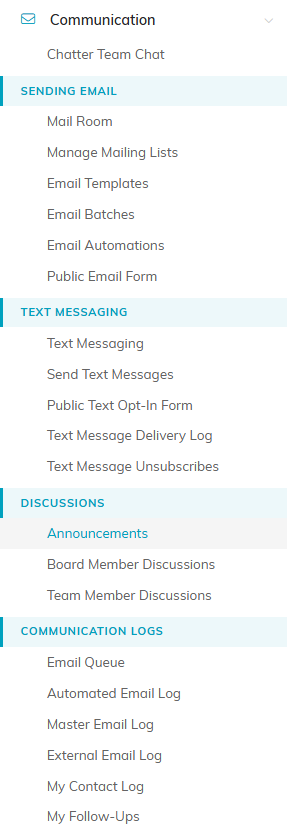
Manage Mailing Lists sits under Sending Email in the left menu.
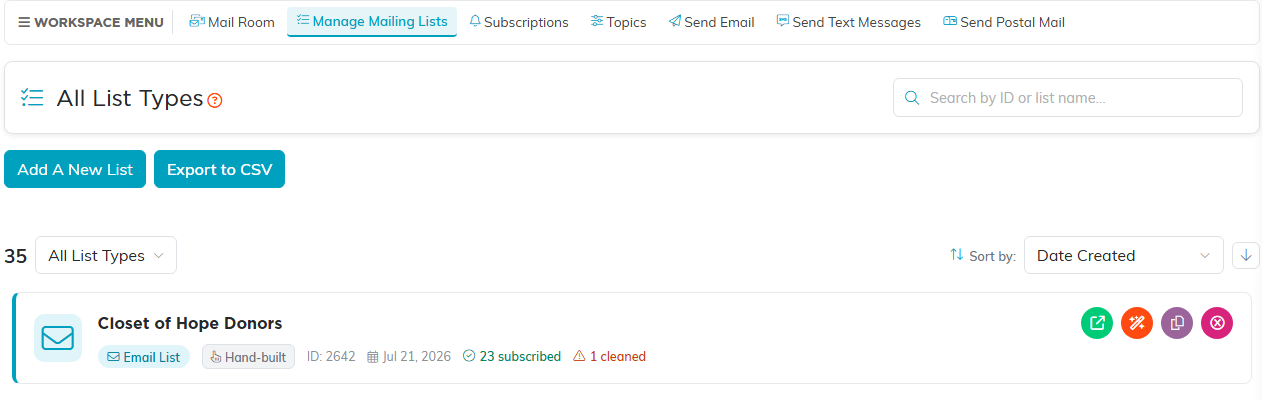
The green Open List icon on a list opens its workspace.

List Members is the second item in the Workspace Menu.

The search box and the switches above the list shape what Export List gives you.
You need a mailing list before you can export one. For help creating one, see Add Mailing Lists, and for working with one, see Using Mailing Lists.
Know which columns you are importing
Every export starts with a header row, which is what Outlook reads when it matches columns to contact fields. The columns depend on the type of list.
- Email List. First Name, Last Name, Email Address, Cell Phone (blank when the member has none).
- Mail List. First Name, Last Name, Salutation, Formal Salutation, Envelope Salutation, Address Line 1, Address Line 2, Address Line 3, City, State, Postal Code, Country, City State Postal, Is Solicit Ok.
- Text List. First Name, Last Name, Mobile Number, Mobile Provider, Is Solicit Ok.
A Text List export skips anyone with no mobile number, even if they show on screen. Email List and Mail List exports include everyone on the list, with or without an address.
A few of our columns have no natural home in Outlook. City State Postal is a convenience column for mail merges, and Is Solicit Ok is an Argenta consent flag. Both are easiest to leave unmapped, or delete them in Excel before you import.
Step 2: Import the file into Outlook
Outlook is Microsoft's product and its menus shift between versions, so rather than a click path that goes stale: open the import option from Outlook's File area, choose to import from another program or file, choose Comma Separated Values, browse to the file Argenta gave you, and pick the destination Contacts folder. Microsoft keeps the current screens for every version at Import contacts to Outlook.
Choosing how duplicates are handled
Somewhere in the wizard Outlook asks what to do when a person is already in your contacts. The three choices, and when each is the right call:
- Replace duplicates with items imported. Outlook throws away what it has and uses the Argenta version. Pick this when Argenta is your system of record and your Outlook contacts are stale.
- Allow duplicates to be created. You end up with two entries for the same person, one from each side. This is usually the default. It is the safe choice if you are not sure, though it leaves cleanup for later.
- Do not import duplicate items. Outlook keeps what it has and ignores the incoming row. Pick this when your Outlook contacts are richer than the export, for example when they carry phone numbers and notes the export does not.
Mapping the fields
Outlook tries to match our header row to its own contact fields automatically, and for a straightforward Email List export it usually gets it right. When the columns are less obvious, especially a Mail List with three salutations and three address lines, use Outlook's map fields option before you finish. Drag each of our columns onto the Outlook field you want, and leave anything with no good match unmapped.
Worth checking by hand: our Address Line 1 through Address Line 3 should go to the matching lines of one Outlook address, not to three different addresses. And decide which of our three salutations you actually want, since Outlook has fewer places to put them.
Good to know
- The export is a snapshot, not a live connection. Nothing you change in Argenta afterward flows into Outlook, so re-export when you want a refresh.
- Import a small test list first if this is your first time. It is far easier to check ten contacts than to unpick a thousand.
- If you have more than one email account in Outlook, choose the Contacts folder under the account you want these people attached to.
For the Microsoft 365 version of this, see Import A CSV File from Argenta into Outlook 365.
