Knowledge Base Article
Overview, Working with Grant Calendar/Schedule
The Grant Calendar lays your grants out by date so you can see what is coming instead of discovering it. Open it from Grant Management > Grant Calendar View.
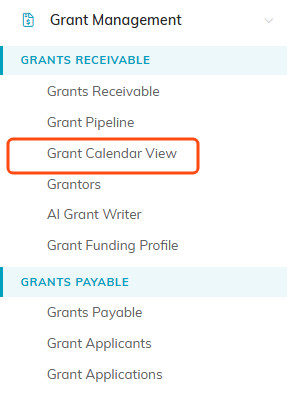
Grant Calendar View is the third item under Grants Receivable.
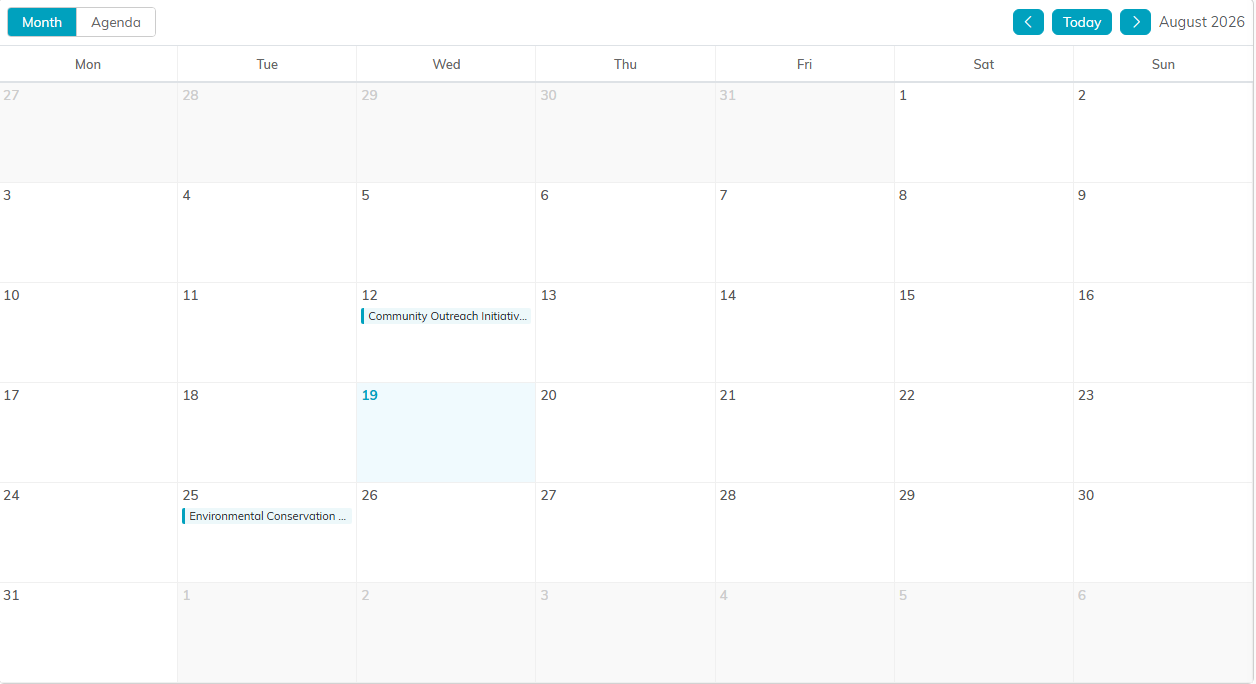
A grant shows up on the day its chosen date falls.
Choose Which Date To Plot
This is the setting that makes the calendar useful, and it is the one people miss. At the top is a Plot grants by dropdown with five choices:
- Submitted Date (the default)
- Due Date
- Report Due Date
- Notification Date
- Funding Date
Switch it depending on the question you are asking. Due Date to see what has to be written, Report Due Date to see what you owe funders, Funding Date to see when money should arrive.
A grant only appears if the date you picked is filled in on its record, so a sparse-looking calendar usually means missing dates rather than missing grants.
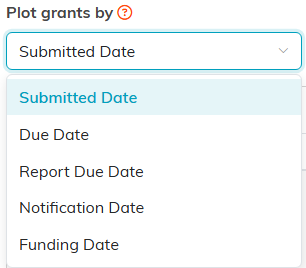
Five dates to plot by. Submitted Date is what you get until you change it.
Move Around
- Month gives you the calendar grid.
- Agenda gives you a list, which is easier to scan when you just want the next things due.
- Use the arrows to step between months, and Today to jump back to the current one.

Month and Agenda on the left, the month stepper and Today on the right.
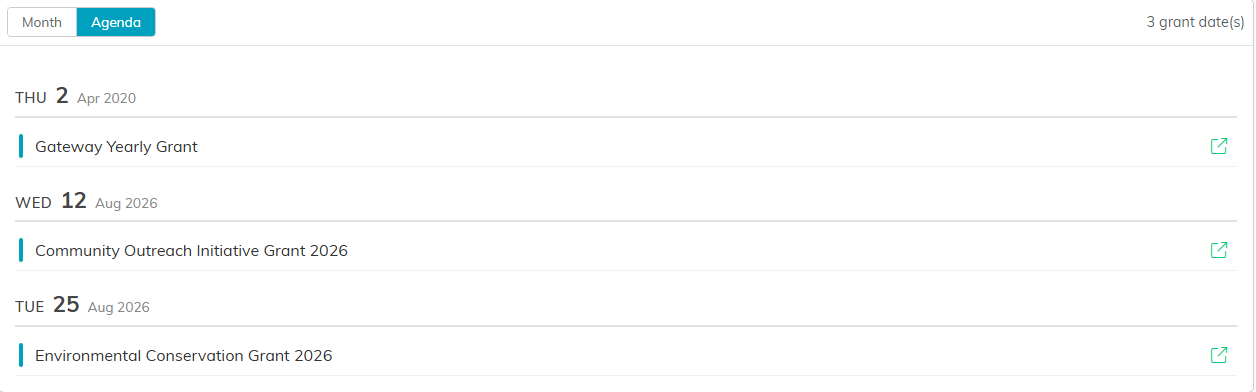
Agenda drops the grid and lists the dates in order.
Add A Grant From Here
There is an add button at the top, so you can create a grant without leaving the calendar. For the full walkthrough see Add Grants We Receive.

Add New sits above the calendar.
Export It
Click Export To PDF to save the current view. Handy for a board packet or a team meeting, and it exports what you are looking at, so set your date type and month before you export. The PDF is headed with the month it shows and which date the grants are plotted by.

Export To PDF sits next to Add New.
