Knowledge Base Article
Using the Volunteer Task Calendar
The volunteer task calendar shows your volunteer tasks in a month view instead of a list, which makes it much easier to see how the work is spread across the weeks. If you want volunteers to see the tasks you have available so they can sign up to help, you can request a public interface for your Volunteer Task Calendar. For more information on public forms and interfaces, contact your account manager.
To open it, select Volunteerism > Volunteer Task Calendar View from the Argenta main menu on the left side of the screen. You can also get there from your Volunteer Tasks list by clicking the Calendar button above the list.
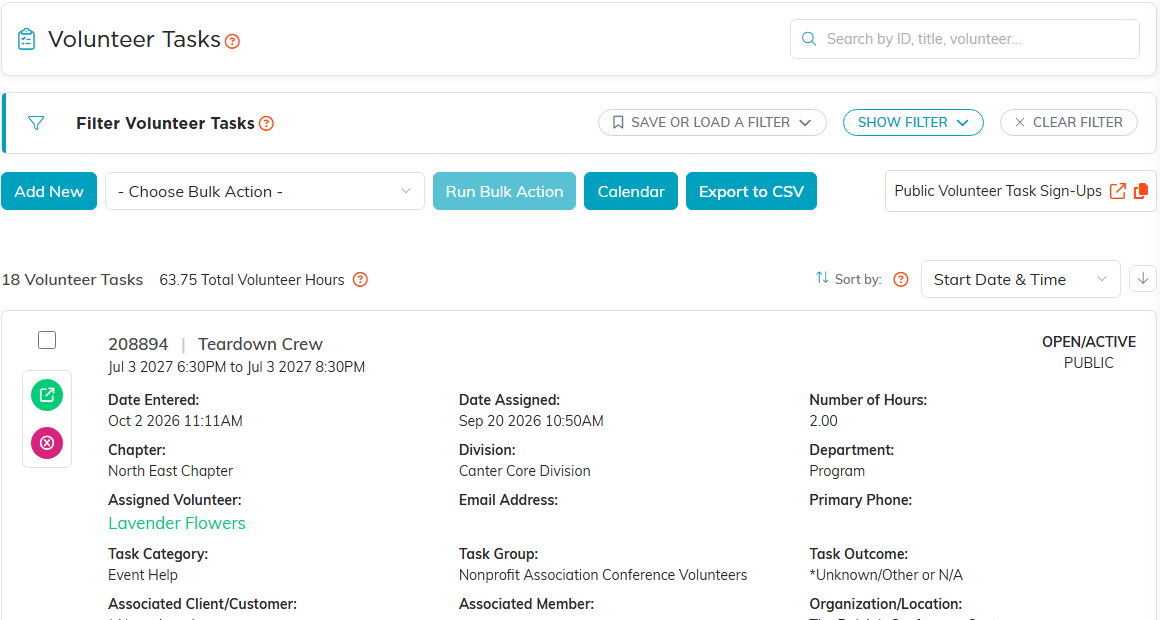
The Calendar button above the Volunteer Tasks list.
Viewing Your Tasks
Each task appears on the day it is scheduled. Click any task on the calendar to open it on the Task Details page of the Volunteer Task Workspace, where you can view or update everything about it. When you are finished, Argenta returns you to the calendar rather than to the list.
To go back to the standard list at any time, click the List View button above the calendar. To the right of those buttons is a short Show Me How To Use This Page video; click it to watch, and use its chapters to jump to the part you need.
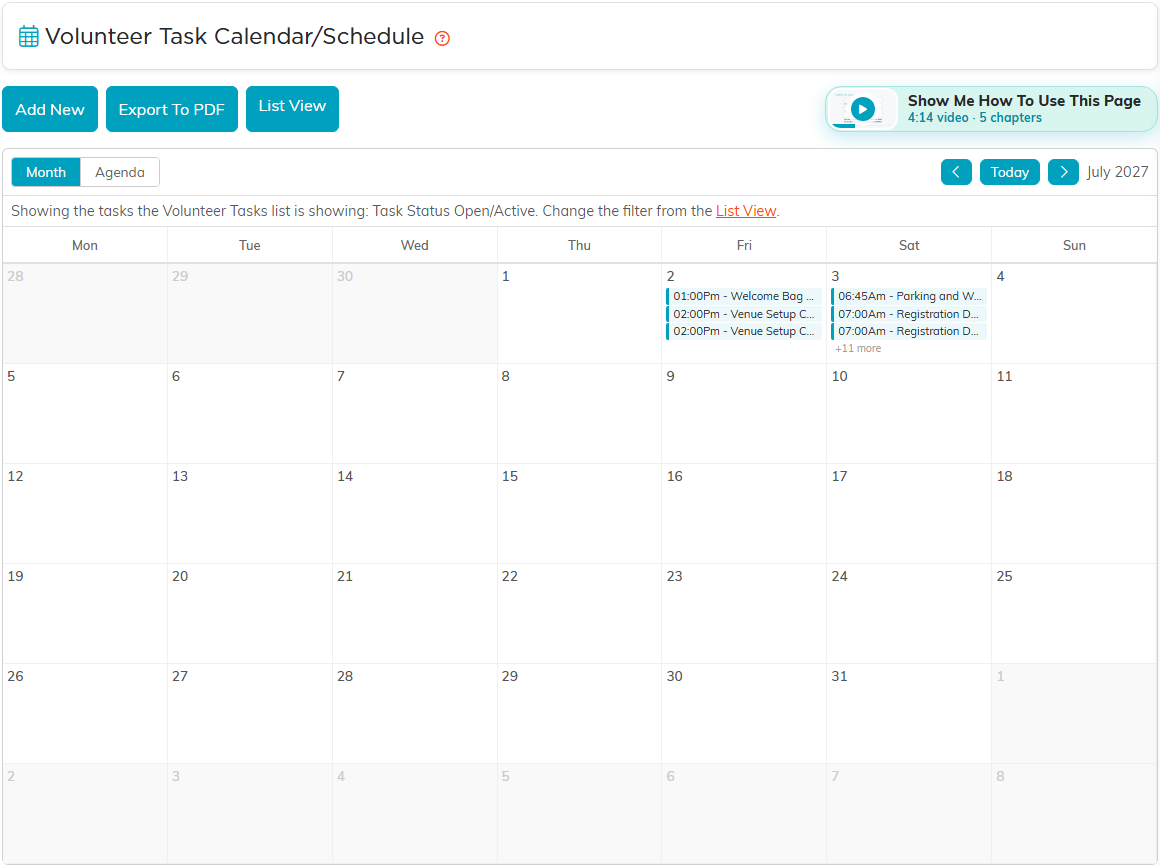
Each task sits on the day it is scheduled. Click one to open its Task Details.
Adding a Task from the Calendar
There are two ways to get a task onto the calendar. The first is to add a volunteer task the usual way from your Volunteer Tasks list. The second is to click the Add New button above the calendar. Either route asks for the Volunteer Task Title and the Start and End Date & Time first, all required, then Add & Enter Details creates the task and opens its Task Details page. Coming from the calendar, Argenta brings you back to the calendar when you exit. Either way you end up in the same place. For help filling out the task, see Add Volunteer Tasks.
Remember that a task only reaches your public volunteer calendar once you check Display On Public Calendar on the task and fill in its details. For more on that, see Add Volunteer Tasks To A Public Calendar.
Signing Up Versus Telling You When They Are Free
These are two different things in Argenta, and it helps to know which one you are after.
Signing up happens on your public volunteer task calendar, the one you request as a public interface. A volunteer opens it, finds a task you have published, and clicks Sign Up. They are choosing one task on one day.
Availability is the weekly pattern of when a person can serve, such as every other Tuesday from 10 to 2. Your staff record it on the volunteer's own record, under Availability in the Volunteer Workspace Menu. Each entry takes an Iteration, a Weekday, a Start Time and an End Time, and one entry covers one weekday, so somebody free on Tuesdays and Thursdays needs two. Volunteers do not fill this in themselves, so gather it however suits you and record it for them.
Exporting the Calendar
Click the Export To PDF button above the calendar to save the month you are looking at as a PDF, which is handy for printing a schedule or emailing it to a group of volunteers. This button appears for administrators and for users who have export rights.

Add New, Export To PDF and List View all sit above the calendar.
