Knowledge Base Article
Overview, Working With Account Transfers
This article explains how to work with account transfers: viewing them, editing them, and deleting them. An account transfer moves money between two of your existing accounts.
To get there, select General Financials > Account Transfers in the left sidebar. The Account Transfers list shows every transfer you have recorded, with the transfer ID and description, the amount and date, and the From and To accounts.
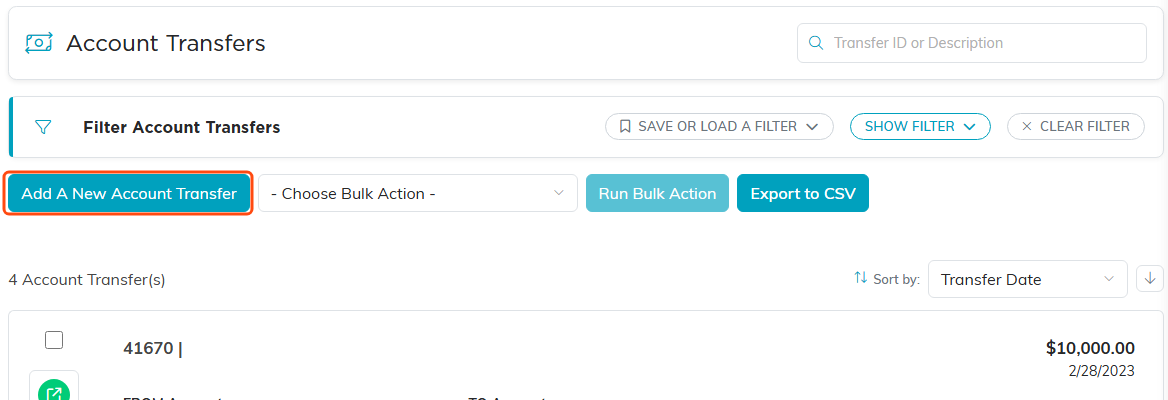
The Account Transfers list, showing each transfer's From and To accounts.
View or open a transfer
Find the transfer you want (search or filter the list if you have a lot of them), then click the green open icon on its row. This opens the Account Transfer Details page, where you can see and edit everything about the transfer.
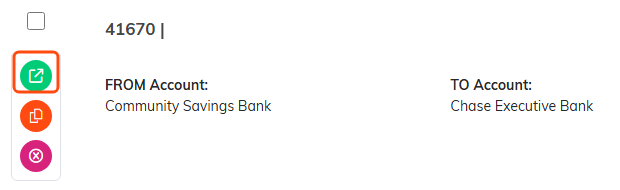
The green open icon is the top one on the row.
Working with the list
- Add a transfer with the Add A New Account Transfer button. A short form opens asking for the From Account, the To Account, the Transfer Date and the Amount. Fill those in and click Add & Enter Details, and Argenta creates the transfer and opens it for you to fill in the rest. Cancel & Exit leaves nothing behind.
- Filter the list with the Filter Account Transfers panel (by From Account, To Account, or a transfer date range), then click Apply Filter. Use Clear Filter to reset it, and you can save a filter to reuse later.
- Sort the list with Sort by: Transfer Date, Transfer Amount, Transfer Description, From Account, To Account, or Transfer ID.
- Search by transfer ID or description using the search box.
- Export the list to a spreadsheet with the Export to CSV button (available if you have export permission).
- Bulk actions: select several transfers and delete them together from the bulk actions menu.
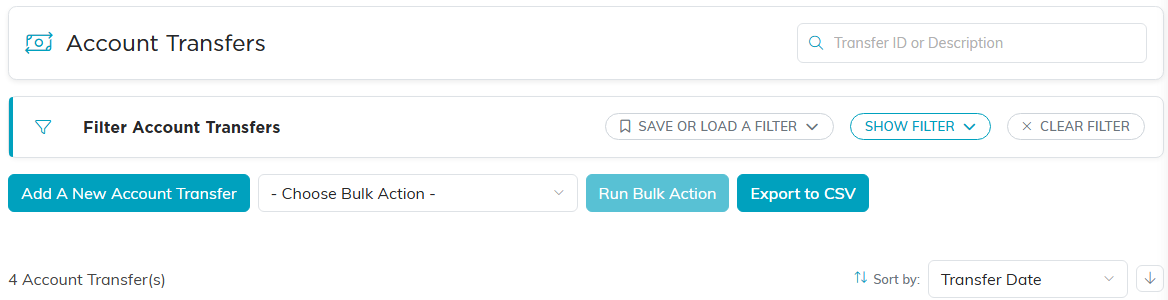
The list controls. Search sits top right, sorting bottom right.

The transfer is created when you click Add & Enter Details, not before.
Edit or update a transfer
Open the transfer, then change any of its fields: Transfer Date, Amount, From Account, To Account, or Transfer Description/Reason. When you are done, click Save All Changes to save and keep working, or Save All & Exit Record to save and go back to the list.
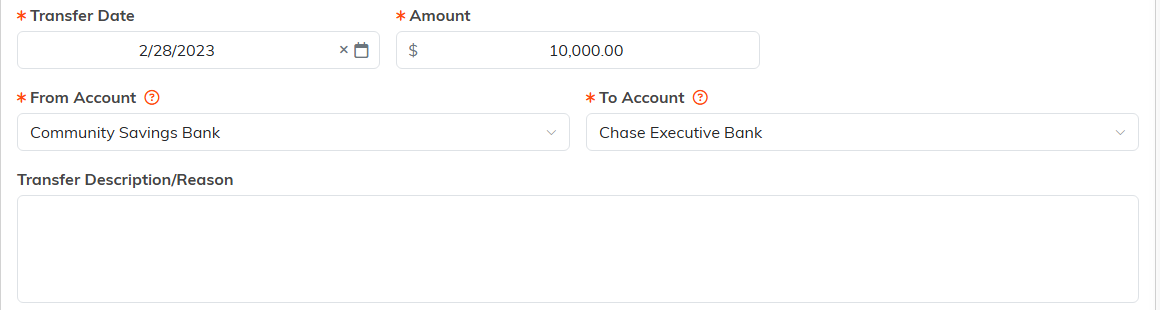
The fields you can change on a transfer.

Exit Record leaves without saving.
Delete a transfer
To delete a transfer, open it and use the delete icon in the title bar, or click the pink delete icon on its row in the list. Argenta asks you to confirm first. Deleting a transfer reverses its effect on both the From and To accounts, and the action cannot be undone, so delete carefully. If a transfer is locked, unlock it (or ask an administrator) before you can delete it.

The delete icon in the title bar, with the record open.
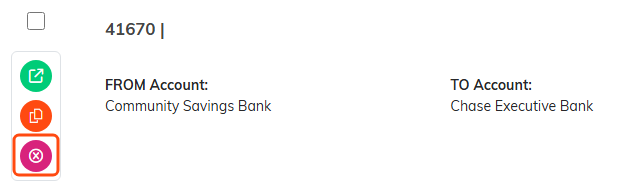
Or the pink delete icon on the row itself.
