Knowledge Base Article
How to Use Constituent Groups
What Are Constituent Groups?
Every module in Argenta has its own built-in constituent categories. Donors, volunteers, members, staff. Those are system affiliations that keep things organized automatically.
But sometimes you need custom groupings. Maybe you want to track everyone who attended a specific training, or all the constituents in a particular neighborhood, or people you are cultivating for a capital campaign. That is what Constituent Groups are for.
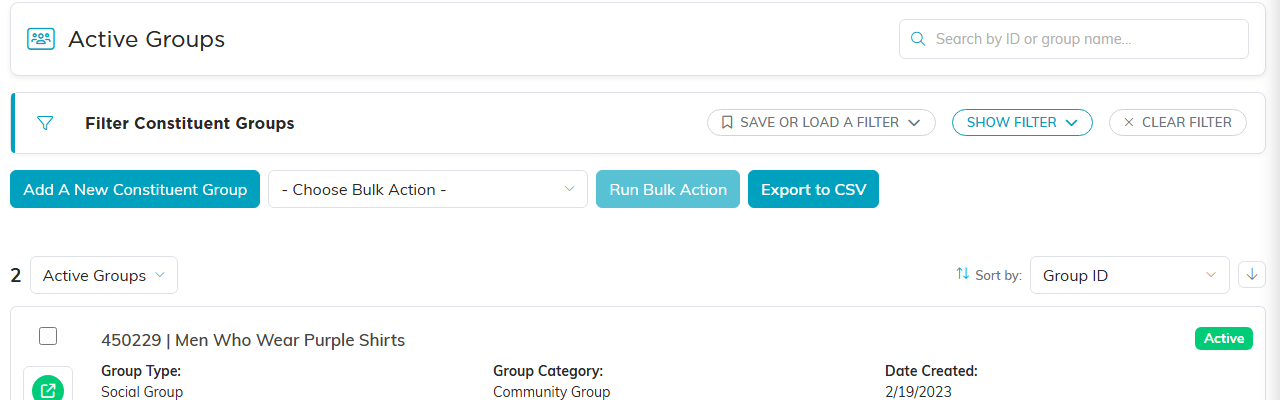
The Constituent Groups list.
Where to Find Constituent Groups
From the main menu, go to Constituents (CRM) > Constituent Groups. This opens the full list of groups your organization has created.

The groups a person belongs to, on the Constituent Groups tab of their own record.
Creating a New Group
- From the Constituent Groups list, click Add A New Constituent Group.
- Enter a Group Name. Make it descriptive so others on your team know what it is for. It is the only thing Argenta needs to start.
- Click Add & Enter Details. The group is created and its details page opens, where the type, category and description are set.
You now have an empty group ready for members.
Adding Constituents to a Group
There are two ways to add people to a group:
One at a Time
Open the group, then add individual constituents by searching for them and selecting them.
In Bulk
From the main constituent list or any module list (donors, volunteers, etc.), use the bulk actions feature:
- Select the constituents you want to add using the checkboxes.
- Choose the bulk action to add them to a group.
- Select which group to add them to.
- Run the action.
Inside a Group: The Workspace Tabs
Open a group from the Constituent Groups list to reach its workspace. The Workspace Menu holds six tabs: Group Details, Constituents In This Group, Associated Invoices, Related Files, Notes and Record Permissions.
Each tab has a short Show Me How To Use This Page video at the top right. Click it to watch, and use its chapters to jump to the part you need.
Group Details
The group's own settings. Click Save All Changes to save and stay, or Save All & Exit Record to save and go back to the list.
- Set As View Only and Lock This Record: View Only lets other users open the group but not change it, and Lock keeps them out of it. Whoever created the group, master admins and the users named on Record Permissions are not held back by either.
- Group's Status: Active or Inactive for the group itself. An inactive group keeps all of its members and drops out of the list's default view of active groups.
- Group Name (required) and Group Description.
- Assigned Team Member: the team member who looks after the group.
- Group Type and Group Category: your organization's own lists, used to filter the group list. Admins and users who can build codes see a plus beside each to add a new choice.
- Chapter, Division, Department, District and Precinct: the parts of your organization the group belongs to.
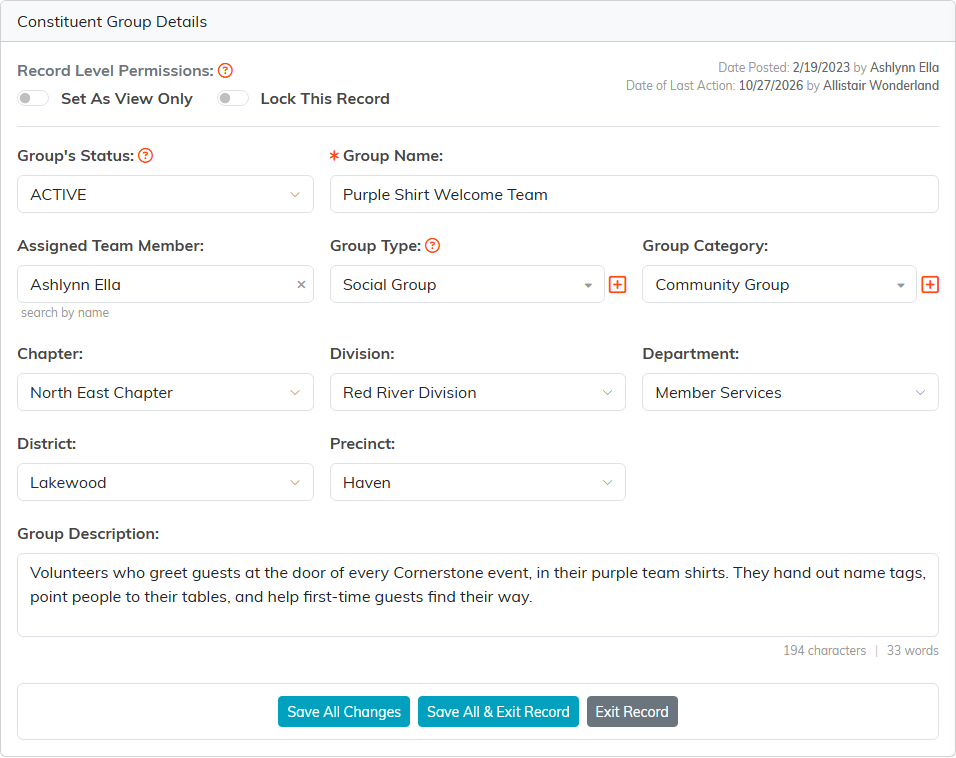
Group Details holds the group's status, name, assignments and description.
Constituents In This Group
Everyone in the group, one card each, showing their address, phones, Active Date and Role in this Group. The list opens on Active members; switch the dropdown beside the count to Inactive or All to see the rest. The search box finds members by name, email, role or constituent ID.
- Add New opens a search. Type a name, email or ID, choose the person and click Add to Group. Someone not in your records yet can be created with the plus beside the search.
- Export To CSV downloads the members the list is showing, so a search narrows the file too.
- Tick members, choose a bulk action and click Run Bulk Action: Assign Selected Constituents as Leads, Create A New Mailroom List With Selected Records or Add Selected Records To An Existing Mailroom List. The first choices in the list select or unselect the page or every record.
- The green button opens a person's membership. The pink Remove from Group button takes them out of the group once you confirm. Only the membership and its own files and notes go; the person's constituent record is untouched.
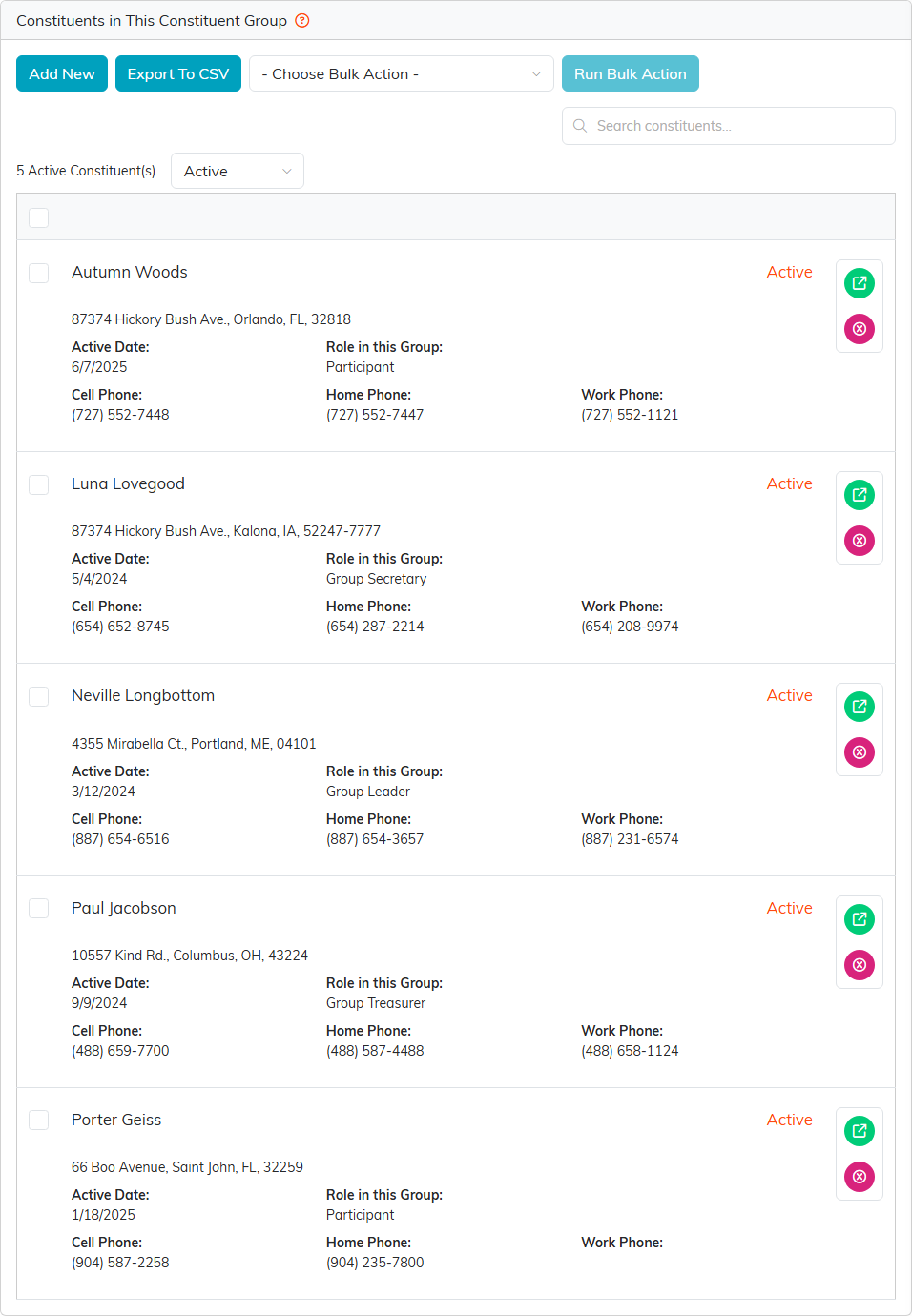
Each member's card shows when they joined and their role in the group.
Opening a membership shows the person, with a link to their constituent record, above three settings: Status (Active or Inactive in this group), Active Date (required) and Role in the Group. Roles are one list shared by every group on your team, and admins and master builders can add a role with the plus. Save with the save icon at the top of the workspace.
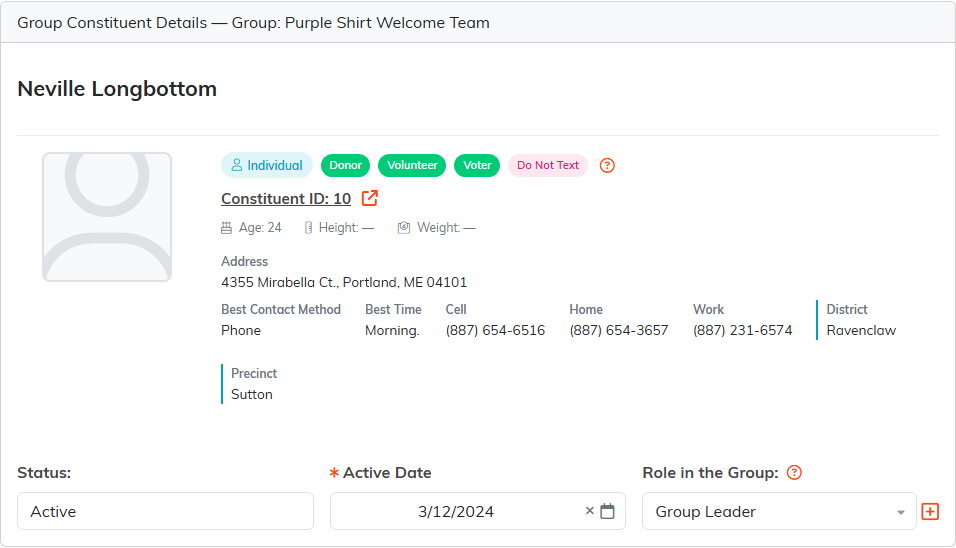
A member's status, active date and role belong to this group alone.
Associated Invoices
Every invoice linked to this group, with its recipient, amount, dates, type, status and department. Click an invoice's ID to open it. An invoice shows here because it names the group under Associated Constituent Group on its own Connections tab, and its recipient is whoever is billed, who need not be a member. The amount is the billed total and does not drop as payments come in, so read Invoice Status and Date Paid or Closed to see what is still owed.
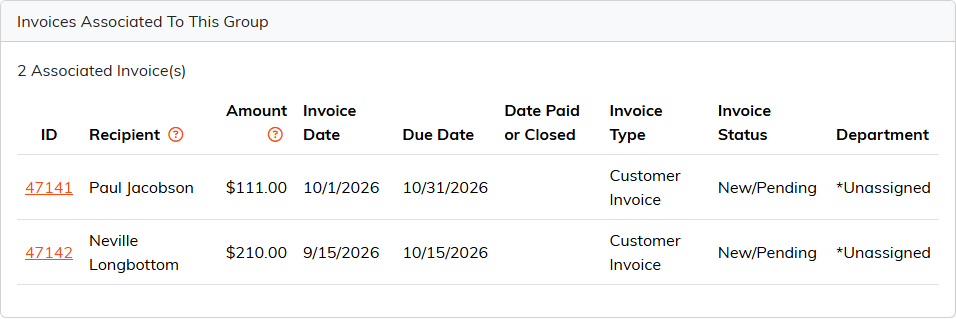
Invoices linked to the group from their Connections tab.
Related Files
Files kept with the group, such as schedules and checklists. Drag files onto the box, or click it to browse, then click Save The Selected File(s). Click a file's name to view it; the green button downloads it and the pink button deletes it.
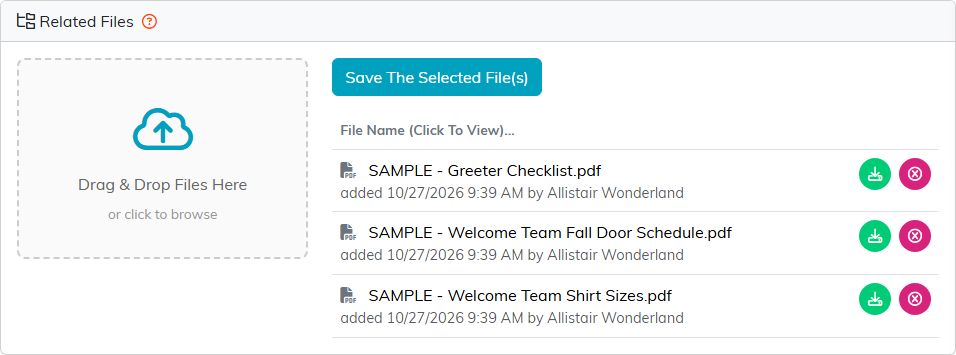
Drop files on the box, then save them to the group.
Notes
Click Add A New Note, write the note and click Add This Note. Each note shows the date it was created and who wrote it, newest first. The green button edits a note and the pink button deletes it.
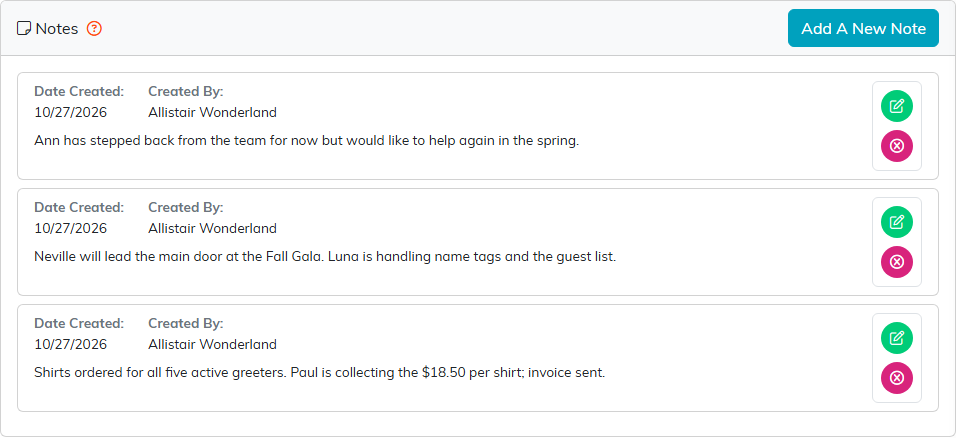
Notes keep the group's history in one place.
Record Permissions
Two lists of users who are not held back by the group's View Only and Lock settings. Users under View Only Access can still edit the group when it is set to View Only, and users under Locked Record Access can still open it when it is locked. Type a user's name, choose them and click Add; the pink button takes someone off. The badge on each panel shows whether that setting is on for the group right now.
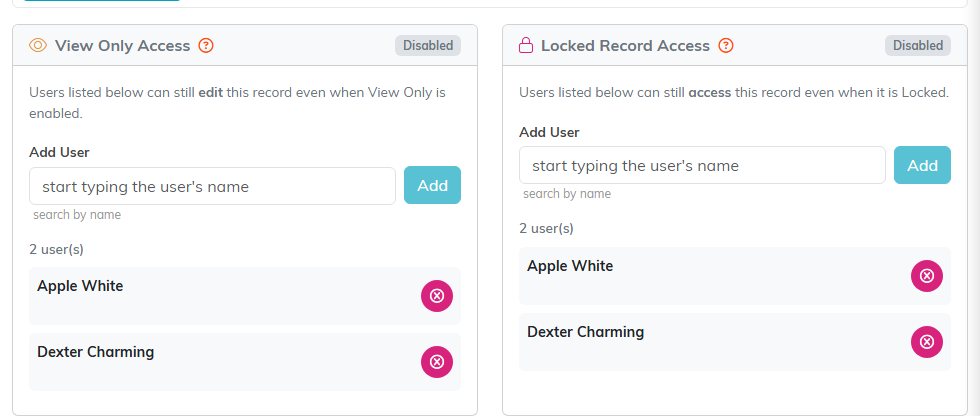
Name the users who can still work on the group when it is view only or locked.
What You Can Do with Groups
Once you have people in a group, you can:
- Create mailing lists from the group for email, text, or postal campaigns
- Filter and report on group membership
- Export the group to CSV for external use
- See them on the person in a Constituent Groups card on their own record, for clients, constituents, donors, grantors, members, parents, participants, recipients and volunteers
Tips
- Use clear, specific names. "2026 Gala VIPs" is better than "Group 1."
- Groups are flexible. A constituent can belong to as many groups as you want. Groups do not affect their system affiliations (donor, volunteer, etc.).
- Review groups periodically. Remove outdated groups to keep the list manageable.
- Combine with bulk actions to save time. Select 50 constituents, add them to a group, then build a mailing list from that group in seconds.
