Knowledge Base Article
Overview, Working with Grantors
Grantors are the foundations, agencies, businesses, and individuals that award grants to you. The Grantors screen is where you view, update, and manage all of them. Get there from Grant Management > Grantors or Constituents (CRM) > Grantors. Both open the same list.
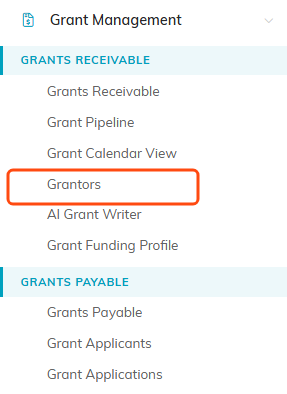
Grantors sits under Grants Receivable. The Constituents menu has the same link.
The Grantors List
This is the complete list of your organization's grantors. Search it by ID, name, or email address, or narrow it with the filters: Grantor Type, Acquisition Source, Associated Campaign, Chapter, Division, and Department. Political organizations also get District and Precinct.
Use Add New to add a grantor, and Export to CSV to download the list you are looking at.

The search box takes an ID, a name or an email address.
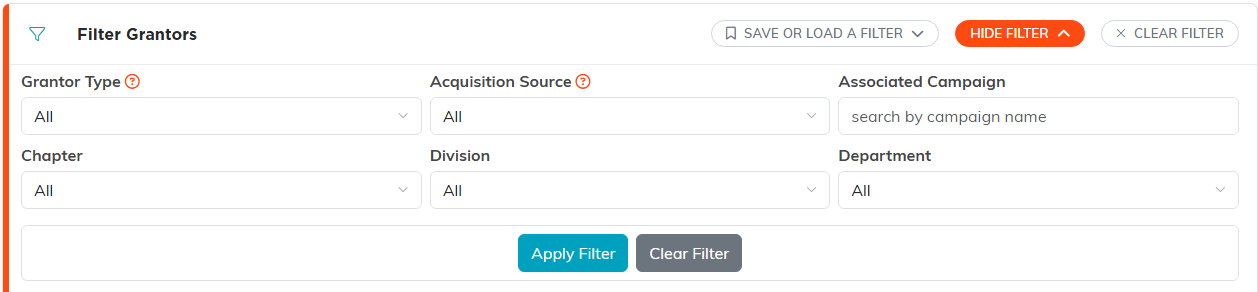
Show Filter opens the panel. Political organizations also get District and Precinct.

Add New is at the left of the row, Export to CSV at the right.
Opening A Grantor
Find the record and click its open button. That takes you into the Grantor Workspace.
At the top you get the record's audit information (when it was posted and when it was last touched) and the grantor's constituent card, showing their photo, name, email, and key contact details. Click the photo to add or change it. Click the constituent link on the card to open the full constituent record in a new tab, which is where addresses and contact details live.

The green button on the row opens the Grantor Workspace.
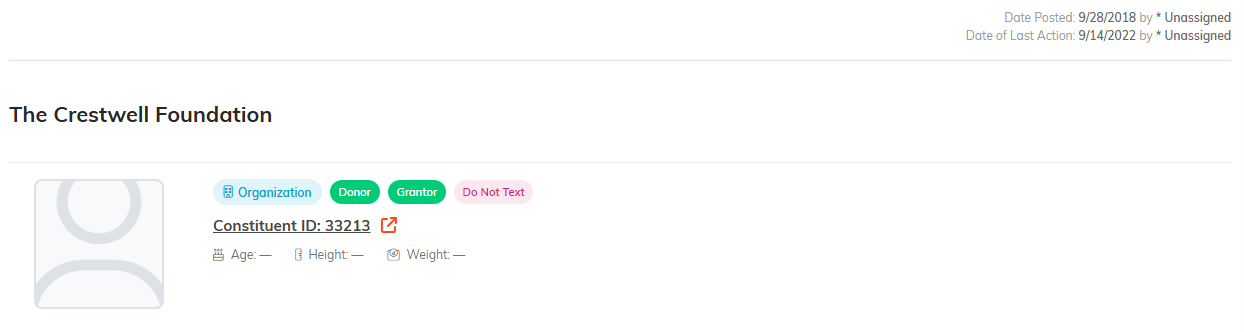
Audit dates sit above the card. The Constituent ID link opens the full record.
Updating The Details
Below the card you can change Grantor Type, Acquisition Source, and Associated Campaign, plus the Chapter, Division, and Department the record belongs to. Political organizations also see District and Precinct. Click a dropdown or start typing to search for a value.
Then save:
- Save All Changes: saves and keeps you in the record.
- Save All & Exit Record: saves and returns you to the list.
- Exit Record: leaves without saving.

The six fields you can change on a grantor record.

Save, save and leave, delete, or leave without saving.
Deleting A Grantor
You can delete from the list using the delete button on the row, or from inside the record with Delete This Record. Either way you get a confirmation prompt.
Be careful here. Deleting is final, it cannot be undone, and it removes the person as a grantor: their grantor type is cleared, and their grantor engagements and grantor contact log entries are permanently deleted. Their constituent record stays. Do not delete unless you are certain none of that data is needed.
Argenta will not delete a grantor who is attached to any grant, or whose record is set to View Only for you.
Locked records cannot be deleted, from the list or from the workspace, because both routes run the same check. A grantor's lock is the Locked switch on their constituent record; switch it off there first. A Master Admin can delete a locked record without unlocking it.

The pink button on the row starts a delete.
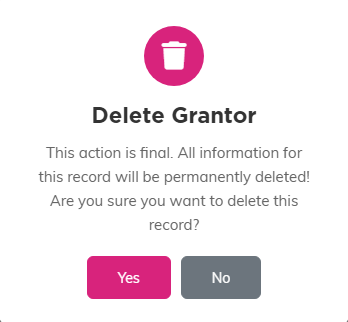
Nothing is deleted until you answer Yes here.
Bulk Actions
To update many grantors at once, search or filter the list, tick the records you want, then choose from the - Choose Bulk Action - menu and click Run Bulk Action.
The menu starts with selection helpers: Select All Records That Meet The Current Filter Criteria, Unselect All Records, Select Records Only on This Page, and Unselect Records Only on This Page. The first one is the useful one, because it reaches every record matching your filter rather than just the page in front of you.
Then the actions:
- Add A Note for Selected Records: writes one note onto every selected record, skipping records that are locked, or set to View Only for you, unless you are a Master Admin.
- Change Classification Code for Selected Records: pick the code type and the new value to apply.
- Add Engagements To Selected Records: records an engagement against all of them.
- Add To Constituent Group: search for a group and add the records to it.
- Create A New Mailroom List With Selected Records: builds a new mail room list from your selection.
- Add Selected Records To An Existing Mailroom List: adds them to a list you already have. These Mail Room actions only appear for users with the Mail Room Manager permission, and for Master Admins.
- Delete All Selected & Unlocked Records: deletes the selection after a confirmation. Records that are locked or set to View Only for you are skipped unless you are a Master Admin, and so is any grantor attached to a grant. Argenta lists the records it skipped.
Bulk delete cannot be undone either. Check your filter and your selection count before you run it.
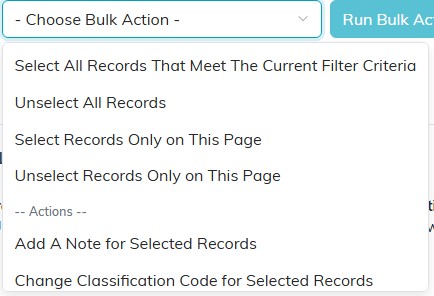
The menu opens on the four selection helpers.
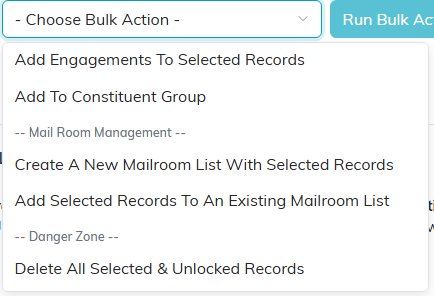
Scroll the menu for the actions themselves. Delete sits in its own Danger Zone.
