Knowledge Base Article
Overview, Working With Members
Members are the people who belong to your organization through its membership program. Argenta gives you a dedicated Members screen to view, update, and manage every member record. This article covers opening, editing, deleting, and bulk-updating members.
Open the Members list
Go to Constituents (CRM) > Members or Membership > Members. The list opens on your active members rather than all of them, so somebody whose membership has lapsed is on file but not in the view you land on. The status dropdown switches between Active Members, Inactive Members and All Members. Search by ID, name, or email, or open the filter panel to narrow by Membership Status Code, Member Type, Member Category, Membership Level, Active Status, assigned Team Member, Chapter, Division, Department, date ranges, and more. Use Add New to create a member and Export to CSV to download the list.
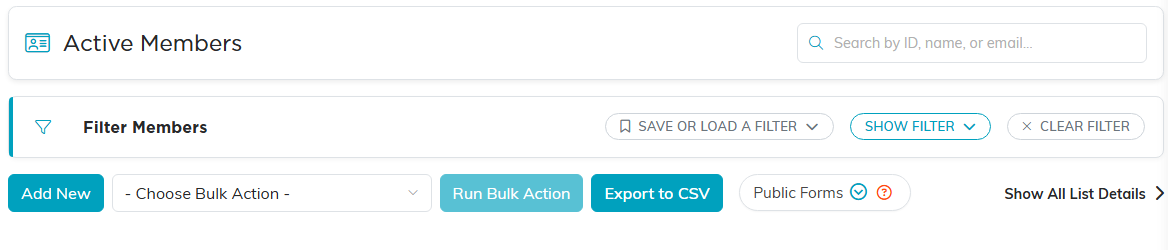
Search sits top right. Show Filter opens the criteria panel.
View or open a member
Find the record and click the green open icon beside it to open the Member Workspace. At the top of Member Details you will see the record's audit information and the member's constituent card (photo, name, email, and key contact info). Click the photo to add or change it, or click the Constituent ID link on the card to open the full constituent record in a new tab.
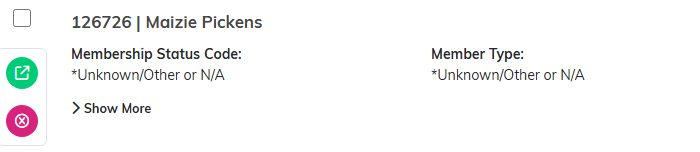
The green icon opens the record. The pink one deletes it.
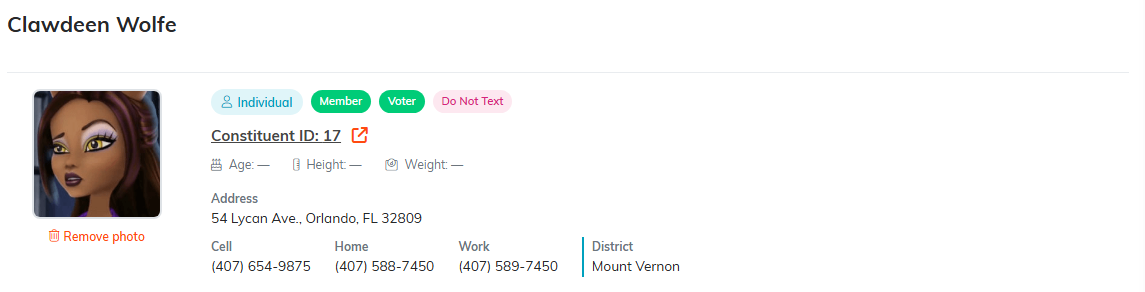
Click the photo to change it, or the Constituent ID link to open the full record.
Along with Member Details, the workspace includes: Groups, Skills & Experience, Training, Payments, Programs, Status Log, Follow-Up, Contact Log, Notifications, Email Log, Member Files, Member Notes, and Record Permissions. Depending on your setup you may see an extra section or two.

Click any tab to move to that part of the member record.
Edit or update
Below the constituent card, update the member's fields with the drop-downs or by typing new values. When you are done, click Save All Changes & Continue to keep working or Save All Changes & Exit to save and return to the list.

The buttons at the foot of Member Details.
Delete a member
You can delete a member from the list using the delete icon beside the record, or from inside the record using Delete This Record. A confirmation window appears first. Deletion is final and cannot be undone, so never delete a member unless you are sure you no longer need any related data. In practice most members cannot be deleted at all. Argenta refuses it once the member has invoices, membership fee payments, card payments, mission projects or volunteer tasks against them, and, for all but card payments, asks you to make the member inactive instead.
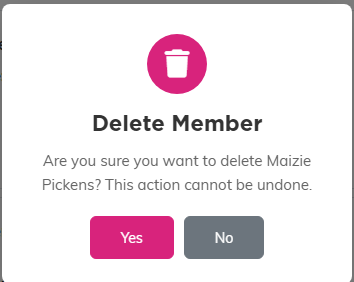
Nothing is deleted until you click Yes.
Bulk actions
To update many members at once, filter the list, check the records you want, choose an action from the - Choose Bulk Action - menu, and click Run Bulk Action. The menu also has selection helpers (Select All Records That Meet The Current Filter Criteria, Unselect All Records, Select Records Only on This Page, Unselect Records Only on This Page). The available actions are:
- Add A Note for Selected Records
- Change Classification Code for Selected Records
- Assign A Team Member for Selected Records
- Add Engagements To Selected Records
- Add To Constituent Group
- Add To Event Participant/Guest List (only for users with the Event Manager permission, and for Master Admins)
- Create A New Mailroom List With Selected Records
- Add Selected Records To An Existing Mailroom List (these two Mail Room actions only appear for users with the Mail Room Manager permission, and for Master Admins)
- Delete All Selected & Unlocked Records (locked records are skipped, unless you are a Master Admin)
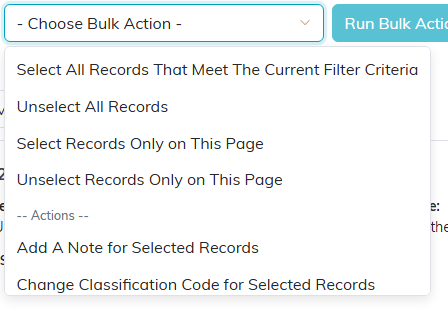
The selection helpers sit above the actions. Scroll the menu for the rest.
