Knowledge Base Article
View and/or Update Fiscal Donations
Once a fiscal donation is entered in Argenta, you can open it to view or change the details, record who solicited it, send or print a receipt, and work with related files and notes.
Open a fiscal donation
From the left menu, go to Fundraising > Donations for the full list of your fiscal donations. Search or scroll to find the one you want, then click the open icon to open the Fiscal Donation Workspace on the Donation Details screen.
Each tab of the Fiscal Donation Workspace has a short Show Me How To Use This Page video at the top right; click it to watch, and use its chapters to jump to the part you need.
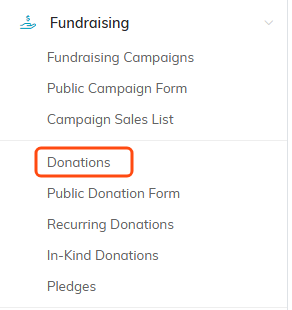
Donations sits under Fundraising in the left menu.

The green icon on the row opens the Fiscal Donation Workspace.
Edit and receipt the donation
On the Donation Details screen, change whatever you need. You can record who brought the gift in with the Solicited By (Team Member) field, and use Send Donor A Receipt or Print Receipt to deliver a receipt. When you're done, click Save All & Continue to keep working or Save All & Exit to save and return to the list.

Solicited By records who brought the gift in.

The receipt buttons sit at the top of the record, once a donor is selected.

Save All and Continue keeps you here. Save All and Exit goes back to the list.
The rest of the workspace
Besides Donation Details, the Fiscal Donation Workspace has these tabs: Connections, Refunds, Donation Files, Donation Notes, and Record Permissions.

The six tabs of the workspace.
