Knowledge Base Article
Adding Organization Information and Logo
Argenta keeps your organization's own details in one place, and uses them on the forms and documents it produces for you. It is worth filling in early, because your logo and signature flow straight through to the forms your supporters see.
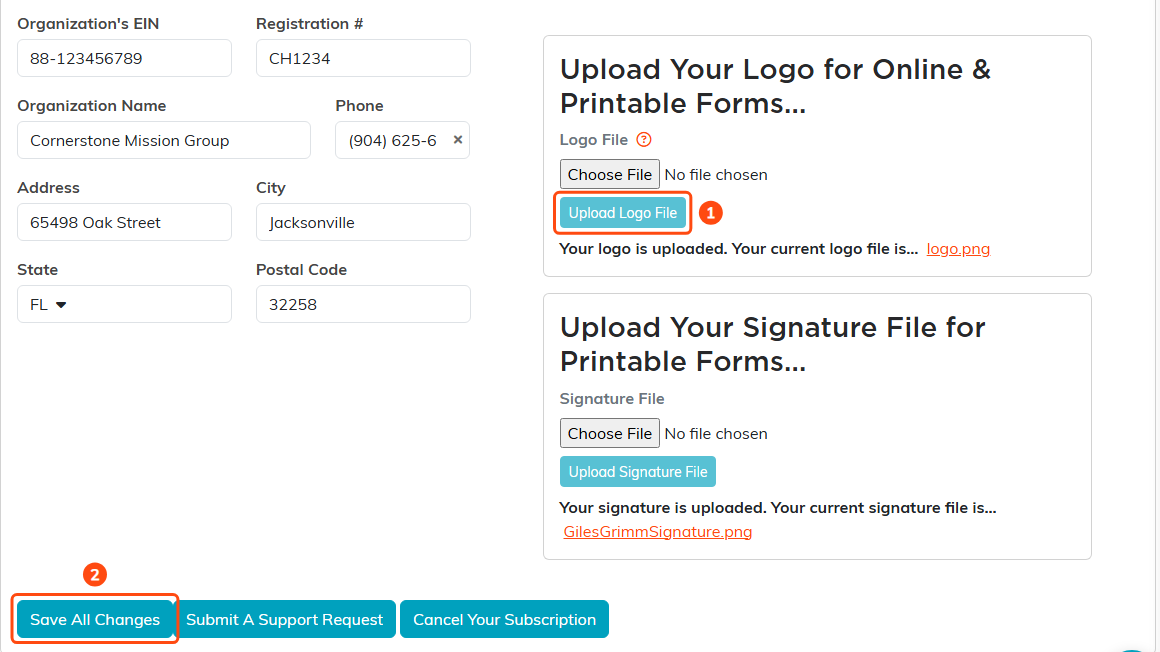
1 choosing a file is not enough on its own, you have to click Upload Logo File. The signature underneath works the same way. 2 saves the fields on the left.
Enter your organization's information
- Click Settings at the top right of the screen, then choose Subscription. That opens Subscription Overview. Only Master Admins and Subscription Admins see Settings.
- Scroll down to the organization fields and fill in what applies to you:
- Organization's EIN
- Registration #
- Organization Name, Phone, Address, City, State, and Postal Code
- Click Save All Changes.
Upload your logo
Your brand matters, and your logo appears on both your online and your printable forms.
- On the same page, find Upload Your Logo for Online & Printable Forms.
- Choose the logo file from your computer.
- Click Upload Logo File.
Upload your signature
Some Argenta forms leave space for a signature. Upload one and those printable forms are signed for you. This is optional.
- Just below the logo section, find Upload Your Signature File for Printable Forms.
- Choose the signature file from your computer.
- Click Upload Signature File.
If you need a hand
There is a Submit A Support Request button at the bottom of this same page. You can also click Help Center at the top right of any screen. We are glad to help, and happy to walk you through training.
