Knowledge Base Article
Setting User Permission
User permissions control what each person in your organization can see and do in Argenta. They are hierarchical: system level, module level, department level, and all the way down to an individual record. System, module and department permissions can only be set by a Subscription Administrator or a Master Administrator. Record level permissions can be set by anyone who has access to that record.
Open the system user list
- Log in to Argenta and click Settings at the top right of the screen.
- Choose System Users from the menu.
The Settings menu only appears for a Master Administrator or a Subscription Admin. You can reach the same list from the Subscription Settings workspace, where it is the Users tab.

Step 1. Settings sits at the top right of every page.
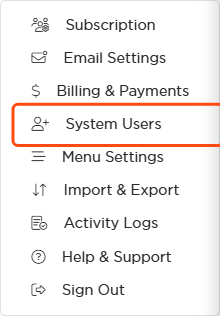
Step 2. Choose System Users from that menu.
The system user list
The list opens on your active users, showing what administrative privileges each one holds. It is not everybody: use the dropdown beside the count to switch between Active Users, Inactive Users and All Users. Somebody you have deactivated is still on file and still findable, just not under the view the page starts on.
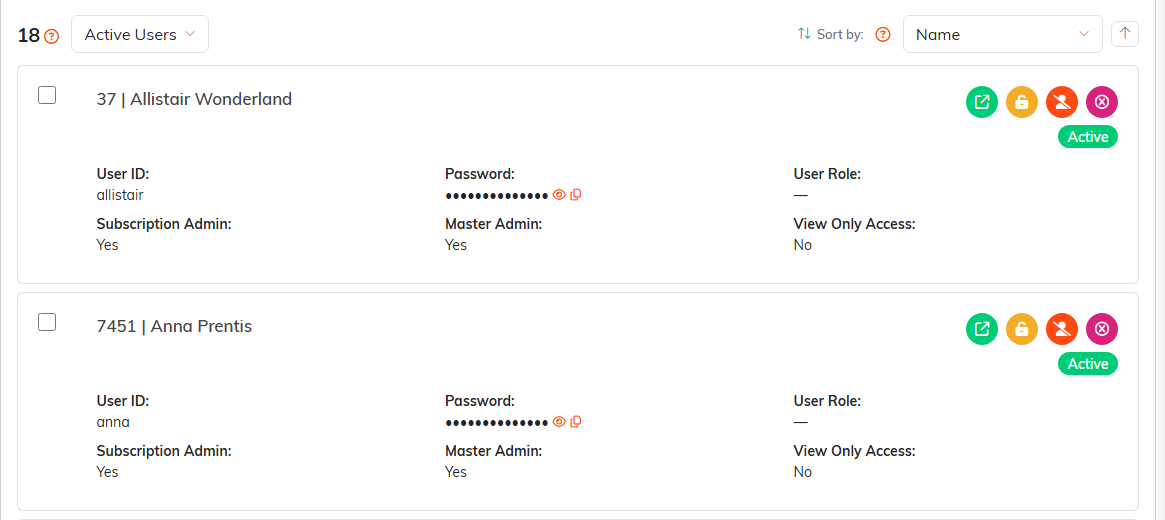
Each card shows the User ID, the password, the user role and the administrator flags.
What else you can do from this screen
- Add a user with Add New
- Export the list with Export to CSV
- Search for a user by ID, name or email
- Open a user record
- Unlock a user account
- Make a user inactive
- Delete a user
- Tick several users and run a bulk action across all of them
When Argenta will not let you delete. The Argenta Support Team user and any system account cannot be deleted by anyone. A locked user cannot be deleted either, unless you are a Master Admin. Make the person inactive instead.
Click SHOW FILTER to see Total Users and Total Active Subscription Users. If your plan sets a limit on active users, Included In Your Plan appears alongside them.

Open a user record
Click the green open icon on a user's card to open the User Workspace. It opens on the User Details card, which starts with that person's contact information.
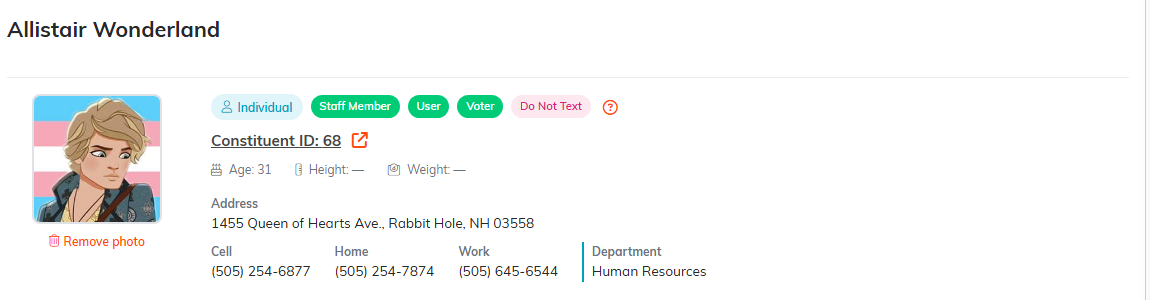
To change the person's contact information, click the Constituent ID link. That opens their full constituent record in a new tab. Save your changes there before you close it.
Set the first level of permissions
Below the contact band you set the user's Status, User's ID and User's Password, then use the Y or N dropdowns to set the first level of permissions.
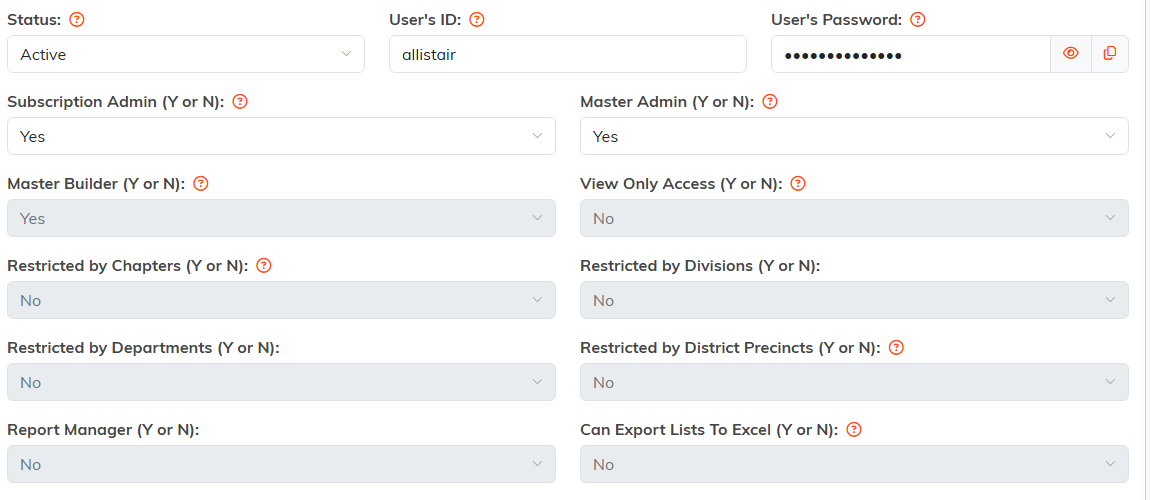
Status, ID and password, then the Y or N permission dropdowns.
Dashboard and module permissions
Further down the workspace, Dashboard Permissions sets which dashboards the user can open, and Module Permissions sets which parts of Argenta they are allowed to manage. Use Select All or Unselect All to switch every module at once.
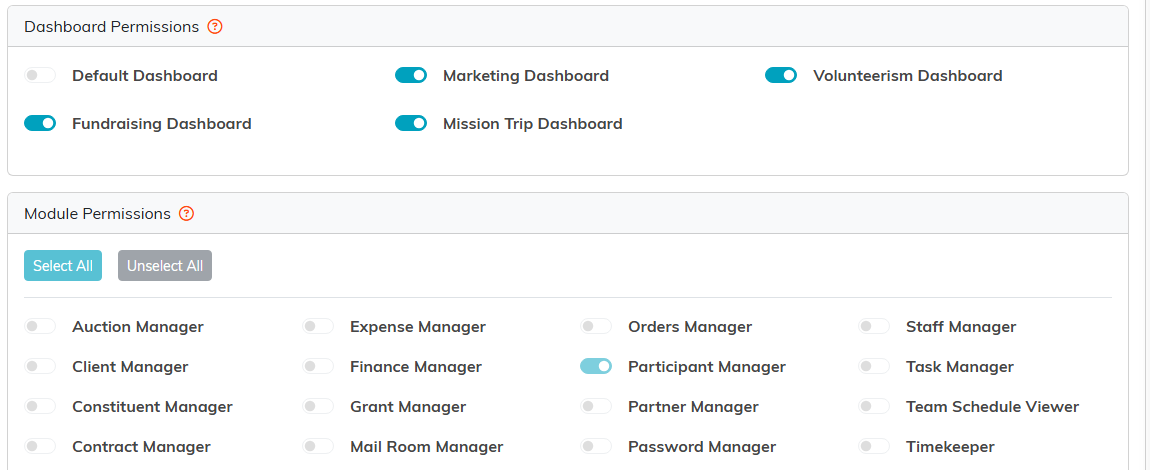
Dashboard Permissions, then Module Permissions.
Below these you will find Chapter, Division, Department and Precinct Level Permissions. If your organization does not use one of those, the card says so instead of listing options.
Remember to save the user record when you have finished setting permissions.
