Knowledge Base Article
Add A Mission Trip Account
A Mission Trip Account is an organization, household, or individual that takes part in your mission trips, a lot like a customer. An account can enroll in one or more mission trips. Every account is built on an existing constituent, so make sure the constituent exists first, then group them here as a Mission Trip Account.
Add a mission trip account
- Open the account list. From the left menu, go to Mission Trips > Mission Trip Accounts.
- Click Add New. This opens the Add A Mission Trip Account screen.
- Fill in the account. Only the constituent is required; the rest are optional but helpful.
- Click Add This Account. The new account is created and opens in its workspace.
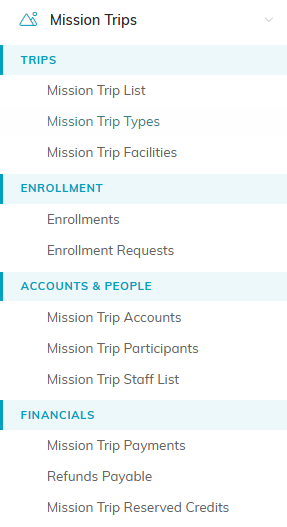
Mission Trip Accounts sits under the Accounts & People heading, inside the Mission Trips menu.

Add New on the Mission Trip Accounts list.

Add This Account creates the account and opens its workspace.
Fields
- Group/Account (Constituent) (required) - start typing to search for the constituent this account is for, then select them. A group can hold only one account, so anyone who already has a Mission Trip Account is not offered here; open their existing account instead. If they aren't a constituent yet, add them first (see Add Constituent - Individual).
- Account Contact (Constituent) - the main contact person for the organization or household.
- Account Manager (Team Member) - the team member who supports this account.
- Account Type and Account Category - optional ways to classify the account. The choices come from your Classification Codes.
- Acquisition Source - how you acquired the account, for example a Facebook ad.
- Associated Campaign - a campaign to tie this account to, if there is one.
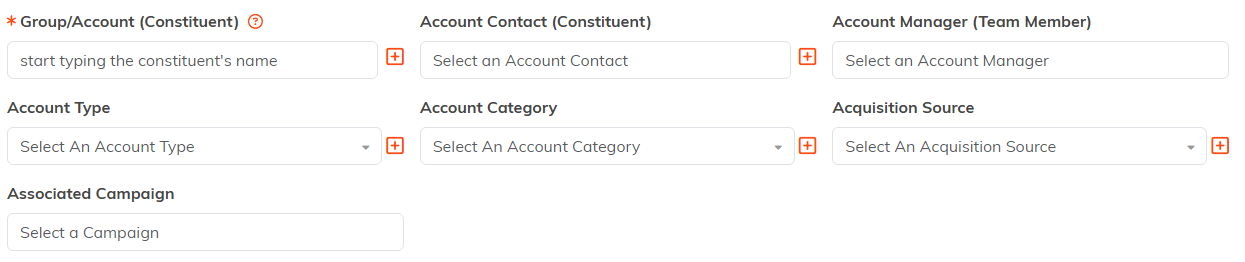
Only the constituent carries an orange asterisk. The rest are optional.
