Knowledge Base Article
Add Account Statements
The Account Statements page is a collection of bank statements your organization has received.
To get started, select General Financials > Account Statements from the Argenta main menu on the left-hand side of the screen. This opens your Account Statements screen, where all your statements are listed.
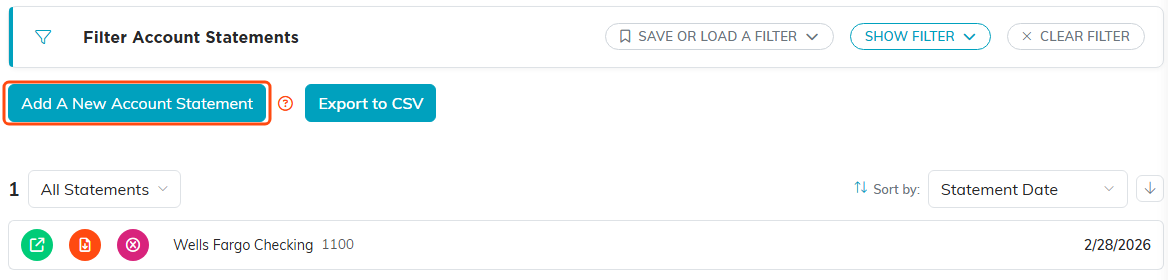
Your statements, with Add A New Account Statement above them.
To add a new account statement, click the Add A New Account Statement button at the top of the list. That opens a short form asking for just two things, and both are required:
- Statement Date - the date on the statement.
- Associated Account - the bank account the statement is for.
Fill those in and click Add & Enter Details. (Cancel & Exit backs out without adding anything.) The statement is created and the Account Statement Workspace opens, which is where you attach the file and set the permissions.
In the workspace you can fill out:
- Record Level Permissions - At the top of the workspace there are two switches. Turn on Set As View Only to restrict this record to view-only access, or Lock This Record to keep it from being viewed or updated, unless the user created the record, is a master admin, or has been granted specific access on the Record Permissions tab of this record.
- Statement Date - Select the statement date using the date picker, or enter it manually.
- Associated Account - Select the bank account this statement is associated with from the drop-down list. This is a required field.
- Upload Your Statement Here - Attach a digital copy of the statement by dragging your file into the upload box, or by clicking the box to browse and choose a file from your computer.

The two Record Level Permissions switches at the top of the workspace.

Statement Date and Associated Account both carry the orange asterisk, so both are required.

Drag a file into the box or click it to browse. An attached statement is listed underneath.
When you are finished, click Save All Changes & Exit to save and return to the list, where your new statement will appear. You can also click Save All Changes & Continue to save and keep working on the record.

The buttons at the bottom of the record.
