Knowledge Base Article
Add Account Transfers
Account transfers move money between two of your existing accounts. They come in handy when you keep separate operating, savings, or overflow accounts and need to shift funds from one to another.
You will find account transfers under General Financials > Account Transfers in the left sidebar. (This is a financial page, so you need Finance Manager or Master Admin to use it.)
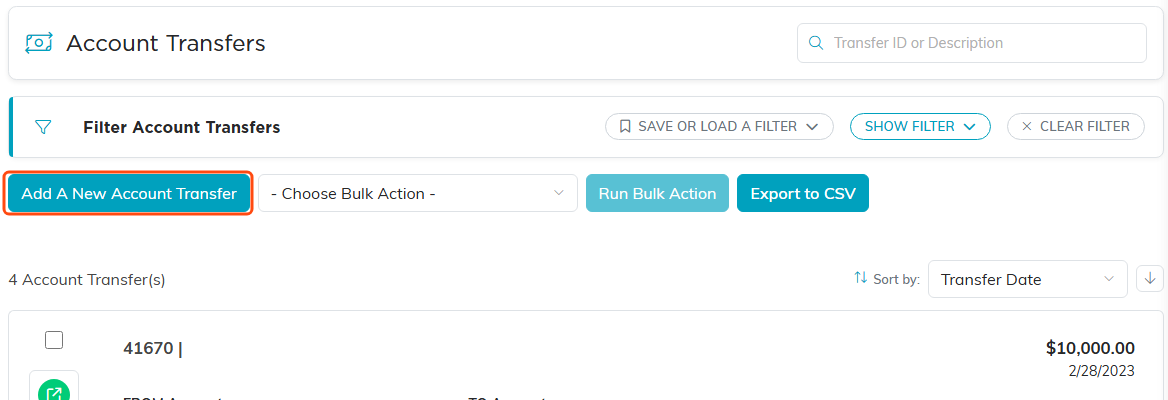
The Account Transfers list, with Add A New Account Transfer above it.
Add an account transfer
- Go to General Financials > Account Transfers. The Account Transfers list opens, showing every transfer you have recorded.
- Click Add A New Account Transfer. A short form opens asking for the From Account, the To Account, the Transfer Date and the Amount. All four are required, and the amount has to be greater than zero, so the 0.00 the box starts on will not save. Fill them in and click Add & Enter Details, and Argenta creates the transfer and opens its Account Transfer Details page so you can fill in the rest. Cancel & Exit leaves nothing behind.
- Enter the details:
- Transfer Date (required) – pick a date with the date picker or type one in.
- Amount (required) – the dollar amount to move. It has to be greater than zero here too, so a zero or a negative amount is refused when you save.
- From Account (required) – the account the money leaves.
- To Account (required) – the account the money goes into.
- Transfer Description/Reason (optional) – a note about why you made the transfer.
- Click Save All Changes to save and keep working on the record, or Save All & Exit Record to save and return to the Account Transfers list. Exit Record leaves without saving.

The transfer is created when you click Add & Enter Details, not before.
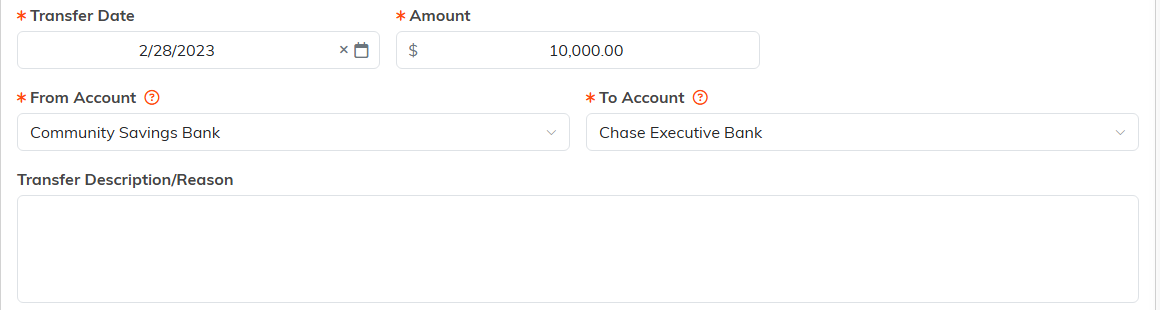
Account Transfer Details. The orange asterisk marks the four required fields.

Exit Record leaves without saving.
Tip: to repeat a transfer you make often, open an existing one and use the Copy & Add New icon (or the copy icon on the list row) to duplicate it, then adjust the date or amount.
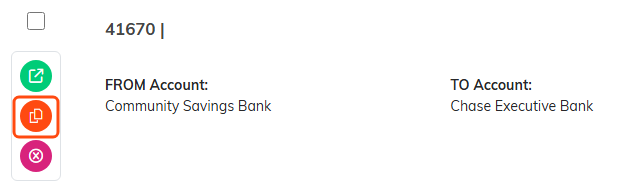
The copy icon on a list row duplicates that transfer.
