Knowledge Base Article
Add Contracts
A contract is a binding agreement between your organization and another company, organization, or government body. Argenta keeps your contracts and their details in one place, with every change to an agreement recorded beside it.
Click the building icon with your organization's name in the top-right corner and choose Our Contracts. You can also reach the same list from the left menu at Operations > Contracts.
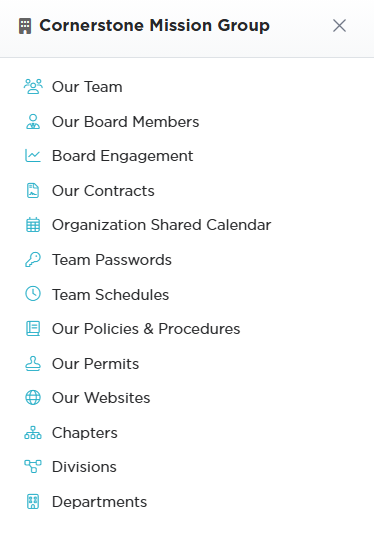
The building icon in the top-right corner opens this panel.
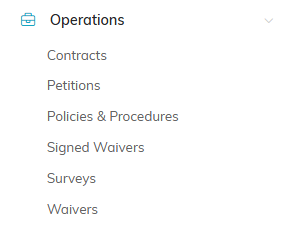
The same list sits under Operations in the left menu.
The Add A New Contract and Add An Amendment pages, and each tab of a contract and of an amendment, have a short Show Me How To Use This Page video at the top right; click it to watch, and use its chapters to jump to the part you need.
Adding a Contract
- Click Add A New Contract. Argenta asks for the Contract Title and the Constituent, both required. You can also choose the Contract Type and the Contract Start Date here. The start date begins on today's date, and one left blank is saved as today. Then click Add & Enter Details. The contract is created and the Contract Workspace opens on Contract Details, where the status, the type, the value, the terms and the dates are set.
- Enter the Contract Title (required).
- Choose the Constituent (required), the party the contract is with. They must exist as a constituent first.
- Fill in the rest as it applies, then save.

Add A New Contract opens a short form. Contract Title and Constituent are required; Contract Type and Contract Start Date are optional.
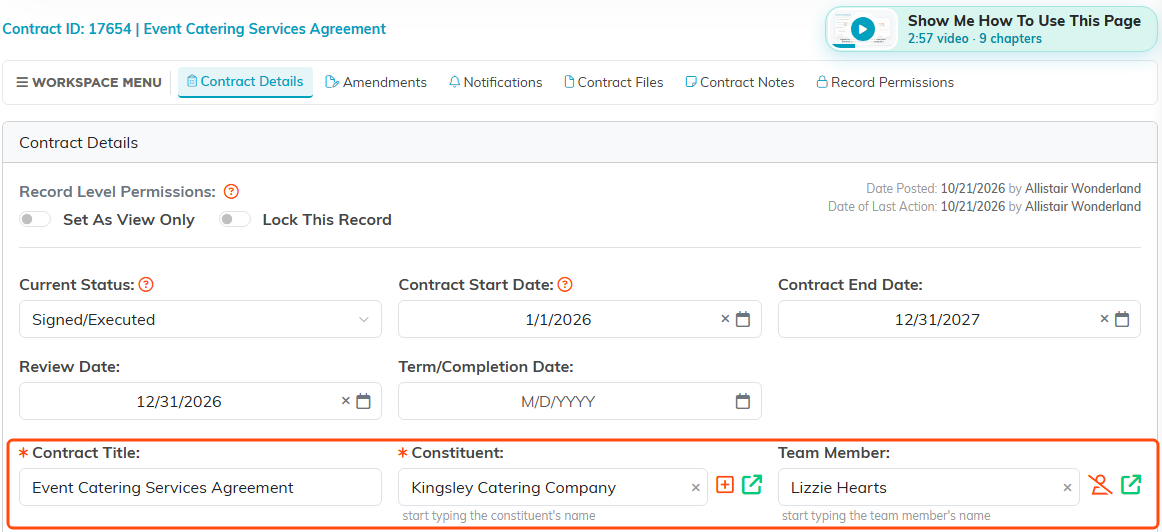
Contract Title and Constituent both carry the orange asterisk.
Contract Details
- Current Status - where the agreement stands
- Contract Start Date and Contract End Date
- Contract Value - what the agreement is worth
- Contract Type and Contract Category - your own classification lists, extended with the orange plus icon (admins and master builders only) beside each field
- Version Number - which version of the agreement this record reflects, as a number such as 1, 2 or 2.25 (up to two decimal places).5
- Team Member - who owns this contract on your side, and the person to chase when it comes up for renewal
- Description - what the agreement covers
- Chapter, Division, and Department where your organization uses them
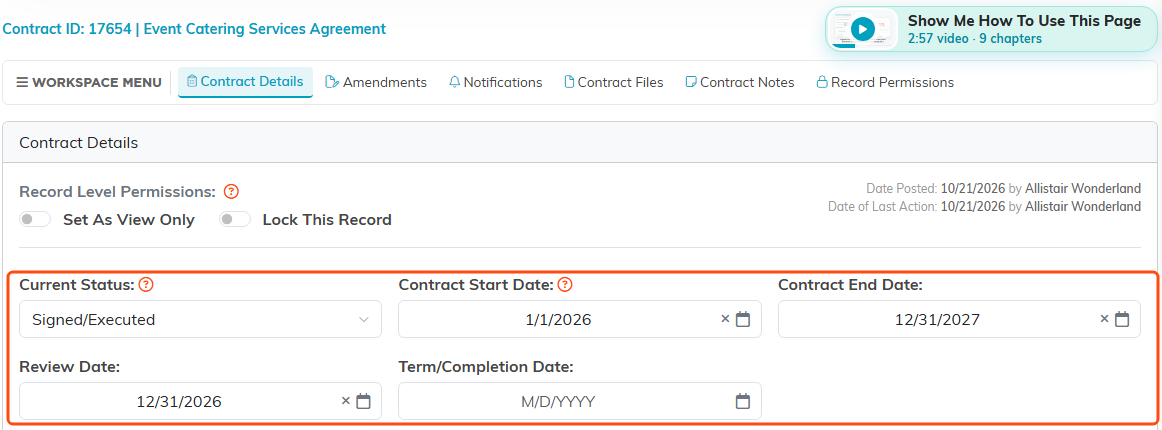
Status and the four dates sit at the top of the form.
The Contract End Date, Review Date and Term/Completion Date are all measured against the Contract Start Date. Set any of them earlier than the start date and the contract will not save, and Argenta names the date to fix. A date you have not filled in yet is never checked, so it cannot block a save.

The orange plus (admins and master builders only) beside Type and Category adds to your own classification list.
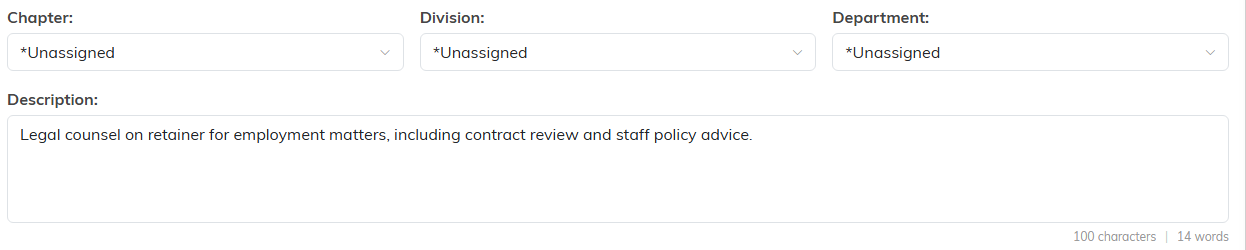
Description is where you say what the agreement actually covers.
Amendments
When terms change, do not overwrite the original or bury the change in a note. The workspace has an Amendments page, and each amendment is a record in its own right with Amendment Details, Related Files, and Amendment Notes.
Keeping them separate means the original terms survive intact and each change is dated and documented next to them, which is exactly what you need when someone asks a year later what was agreed and when.
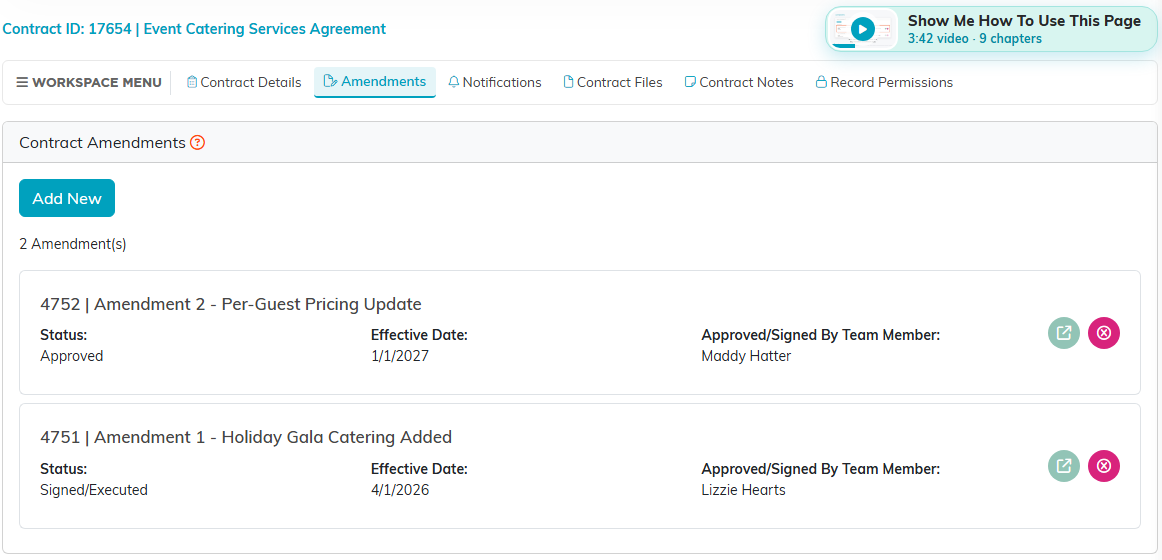
Each amendment is listed on its own, with its status and effective date.
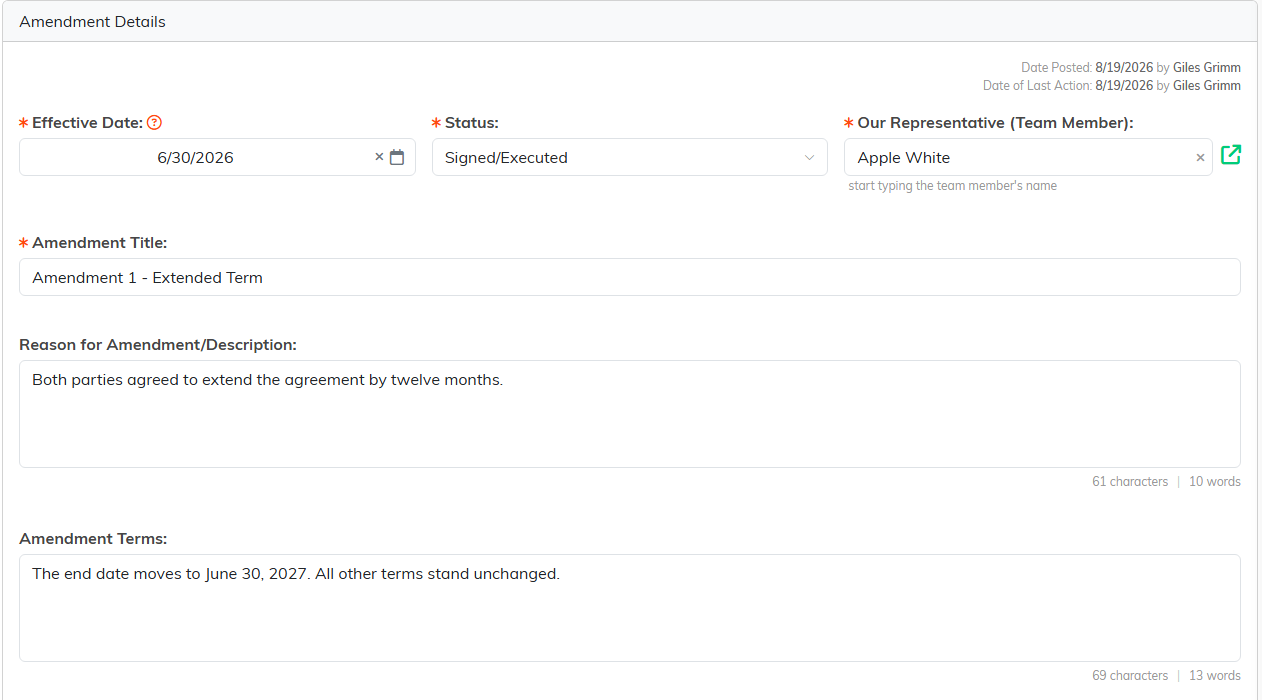
An amendment is a full record, with its own files and notes pages.
Adding an Amendment
To record a change to the agreement, open the contract's Amendments page.
- Click Add New. The Add An Amendment page opens. Nothing is saved until you add the amendment.
- Enter the Effective Date, the day the change takes effect. It cannot be earlier than the contract's Contract Start Date.
- Select the Status, such as Approved or Signed/Executed.
- In Our Representative (Team Member), start typing a name, then select the team member who approved or signed the change for your organization.
- Enter the Amendment Title.
- Click Add & Enter Details. The amendment is added and its Amendment Details page opens, where you enter the reason and the terms.
All four fields are required. If one is missing, or the effective date falls before the contract starts, the amendment is not added and Argenta lists what to fix. To leave without adding anything, click Cancel & Exit.
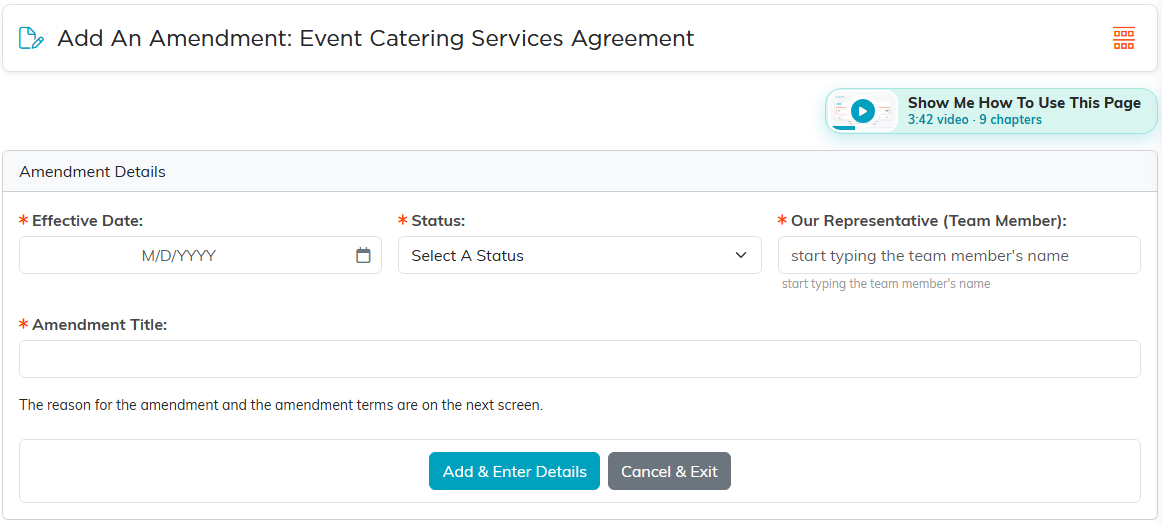
Add An Amendment asks for four fields. The reason and the terms come on the next screen.
Amendment Details
Each amendment opens in its own Contract Amendment Workspace, with three pages: Amendment Details, Related Files, and Amendment Notes. Amendment Details holds the change itself:
- Effective Date (required) - the day the change takes effect, never earlier than the Contract Start Date
- Status (required) - where the amendment stands, from the same list the contract's Current Status uses
- Our Representative (Team Member) (required) - who approved or signed the change for your side. The Amendments page lists this person as Approved/Signed By Team Member.
- Amendment Title (required) - the name the amendment is listed under
- Reason for Amendment/Description - why the agreement changed
- Amendment Terms - what the change says
Click Save All Changes & Continue to save and stay on the page, or Save All Changes & Exit to save and return to the contract's amendments. If a required field is empty, Required! appears under it and nothing is saved. To delete the amendment, click the trash can icon in the workspace title bar. Argenta asks you to confirm, and a deleted amendment cannot be brought back.
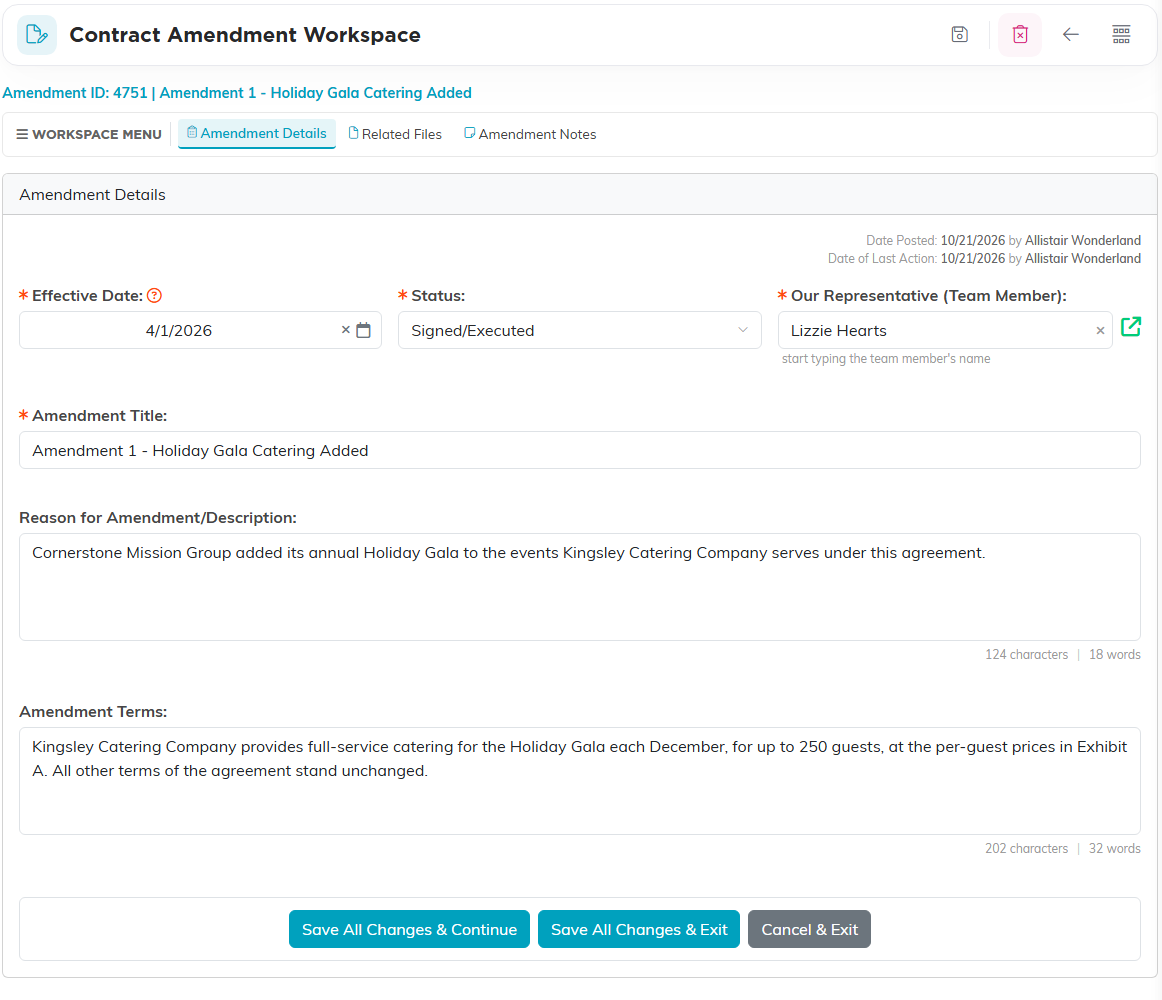
The amendment records when the change takes effect, who signed it, why, and what changed.
Amendment Related Files
The amendment's Related Files page holds the signed amendment and anything that supports it. These files belong to the amendment, separate from the contract's own Contract Files.
- Drag the files onto Drag & Drop Files Here, or click it to browse. You can choose several files at once.
- Click Save The Selected File(s). The files upload and appear in the list beside it. Under each file's name is the date and time it was added and, if they are on your team, who added it.
Click a file name to open it. Click the Download icon to save a copy, or the Delete icon to remove the file.
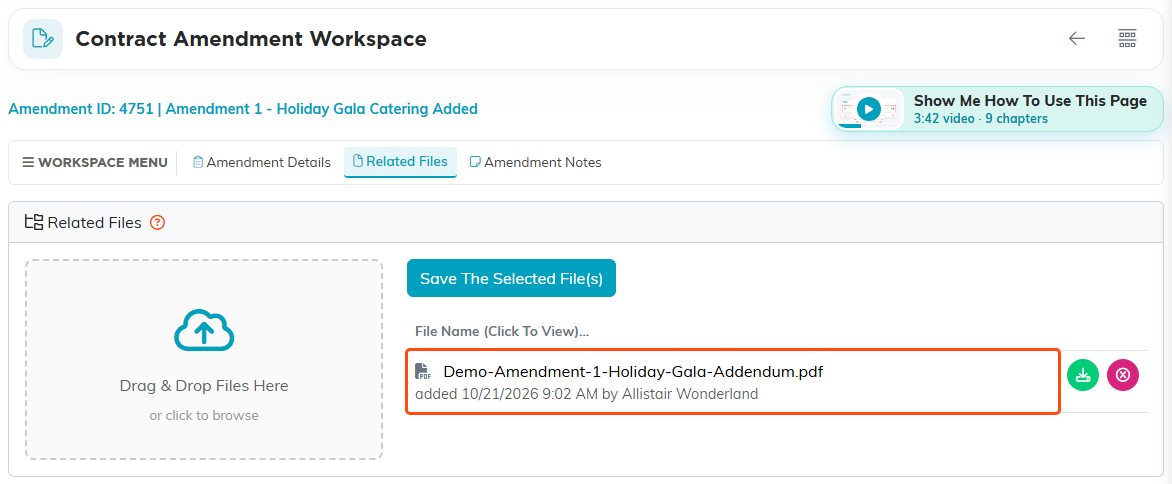
Files saved here belong to the amendment, not the contract.
Amendment Notes
The Amendment Notes page keeps a running record of the amendment, such as calls, approvals, and what is still outstanding. These notes are separate from the contract's Contract Notes.
- Click Add A New Note.
- Type the note in the editor.
- Click Add This Note. The note joins the list with its Date Created and Created By.
To change a note, click its Edit icon. To remove it, click its Delete icon.
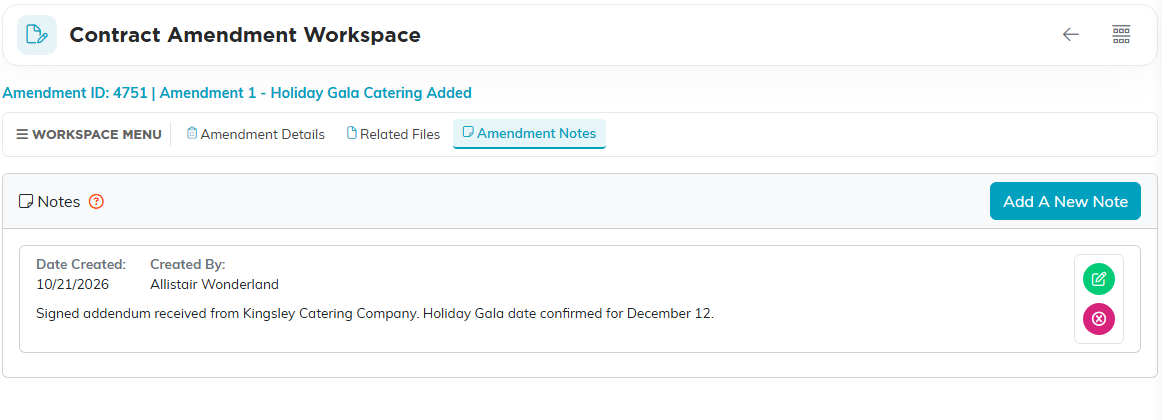
Each note shows when it was written and by whom.
Renewals and Expiry
Contract End Date is what renewals hang off. Use the Notifications page in the workspace so Argenta tells you a contract is coming up rather than relying on someone remembering.

Contract End Date is the field a renewal hangs off.
The Notifications Page
The Notifications page schedules an email about the contract, such as a renewal reminder two months before the Contract End Date or a nudge ahead of the Review Date. Argenta sends the email at the date and time you choose.
- Click Add New. The Add Notification window opens.
- Enter the Date/Time To Send. It starts at the current date and time.
- Optional: To send the email as soon as you save, select Send immediately.
- Enter the Send To Email, the address that receives the email. It starts with your own email address.
- Enter the Send From Email, the address the email comes from.
- Enter the Subject.
- Optional: Enter the Message. If you leave it blank, the subject is sent as the message.
- Click Save Notification.
Save Notification stays unavailable until Date/Time To Send, Send To Email, Send From Email, and Subject are filled in, and the window names any that are missing. Both addresses must be valid email addresses.
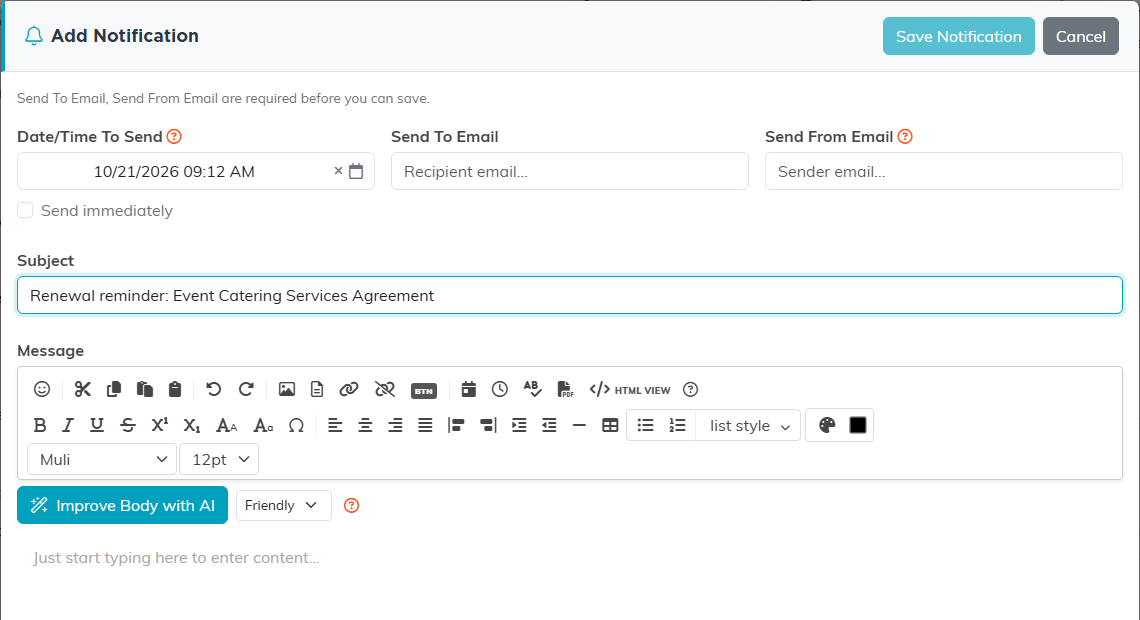
Date/Time To Send, Send To Email, Send From Email, and Subject are required.
Each saved notification shows its subject, its send date and time, and who it goes to and comes from. A Sent badge appears once it has gone out. Click the Edit icon to change a notification, or the Delete icon to remove it. Deleting one that has not been sent also cancels its email.
The list shows every notification filed under you, so it can include reminders from your other records. The badge beside each subject, such as Contracts, names the kind of record it belongs to. A notification a teammate sets on this contract shows in their list, not yours.
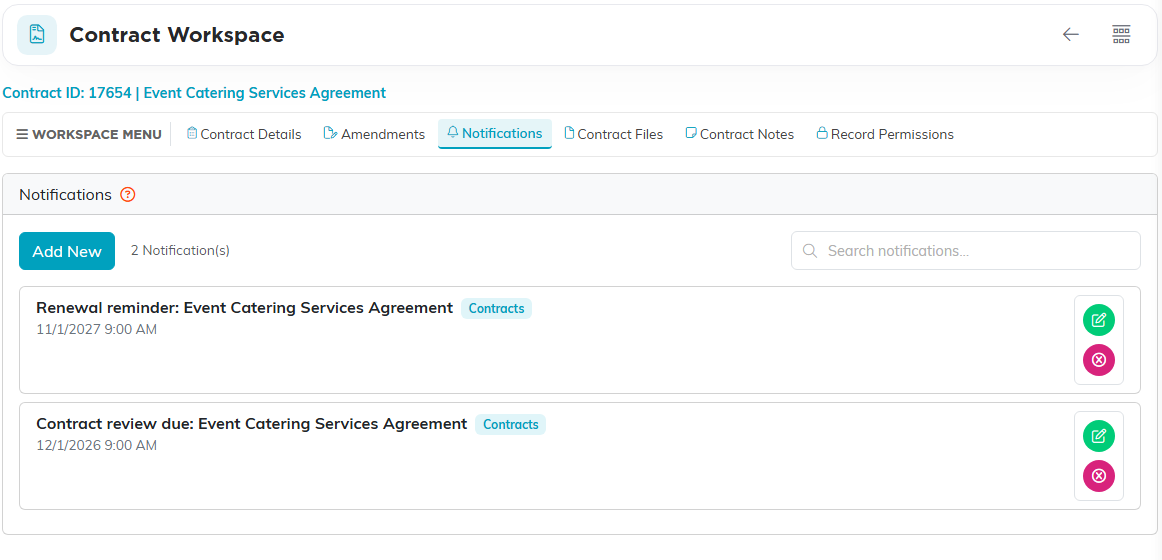
Two reminders scheduled on the contract: one before the review date, one before it ends.
Storing the Signed Agreement
Attach the executed PDF and anything supporting it on Contract Files. The record holds the summary; the file holds the legal document. A contract signed through the Signing tab is filed there for you when the last person signs; see How to Send a Contract for Electronic Signature.
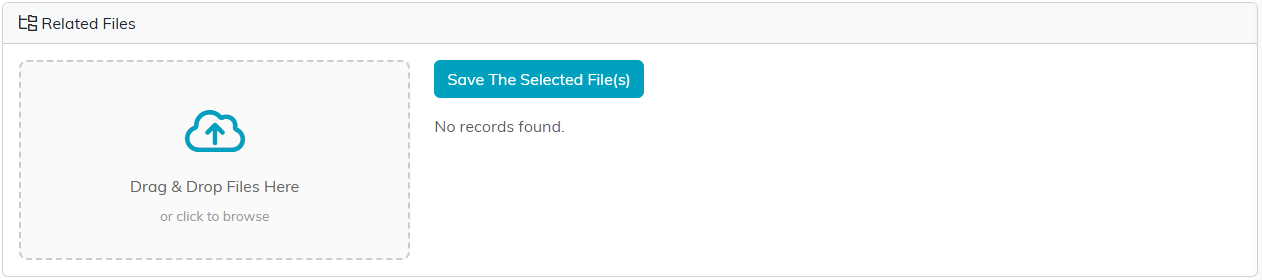
Drop the executed PDF and anything supporting it here.
Record Level Permissions
Contracts often carry commercially sensitive terms. Set As View Only and Lock This Record at the top of the details page are the quick controls, and the Record Permissions page grants access person by person.

Both switches sit at the top of the details page.
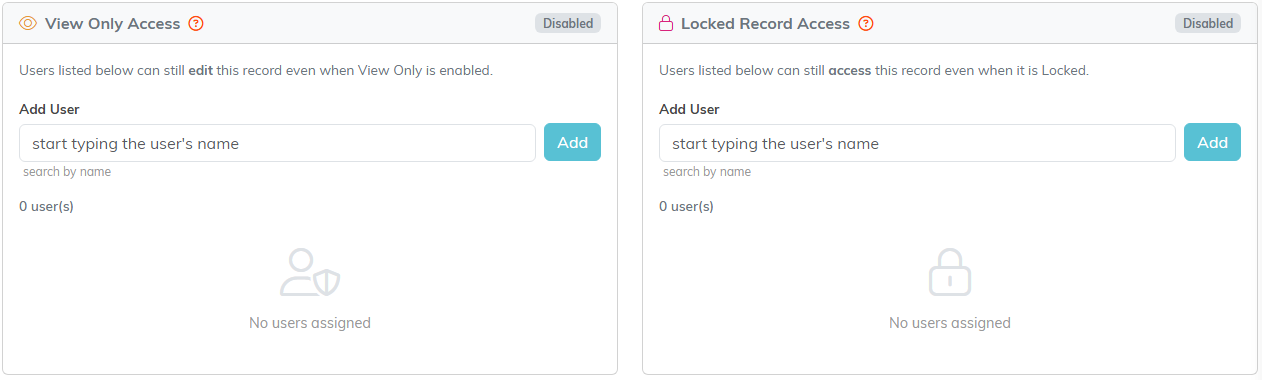
Record Permissions is where access is granted person by person.
The Contract Workspace
- Contract Details - the agreement
- Amendments - every change, each its own record
- Signing - send the contract out for electronic signature
- Notifications - alerts on this contract
- Contract Files and Contract Notes
- Record Permissions - who can view or edit

Every page of the contract is on this bar.
Search the list by ID or contract name, and export to CSV. Each contract also shows the status of its newest signing request, and Show Filter can narrow the list by Signing Status.

Search by ID or contract name, or send the list out to CSV.
