Knowledge Base Article
Add Links and Resources
Links and Resources is a shared collection of the webpages your organization uses and refers to. It saves everyone hunting through their own bookmarks for the grant portal, the state filing site, or the form somebody always needs the link to.
Add a link or resource
- Choose Workflow & Productivity > Links & Resources from the main menu.
- Click Add A New Link/Resource. Argenta asks for the Link/Resource Title and the Link/Resource URL first, then you click Add & Enter Details. The record is created and the Link/Resource Workspace opens on Link/Resource Details.
- Fill in the three required fields, each marked with an orange asterisk:
- Link/Resource Title, what your team will recognize it by.
- Link/Resource Category, chosen from your own classification codes. If the category you want is not there yet, an administrator or Master Builder can add it with the add icon on the field.
- Link/Resource URL, the web address itself. You can leave off the https:// and Argenta adds it, so example.com is saved as https://example.com. An address with a space in it, a single word with no dot in it, or anything that is not a web link is refused with a message telling you what to type. An address you type out in full is stored exactly as you typed it.
- Add a Description so people know what the link is for and when to use it. This is the field that decides whether the collection is genuinely useful or just a pile of URLs.
- Set Chapter, Division, and Department if the link belongs to one part of your organization. Political organizations also get District and Precinct; choose the district first, since it drives the precinct list.
- Click Save All Changes & Continue or Save All Changes & Exit. Cancel & Exit leaves without saving.

Add A New Link/Resource opens a short form asking for the Link/Resource Title and URL.
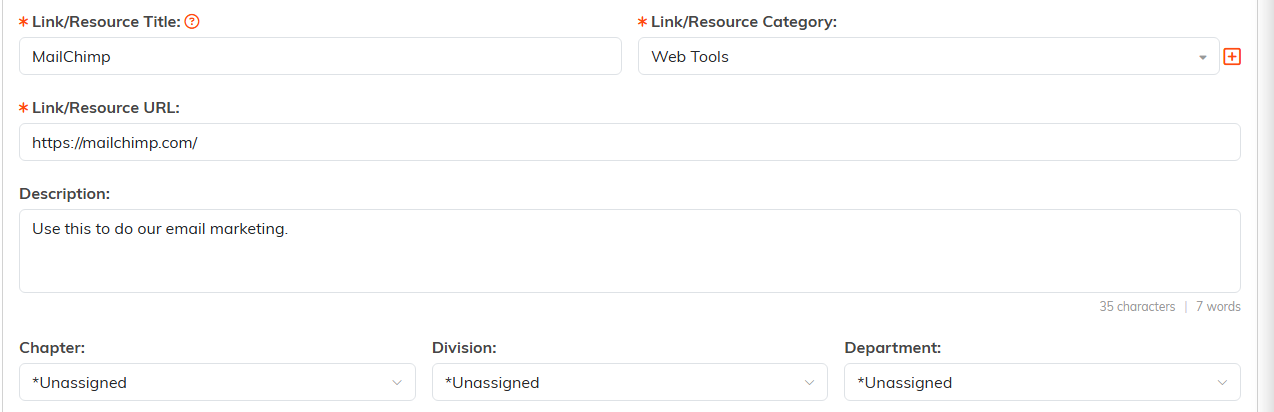
Three fields carry the orange asterisk. The description earns its keep.

Cancel & Exit leaves without saving.
Control who sees it
Two switches sit at the top of the details page. Set As View Only lets the team see the link without editing it, and Lock This Record keeps them from opening it at all. In both cases the person who created it, master admins, and anyone you name keep their access.

Both switches sit at the top of the details page.
The workspace has two pages: Link/Resource Details and Record Permissions. On Record Permissions, name the specific team members who should still be able to edit a view-only record, or open a locked one. Start typing a user's name, select them, and click Add.

The workspace has just two pages.
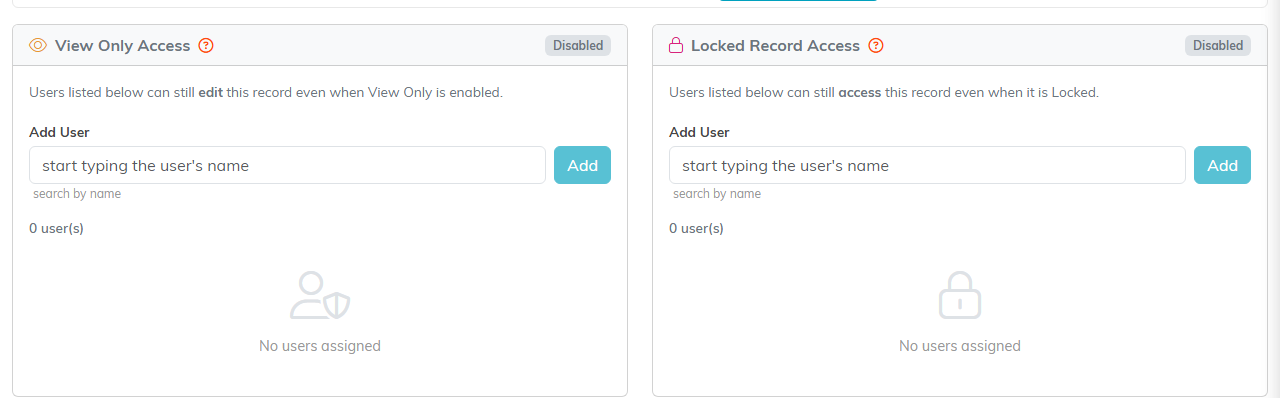
Name the people who keep access, then click Add.
Find what you need
The list searches on ID, link name, description, or the URL itself, so you can find a link even when you only half remember what it was called. Each row has a green icon to open it and a pink one to delete it, and you can export the whole collection to a spreadsheet.

Green opens the link record, pink deletes it.
