Knowledge Base Article
How To Send Notifications Through Email in Argenta
Argenta sends email on your behalf in two ways: notifications that go to your team when something happens in the system (a new donation, an event registration, a membership renewal, and so on), and acknowledgments and receipts that go to your supporters when they submit one of your public forms. This article covers how to control the email addresses your notifications use.
Where Notification Emails Are Set
You choose which address handles each kind of notification on the Designated Email Addresses page.
- In the top-right menu, click Settings.
- Choose Email Settings. It opens on the Designated Email Addresses tab.
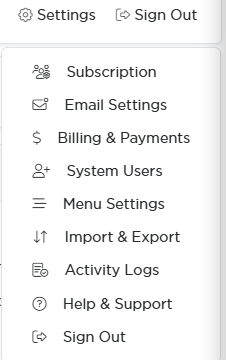
Settings in the top right, then Email Settings.
Setting Your Notification Addresses
The first field, Primary Email Address, is your organization's main address. Every field on this page is required, so Save stops until each one holds a valid address.
From there you can route specific kinds of notifications to specific people or inboxes, for example donation notices to your development staff and event notices to your events coordinator. The category fields are:
- Email Address for Client/Customer Notifications
- Email Address for Donation Notifications
- Email Address for Event Notifications
- Email Address for Financial Notifications
- Email Address for Marketing Notifications
- Email Address for Membership Notifications
- Email Address for Program Notifications
- Email Address for Project/Task Notifications
- Email Address for Staff & HR Notifications
- Email Address for Volunteer Notifications
- Email Address for Voter Notifications
If you use one address for everything, enter it in every field. When you're done, click Save All Changes.
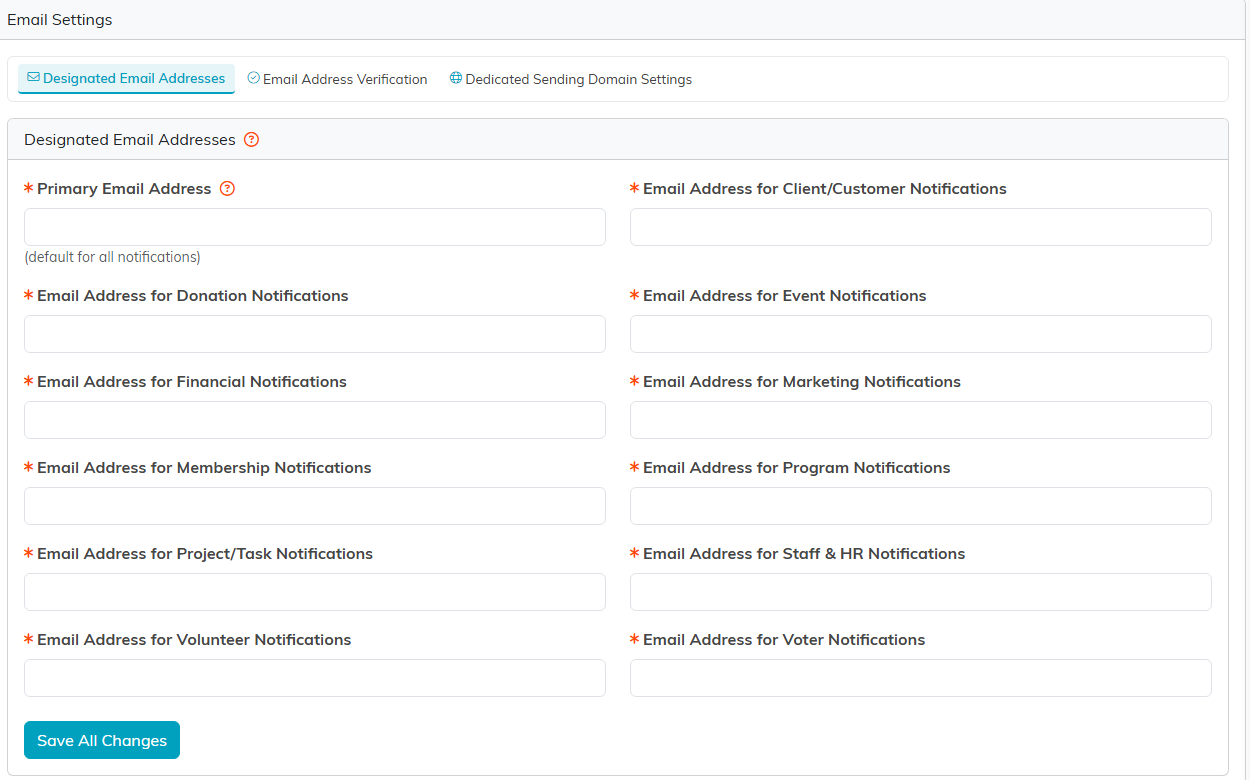
Every notification type has its own address field.
Making Sure Your Notifications Get Delivered
So your emails come from your own address and reach inboxes reliably, verify your sending address and set up a dedicated sending domain. You'll find both under Email Settings, on the Email Address Verification and Dedicated Sending Domain Settings tabs. For the full walkthrough, see How To Setup and Send Email in Argenta Using Amazon Simple Email Service.
