Knowledge Base Article
How To Customize Your Public Donation Form
Your public donation form is where online giving actually happens, so it is worth setting up carefully. Argenta gives you control over its wording, fields, colors, and banner, plus a way to share it.
Open the form designer
From the left-hand menu, choose Fundraising > Public Donation Form. You can also get there from the Design Public Form button on your Donations list. The designer has a Workspace Menu across the top with six sections you work through one at a time.

The six sections of the designer, worked through one at a time.
Each section has its own short Show Me How To Use This Page video just below the title bar; click it to watch, and use its chapters to jump to the part you need.
Form Content
Add a headline if you want one, up to 500 characters; it only appears if you enter text. Below it is a full editor for the body of the form, so you can explain what the gift supports. Keep it short. People arrive at a donation form ready to give, and long copy talks them out of it.
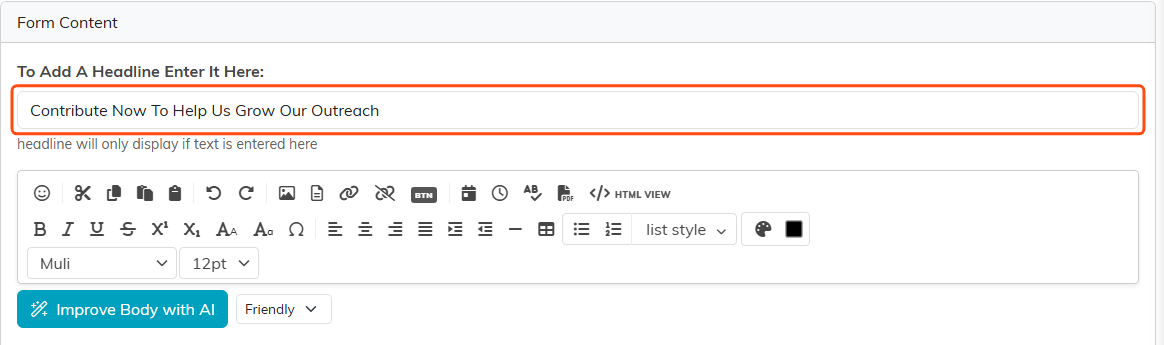
The headline box is highlighted. Leave it empty and no headline appears on the form at all.
Choose Form Fields
Set each contact field group to Hidden, Optional or Required: Mailing Address, City, State, Zip and Phone Number(s). A hidden field does not appear on the form, an optional one can be left blank, and a required one has to be filled in before the donor can pay. For Phone Number(s), Required means at least one valid phone number. A donor's name and receipt email are always required, Address Line 2 is always optional, and a chapter is required on forms that use chapters. Ask for a mailing address if you send year-end tax letters by post; if you do not, hide it. Every extra field costs you completed donations.
The Tribute Section (so a donor can give in honor or memory of someone) and the Solicited Section are switches.
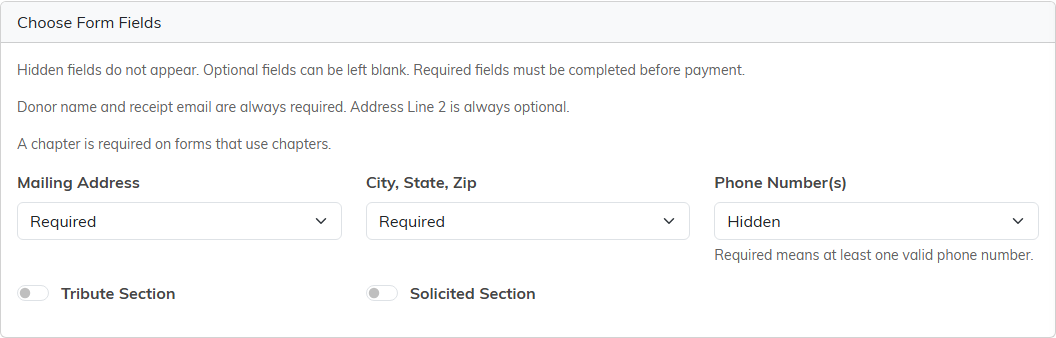
A choice for each contact field group, and two switches. On a political team the three contact groups are fixed at Required and cannot be changed.
Giving Amounts
Set the six suggested amounts a donor sees as buttons. Leave one blank to keep whatever is there now, or enter 0 to hide that button. A donor can always type their own amount instead, so these are a starting point and not a limit. The smallest gift the form accepts is $0.50, because card payments cannot go lower, and a donor who types less is told so at the amount box. Watch the low end especially: if your smallest button is more than a first-time donor had in mind, you have made the easy choice the awkward one.
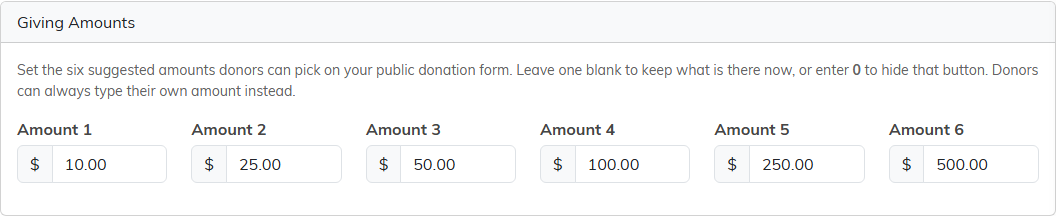
Six amount boxes. These are the buttons a donor taps, and 0 hides one.
Choose Form Colors
Match the form to your branding so the page feels like it belongs to your organization. You can set colors for the headline, the icons, the donation amount buttons (including the colors of the amount a donor has selected), and the main buttons. A donation form that looks nothing like your website makes people hesitate at exactly the wrong moment.
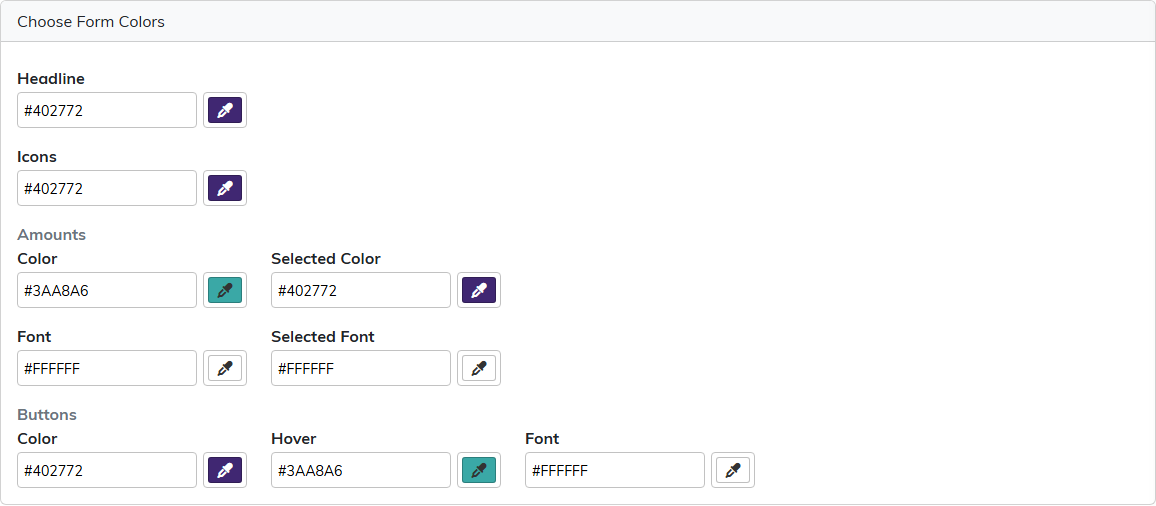
Each color has a picker and a hex box, so you can paste the exact colors from your website.
Form Banner Image
Turn on Display Hero Image and upload a banner for the top of the form (use Save Banner to Draft, or Remove Banner Image to clear it; both change the draft until you publish). A real photo of the work you do outperforms a logo here.

The switch is highlighted. Turn it off and your banner stays saved but stops showing.
Share This Form
This section gives you a QR code you can download and put on printed materials, a slide, or a table sign at an event. Its Public Link box has a Copy button for the form's web link, which you can also copy from the Public Donation Form control on your Donations list. The link and the QR code always open the published form, never your draft.
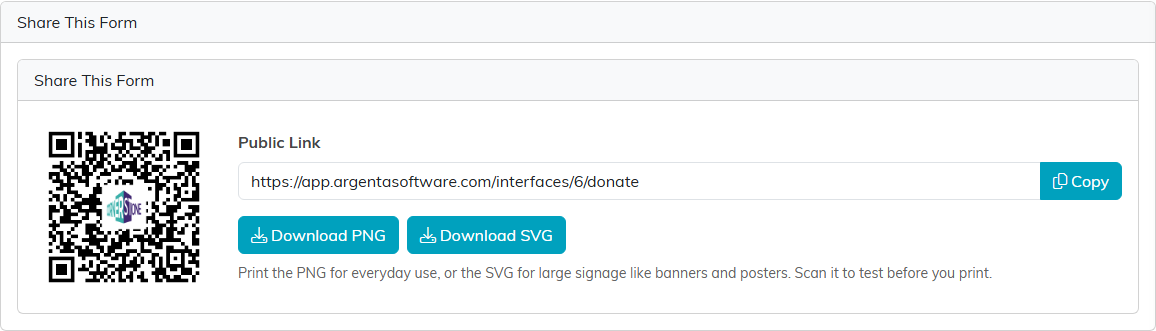
Download the PNG for a table sign, the SVG for anything large. Scan it yourself before it goes to print.
Drafts and publishing
Nothing you change in the designer reaches donors until you publish it. Your changes are kept as a draft, and the live form carries on unchanged until you click Publish.
The buttons sit in the title bar at the top and again at the foot of every section. The line under the title tells you where you are: Unsaved Changes while you have edits that are not saved yet, Draft Saved when your saved draft differs from the live form, or Published when the two match. When your draft is saved, it shows when.
- Save Draft saves your changes to the draft and keeps you on the page. The live form does not change.
- Preview Draft opens your saved draft in a private preview, with Phone and Desktop views. Payments are switched off in the preview, so nobody can give through it. If you have unsaved changes, the button reads Save Draft & Preview and saves them first.
- Publish puts the saved draft live, after you confirm. Donors see it right away. It is available once you have a saved draft that differs from the live form, so save first.
- Save Draft & Exit saves the draft and closes the designer. Exit on its own does not save.

The status under the title says whether your draft has been published.
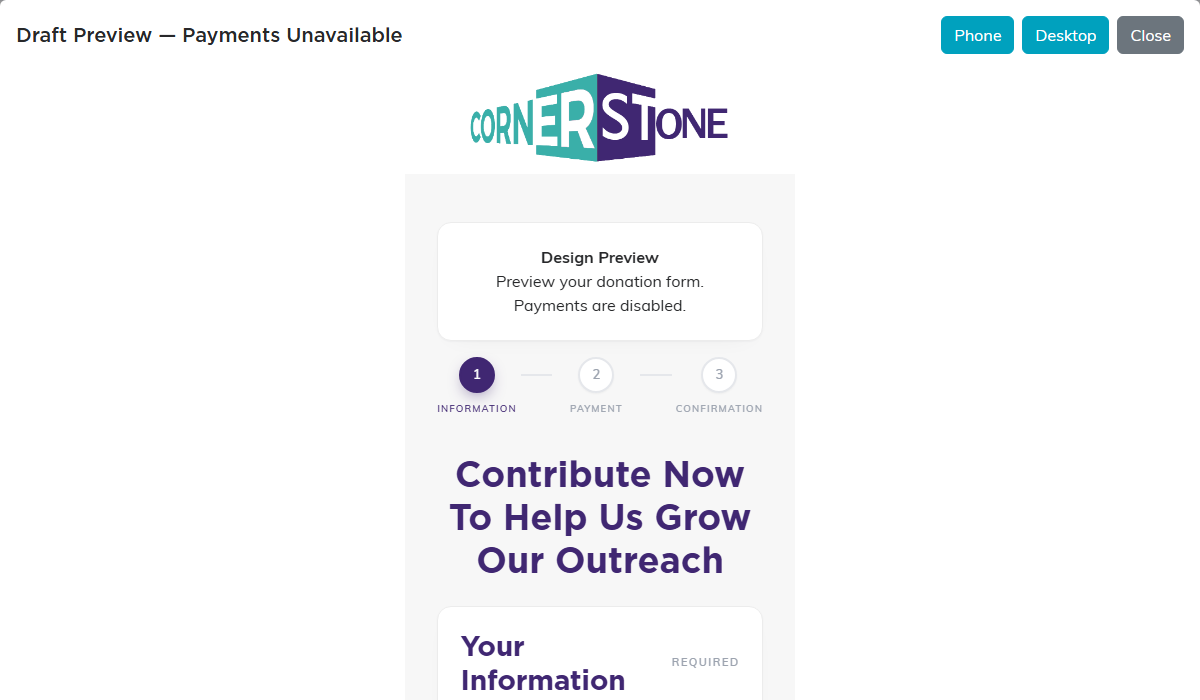
Preview Draft shows the saved draft without taking real payments.
Published versions
Each time you publish, Argenta keeps that version under Published Versions, with when it was published and by whom. If the form donors see now is not already on that list, Argenta saves it too before replacing it, as a Previous live version captured row. That is why your first publish adds two rows.
- Restore to Draft on a version copies it into your draft, replacing the saved draft and any unsaved changes. Preview it, then publish it to put it back live.
- Reset Draft to Published throws away the saved draft and any unsaved changes and starts again from the form donors see now.
If the live form was changed somewhere else while you were working, the page says so and asks you to reset or restore before you publish, so you cannot overwrite that change by accident.

Published Versions, and the buttons at the foot of every section.
What the donor receives
When a gift goes through, Argenta emails the donor a receipt at the address they entered on the form. It carries your logo, your organization name, and your EIN when you have entered one, along with the donor's name, the date, the amount, the recurrence if they set up a monthly or annual gift, the tribute name if they gave in honor of someone, and the payment method.
Nonprofit organizations also get a Tax Deductibility note at the bottom of that receipt. It states that no goods or services were provided in return for the contribution, tells the donor to keep the receipt for their tax records, and adds that they should check with their own tax adviser about whether the gift is deductible. There is nothing to switch on. It is part of the receipt.
Organizations set up as political do not get that note, because a contribution to a political committee is not deductible.
Before you publish
- Open your saved draft with Preview Draft and read it back as if you had never seen it, on both Phone and Desktop. Then click Publish.
- Make a small real donation to yourself and confirm it arrives, so you know the whole path works before donors use it. The thank-you screen shows the total actually charged to the card, so if you chose to cover the processing fee the confirmation matches your card statement, your Donations list and the receipt rather than showing the gift on its own. Where Covered Processing Fees Land in Your Ledger shows how the covered fee and Stripe's fee are recorded.
- Check that the donation shows up under your Donations list and against the right fund.
- Open the form on a phone. Most people will.
