Knowledge Base Article
How To Generate and/or Print Receipts in Argenta
You can generate a PDF or email an invoice or a receipt straight from the invoice. Here is how.
- In the left sidebar, choose General Financials > Invoices/Receivables to open the invoice list.
- Find and open the invoice you want.
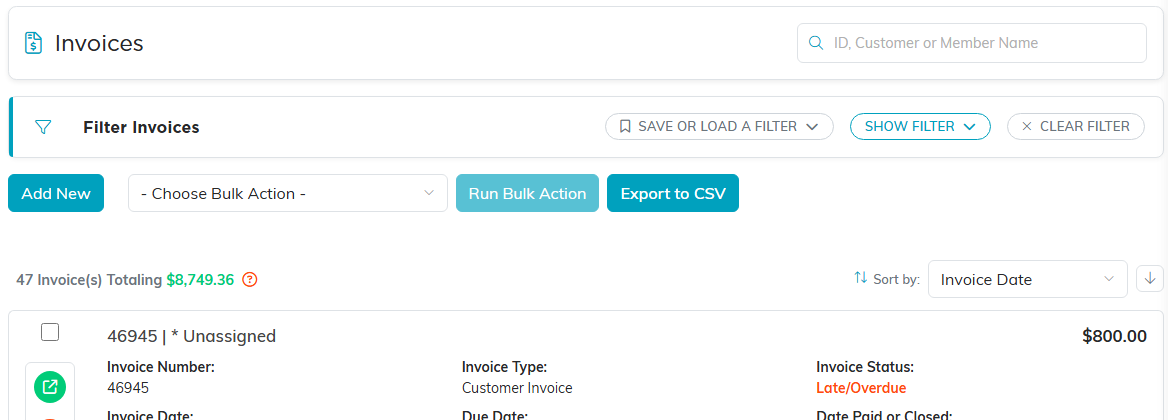
The Invoices and Receivables list.
Save an invoice or receipt as a PDF
- In the invoice's title bar, click the Save Invoice To PDF icon. This opens the invoice's print page.
- At the top of the page, use the Invoice or Receipt? control to choose whether you want an invoice or a receipt.
- Click Save To PDF to download it to your device.

Step 1. The Save Invoice To PDF icon in the title bar.

Steps 2 and 3. Pick Invoice or Receipt, then Save To PDF.
Email an invoice or receipt
- In the invoice's title bar, click the Email Invoice icon.
- Choose Invoice or Receipt with the Invoice or Receipt? control.
- Click Email Invoice to open the email form (Email This Invoice or Email This Receipt).
- Fill in the fields:
- From – the sending email address (use a validated address).
- To – the recipient's email address.
- CC – anyone you want to copy (optional).
- Subject.
- Message – an optional note that appears above the invoice.
- Click Send Invoice (or Send Receipt) to send it.

Step 1. The Email Invoice icon in the title bar.

Steps 2 and 3. Pick Invoice or Receipt, then Email Invoice opens the form.
