Knowledge Base Article
How to Use the Percentage Calculator
The Percentage Calculator answers three everyday percentage questions without a spreadsheet. Open it from Workflow & Productivity > Percentage Calculator.
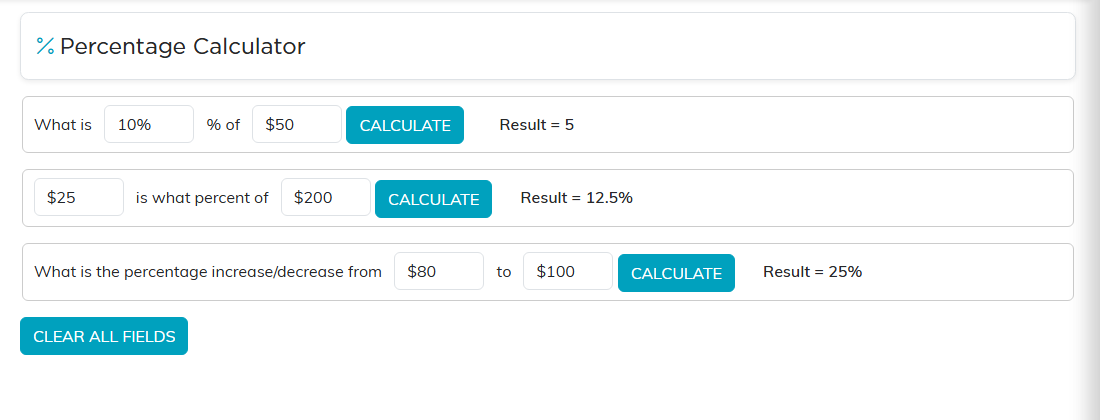
The three questions
- What is ... % of ... finds a percentage of a number: 10 % of 50 is 5.
- ... is what percent of ... finds what share one number is of another: 25 is 12.5% of 200.
- What is the percentage increase/decrease from ... to ... finds how far a number went up or down: from 80 to 100 is 25%. A fall reads as a negative percentage, so from 100 to 80 is -20%.
Fill in both boxes on a row and click that row's CALCULATE. The answer shows beside the button, to as many as eight decimal places. CLEAR ALL FIELDS empties every box and answer.
Typing the numbers
- Type a number the way you would write it: a dollar sign in front ($50), a percent sign after it (10%), commas (1,250), and a minus sign or parentheses for a negative number, so (10%) is -10.
- Only one dollar sign at the start and one percent sign at the end are read. A sign anywhere else, a doubled sign, or another currency's sign gives no answer.
When you see a dash
A dash (—) in place of an answer means that row has no answer to give: a box is empty or does not hold a number, the row asks what percent of 0 something is or for a change from 0, or the answer is too large to work out.