Knowledge Base Article
How to Find Any Record With the Search Box
The search box at the top of Argenta finds a record without opening its list first. Type a name, a record ID or an email address, and it looks in seven places at once: People, Donations, Events, Volunteer Tasks, Grants, Members and Tasks. Click a result and that record's page opens. Searching never changes anything.
Open the search box
Click Search at the top right of any page, or press Ctrl+K (Cmd+K on a Mac) from anywhere in Argenta.

The Search button sits at the right of the header on every page.
On a phone, tap the magnifying glass in the header.
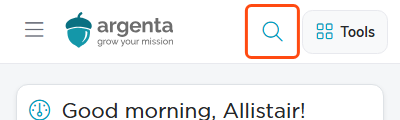
On a phone, the magnifying glass opens the same search box.
Find a record
Start typing. Results appear as you type, grouped by where they were found, with each record's ID beside its name. Type at least two letters, or a record ID.
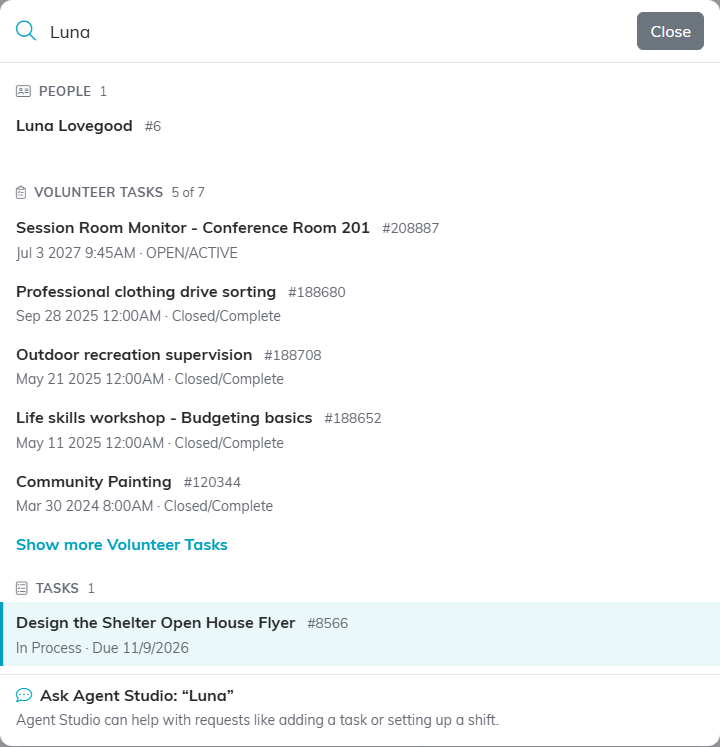
Each group shows up to five records and how many it found.
- Each group shows up to five records. When there are more, click Show more under the group, or open that list to browse them all.
- Click a result to open it, or use the up and down arrow keys and press Enter. Escape or Close shuts the box.
- Events are found whatever their status.
- After you open a record from the results, opening the box again in the same browser tab within half an hour brings that search back.
What you will and won't see
Search only looks where your login can look. Each group is searched exactly the way its own list page searches, with the same permissions, so a place you cannot open is not searched, and a record the list hides from you stays hidden here too.
- A record that is locked to you shows only its name and ID, marked Locked record. Its page will still refuse you.
- If one place cannot be searched at that moment, its group says so. That does not mean there are no matches; try again, or search from that list.
- When nothing matches, the box says so. Try part of a name, the record ID or an email address.
Ask your agent instead
Search finds records; it does not carry out requests. When you type something that reads like a request, such as "add a task to call Harry Potter tomorrow", the first row offers to hand the words to your agent: your own agent in Agent Studio if you have one, Birdie if your organization uses her, or otherwise Ava. Click it and your agent's chat opens with the words in the message box, ready for you to send. For an ordinary search, the same row sits at the bottom of the results. If Ava is switched off for you and you have no other agent, there is no such row.
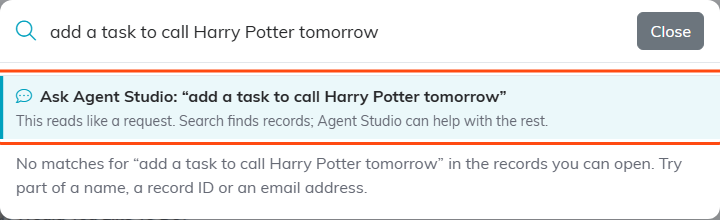
A request is offered to your agent first.