Knowledge Base Article
How to Automate Work Across Modules With Cross-Module Workflows
A cross-module workflow does a set of internal jobs for you when something happens elsewhere in Argenta. It can start when a grant is awarded, when an event registration completes, or once at a time you set. It can create a linked project, create tasks with a responsible person and a deadline, post a notification to team members, and prepare an email draft. It never sends email. Nothing runs until you save the workflow, preview it, and enable it, and each kind of step also needs an automation policy that allows it.
Admins and users with the Workflow Manager permission find Cross-Module Workflows and Action Policies under Workflow & Productivity. Everyone finds Action Approvals and My Workflow Notifications there.
Open your workflows
Go to Workflow & Productivity > Cross-Module Workflows. Each saved workflow shows its number and name, its saved versions, and its status: Inactive, Enabled or Paused. Click the green open button on a row to open it, or New Workflow to start one.

One enabled workflow, with the buttons to the other workflow pages above it.
Describe the workflow
Type one sentence in Plain-language instruction: the trigger first, then a comma, then the effects, separated by commas or “and”. The trigger is one of these:
- When a grant is awarded
- When an event registration is completed
- When scheduled for a date and time, such as When scheduled for 2026-12-01 09:00 in America/New_York. Write the time zone as one word, then pick the date and time again under Team-local date and time once the plan is built, so the workflow uses your team’s time zone.
The effects can create a project (“create its project”), add a reporting task (“assign reporting deadlines”), add a task (“create a task follow up with the attendee due 3 days after the trigger”), notify people (“notify finance”), and prepare an email draft (“prepare an email draft”). An instruction that asks to send, delete, update, change, approve, award, pay, publish or text anything is refused.
Click Build Editable Plan. Grant Award Example and Event Registration Example fill in a sample sentence and build its plan for you. Nothing is created while the plan is built.
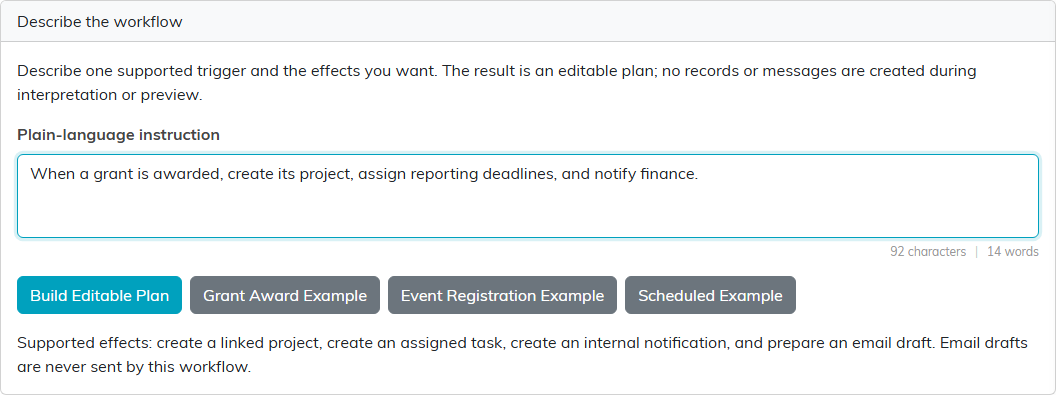
The grant award example, ready to build.
Finish the plan
Fields to finish lists what the sentence could not settle, such as who a task is for or who should be notified. Fill each one in on the cards below it.

Three things this plan still needs.
Reviewed trigger holds the workflow’s name and what starts it:
- A grant workflow needs the Awarded status your team uses. It starts only when a grant changes from another status to that one, so grants already awarded are left alone.
- An event registration workflow starts when a guest first completes registration, including a newly added registered guest.
- A scheduled workflow runs once, at Team-local date and time in your team’s time zone. A time skipped by daylight saving moves forward, and a time that happens twice uses the first one.
A run can carry at most 20 steps, one linked project and 10 tasks.
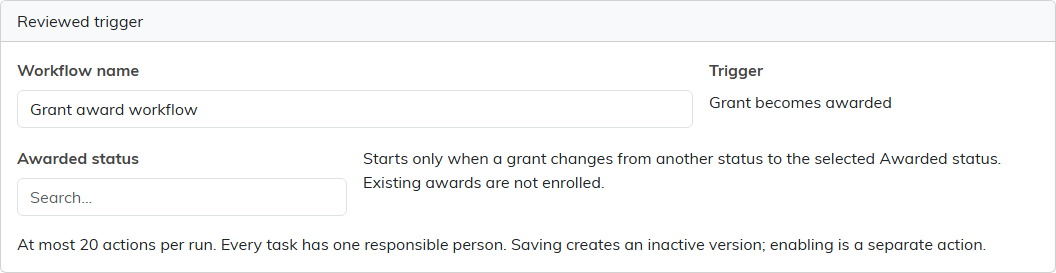
A grant workflow waits for one chosen Awarded status.
Each effect has its own card, which you can edit or take out with Remove, and the buttons under the cards add more: Add Linked project, Add Assigned task, Add Internal notification and Add Email draft.
- Linked project: the project’s name. {SourceName} is replaced by the grant’s or event’s name, and the project is linked to it.
- Assigned task: a title, one Responsible person, and a Deadline counted in Days after the selected date from the trigger date, the grant’s reporting date, or a date you pick. A task after a linked project is added to that project.
- Internal notification: a subject, a message, and the team members it goes to. They read it under My Workflow Notifications.
- Email draft: a subject, a message and recipients. It is saved as a draft for someone to review and is never sent by the workflow.
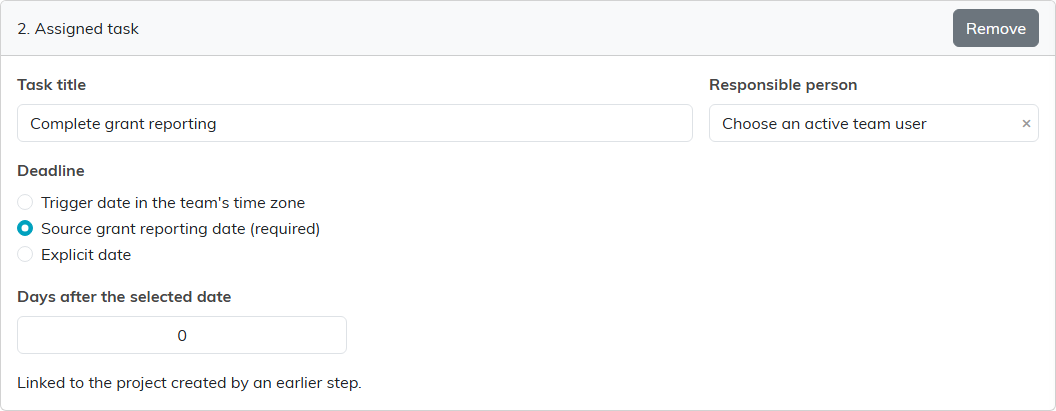
A reporting task, due on the grant’s reporting date.
Click the save icon at the top right of the page. Saving stores the workflow as an inactive version; it does nothing yet.
Preview and enable it
Under Review against a source, enter the ID of a grant or registration you can open (a scheduled workflow needs none), then click Preview Saved Version. The preview shows exactly what this version would do for that record: the trigger time, each effect with its names, people and dates filled in, and anything that still needs attention. A preview creates nothing.
When the preview says Ready to enable, click Enable This Reviewed Version. Enabling needs an active automation policy (below) for each kind of step in the workflow, set to Prepare for approval or Carry out automatically, with a Per-Run Limit at least as high as the number of those steps. From then on the workflow runs each time its trigger happens. You are the person it acts for, so a step that needs approval waits in your Action Approvals.
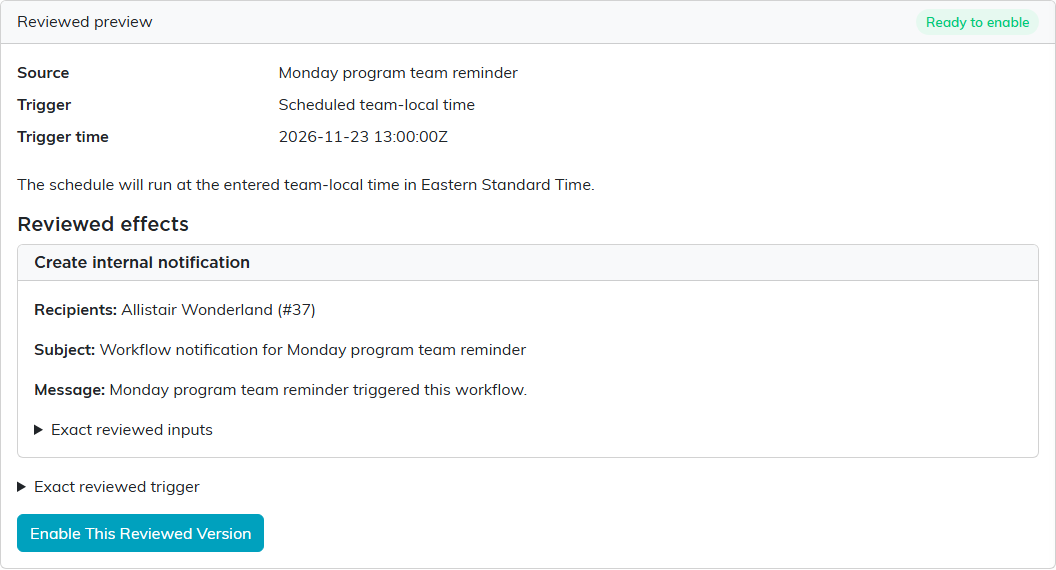
A scheduled notification, previewed and ready to enable.
Saving a change makes a new draft version, and the enabled version keeps running until you preview and enable the new one. Pause New Runs stops the workflow from starting new runs until you click Resume New Runs.
Follow its runs
Run history on the workflow lists each run with its source, when it started and its status; Reload History brings it up to date. Click a run’s open button to see each step, its status, how many attempts it took, its timing, and a link to what it created. Cancel Unstarted Steps stops the steps of that run that have not started yet.

Each run of the workflow is listed here.
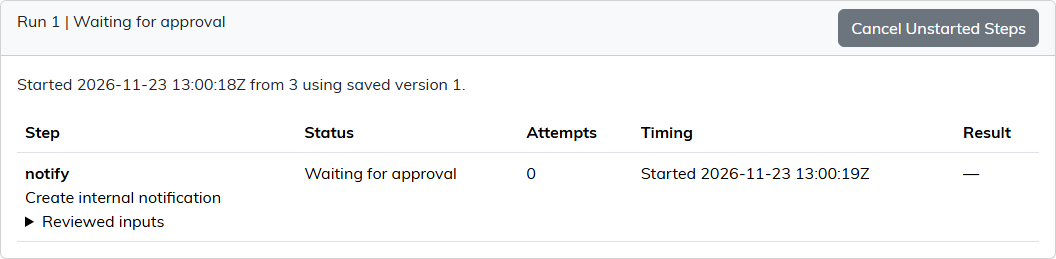
An open run, with one step waiting for approval.
Allow each kind of step with an automation policy
A workflow step only happens if an active policy for Workflow automation allows that kind of step. Without one, the step is refused and nothing is done. Go to Workflow & Productivity > Action Policies, or click Automation Policies on the workflows page.
- Action Type: Create a Task, Create a Linked Project, Internal Notification or Prepare Email Draft. These four are the ones a workflow uses, and the only ones you can activate.
- Autonomy: Suggest records the step but does not carry it out, so a workflow cannot be enabled while a step it needs has a Suggest policy. Prepare for approval holds it in the approval inbox of the person who enabled the workflow. Carry out automatically does it straight away.
- Record Scope: any record you can open, only one source type (grants, event registrations or scheduled workflows), or only the record IDs you list.
- Per-Run Limit and Daily Limit: how many of these steps one run, and one day, can carry out.
- Allowed Recipient User IDs: list the users a step may go to, or leave it blank to allow any active user on your team (for an email draft, anyone your email consent rules allow). A linked project has no recipients, so this box does not appear for it.
- Policy Starts and Policy Ends (Eastern Time): leave blank for no limit.
Write a Review Summary, tick the box confirming you reviewed the scope, mode and limits, and click Activate Policy Version. You can activate a policy for a step you could do yourself: an admin, or a Workflow Manager who also has the permission the step needs.
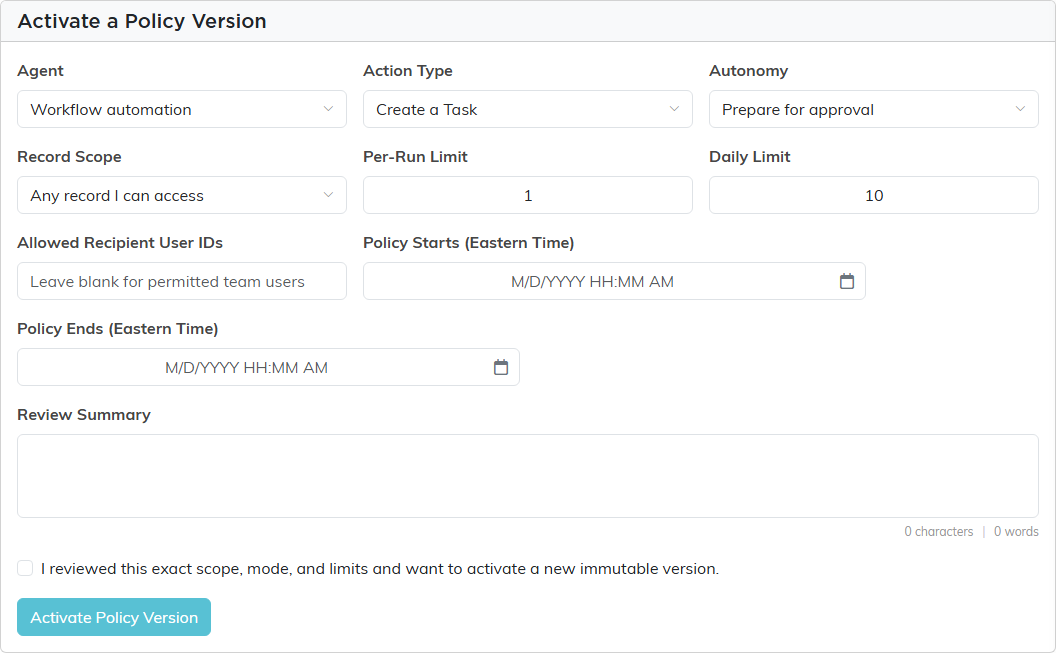
A new policy starts at Prepare for approval.
Each activation is a new version that cannot be edited afterward; to change a policy, activate a new version. Policy History lists every version. On the current one, Pause stops it for now and Revoke ends it for good.

The current policy, with Pause and Revoke.
Approve, return or reject a step
A step whose policy is Prepare for approval waits in Workflow & Productivity > Action Approvals for the person who enabled the workflow. Each card says what the step will do, who it is for, why, and which policy version it falls under. Exact reviewed payload and source versions opens the full detail. A waiting step expires after 7 days, or sooner if its own deadline comes first.
Click Approve to carry the step out. To send it back or turn it down, write why in Reason for reject or return, then click Return for Changes or Reject; the step is not carried out.
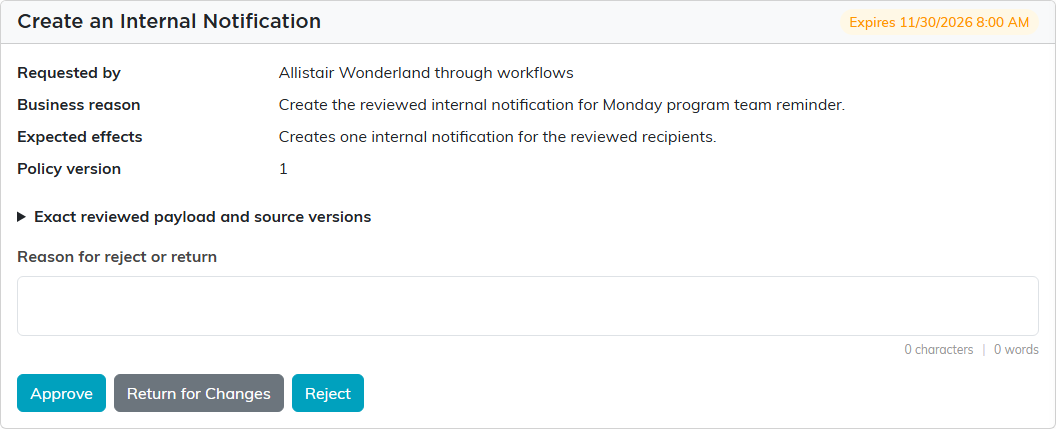
A notification step waiting for approval.
Read your workflow notifications
Notifications a workflow sends you are in Workflow & Productivity > My Workflow Notifications, newest first, with a count of the ones you have not read. Click Mark Read on each one you have dealt with, and Load Earlier to see older ones.
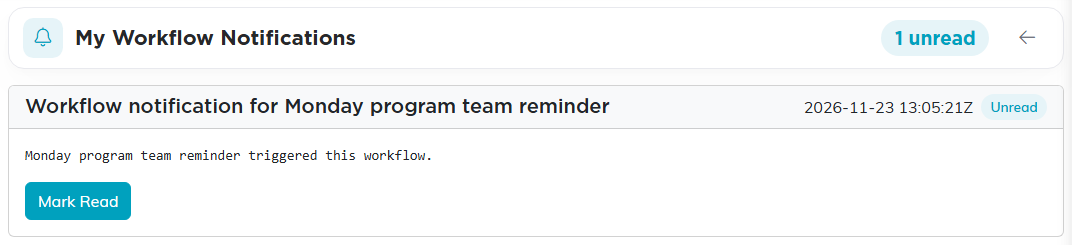
A workflow notification, unread.