Knowledge Base Article
How to Manage Your Fleet of Vehicles
Fleet keeps your organization's vans, buses and cars in Argenta: each vehicle's details and assigned driver, its odometer, insurance and renewal dates, its service history, service reminders by miles or months, a fuel log with miles per gallon, and the issues people report. A Due Soon list shows what needs attention across the whole fleet.
Who can use Fleet
Fleet opens for admins and for anyone with the Fleet Manager switch on under Module Permissions on their user record or role. A Fleet Manager whose permission is View Only can open every Fleet page but cannot add, change or delete anything. Everyone else does not see the Fleet menu at all.
The Fleet menu in the left sidebar holds Vehicles, Add Vehicle, Due Soon, Vehicle Issues, and the three lists you can tailor: Vehicle Types, Vehicle Statuses and Service Types.
Add a vehicle
- From the Fleet menu, click Add Vehicle, or click Add A New Vehicle on the Vehicles list.
- Enter a Vehicle Name, what your team calls it, such as Van 3 or the Blue Bus. Two vehicles cannot share a name.
- Pick a Vehicle Type.
- Click Add & Enter Details.
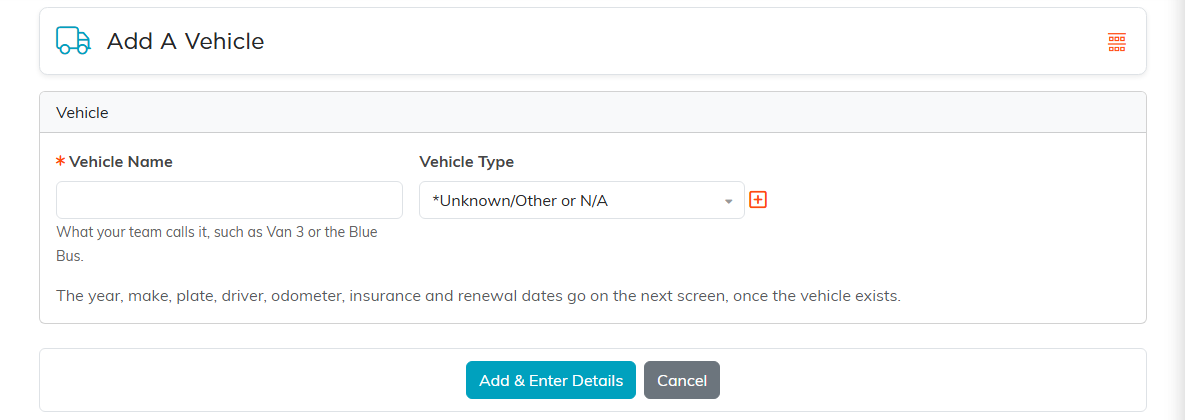
The new vehicle starts as Active and opens on its Vehicle Details tab, where the rest goes.
Fill in the vehicle's details
The Vehicle Details card holds the name, type and Status, the Year, Make, Model, Color, VIN, License Plate and Plate State, Seats Including The Driver, and the Assigned Driver: start typing the name of the person who usually drives it.
Odometer (Miles) moves up on its own whenever a fill-up or a service is logged with a higher reading, and you can correct it here.
The Insurance & Renewals card holds the Insurance Company, Policy Number, Insurance Expires, Registration Expires, Inspection Due, Purchase Date and Purchase Price. When one of the three renewal dates is within 30 days it shows Due Soon, and once it has passed it shows Overdue. Those three dates also appear on the Due Soon list.
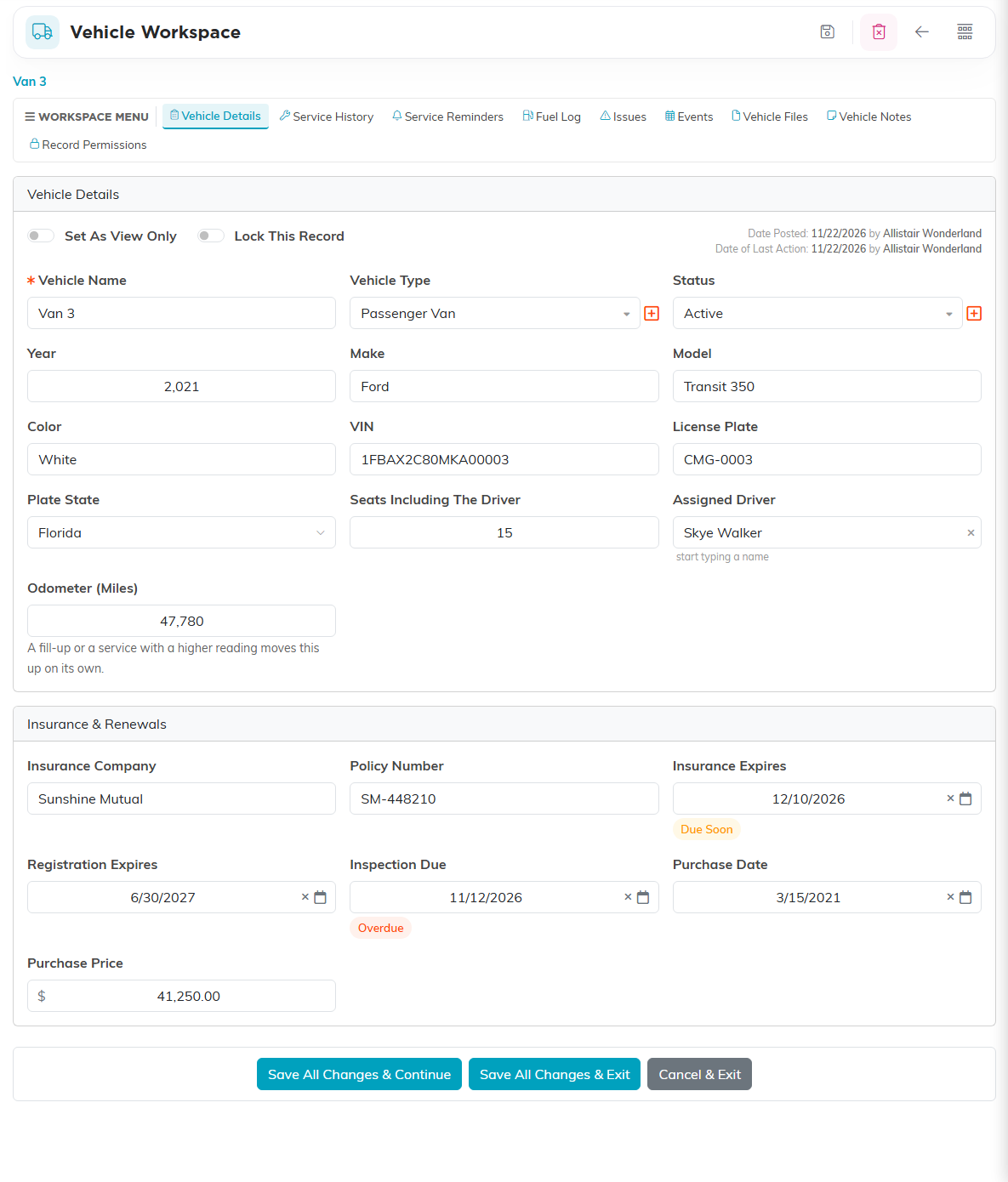
Click Save All Changes & Continue or Save All Changes & Exit. The tabs across the top are Vehicle Details, Service History, Service Reminders, Fuel Log, Issues, Events, Vehicle Files, Vehicle Notes and Record Permissions.
Log a service
- Open the Service History tab and click Add A Service Record.
- Enter the Service Date, pick the Service, and add the Odometer (Miles), Shop, Cost and any Notes.
- Click Save.
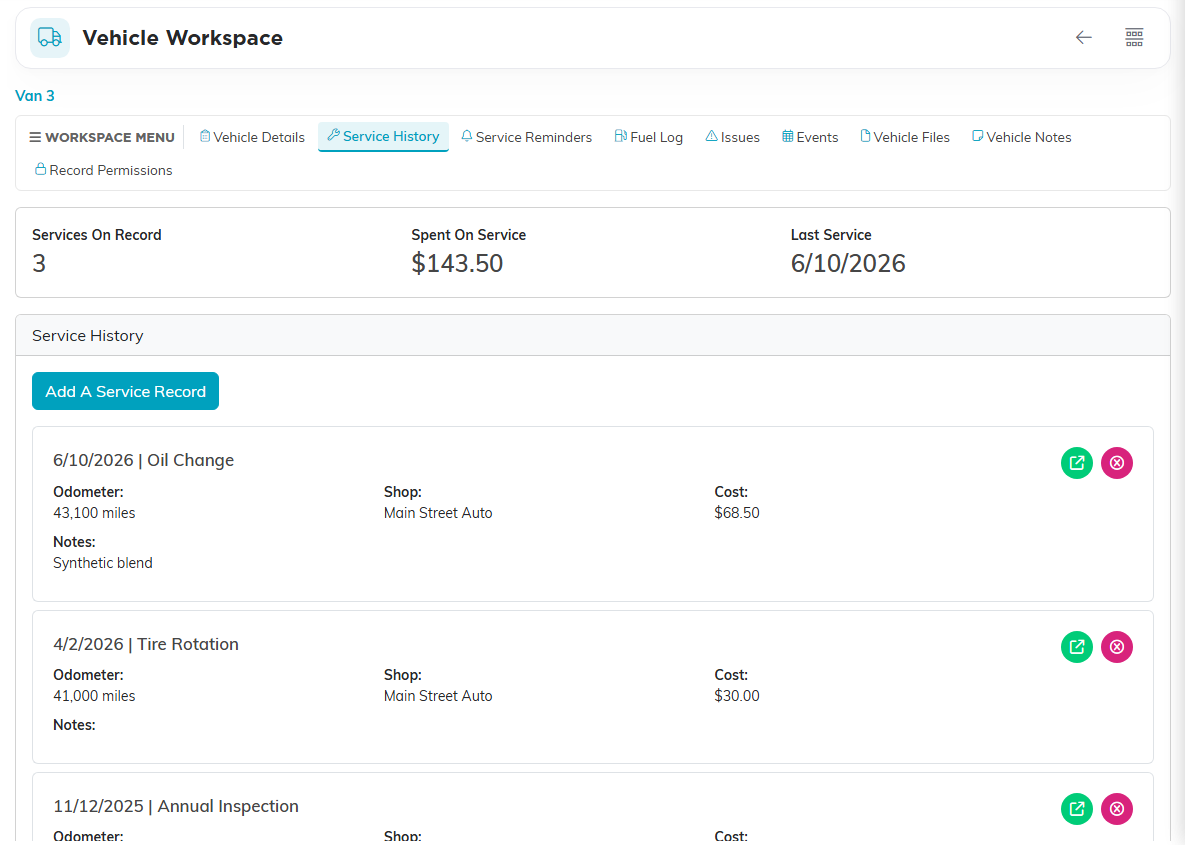
The totals at the top count the services on record, what they cost and the date of the last one. Logging a service also restarts the reminder for that service on this vehicle.
Set service reminders
- Open the Service Reminders tab and click Add A Reminder.
- Pick the Service, then fill in Every How Many Miles, Every How Many Months, or both, such as an oil change every 5,000 miles or 6 months.
- If there is no service record of this type yet, enter when it was Last Done and the Odometer When Last Done so the count has somewhere to start.
- Click Save.
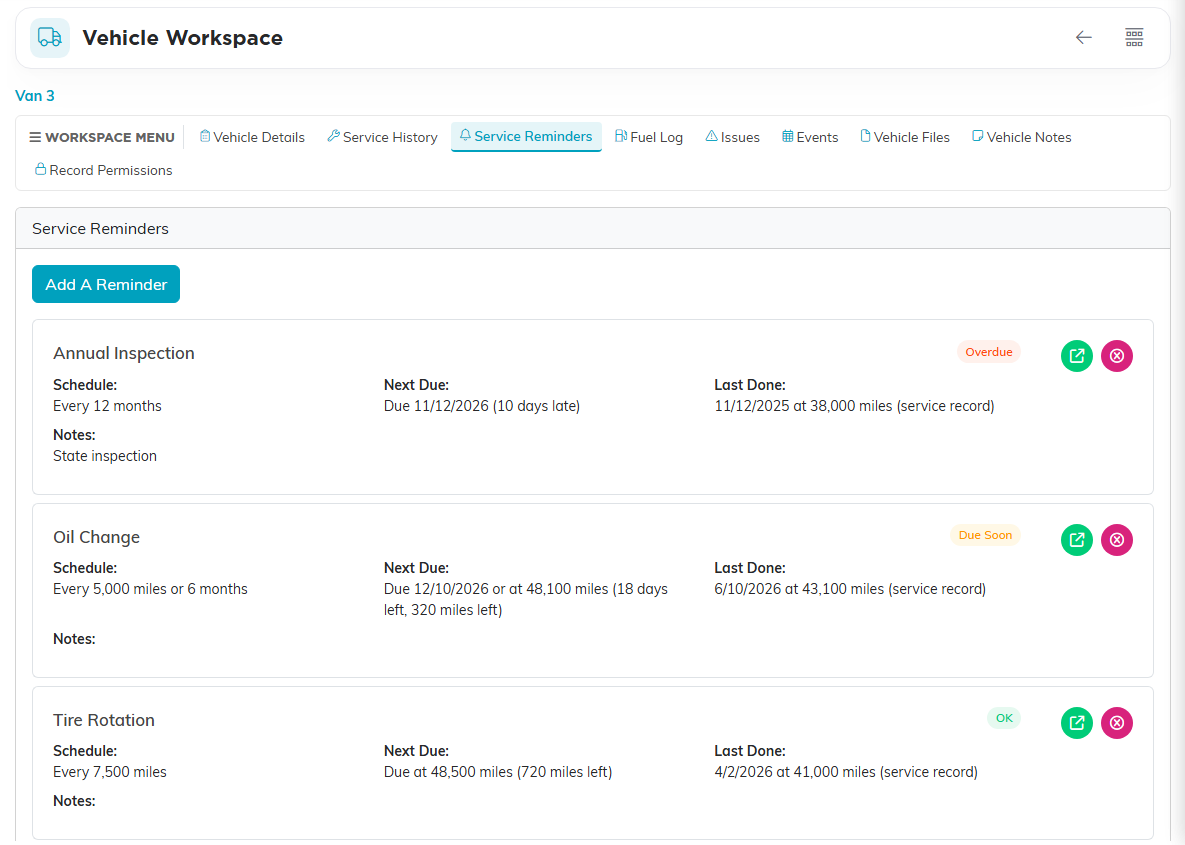
A reminder counts from the most recent service record of that type, or from Last Done if that is later, and it is due at whichever comes first, the months or the miles. Each one shows its schedule, when it is next due and how long is left, and a status:
- Overdue: the date has passed or the miles are used up.
- Due Soon: within 30 days, or within 500 miles (or a tenth of the mileage interval, when that is smaller).
- OK: not due yet.
- No History Yet: there is nothing to count from. Add a service record or a Last Done date.
Reminders show on screen, here and on the Due Soon list. They do not send emails.
Keep a fuel log
- Open the Fuel Log tab and click Add A Fill-Up.
- Enter the Date, Odometer (Miles), Gallons and Total Cost, and the Station, Driver and Notes if you like.
- Click Save.
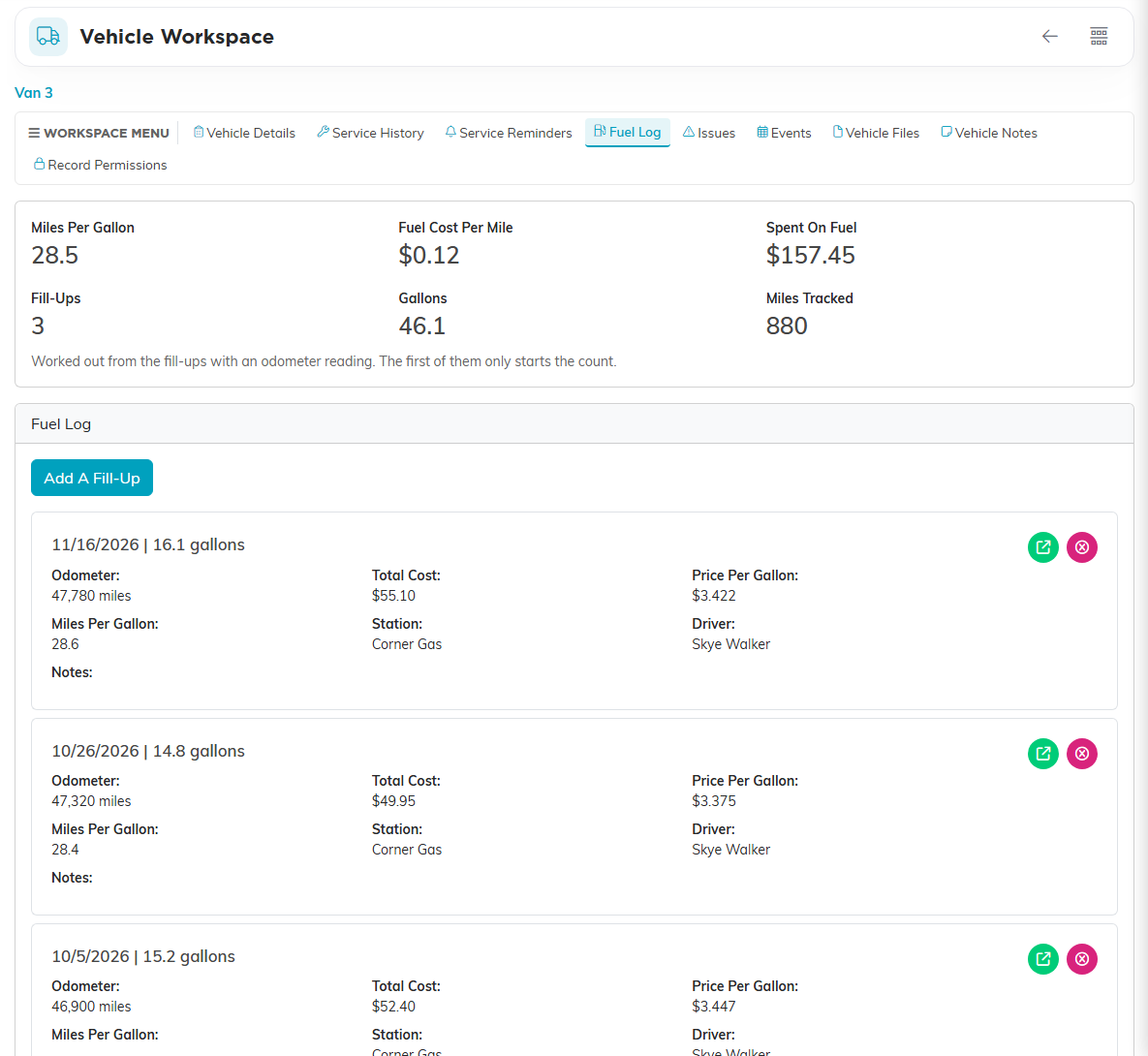
Miles per gallon and fuel cost per mile are worked out from the fill-ups that have an odometer reading. The first of them only starts the count, so you need at least two. Spent On Fuel, Fill-Ups and Gallons count every fill-up. Each fill-up also shows its price per gallon and its own miles per gallon.
Report and resolve issues
- Open the Issues tab and click Report An Issue.
- Describe What's Wrong, and add Reported On, Reported By (who noticed it) and any Details.
- Click Save.
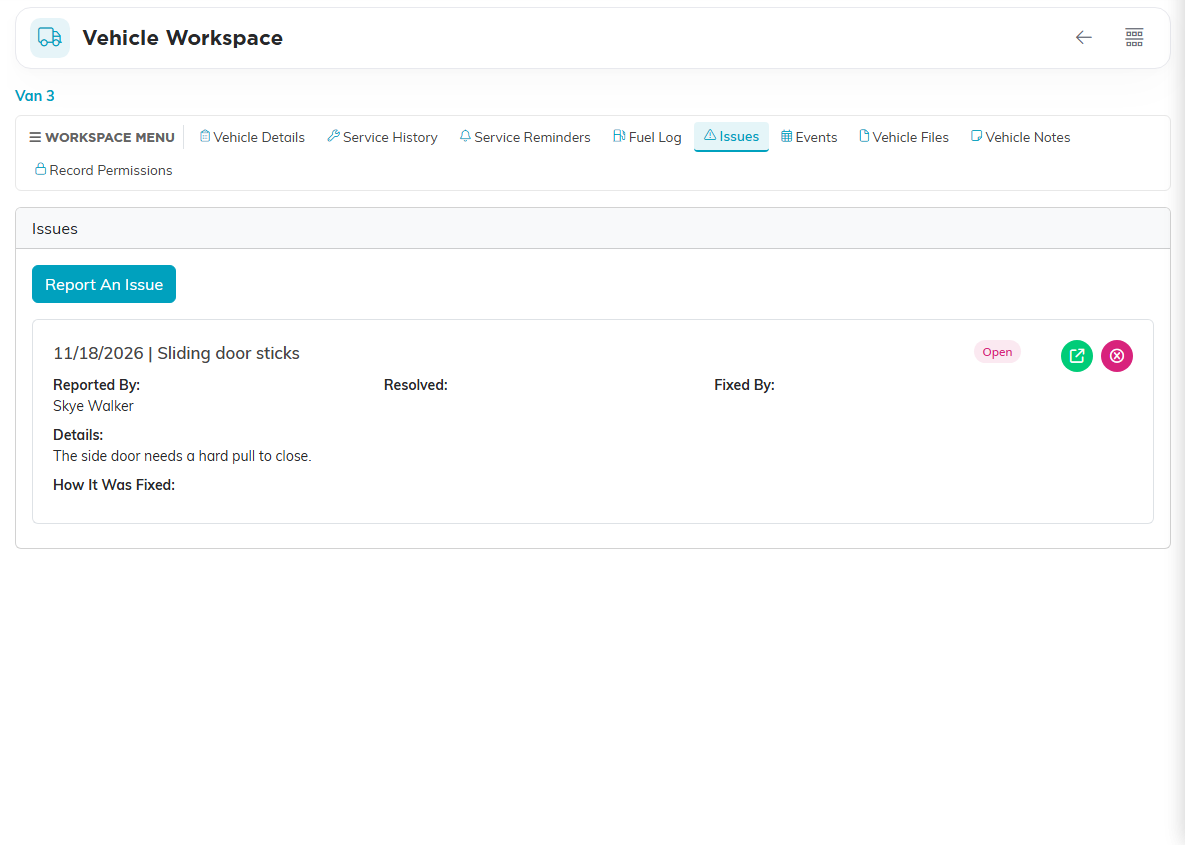
When it is fixed, open the issue, turn on Resolved, and fill in Resolved On, Fixed By Service (one of this vehicle's service records) and How It Was Fixed. A vehicle with open issues shows how many on the Vehicles list.
Put a fleet vehicle on an event
On an event's Event Vehicles tab, add a vehicle and pick it from the Fleet Vehicle list. Its type is filled in for you, and its driver and seats on the next screen, where you can change them. If the same vehicle is already on another event on the same days, a note tells you so, but it does not stop you.
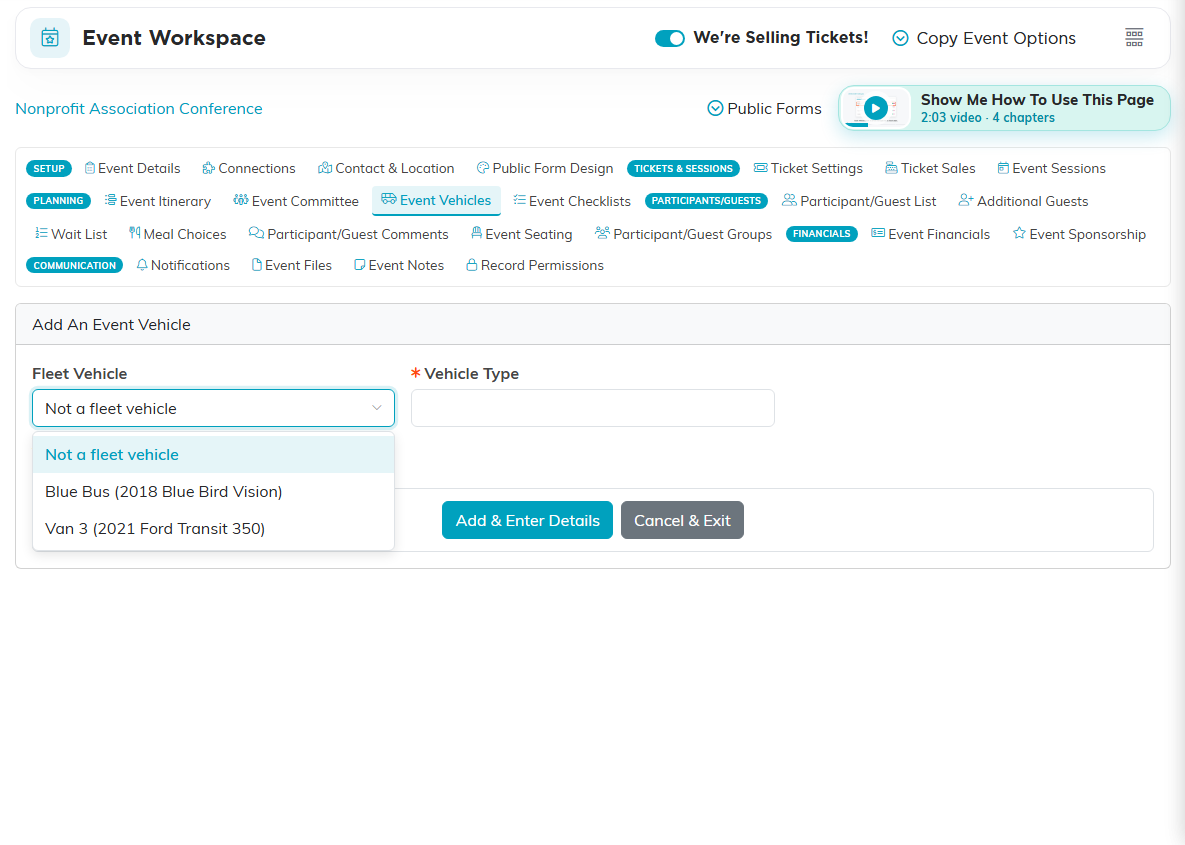
Vehicles that are Sold Or Retired are not offered. The vehicle's own Events tab lists every event it is on, newest first.
See what is due
From the Fleet menu, click Due Soon. It lists every active service reminder, and the insurance, registration and inspection dates of every vehicle that is not Sold Or Retired, most urgent first.
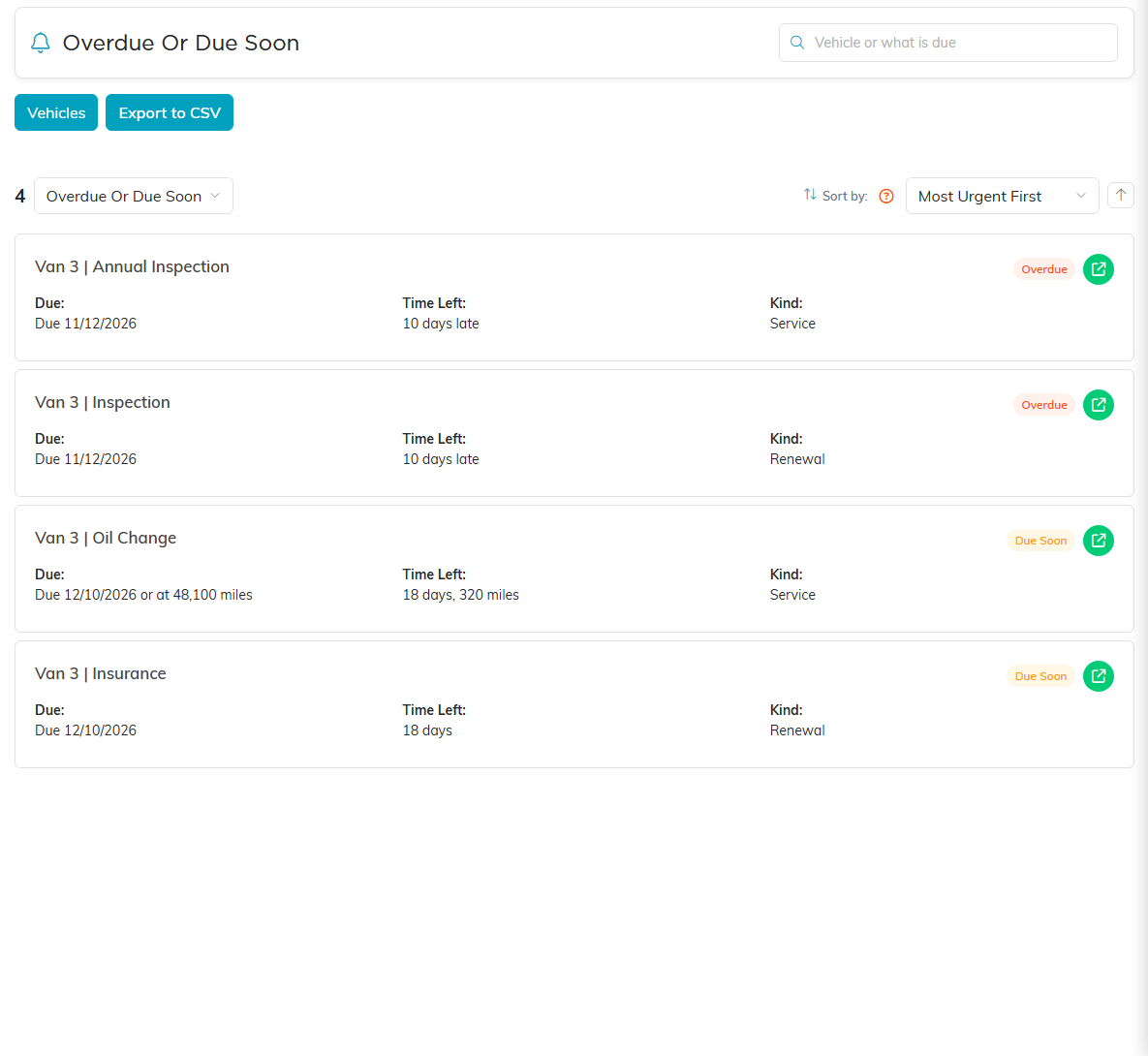
Switch between Overdue Or Due Soon, Overdue and Everything, sort by Most Urgent First, Vehicle Name or What Is Due, and click Export to CSV to take the list with you. The green button on a row opens the vehicle's reminders or details.
See every open issue
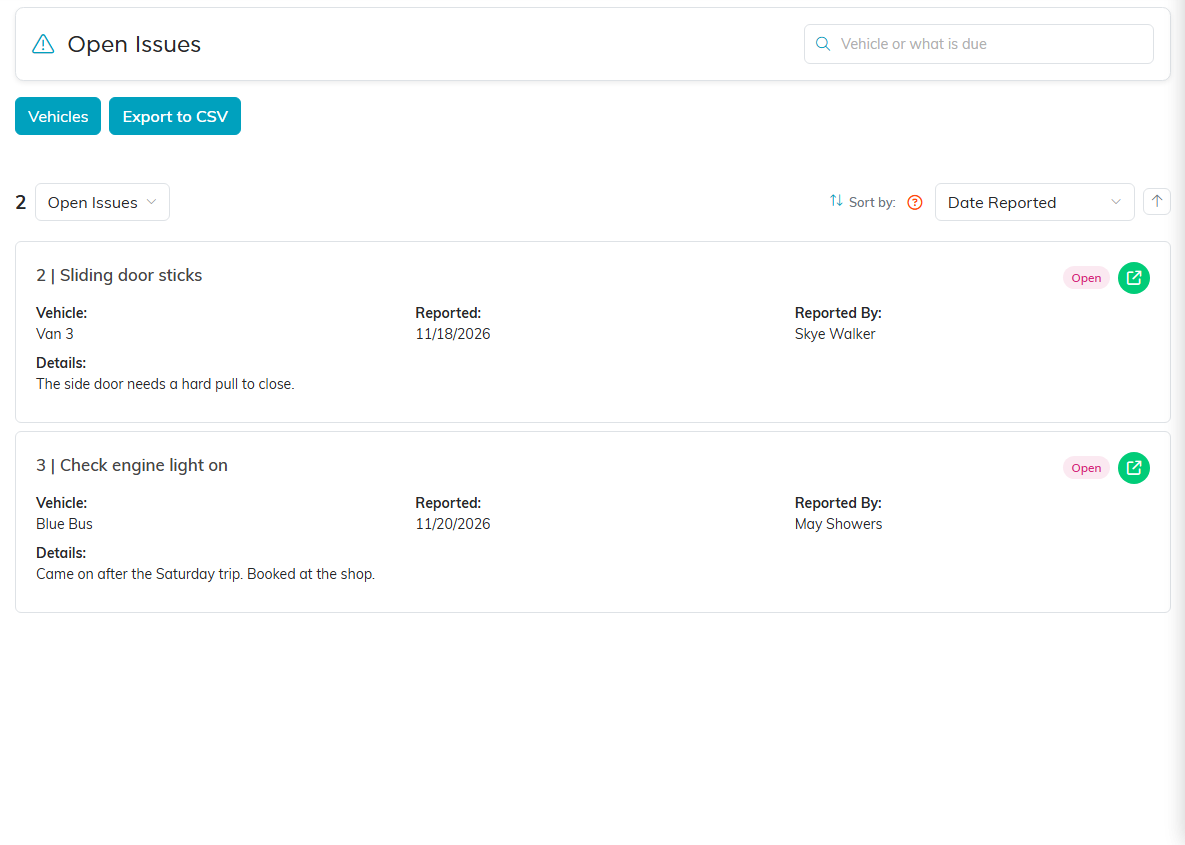
From the Fleet menu, click Vehicle Issues for the open issues across all your vehicles, oldest first. Switch to All Issues to include resolved ones, or sort by Vehicle Name.
The Vehicles list
The Vehicles list opens on Vehicles In Use, which leaves out vehicles that are Sold Or Retired. Switch to All Vehicles or one status, sort it, search by ID, name, make, model, VIN, plate or driver, and export it to CSV.
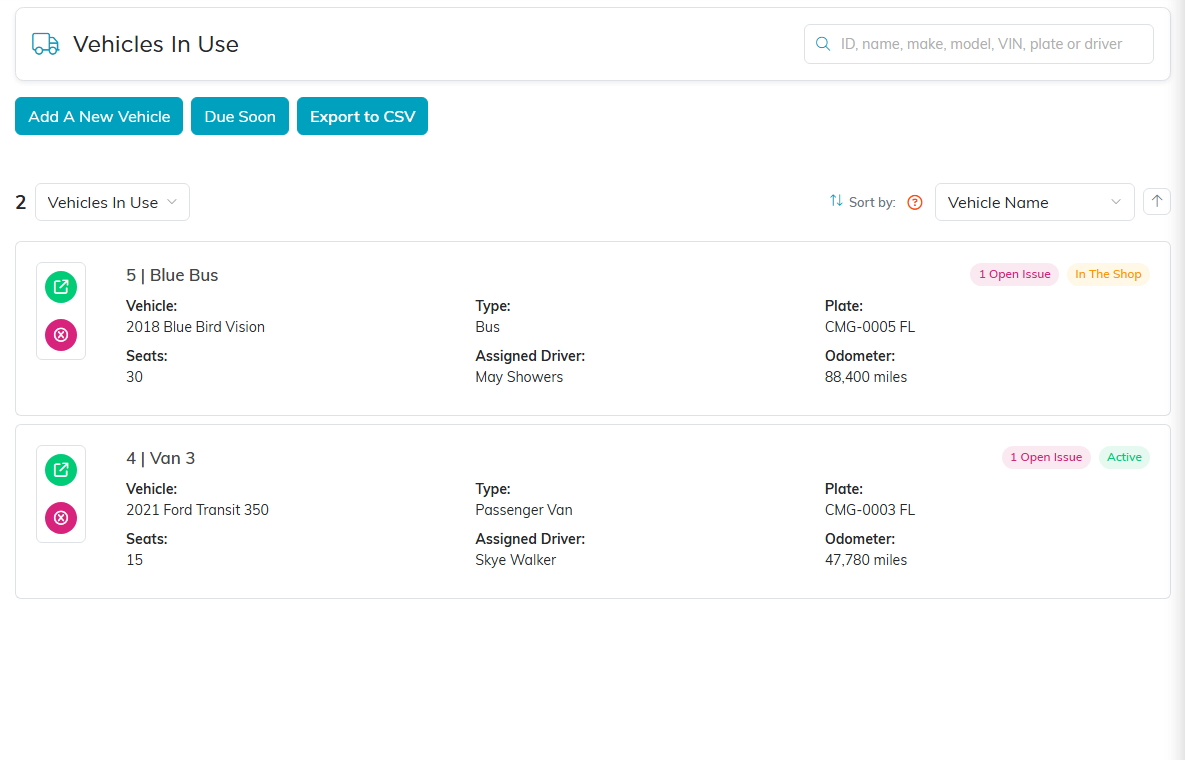
The red button on a row deletes the vehicle with its service history, reminders, fuel log, issues, files and notes. A vehicle that is on an event cannot be deleted. Set its status to Sold Or Retired instead, which takes it out of the in-use list, Due Soon and the event picker.
Tailor the lists
Vehicle Types, Vehicle Statuses and Service Types in the Fleet menu open lists you can add to. They start with common choices, such as Passenger Van and Bus, Active and In The Shop, and Oil Change and Tire Rotation.