Knowledge Base Article
How to Track Certifications and Send Renewal Reminders
Certifications keeps each person's certifications and cards on their record, such as a first aid, CPR or lifeguard card, with the date each one expires. A list shows who is expiring, who has lapsed and who is missing a certification you require, and Argenta can email reminders before a certification expires, with a link the person uses to send in their renewed card without signing in.
Setting up types and reminders and using the Certifications list takes an admin or a Constituent Manager. Anyone who can open constituent records can see a person's Certifications tab, but only an admin or a Constituent Manager without view-only access can change it.
Set up your certification types
- From the left sidebar, open Constituents (CRM) and click Certifications, then click Certification Types.
- Type a name in New Certification Type, for example "Wilderness First Aid".
- Turn on Required if everyone who holds a certification should have this one.
- Click Add New.
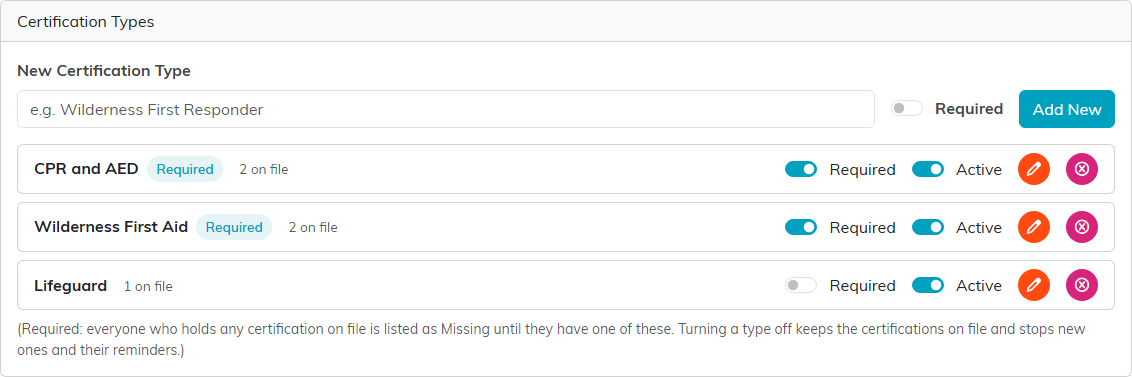
Each type shows how many certifications are on file for it. Use the switches on a type to change Required or Active, the pencil to rename it, and the red button to delete it.
- Required. Anyone who holds any certification on file is listed as Missing until they have one of these.
- Active. Turning a type off keeps the certifications already on file, but it can no longer be added to anyone and its reminders stop.
Turn on expiration reminders
The Expiration Reminders card is on the same page.
- Turn on Email Reminders Before A Certification Expires.
- In Team Member To Remind, start typing the name of the staff member who should hear about each one.
- Set First Reminder, Days Before and Final Reminder, Days Before. Enter 0 in the final reminder for just one.
- Turn on Email The Person Too, With An Upload Link to send the person their own reminder with a link to upload the renewed card.
- Click Save.
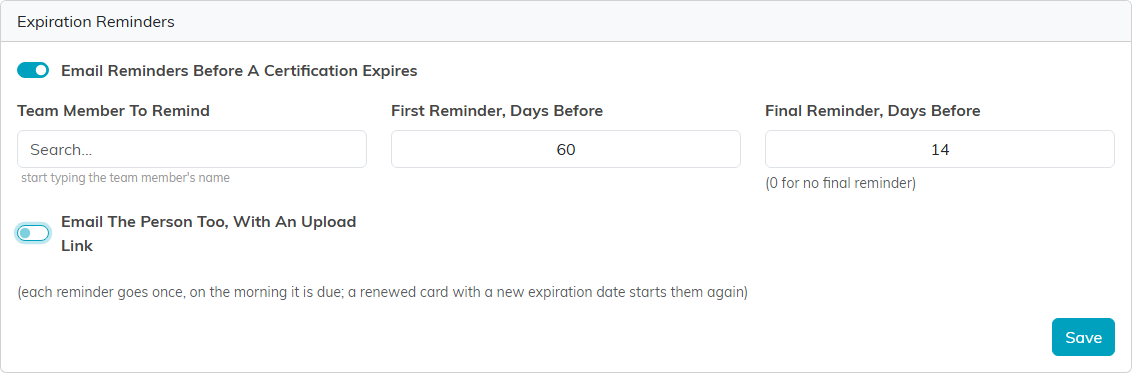
Each reminder goes once, on the morning it is due. When a renewed card with a new expiration date is on file, the reminders start over for the new date. If the team member you chose has no email address, the card tells you so and only the person is emailed.
Add a certification to a person
- Open the person's record and click Certifications.
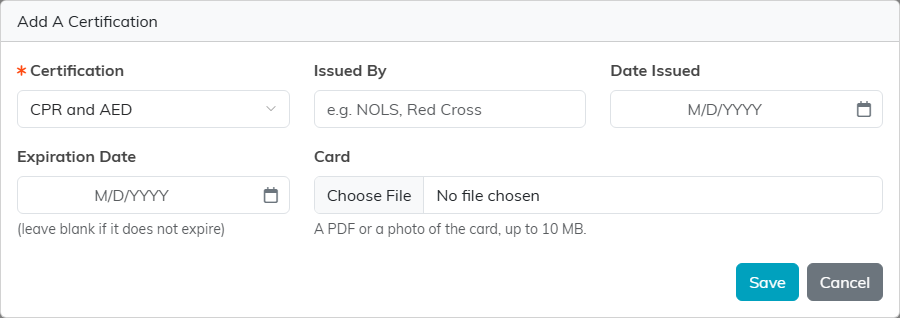
- Click Add A Certification.
- Pick the Certification, and fill in Issued By, Date Issued and Expiration Date. Leave the expiration date blank for one that does not expire.
- Under Card, choose a PDF or a photo of the card, up to 10 MB.
- Click Save.
The tab lists each certification with its status, who issued it, its dates and its card. Click the card's name to open it. A required type the person does not have shows at the top as Missing.
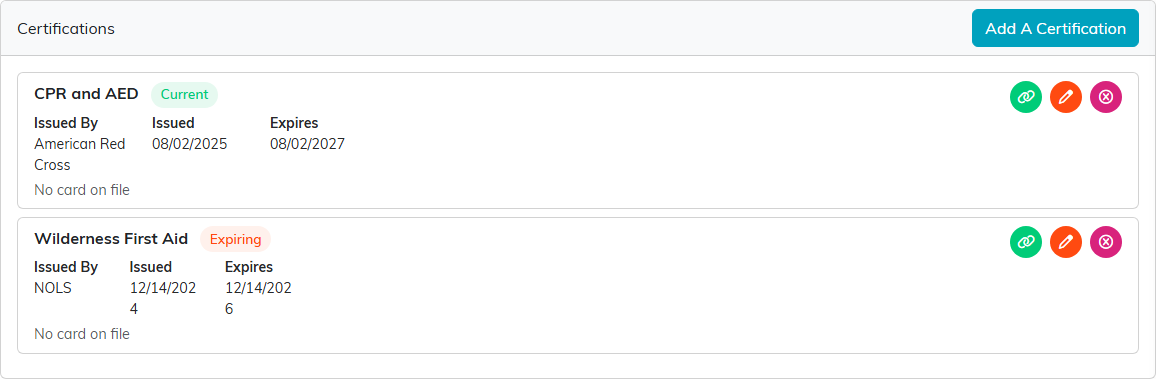
The status beside each one tells you where it stands:
- Current: it does not expire, or expires more than 60 days from today.
- Expiring: it expires within the next 60 days.
- Lapsed: its expiration date has passed.
- Replaced: the person has a later certification of the same type, which is the one that counts.
To renew a certification yourself, edit it with the pencil and change its dates and card, or add the new card as another certification of the same type, which marks the old one Replaced.
Send the person an upload link
If a reminder went astray, or a card has already lapsed, you can send the person the link yourself. Click the green link button on the certification. It appears on certifications that have an expiration date.
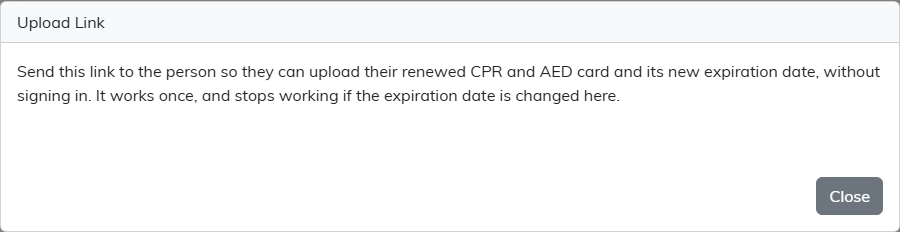
Copy the link from the box and send it to the person. It works once, and stops working if the expiration date is changed on the record.
What the person sees
The link opens a page with your organization's name and the certification on file. The person enters the New Expiration Date, can add the Date Issued, chooses a photo or PDF of the renewed card, and clicks Send My Renewed Card.
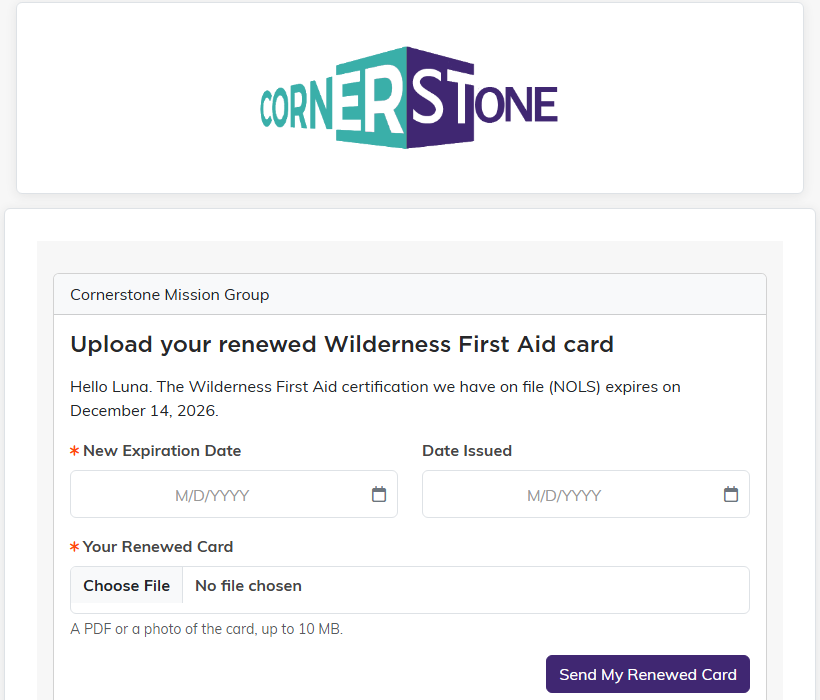
The new expiration date has to be after today and later than the one on file. The new dates and card replace the old ones on the person's record, and the tab notes that the person renewed it through their reminder link and when.
See who needs attention
Open Constituents (CRM) and click Certifications. The list opens on Needs Attention: everyone with a lapsed, expiring or missing certification, one row for each person and certification.
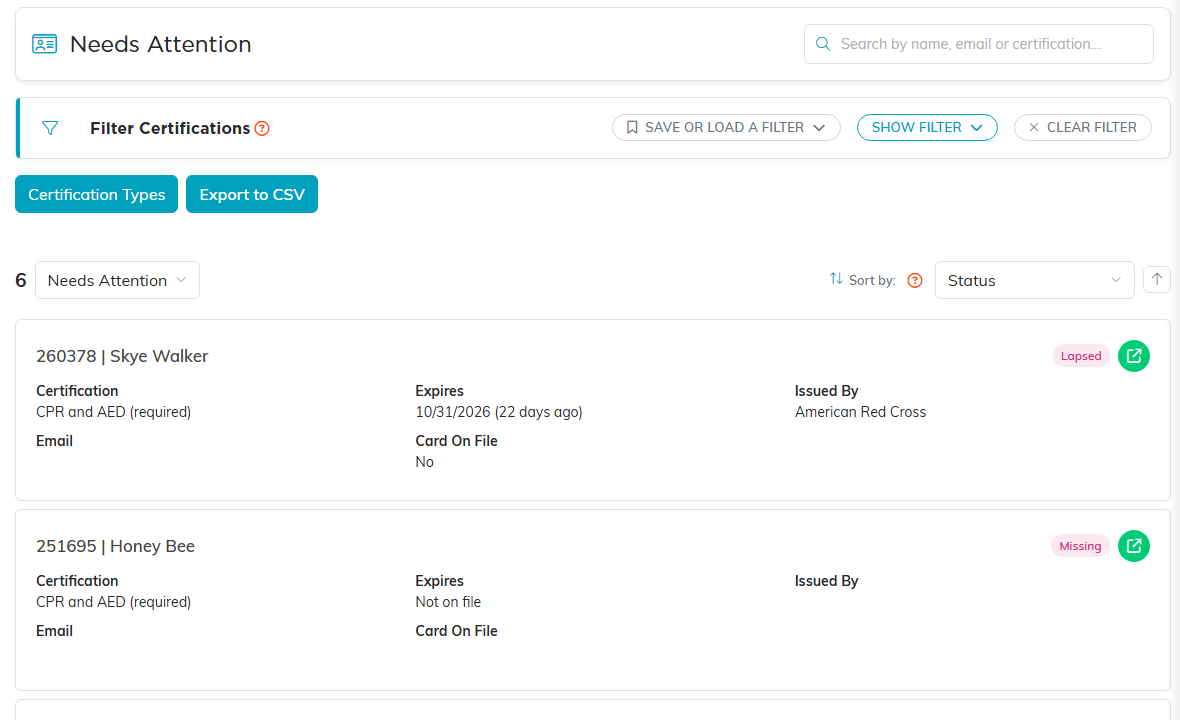
Use the drop-down beside the count to switch to Lapsed, Missing, Expiring Soon, Current or All Certifications. Under Show Filter you can pick one Certification, an Expiration Date Range, and how many days count as expiring in Expiring Means Within (Days). Search by name, email or certification, and click Export to CSV to take the list with you.
The list is for reading. To change a certification, click the green button on its row to open the person's Certifications tab.