Knowledge Base Article
How to Ask a Report Question
Ask A Report Question answers a plain-English question about your donations, donor retention, campaign goals or volunteer hours. Every answer comes from one of your existing reports, shows the dates and filters it used, and links to the records behind it. Nothing is changed unless you confirm an action.
Open the page
Go to the Report Center and click the Ask A Report Question icon at the top right, beside My Favorite Reports.
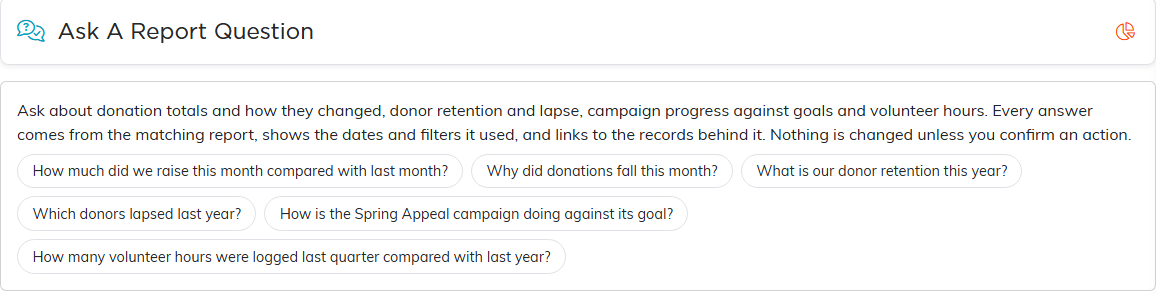
Click an example to ask it, or type your own question.
What you can ask depends on your access. A Donation, Finance or Marketing Manager, or an administrator, can ask about donation totals, donor retention and campaign goals. A Volunteer Manager, or an administrator, can ask about volunteer hours. The examples show only questions you can ask.
Ask a question
Type your question in Your question and click Ask, or click one of the examples. Four kinds of question are answered:
- Donation totals and how they changed, from the Donor Retention report
- Donor retention: retained, lapsed, new and recovered donors, from the Donor Retention report
- Campaign goal progress, for one campaign or all of them, from the Campaign Progress report
- Volunteer hours, task and training hours, from the Total Volunteer Training + Task Hours report
If you don't name a period, a sensible one is picked and the answer tells you which. A period that isn't over yet is counted through today and compared with the same number of days of the period before. For a vague period such as "recently" or "this fiscal year", you are asked for the dates instead of given a guess. Forecasts, filters the reports don't have (such as a gift amount or a state) and questions about anything else are turned down, rather than answered as a different question.
When a question doesn't clearly name one of the four kinds, AI may be used to work out what you meant. Only the words you typed are sent for this, never your records or figures. You then see I read it as: with its reading: click Yes, Answer That to run it, or No to ask another way. The figures themselves always come from the report.
Read the answer
The answer opens with a one-line summary, then How I read your question, which lists any assumption it made, such as a period counted through today. Below that come:
- The figures, each with Where this comes from
- A chart, with a table of the same numbers
- The records behind the figures, such as the lapsed donors who gave the most, each linked to its record
- What affects these numbers, such as refunds the report does not subtract
- Source, naming the report and every setting it was run with, linked so you can open it yourself
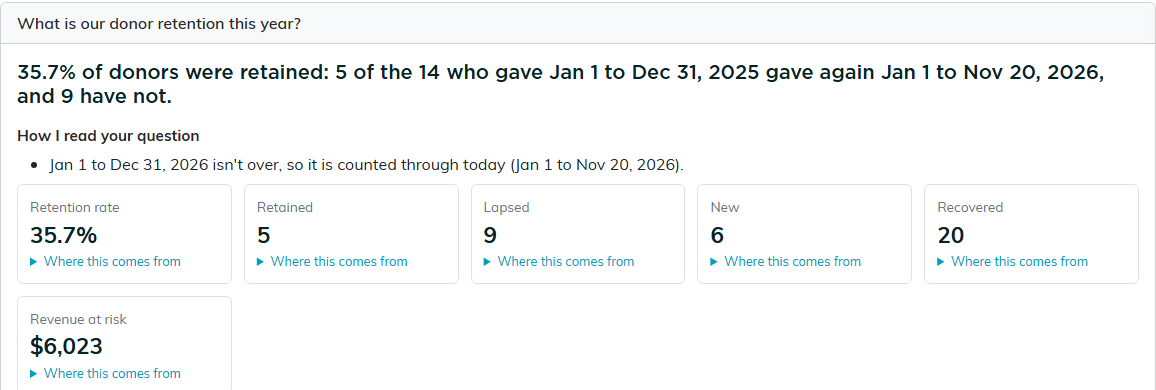
A retention answer. This year isn't over, so it is counted through today.
If your access is limited to some chapters, divisions, departments or precincts, the figures cover only the records in them, as the report does for you. A record you are locked out of is counted, but not named or linked.
Change the question, and take a next step
Under the latest answer, What I'm answering shows the measure, the periods and the campaign it used. Change any of them and click Update Answer to run exactly what you set, or Undo Changes to put them back. You can also type a follow-up, such as "compare with last year": it keeps the measure, campaign and periods unless you name new ones. Start Over clears the conversation.
The latest answer also offers Next steps:
- A button that opens the matching report with the same dates, such as Open the 9 lapsed donors in Donor Retention.
- Create A Follow-Up Task, for task managers and administrators, adds one task to your team's Tasks, unassigned and due in 30 days, with a suggested title you can change. Nothing is saved until you click Create Task.
- Prepare Outreach previews the donors or volunteers you could contact, and whether each allows email and mail. Nothing is sent or saved; you write and send the message in Mail Room.
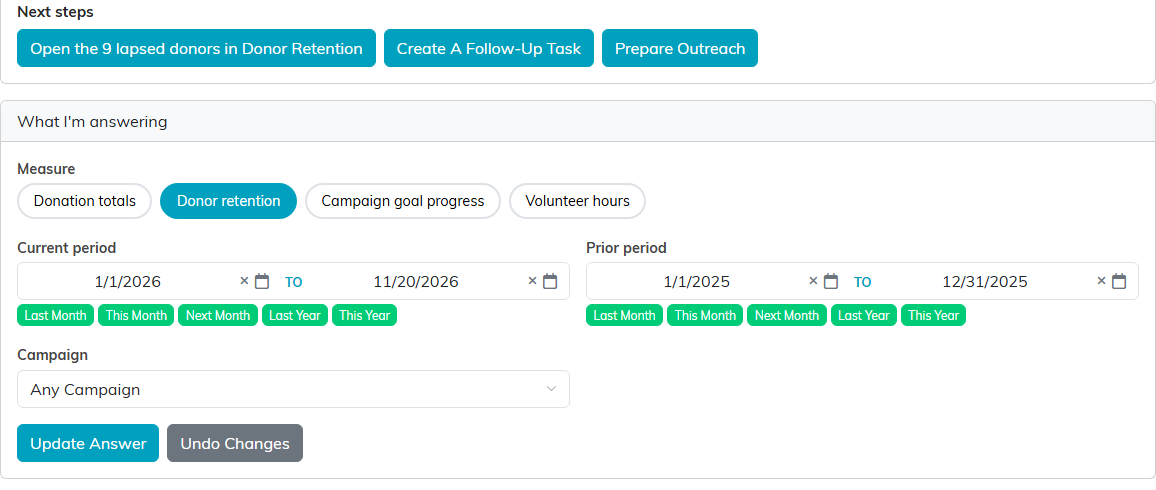
Next steps on a retention answer, and the settings it used.