Knowledge Base Article
How to Use My Work to See Your Project Tasks
My Work puts every open project task assigned to you on one page, across all your projects, sorted by when each one is due. Open it from Workflow & Productivity > My Work in the left menu. You need the Project Manager or Master Admin permission.
What Is on the Page
Four tiles across the top count your open tasks: Overdue, Due Today, Due This Week, and Open Tasks for all of them together.

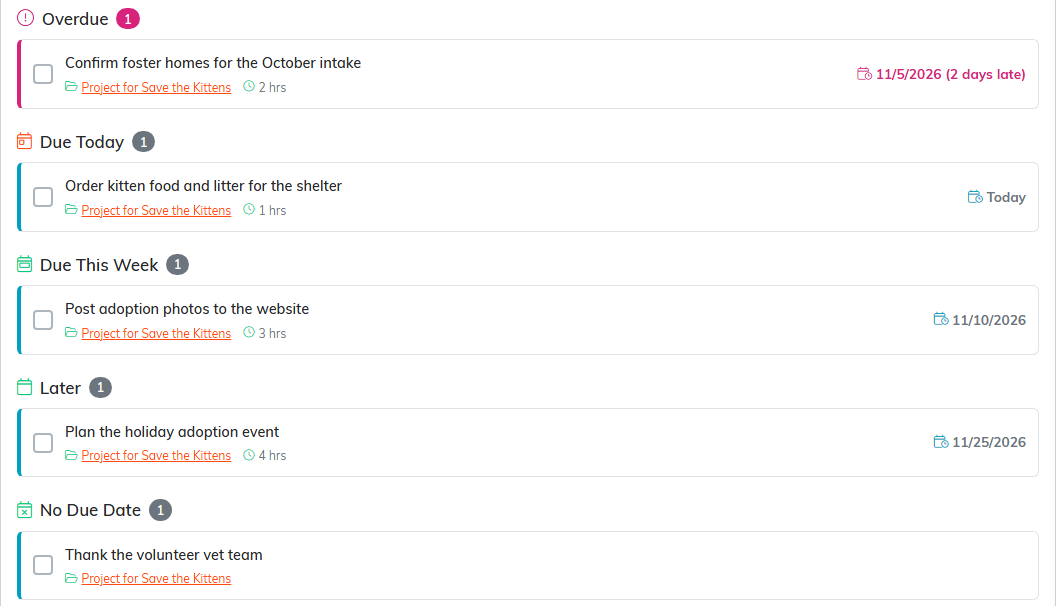
Below the tiles, your tasks are grouped under Overdue, Due Today, Due This Week, Later and No Due Date. Due This Week means due in the next seven days, not the calendar week. An overdue task says how many days late it is.
Each task shows the project it belongs to, as a link to that project's Project Tasks page, plus its hours and its sprint when it has them.
Type in Search by task or project to narrow the list to tasks or projects whose name contains what you typed.
Which Tasks Show
A task shows here when it is on a project's Project Tasks page, it is assigned to you, and it is not yet done. Tasks from the Tasks module are not included. The list also follows your chapter, division, department and precinct access.
When nothing is assigned to you, the page says so and links to Project Management.
Marking a Task Done
Tick the box beside a task to mark it done. It stays on the page, struck through, until you next open My Work, so you can untick it if you clicked the wrong one.
The box is greyed out on a project that is View Only for you, or when your own account is View Only. A task on a project that is locked for you shows only as A task on a locked project, with the project's name, and it cannot be ticked.
