Knowledge Base Article
How to Read, Mark Up, Ask About and Edit a PDF in the Document Library
When you preview a PDF in the Document Library, it opens in a full reader. You can turn its pages, search it, mark it up for your team, ask questions about it, and save an edited copy, all without downloading it.
Opening the Reader
- Open Document Library.
- Click the eye icon on a PDF in the list, or open the document and click Preview Document.
Pictures open in a simple preview. Other file types download as usual. Download Document at the bottom of the reader downloads the PDF, and Close puts the reader away.
Moving Around a PDF
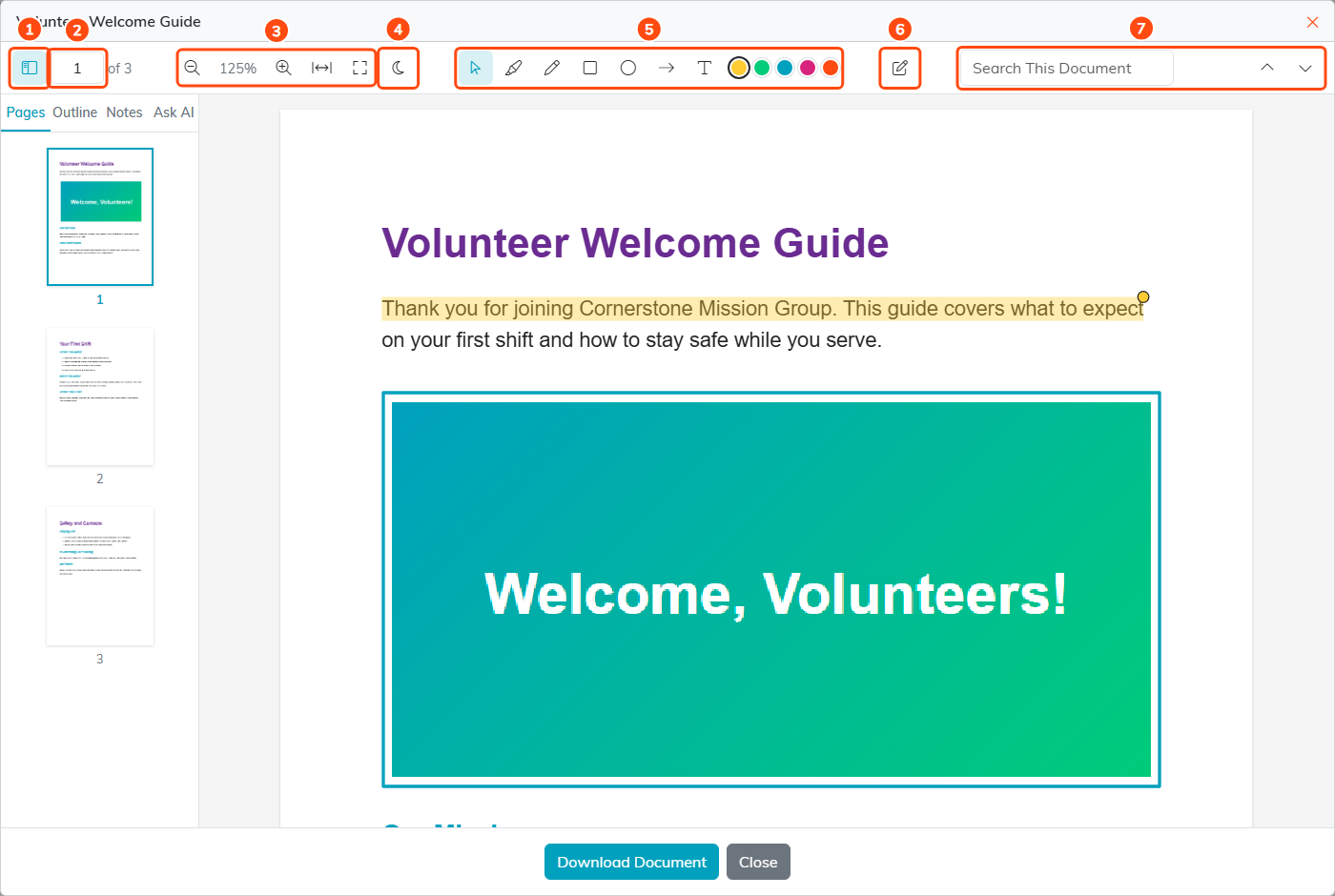
1: pages and outline. 2: page number. 3: zoom and fit. 4: Dark View. 5: marking tools. 6: Edit a Copy. 7: search.
- Pages and Outline shows or hides the side panel. Pages lists a thumbnail of every page, and Outline lists the PDF's own headings when it has them. Click either to go there.
- Type a page number in the box to jump to that page.
- Zoom In and Zoom Out change the size. Fit to Width fills the reader from side to side, and Fit Whole Page shows a whole page at once.
- Dark View shows the pages in dark colors. Click it again to go back. The reader remembers your choice in this browser.
- Type in Search This Document to find words in the PDF. The arrows step to the previous and next match. A scanned PDF that is only pictures of pages has no searchable text.
On a phone, the side panel covers the pages, so it closes on its own when you pick a page.
Marking Up a PDF
Admins and Workflow managers who can edit a document see the marking tools. Everyone who can open the document sees the marks.
- Highlight Text: choose it, then select some text on one page. The highlight saves when you let go, and a box opens where you can add a note.
- Draw, Rectangle, Ellipse and Arrow: choose one, then drag on the page.
- Text Box: choose it, click where the text should go, type it, then click Add Text.
- Pick a color from the dots before you mark: yellow, green, teal, pink or orange.
To change a mark, choose Select a Mark and click it. You can change its note or color and click Save, or click Delete to remove it. Only the person who made a mark, or an admin, can change or delete it.
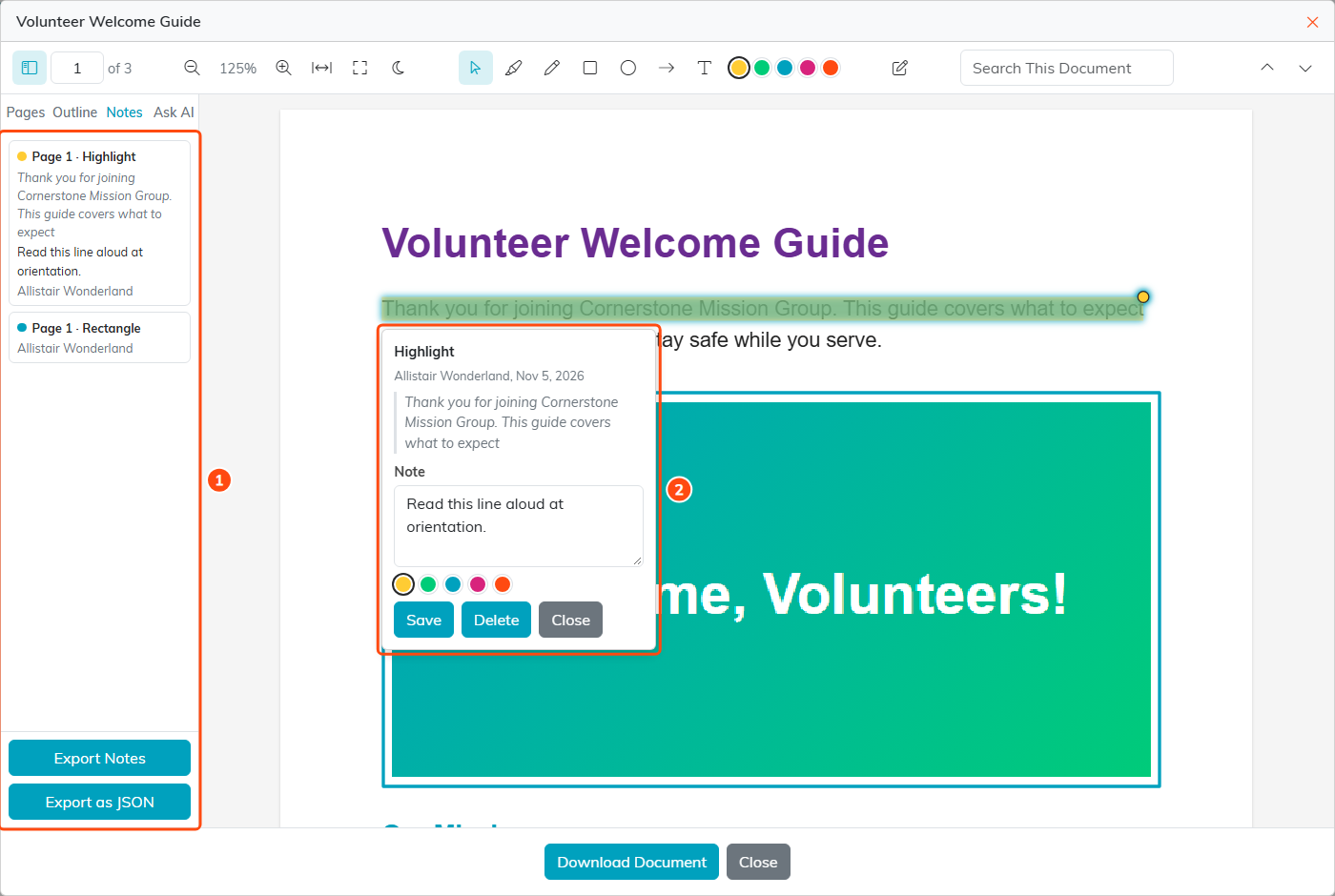
1: the Notes list. 2: a selected highlight and its note.
The Notes tab lists every mark by page, with the highlighted words, the note and who made it. Click one to go to it. Export Notes downloads the list as a text file, and Export as JSON downloads it for another program.
Marks belong to the file they were drawn on. If someone uploads a new file to the document, the old marks no longer show.
Asking AI About a PDF
Anyone who can open the document can ask questions about it.
- Click the Ask AI tab in the side panel.
- Type your question and click Ask, or press Enter. Press Shift + Enter to start a new line instead.
- Read the answer. Each part of it links the pages it came from, such as p. 2. Click a link to go to that page.
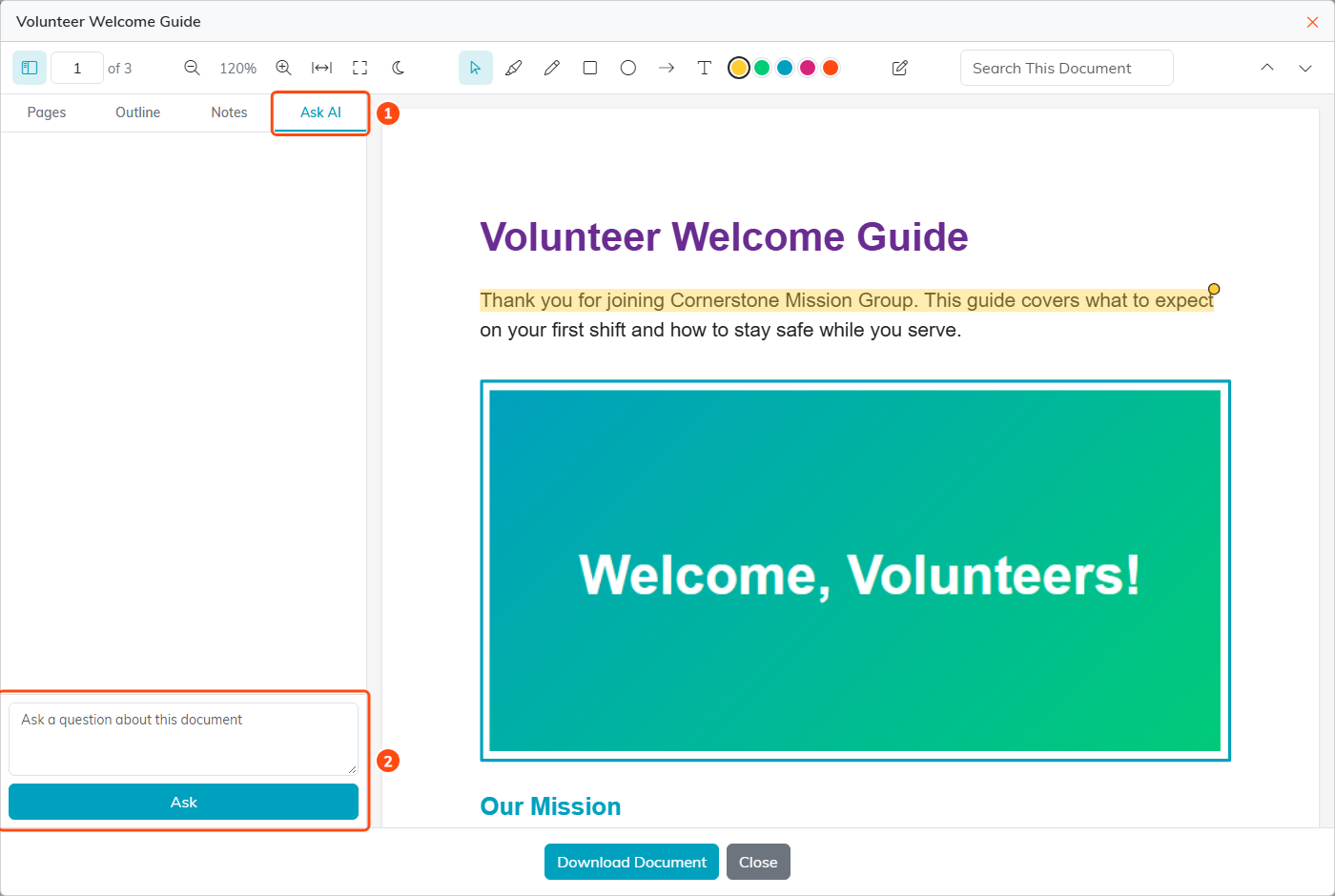
1: the Ask AI tab. 2: where you type your question.
Ask AI answers only from the PDF you are reading. If the PDF does not say, it tells you so. You can ask follow-up questions, such as tell me more about the second one.
- The conversation is not saved. Closing the reader ends it.
- One conversation can hold up to 20 questions, and each person can ask up to 100 a day.
- Ask AI reads PDFs up to 24 MB. It cannot read a password-protected PDF.
Editing a Copy of a PDF
Admins and Workflow managers who can edit a document can save a changed copy of its PDF. The original document is never changed.
- Click Edit a Copy in the toolbar.
- Make your changes:
- Click text to change it, or clear it to take it out.
- Click a picture to replace it with a PNG or JPEG under 10 MB.
- Use the buttons at the top of each page to turn it, move it earlier or later, or leave it out of the copy. A copy needs at least one page.
- Turn on Include Marks to draw the document's marks into the copy.
- Click Save as a Copy.
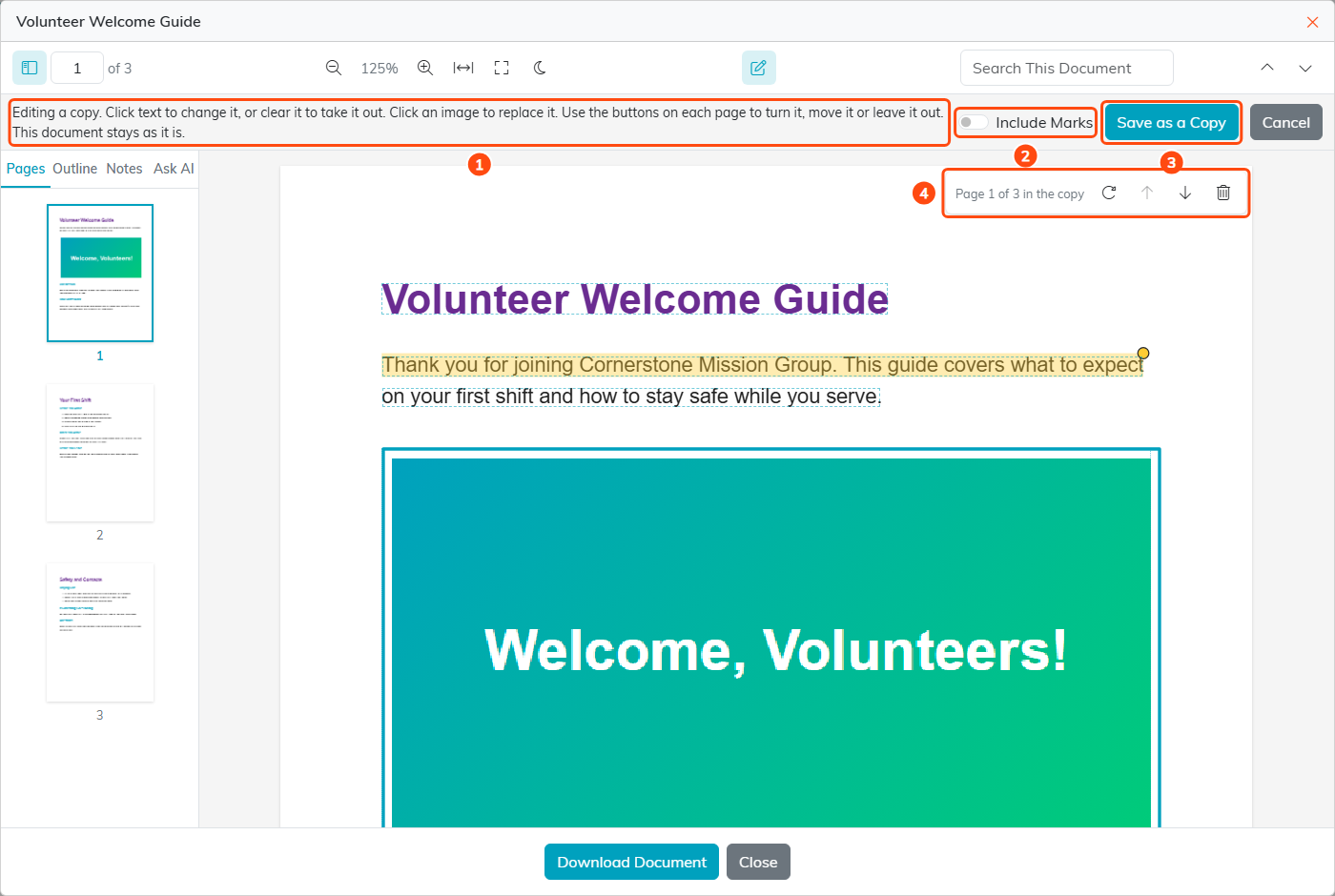
1: what you can change. 2: Include Marks. 3: Save as a Copy. 4: turn, move or leave out this page.
The copy is added to the Document Library as a new document, named after the original with (Edited) on the end. It keeps the original's category, description, and View Only, Locked and All Staff settings. Click Open the Copy to see it, or Done to go back to the original. Cancel stops editing, and asks first if you have changes you have not saved.
Edit does not work on a digitally signed PDF, because changing it would break the signature, or on a password-protected one.
To add documents to the library, see Add Documents in the Document Library.
