Knowledge Base Article
How to Send Email Notifications About a Task
A task's Notifications page sends an email about the task, usually to the person who asked for it, with copies to anyone on your team. Open the task and click Notifications in the workspace menu.
Write and send a notification
- Check the address in Send To Email (Default: Requestor). It starts as the email address of the task's Requested by Constituent; type a different address to send it to someone else.
- Optional: Under Copy All Selected Team Members, select the team members who should get a copy.
- Write the message in the editor. The message starts with the task's ID, who it is assigned to, and the task's specifications, followed by
MESSAGE GOES HERE...; replace that line with what you want to say. - Click Send Notification.
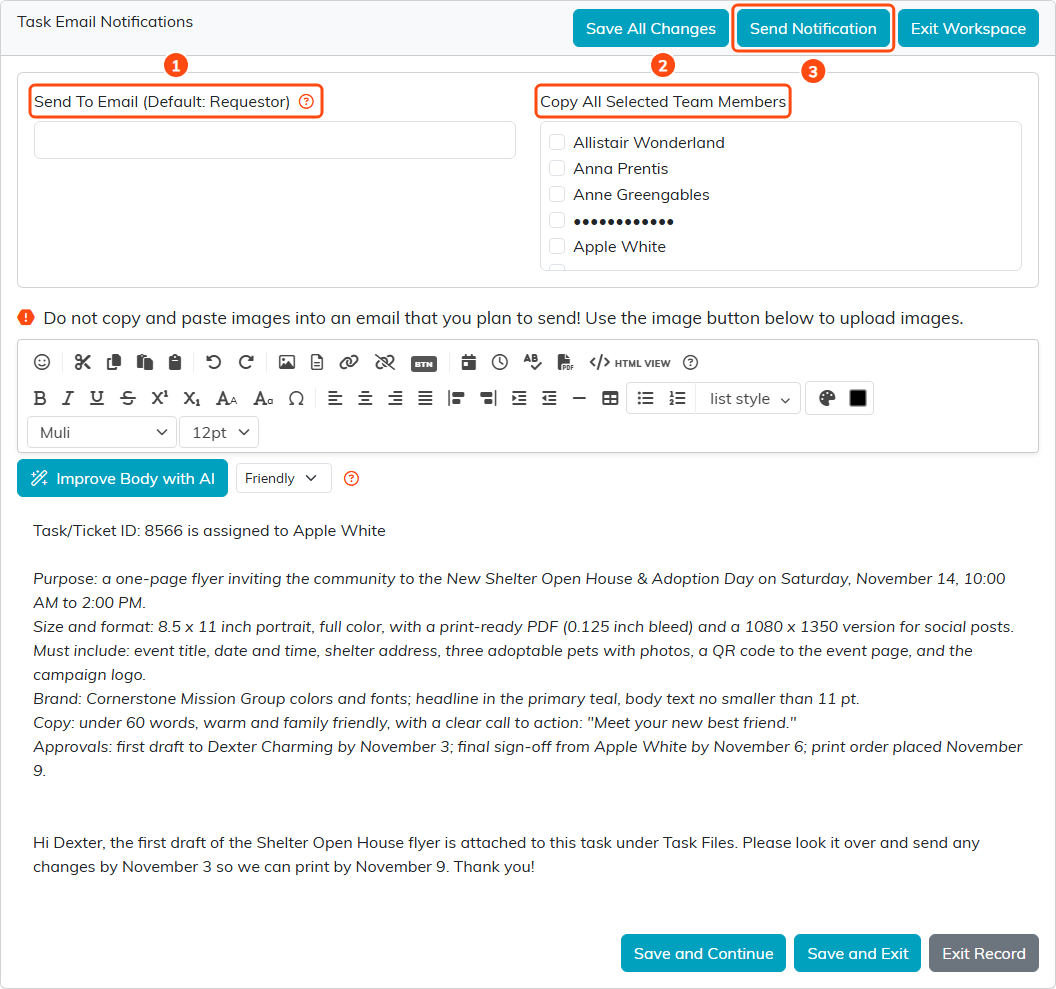
Send To Email (1), team members to copy (2), and Send Notification (3). The email address is hidden in this picture.
What happens when you send
- The address in Send To Email gets an email with the subject
Task/Ticket Notification, sent from your organization's workflow notification address. - Each selected team member gets their own copy.
- The email is recorded on the task's Contact Log, and on the client's record too when the task has an Associated Client/Customer.
Argenta does not send if Send To Email is empty or is not a valid address. To add pictures, use the image button in the editor; do not paste images into the message.
Save the message for later
To keep the message without sending it, click Save All Changes or Save and Continue. The next time anyone opens Notifications on this task, the saved message is there. Save and Exit saves and goes back to the task list. The team members you select are not saved; select them each time you send.
If the task is set as view only or locked and you are not on its Record Permissions lists, you cannot edit, save, or send the message.
