Knowledge Base Article
How to Use Task Spark to Plan a Task with AI
Task Spark is the AI planning page in the task workspace. It shows how healthy the task is and breaks the task's requirements into a step-by-step plan that you can turn into checklist items. Open the task and click Task Spark in the workspace menu.
Check the task's health
The Task Health Dashboard at the top shows:
- Health Score, out of 100, with a status: On Track, At Risk, Critical, or Overdue (or Completed and Cancelled for a closed task).
- Est. Hours: the task's Work Hours from Task Details.
- Logged Hours: hours entered against the task on time sheets.
- Days Until Due: days left before the task's due date.
- Checklist: checklist items done out of the total on the task's checklists.
Until you ask for AI insights, the score comes from the task's own numbers. It starts from the share of checklist items done (50 if the task has no checklist), drops when logged hours run well past the estimate, drops when the task is overdue or due within a day, and is 100 once the task is completed. Click Refresh Insights to have the AI read the task and write an AI Analysis with its own score.
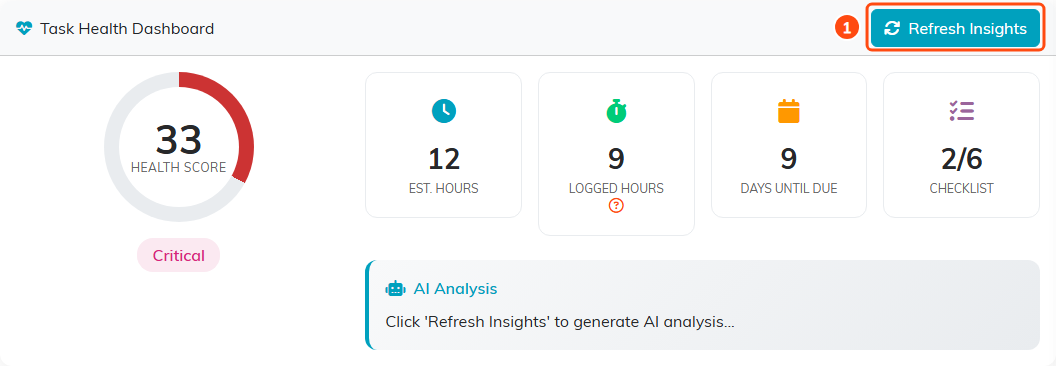
The health dashboard, with Refresh Insights (1) for an AI analysis.
Break the task down
- If the task has specifications, click Use Specs for AI Breakdown to copy them into Task Requirements or Description. Otherwise, type what needs to be done there.
- Click Generate Subtasks from Above. The AI takes a few moments.
Clear empties the box.
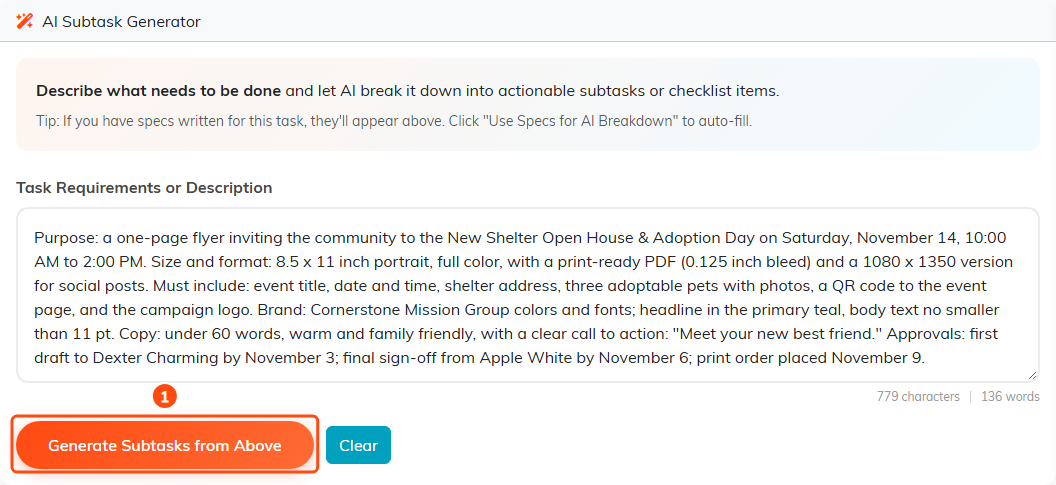
The specifications copied in, ready for Generate Subtasks from Above (1).
Use the breakdown
The breakdown lists numbered steps, each with a description, a priority, and estimated hours, plus a total. Every step starts selected; clear the checkbox on any step you do not want. Then choose one:
- Add Selected as Checklist Items: adds a checklist named
AI Generated Subtasksto Task Checklists, with one item for each selected step, and keeps the breakdown. - Save Plan Only: keeps the breakdown without adding anything to the task.
- Discard: throws the breakdown away.
The steps become checklist items, not sub-tasks. To add sub-tasks, use the task's Sub-Tasks page.
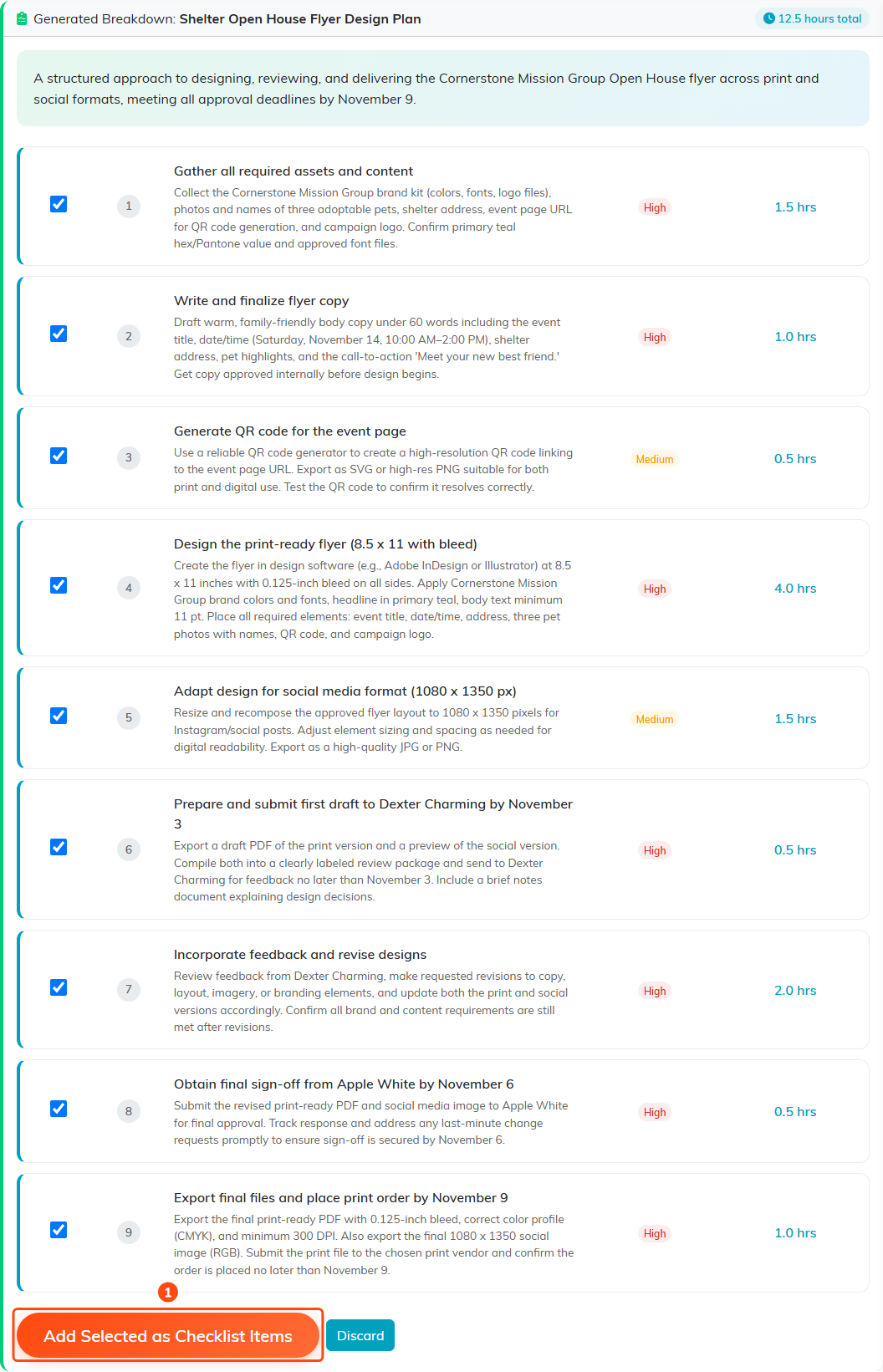
A nine-step breakdown of the flyer task, with Add Selected as Checklist Items (1).
Reopen a saved breakdown
Saved breakdowns are listed under Previously Generated Breakdowns with the date and total hours. Click View to open one again and add its steps to a checklist, or click the trash icon to delete it.

A saved breakdown, ready to view again.
If the task is set as view only or locked and you are not on its Record Permissions lists, you can read Task Spark but not generate, save, or add anything.
