Knowledge Base Article
How to Set Up Text-to-Give
Text-to-Give lets a supporter give from their phone by texting a keyword, like GIVE, to your organization’s own text number. Argenta texts back a link, and the supporter gives in two taps with Apple Pay or Google Pay. Each gift is recorded like any online donation, with the campaign and event you chose for that keyword.
Before you start
- A connected Twilio number. Text-to-Give uses the same Twilio number you text supporters from. Connect it first on Communication > Send Text Messages. Until you do, the Text-to-Give page only points you there.
- A connected Stripe account. Gifts are paid through your own Stripe account, the same as your online donation form, so Text-to-Give cannot be turned on until Stripe is connected.
Open Text-to-Give
Go to Fundraising > Text-to-Give. The page is open to admins and to anyone with the Donation Manager permission. Donation Managers run the keywords; only a master admin can turn Text-to-Give on or off, because doing so changes your Twilio number.
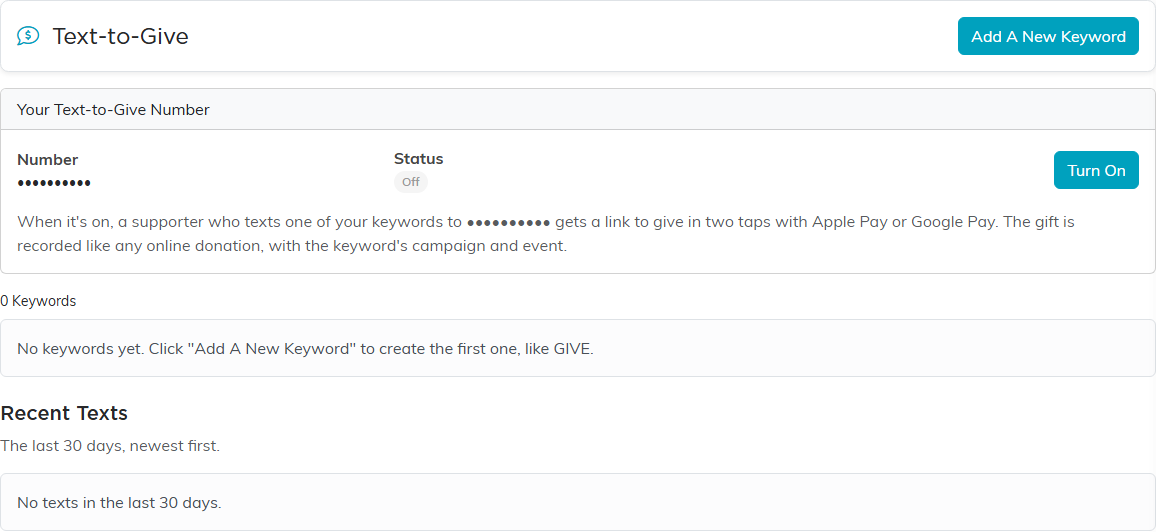
Your number and its status at the top, then your keywords, then the last 30 days of texts.
Turn it on
The Your Text-to-Give Number card shows your Twilio Number and whether Text-to-Give is On or Off.
- Click Turn On.
- If your Twilio number already sends incoming texts somewhere else, Argenta shows you where and asks before replacing it. Text-to-Give needs incoming texts to come to Argenta.
Turn Off stops texts to your number getting a giving link. Your keywords and their history are kept, and an incoming-text address Argenta replaced is put back.

1 turns Text-to-Give on. Only a master admin sees it.
Add a keyword
- Click Add A New Keyword.
- Fill in the keyword:
- Keyword: the one word supporters text, such as GIVE. Your keywords are your own; another organization can use the same word on its own number.
- Campaign and Event: start typing to pick where gifts from this keyword are recorded.
- Suggested Amounts: the amounts offered on the giving page, separated by commas, such as 25, 50, 100, 250. The supporter can also choose Other.
- Reply Message: what the reply text says before the link. Left blank, it thanks the supporter by your organization’s name.
- Active: switch it off to pause a keyword without deleting it.
- Click Add.
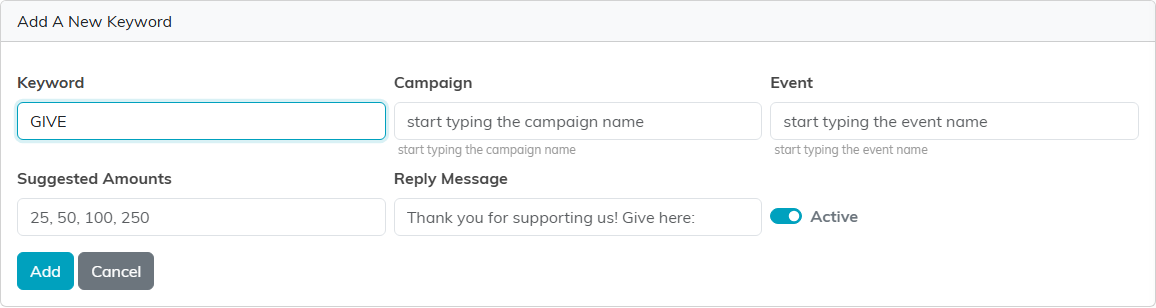
A new keyword, ready to add.
Each keyword then shows how many texts, gifts and dollars it has brought in. Change a keyword and click its orange save icon, or delete it with the pink icon; a deleted keyword’s history and totals stay in Recent Texts.
What your supporter sees
- They text your keyword to your number.
- Argenta replies with your Reply Message, a short giving link, and “Reply STOP to opt out.”
- The link opens a giving page for your campaign. They pick an amount and tap Apple Pay or Google Pay, which fills in their name, email and address for them. They can also tap Pay with a card instead to give through your online donation form.
A political organization’s giving page also asks for the donor’s employer, occupation and funding source, as federal law requires.
Each link takes one gift. To give again, the supporter texts the keyword again for a new link.
A one-word text that is not one of your keywords gets a reply listing your active keywords, and a keyword you switched off says it isn’t active right now. A longer message is not answered, so ordinary conversations on your number are left alone. A supporter who texts STOP is opted out and gets no more texts from your number.
Recent Texts
Below your keywords, Recent Texts lists every text to your number in the last 30 days, newest first: when it was Received, who it was From, the Keyword, What Happened (for example, sent the giving link, not a keyword, or opted out), whether they Opened The Link, and the Gift, which links to the donation once one is made.
