Knowledge Base Article
How To Research and Plan YouTube Videos With the Video Research Tool
The Video Research Tool helps you plan YouTube videos your audience is already looking for. Start with a problem your organization solves, see the phrases people type into YouTube search, compare recent videos and their thumbnails, and then save your research and build a video plan: title, description, tags, script and a brief for the thumbnail.
Open it from the menu under Marketing & Engagement > Video Research Tool. Admins and Marketing Managers can use it when your account includes Marketing. If you do not see it, check Menu Settings, where it can be hidden.
Your Saved Research
The Video Research Tool page lists everything your team has saved. Each row shows the Research Type, Topic, Primary Keyword, Channel, Target Date and Last Modified date, with its status at the right. Click the open icon on a row to open that research.
- Search by ID, title or keyword in the search box at the top.
- Choose a status (All Research, Researching, Planned, In Production, Published or Archived) and sort by Last Modified or Title.
- Click Show Filter to filter by Research Type: Video Ideas, Keywords or Competitors.
- Click Export to CSV to download the list with its titles, topics, keywords, video plans and notes.
- Click Find Topics, Research Thumbnails or Research A Channel to start new research, or Add Research to start a blank record.
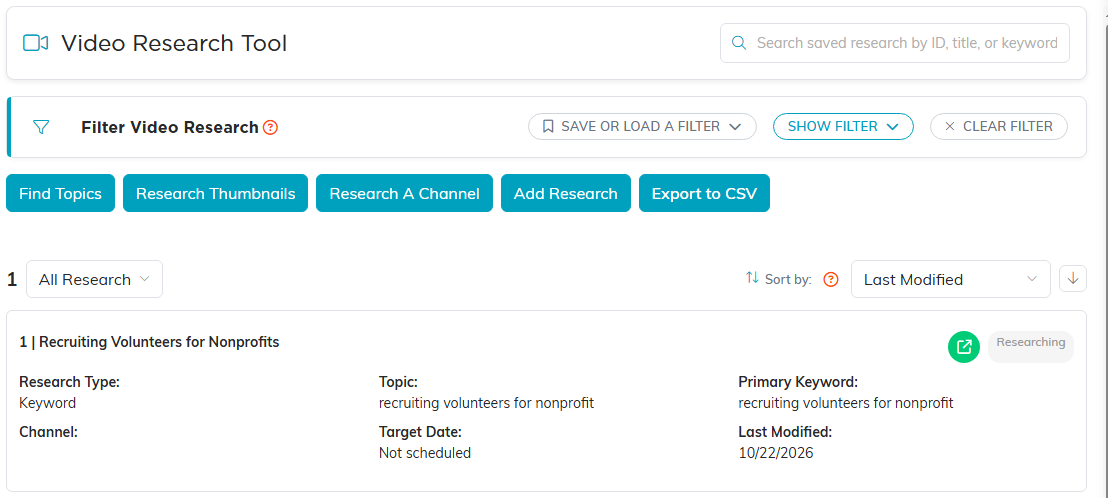
Saved research, with the buttons that start new research.
Finding Topics
- Click Find Topics.
- In Problem We Solve or Video Topic, enter a short phrase, such as
recruiting volunteers. - In Published Within, choose how recent the videos should be: 7, 30 or 90 days, or 1 year.
- Click Find Topics. Argenta lists the search phrases YouTube suggests for your phrase.
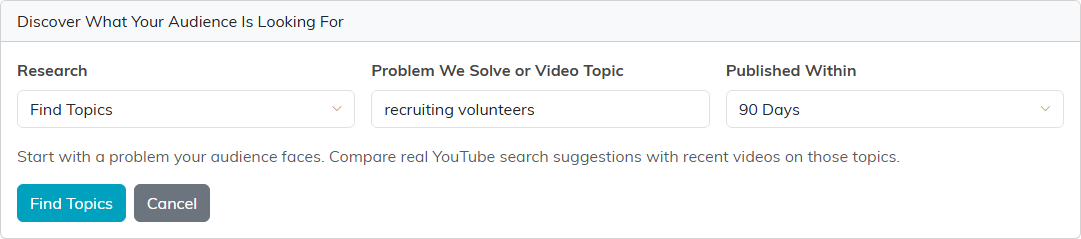
Start with a problem your audience faces.
Each suggested phrase shows how many recent videos matched it in the sample, their Average Views Per Day, a few example videos and an Open YouTube Search link. These numbers describe how recent videos are doing, not how many people search for the phrase each month.
- Click View Thumbnails to see the thumbnails for that phrase.
- Click Save Topic to save the phrase as Keyword research. Its workspace opens so you can keep planning.
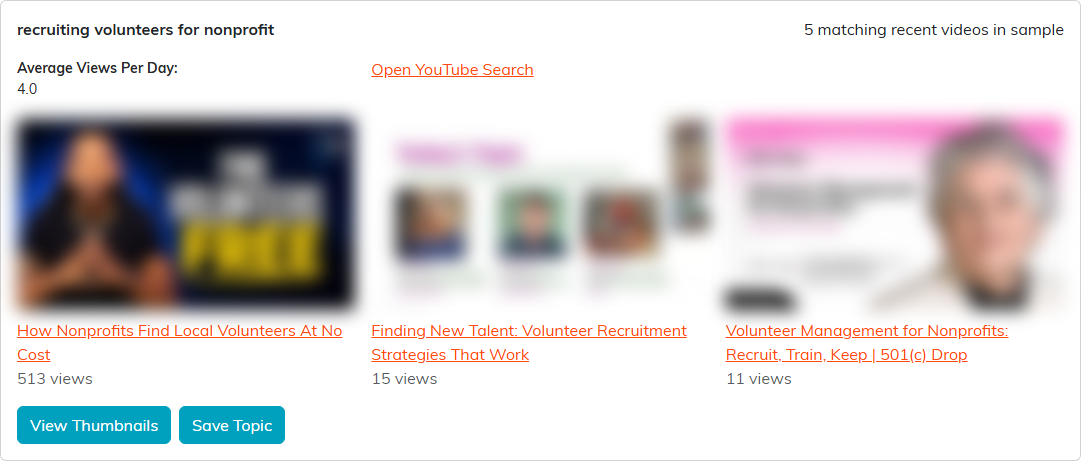
One suggested phrase and the recent videos that match it. The video thumbnails are blurred in this picture.
Researching Thumbnails
Choose Research Thumbnails in Research, enter your topic and choose:
- Published Within: 7, 30 or 90 days, 1 year, or Any Time.
- Sort Sample By: Most Views, Newest or YouTube Relevance.
- Video Length: Any Length, Under 4 Minutes, 4–20 Minutes or Over 20 Minutes.
Click Find Thumbnails.
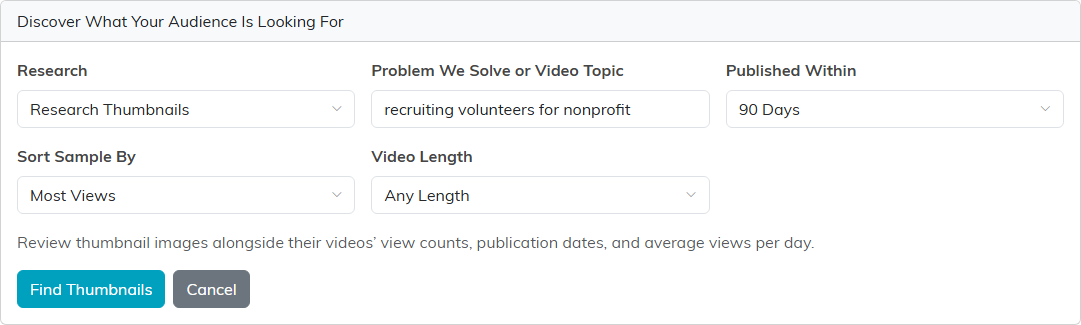
Thumbnail research adds a sort and a video length.
Each video shows its thumbnail with its Channel, Public Views, Published date, Duration and Average Views Per Day. Publication dates can be approximate, and public data does not show how often people click a thumbnail. Click the open icon to watch the video on YouTube, or the save icon to save it as a Video Idea.
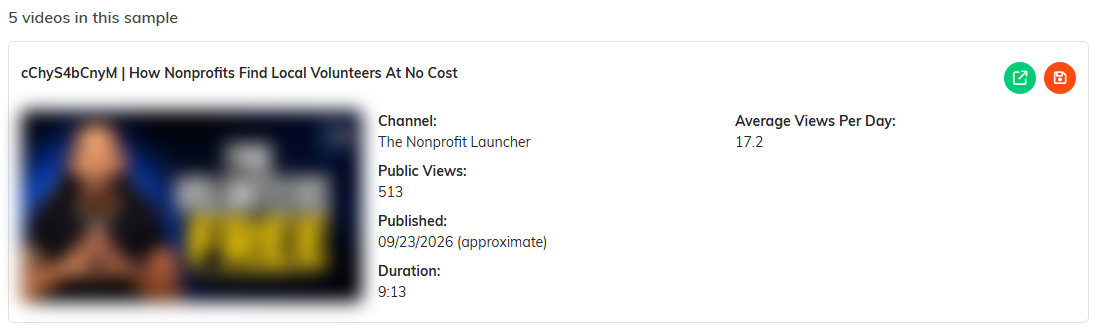
A video in the thumbnail sample. The thumbnail is blurred in this picture.
Researching a Channel
Choose Research A Channel in Research, enter a Channel ID or @handle and click Research Channel. Argenta shows the channel's Subscribers and a sample of its recent videos, so you can find the ones doing better than that channel usually does. Click Save Competitor to save the channel as Competitor research.
The Research Workspace
Saving research, or clicking Add Research, opens its workspace. In Research Details, fill in what you know:
- Research Title, Research Type and Status.
- Problem or Topic, Audience, Primary Keyword and Goal or Call to Action.
- Target Date and Channel Name.
- Research Notes and Sources. Saved research starts with a note of where and when it was collected.
Click Find Related Topics or Research Thumbnails to research the same topic again. Research saved from a video or a channel also shows Open Reference Video or Research Channel.
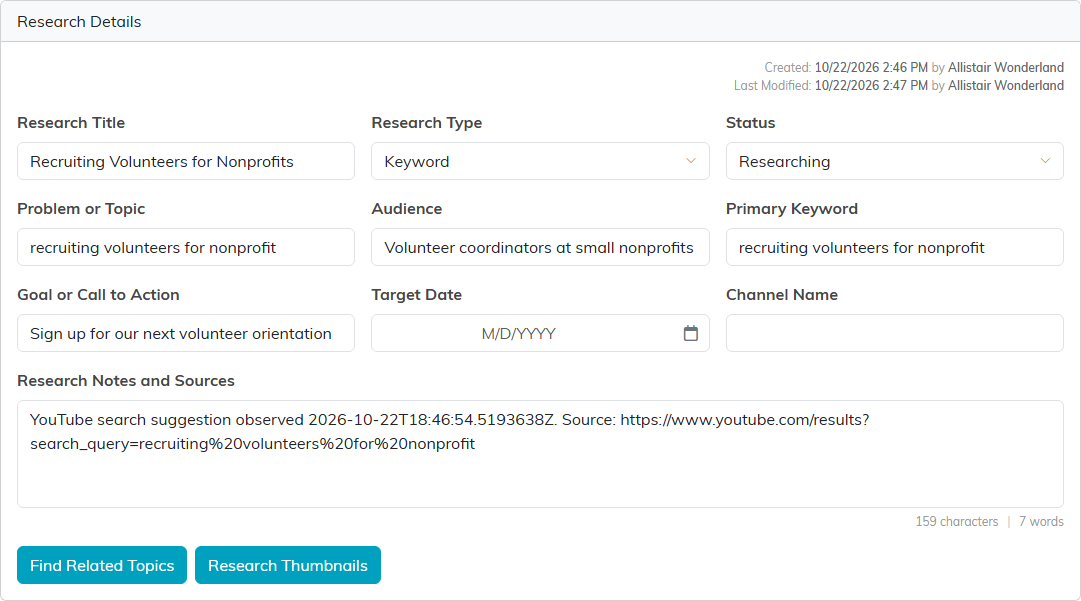
Research Details for a saved topic.
Building a Video Plan
In Video Plan, write the Video Title (up to 100 characters), Video Description, Tags (separated by commas), Script and Thumbnail Brief.
Optional: To start from a suggestion, click Generate A Video Plan. Argenta drafts a plan from your research and shows it under Review Suggested Video Plan. Click Use This Plan to copy it into your plan, or Cancel to leave your plan as it is.
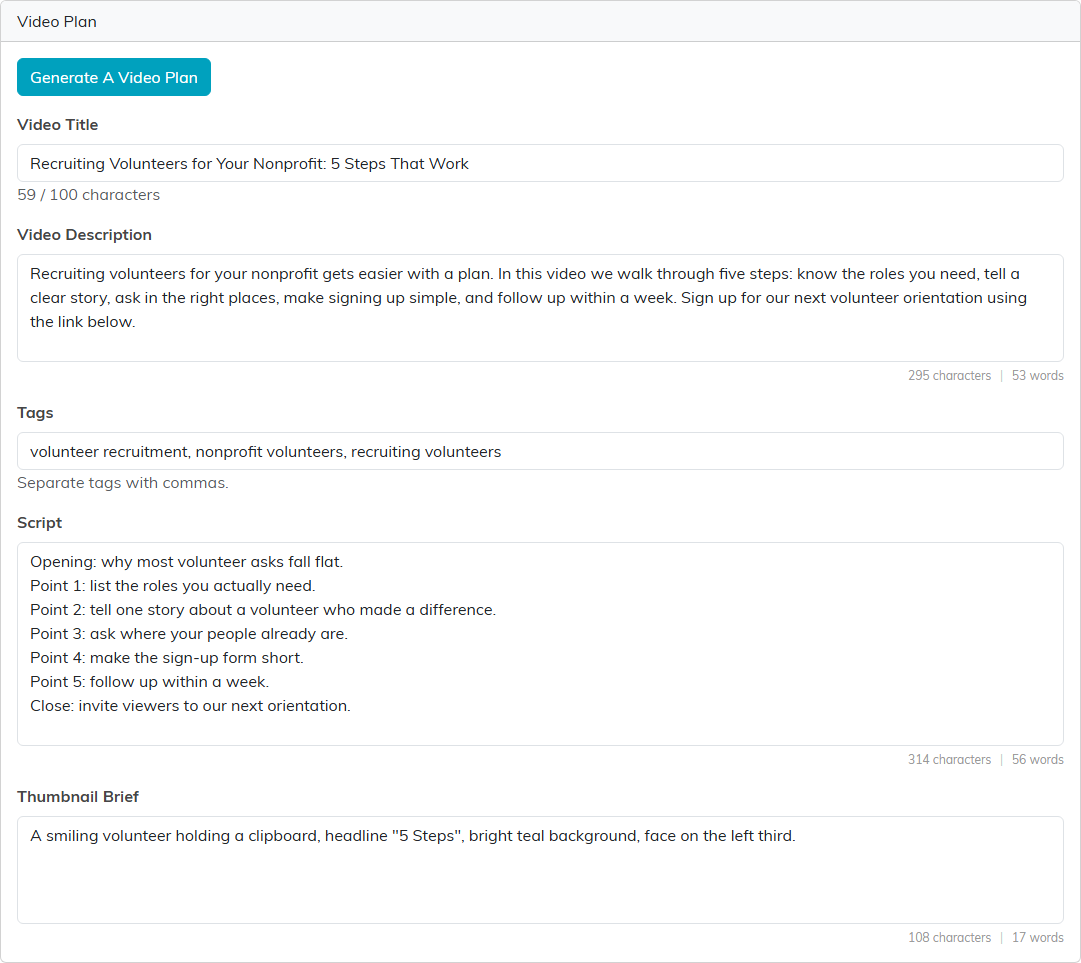
A finished video plan.
The Preparation Checklist marks each part of the plan Ready or tells you what is missing, such as using your primary keyword in the title. These checks help you prepare your upload; they do not predict ranking or views.
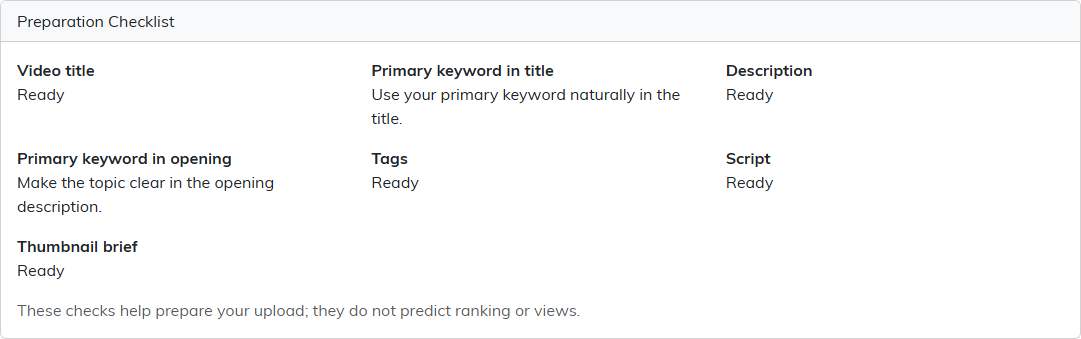
The checklist shows what still needs work.
Click Save Research to save. To go on to your social media posts, click Open Social Media Manager.
Good to Know
- Your team can run 120 research lookups and generate 20 video plans an hour. Saved research stays available when you reach a limit.
- A user whose access is View Only can open saved research but cannot change it.
- Research that is locked is hidden from anyone the lock does not allow.
