Knowledge Base Article
How Group Leaders View and Print Their Trip Invoice in the Customer Portal
Group leaders can see their trip's invoice in the customer portal: the payment schedule, how much has been paid on each scheduled payment, the payments and refunds made, the trip charges and credits, and the balance due. They can print it or save it as a PDF. The invoice is read-only and shows only the leader's own group.
Opening the Invoice
Sign in to the customer portal with your account number and password, then open the invoice in any of these ways:
- In the menu, click Invoice.
- On the Dashboard, under Financial Summary, click View Invoice.
- On Make A Payment, click See your payment schedule and payments on your invoice.
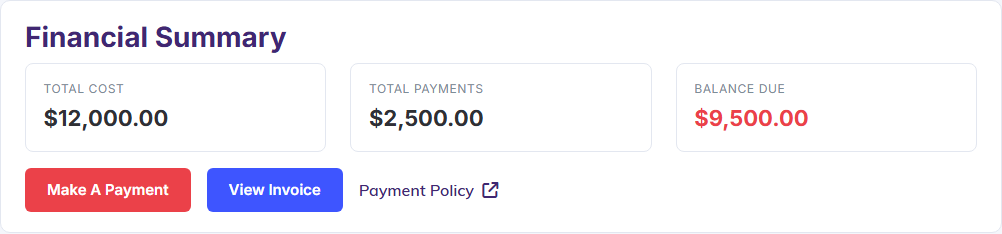
View Invoice sits beside Make A Payment on the Dashboard.
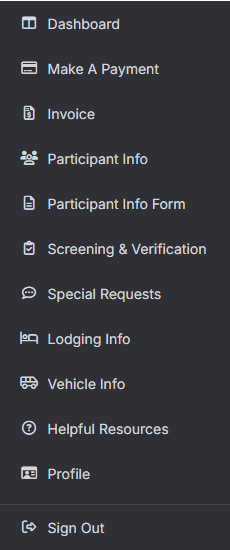
Invoice is also in the portal menu.
Choosing the Trip
The invoice is for the trip shown in Trip at the top of the portal. If your group is enrolled in more than one trip, choose the trip there first. The portal returns to the Dashboard; open the invoice again to see that trip.

The selected trip decides which invoice you see.
The Top of the Invoice
The top of the invoice shows your organization's name and address, the Invoice Date (the day you open it) and the Invoice #. Under it are:
- Bill To: the contact who made the enrollment, the group, and the billing address.
- Trip: the trip name and dates, the Trip Code, and the number of Participants.
- Total Cost, Total Payments and Balance Due for the trip.
- Next Payment: what is still owed on the next scheduled payment, and its due date. It reads None when nothing is left to pay.
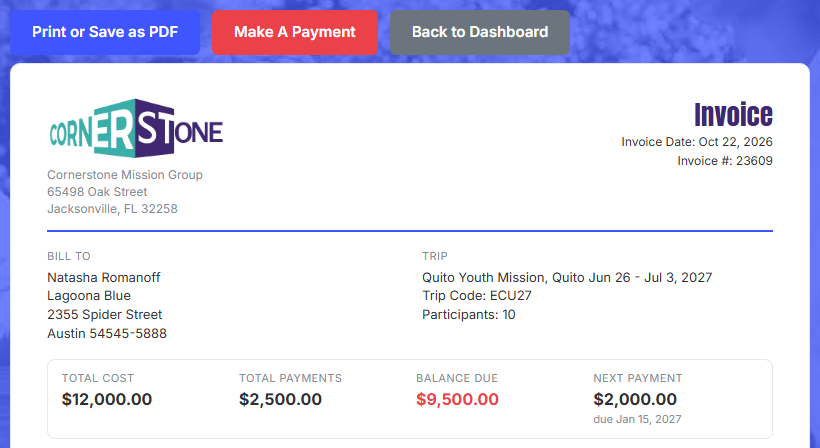
The four totals give the whole picture at a glance.
Payment Schedule
Payment Schedule lists each scheduled payment with its Due Date, Amount, how much has been Paid, what is Remaining, and a Status:
- Paid: nothing is left to pay on it.
- Partly Paid: some has been paid and the due date has not passed.
- Due: nothing has been paid yet and the due date has not passed.
- Past Due, in red: the due date has passed and something is still owed.
Payments count toward the earliest scheduled payment first. If the trip has no payment schedule yet, the invoice says so.
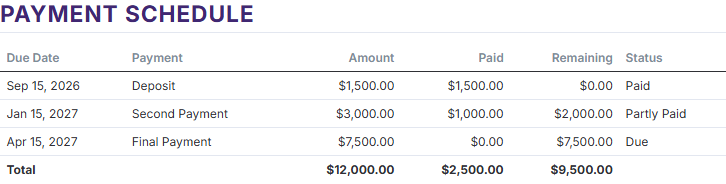
Each row shows what was scheduled, what has been paid and what remains.
Payments and Refunds
Payments and Refunds lists every payment and refund on the trip, with its Date, Type, Method and Amount, and a total. Before any payment is made, it reads "No payments have been made yet."
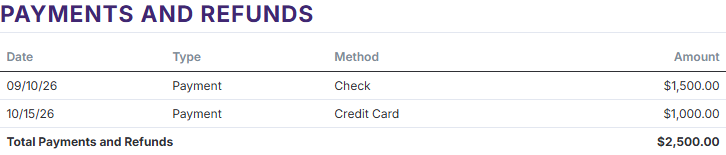
Each payment shows how it was made.
Trip Charges and Credits
Trip Charges and Credits shows the fees and credits that make up the trip's cost, with the Qty, Rate and Total for each, and the Trip Total. It appears once the trip has charges.

A per-person fee shows the number of participants and the rate.
How to Pay
The end of the invoice explains how to pay: online from Make A Payment, or by check or money order made payable to your organization and mailed to its address 7 to 10 days before the due date.

The mailing address is your organization's own.
Printing or Saving the Invoice as a PDF
- Click Print or Save as PDF. Your browser's print window opens.
- To print, choose your printer and click Print. To save a file instead, choose Save as PDF as the destination and click Save.
The buttons and the page background are left off, so the invoice prints on a clean page.
