Knowledge Base Article
How to Track Permits, Deadlines and Expiry Reminders
The Permit Workspace keeps every permit and license your organization applies for or holds: who issued it, what it cost, when it was applied for, issued and expires, and what is due on it along the way. Add the deadlines that come with a permit, and Argenta emails the person assigned to it before each one is due.
Permits are in the left menu under Property Management > Permits. If you do not see Property Management, it is switched off in your team's Menu Settings.
The Permits List
The list opens on Active Permits, which leaves out permits with the Denied status. To include them, choose All Permits from the list beside the count.
- To find a permit, type its ID or part of its name in the ID or Permit Name box.
- To narrow the list, click Show Filter and choose an Issuer, Team Member, Permit Status, Permit Type, Permit Category, chapter, division or department, or a range for Date Applied, Date Issued or Date Expires.
- To see which permits come up for renewal first, choose Date Expires under Sort by.
- To download the list, click Export to CSV.
A permit with no Date Expires drops out of the list whenever you filter on a Date Expires range, because it has no date to fall inside the range.
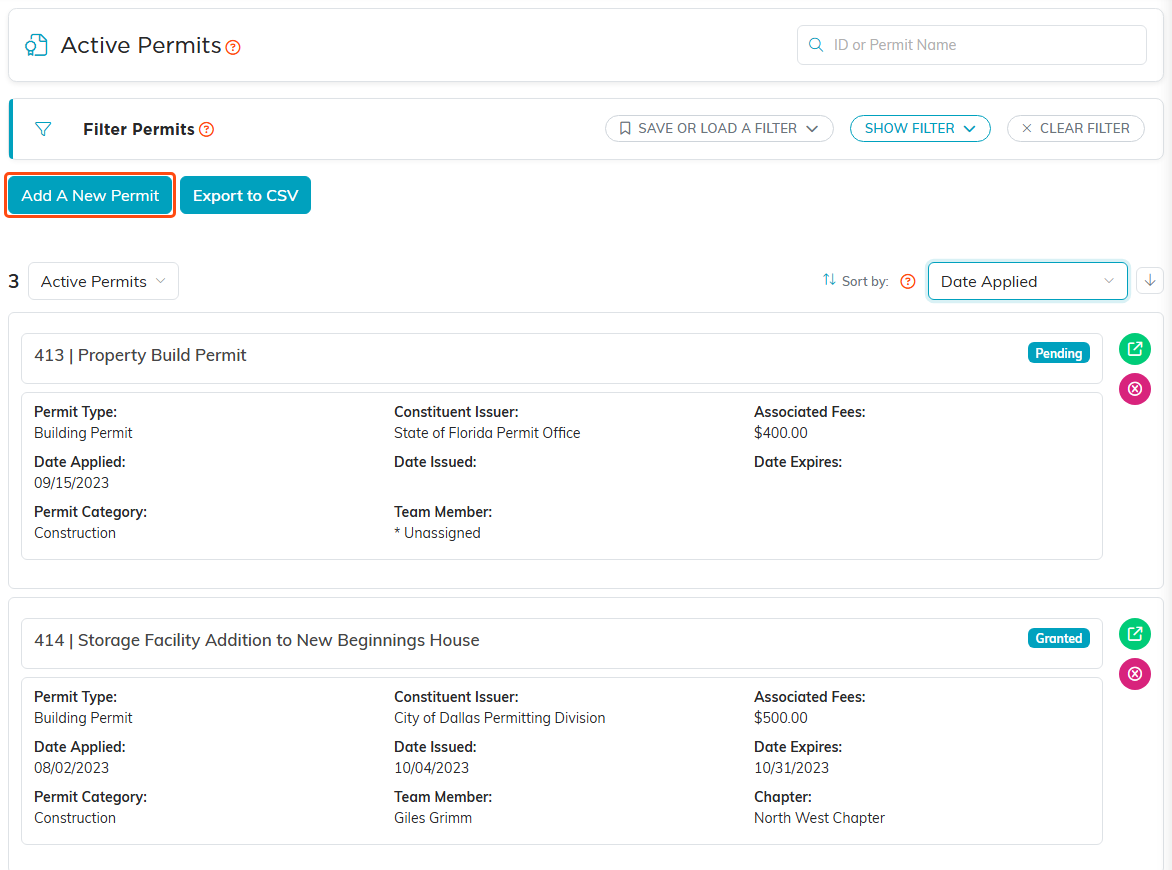
Each permit shows its status in the corner and its key dates underneath.
Adding a Permit
- On the Permits list, click Add A New Permit.
- Enter the Permit Title. It is the only field on this screen and the only one a permit needs, up to 150 characters.
- Click Add & Enter Details. The permit is created and opens on Permit Details, where you fill in the rest.
If you click Cancel & Exit, nothing is created.
You can also add a permit from a property: open the property, go to its Permits page, and click Add A New Permit there.
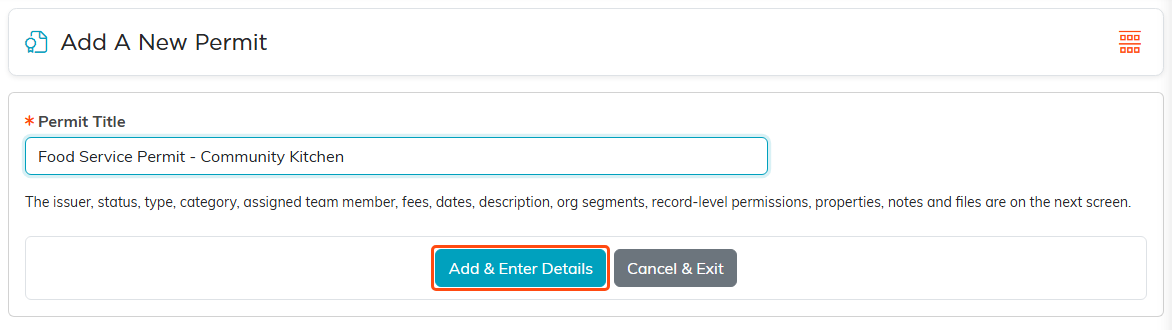
Only the title is asked for here. Nothing is saved until you click Add & Enter Details.
The Permit Workspace
Every page of a permit is on the Workspace Menu bar:
- Permit Details: the permit itself
- Permit Deadlines: what is due and when, with email reminders
- Connections: the events and properties the permit belongs to
- Permit Files: the permit document, applications and inspection reports
- Permit Notes: your team's notes on the permit
- Record Permissions: who can still edit or open the permit when it is set to View Only or locked

The permit's title shows above the menu, so you always know which permit you are in.
Permit Details
Permit Title is the only required field. Everything else can be filled in as you learn it.
- Record Level Permissions: Set As View Only and Lock This Record
- Constituent Issuer: the agency or office that issues the permit, chosen from your constituents
- Permit Title and Permit Description
- Permit Status, Permit Type and Permit Category, each from your team's own lists
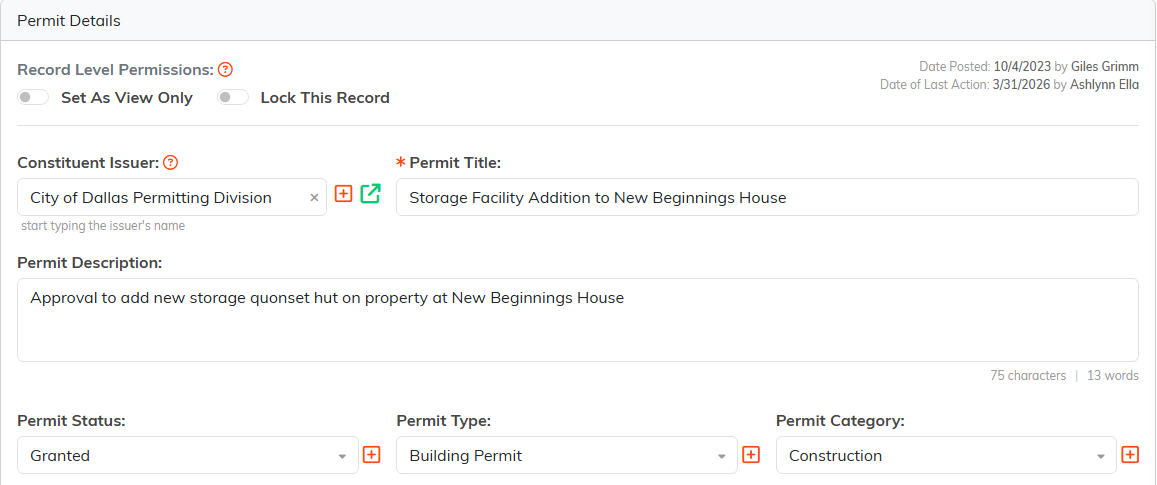
Start typing in Constituent Issuer to find the issuing office among your constituents.
- Assigned To (Team Member): the team member responsible for the permit. This is the person who gets the deadline reminders.
- Associated Fees: what the permit costs
- Date Applied, Date Issued and Date Expires
- Denial Reason: why a permit was turned down
- Chapter, Division, Department, District and Precinct
Argenta checks the dates when you save. Date Issued cannot be before Date Applied, and Date Expires cannot be before Date Issued. A date left blank is never compared.
Nothing happens to the permit on its Date Expires: the status does not change and the permit looks the same as before. To be told ahead of time, add an expiry reminder on Permit Deadlines.
To save, click Save All Changes to stay on the page, or Save All & Exit Record to go back to the list.
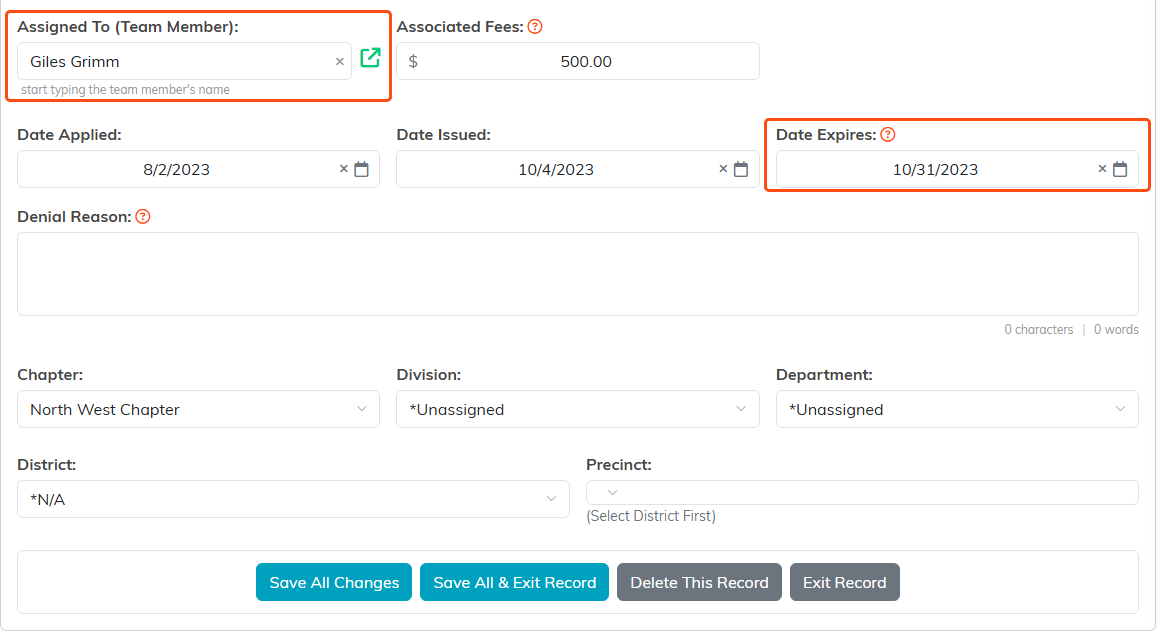
Assigned To decides who is reminded. Date Expires is the date the expiry reminder counts down to.
Adding Permit Deadlines
A permit often comes with things that are due before it expires: an inspection, an annual report, a renewal application. Add each one on Permit Deadlines.
- Open the permit and click Permit Deadlines.
- In What's Due, describe what is due, up to 200 characters.
- Enter the Due Date.
- Optional: In First Reminder (Days Before), change how many days ahead the first reminder goes. It starts at 14 and can be anything from 4 to 730.
- Optional: If the deadline comes back every year, select Repeats Every Year.
- Click Add Deadline. The deadline joins the list on the same page.
To be reminded about the permit's own expiry, enter the First Reminder (Days Before) you want and click Add Expiry Reminder. The button shows only when the permit has a Date Expires and does not already have an expiry reminder, so each permit has at most one.
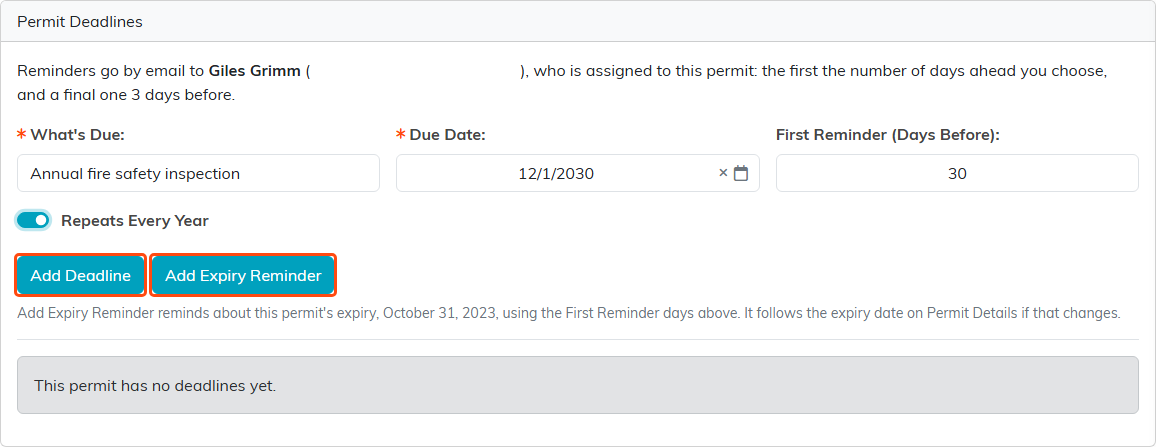
The line at the top names the person who will be emailed. Their address is hidden in this picture.
Who Is Reminded, and When
Reminders go by email to the person in Assigned To (Team Member) on Permit Details, at the email address on their record. Each deadline gets two:
- A first reminder, the number of days ahead set in First Reminder
- A final reminder, 3 days before the date
Argenta checks for reminders every hour and sends them from 7 a.m. Eastern time. Each email names what is due and the date, and links straight to the permit's Permit Deadlines page.
- If you add a deadline that is already closer than its first reminder, the first reminder goes out with the next check, as long as the date is more than 3 days away.
- If the date is 3 days away or less, only the final reminder goes.
- A reminder is never sent late, and nothing is sent once the date has passed.
- If nobody is in Assigned To (Team Member), or that person has no email address, the page says so and no reminders go out until that is fixed.
When a Date Changes
- The expiry reminder follows Date Expires on Permit Details. If you change that date, the reminder moves with it. If you clear it, the reminder shows No expiry date set and stays quiet until you enter a new date.
- If you change a deadline's Due Date, its reminders start over for the new date, even if a reminder already went for the old one.
- When a deadline set to Repeats Every Year passes, Argenta moves it forward one year and reminds again for the new date.
- If you change who is in Assigned To (Team Member), the next reminder goes to the new person.
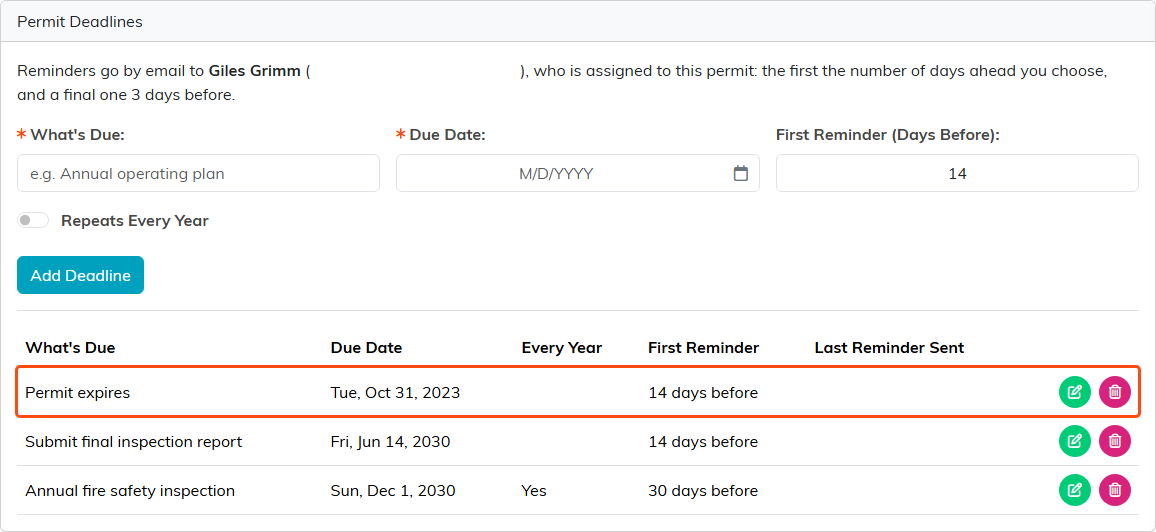
The expiry reminder is the Permit expires row. Its date is the permit's Date Expires.
Changing or Removing a Deadline
The list shows each deadline soonest first, with Every Year, First Reminder and Last Reminder Sent, the date the most recent reminder went for the date shown.
- To change a deadline, click its edit button, change what you need, and click Save. On the Permit expires row only the first reminder days can change, because its name and date come from the permit.
- To remove a deadline, click its delete button and confirm. No more reminders go out for it.

Editing happens right in the row. Cancel leaves the deadline as it was.
Connections
Connections links the permit to the events and properties it belongs to, such as a temporary event permit for a gala or a building permit for a property.
- Under Associated Events or Associated Properties, start typing the event title or property name.
- Choose it from the list.
- Click Connect.
Removing a connection does not delete the event or the property.
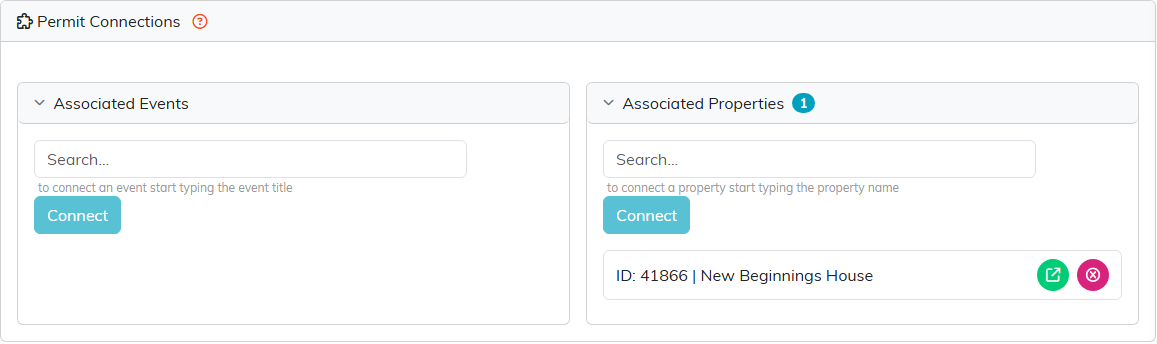
A permit connected to a property also appears on that property's Permits page.
Permit Files
- Click Permit Files.
- Drag files onto Drag & Drop Files Here, or click it to browse.
- Click Save The Selected File(s).
Under each file's name is the date and time it was added and, if they are on your team, who added it. Click the name to view the file.
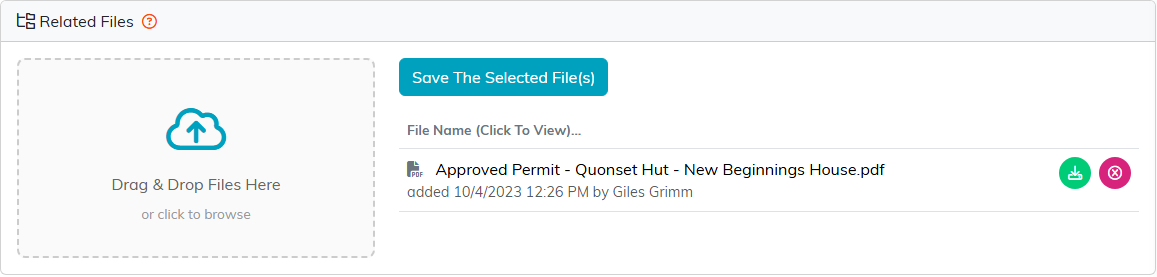
Keep the issued permit itself here, so it is one click away when an inspector asks.
Permit Notes
- To add a note, click Add A New Note, write it, and click Add This Note.

Each note shows when it was written and by whom.
Record Permissions
When a permit is set to View Only or locked on Permit Details, Record Permissions lists the users who can still edit or open it. To add someone, start typing their name under Add User and click Add.
While a permit is View Only or locked for you, you cannot add, change or delete its deadlines, files or notes.
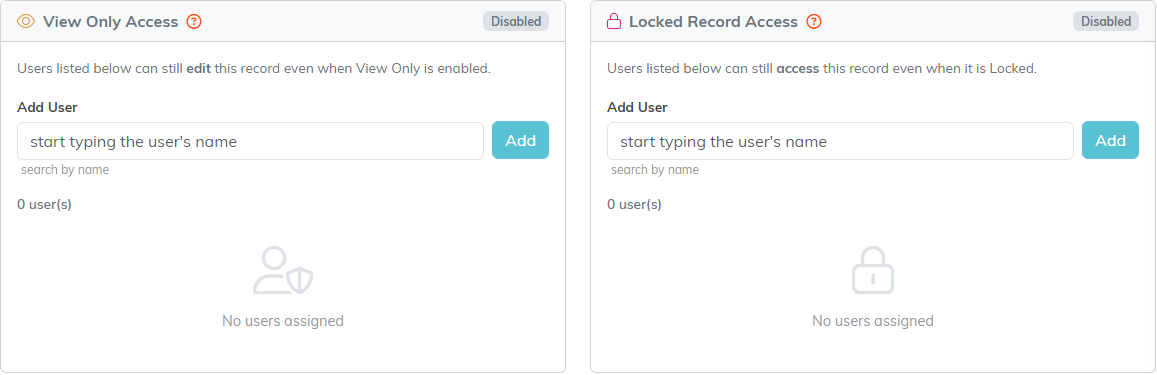
Disabled means this permit is not set to View Only or locked right now.
Deleting a Permit
To delete a permit, click its delete button on the Permits list, or Delete This Record on Permit Details, and confirm. Its deadlines go with it, so no more reminders are sent.
