Knowledge Base Article
How to Use Zoom with Argenta Calendar Hub
The Argenta Calendar Hub app for Zoom gives every appointment booked on your Calendar Hub its own Zoom meeting. You connect your Zoom account once. After that, each time someone books an event type set to Zoom, Argenta creates a meeting in your Zoom account and sends the person who booked the join link in their confirmation email, their reminders and their calendar file.
This guide covers adding the app, using it, removing it, and what Argenta keeps about your Zoom account.
Before you start
- You need an Argenta login with access to Calendar Hub, and a Zoom account of your own.
- Only the calendar's organizer, the person whose booking page it is, can connect Zoom to it. Anyone else who opens that calendar's event types sees Zoom is offered once this calendar's owner connects their Zoom.
- The meetings are created in the Zoom account you connect, with you as the host.
Adding the app (connecting your Zoom account)
- In the main menu, click Calendar Hub.
- If you have more than one calendar, select the calendar you take bookings on from the list at the top right.
- In the workspace menu, click Event Types.
- Click the pencil icon beside an event type to edit it.
- Under Location, click Connect Zoom. Argenta opens Zoom's sign-in page.
- Sign in to Zoom and approve Argenta Calendar Hub. Zoom sends you back to Event Types, and a Zoom Connected message confirms it worked.
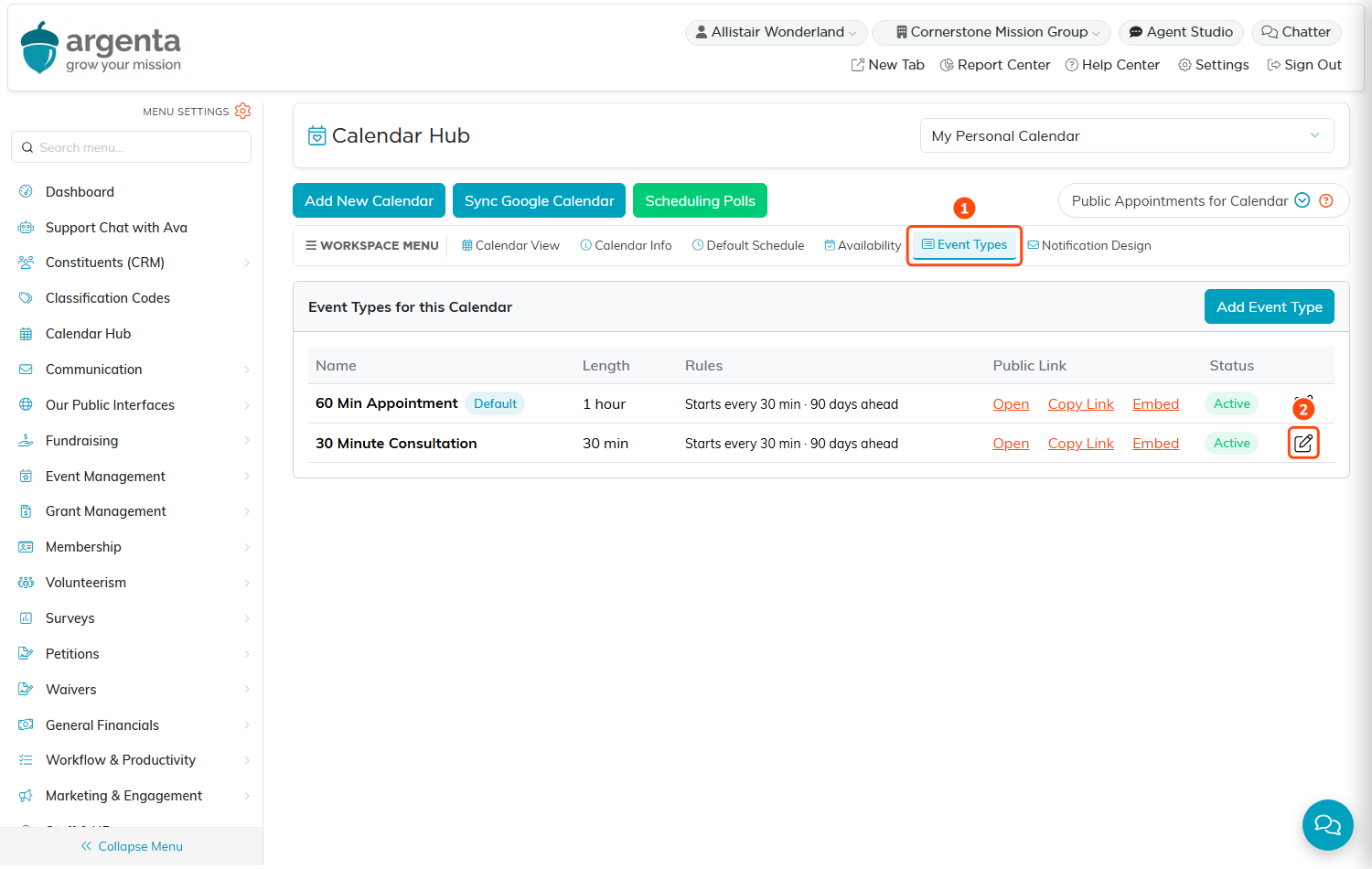
Open Event Types (1), then the pencil icon (2) of the event type you want to edit.
Once you are connected, the line under Location reads Zoom connected as followed by your Zoom email address, with a Disconnect Zoom link beside it.
If the connection does not finish, Argenta tells you why. Zoom Not Connected appears if you declined the request in Zoom, if your Argenta sign-in ended while you were at Zoom, or if something else went wrong. Click Connect Zoom again to retry.
Using Zoom for your appointments
- On Event Types, click the pencil icon beside the event type that should meet on Zoom.
- In Location, select Zoom.
- Click Save.
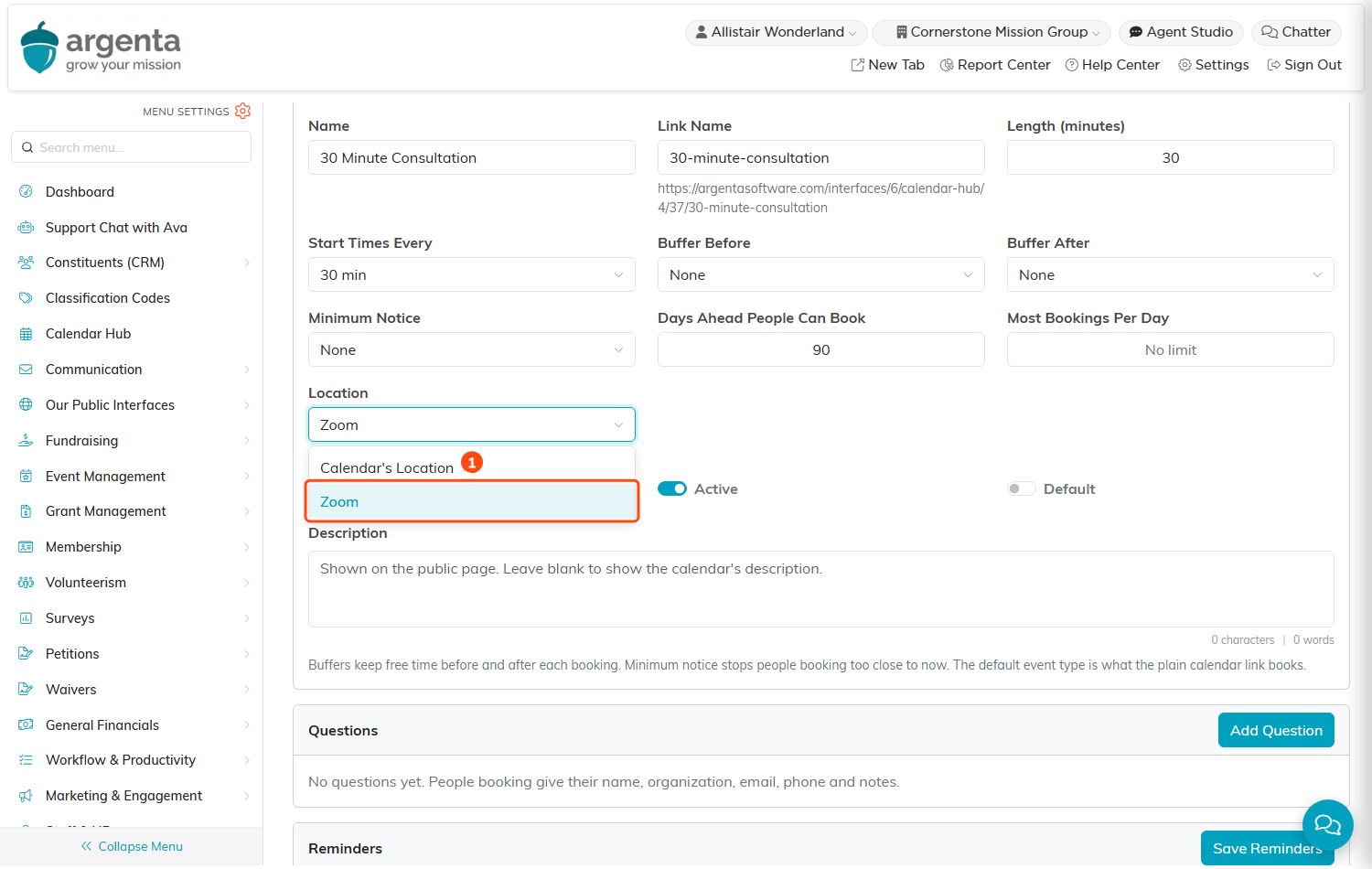
Zoom appears in the Location list once your Zoom account is connected.
From then on, every booking of that event type works like this:
- A meeting for each booking. Argenta creates a scheduled Zoom meeting in your account for that one appointment, at its date, time and length. The meeting has the waiting room on, and nobody can join before you, the host, start it.
- The join link goes out with Argenta's emails. The confirmation email, every reminder and the calendar file attached to the booking all carry the meeting's join link. Zoom does not send its own invitation. If Zoom is slow to answer, the confirmation waits up to 15 minutes for the link. After that it goes out saying Zoom (link to follow), and the reminders carry the link once it exists.
- Your Google calendar shows it too. If your Google calendar is connected, the event Argenta writes there carries the join link at the top of its description.
- Rescheduling moves the meeting. When the booking moves to a new time, its Zoom meeting moves with it and keeps the same join link. This includes a move made by your staff on the calendar, which Argenta picks up within a few minutes.
- Canceling deletes the meeting. When the booking is canceled or deleted, Argenta deletes its Zoom meeting.
If your Zoom connection stops working while a booking still needs its meeting, Argenta emails you with the subject A Calendar Hub update could not be delivered. Connect Zoom again from Event Types. Then either send the person a link yourself, or move the booking so Argenta makes a new meeting.
Removing the app
You can remove the app from Argenta or from Zoom. Either way ends the connection.
From Argenta
- On Event Types, click the pencil icon beside any event type.
- Under Location, click Disconnect Zoom.
- In the Disconnect Zoom message, click Yes.
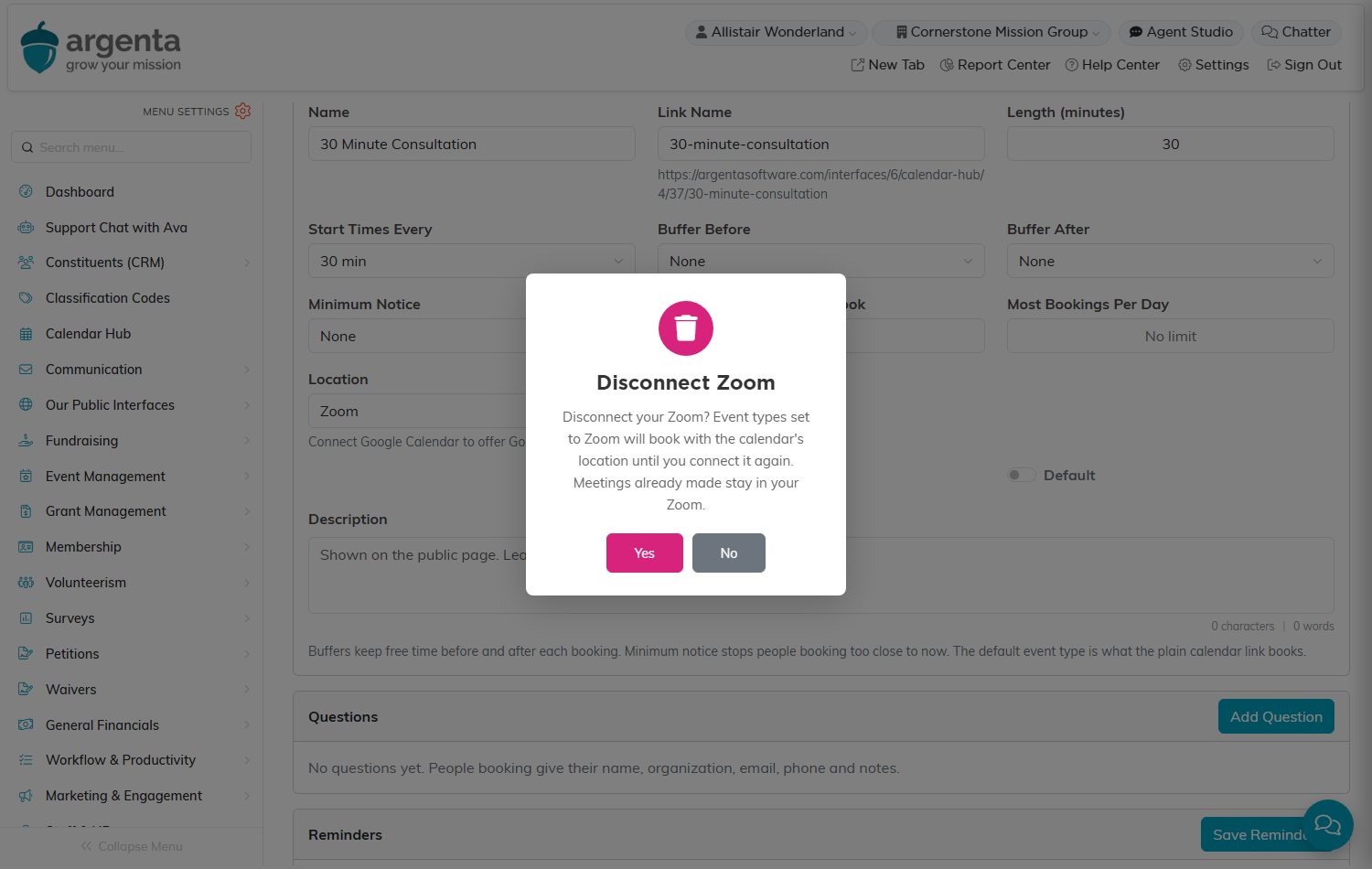
Click Yes to disconnect, or No to keep Zoom connected.
Argenta erases its copy of your Zoom sign-in and asks Zoom to revoke the app's access.
From Zoom
- Sign in to the Zoom App Marketplace and click Manage.
- Click Added Apps.
- Find Argenta Calendar Hub and click Remove.
Zoom tells Argenta the app was removed, and Argenta ends the connection and erases your Zoom sign-in.
After the app is removed
- Event types set to Zoom book with the calendar's own location instead, until you connect Zoom again. You do not need to change them back.
- Meetings already created stay in your Zoom account. Argenta does not delete them.
- If a booking that already has a Zoom meeting is moved or canceled after you disconnect, Argenta can no longer change that meeting. It emails you so you can update or delete the meeting in Zoom yourself.
What Argenta keeps about your Zoom account
- While you are connected, Argenta stores the sign-in tokens Zoom issues, encrypted, so it can create and update meetings for your bookings. It also stores your Zoom email address, your Zoom user ID and your Zoom account ID.
- For each booking, Argenta stores the Zoom meeting's ID and join link so it can send the link and move or delete the meeting later.
- Reading your meetings. Argenta reads your list of upcoming Zoom meetings for one purpose only: to find a meeting it created for a booking when Zoom's reply to the request was lost. This stops a booking from getting two meetings.
- When the connection ends, whether you disconnect in Argenta or remove the app in Zoom, the sign-in tokens are erased. Argenta keeps a record of the connection, marked as ended, with your Zoom email address and IDs.
Getting help
For help with the Argenta Calendar Hub app for Zoom, click Help Center at the top of any Argenta page, or email [email protected].
