Knowledge Base Article
How to Create and Manage Petitions
The short version: Argenta's Petitions tool lets you write a petition, publish it on its own public page, and collect signatures from anyone with a link. Every signer is matched to the people already in your records, or added as a new constituent, and you can watch the count climb toward your goal, see where your signatures came from, and deliver the finished petition to its target as one PDF. You will find it under Petitions in the left menu.
What you can do with Petitions
- Write a petition with a headline, a banner photo, a description and the letter itself.
- Choose what the public sign form asks for, and what signers see after they sign.
- Show a signature goal and a progress bar, or let Argenta set the goal for you.
- Send each signer a thank-you email, and send your staff an email for every new signature.
- List the organizations sponsoring the petition, with their logos.
- Share tracked links and an embed code, then see which ones brought in signatures.
- Type in signatures collected on paper.
- Download or email the petition and every signature to the person or body it is addressed to.
Who can use Petitions
Petitions is open to Master Admins and to users with the Petition Manager switch turned on. An admin turns it on in that person's user record, or in a user role. Nobody else sees the Petitions menu.
The Petitions list
Go to Petitions > Petitions to see every petition. Each row shows the title, the target, the category, when it opens and closes, and its signatures as a count against the goal with a small progress bar. The colored chip shows its status:
- Draft: not published yet, so nobody can sign it.
- Scheduled: published, but its open date has not arrived.
- Open: published and taking signatures.
- Closed: its close date has passed.
Use the dropdown above the list to show All Petitions or only one status, search by ID, title, target or category, filter by Category or Date Created, and click Export to CSV for a spreadsheet. The icons on each row open the petition, make a copy with Copy & Add New, or delete it.
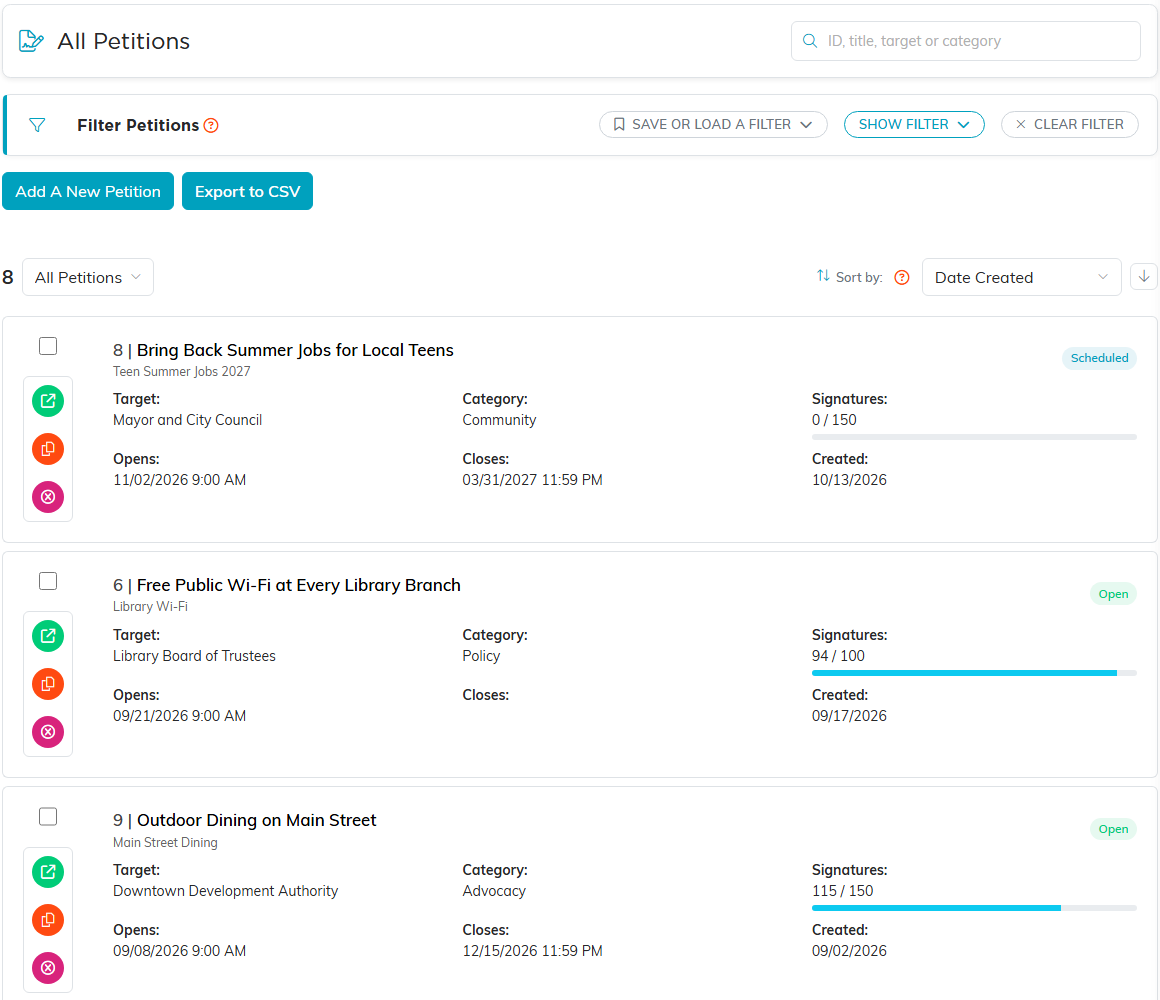
Every petition, with its status and how close it is to its goal.
Add a petition
Click Add A New Petition, type the Petition Title, and click Save & Continue. That is the only thing Argenta asks for at first. The petition is created as a draft and opens in the Petition Workspace, where you fill in everything else. Nobody can sign it until you publish it.
To start from a petition you already have, use Copy & Add New instead. The copy gets every setting and every sponsor, with "Copy of" in front of the title. It starts unpublished and with no signatures, notes or files.
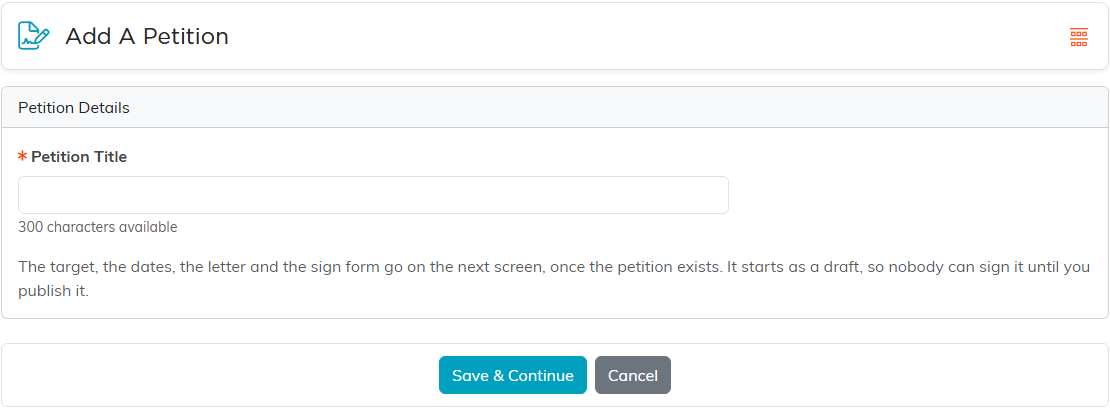
A new petition needs only its title to start.
The Petition Workspace
Every petition has eleven tabs: Petition Details, Sign Form, Thank You & Sharing, Emails, Sponsors, Signatures, Statistics, Delivery, Petition Files, Petition Notes and Record Permissions. The first four tabs each have their own save buttons, so save before you move on. The Public Forms button at the top right opens the public petition page or copies its link. Each tab of the Petition Workspace has a short Show Me How To Use This Page video at the top right; click it to watch, and use its chapters to jump to the part you need.

The eleven tabs of a petition, with Public Forms at the top right.
1. Petition Details
The bar at the top shows the petition's status, how many people have signed against the goal, and the Public Link with a copy icon. Below it:
- Petition Title: the headline people see. Required.
- Internal Title: a name only your staff see on the Petitions list. Leave it blank if the title is enough.
- Category: one of your organization's petition categories, for filtering the list.
- Petitioning / Target: who the petition is addressed to, such as a mayor or a school board. It shows on the public page under "Petitioning".
- Target Email: where the Delivery tab sends the petition.
- Open Date & Time and Close Date & Time: leave the open date blank to take signatures as soon as it is published, and the close date blank to keep it open until you unpublish it. Times are in your team's time zone.
- Signature Goal: the number you are aiming for. Leave it blank for an automatic goal: Argenta starts at 25 and doubles it each time it is reached (25, 50, 100 and so on), so the bar always has somewhere to go. A goal you type stays fixed, and signatures keep counting past it.
- Published: turn this on when the petition is ready for the public. Show Progress Bar and Show Signature Count control whether the public page shows them.
The Banner Image card sets the photo at the top of the petition. Pick one from your image library and click Save As Banner Image, then credit the photographer in Image Attribution if you need to. The Petition Content card holds the Description (why people should sign, shown beside the sign box), the Petition Letter (the letter itself, which goes to the target with the signatures) and an optional Legal Disclaimer, shown in small print at the foot of the petition.
Use Set As View Only or Lock This Record to protect a finished petition, the same way they work on other records.
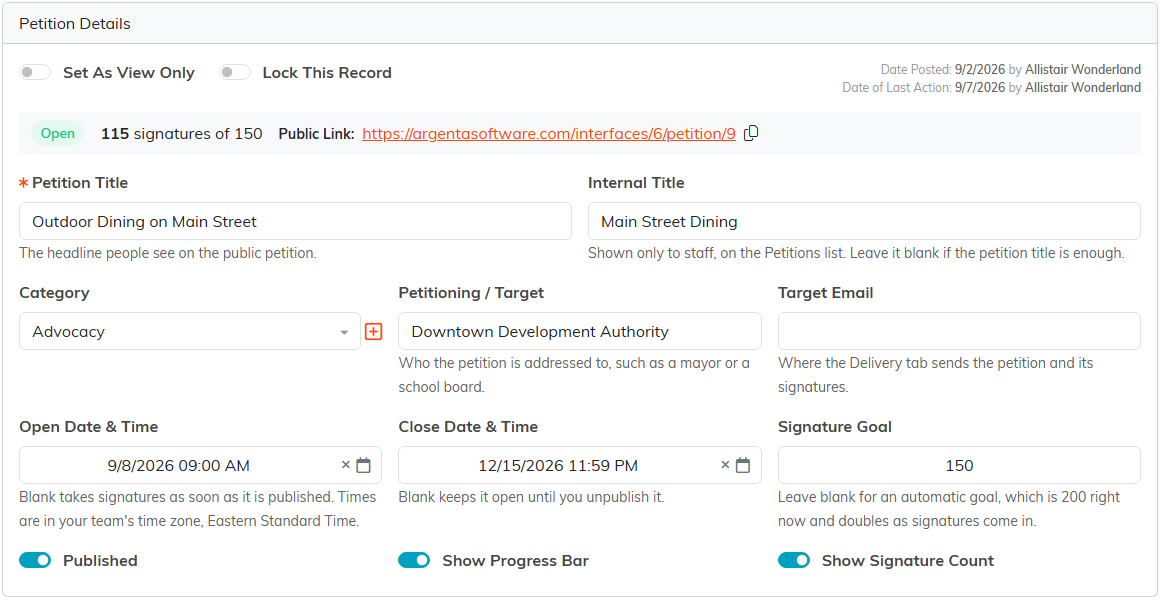
The status, the public link, the target, the dates and the goal.
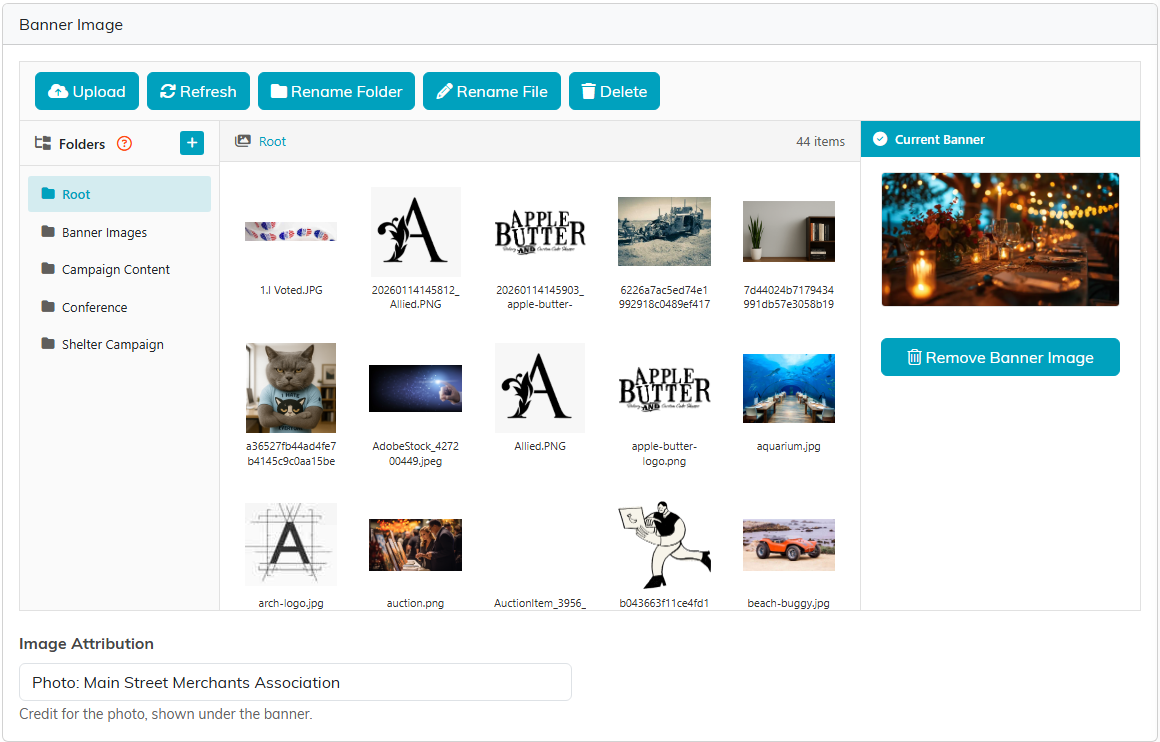
Pick a banner from your image library and credit the photo.
2. Sign Form
Choose what the public sign form asks for. Each box has a Show switch, and a shown box can be optional or Required. Email is always on the form and always required, because it is how each signer is matched to your records and sent the thank-you email. You can ask for first name, last name, ZIP, street address, city, state, country and phone. Keep at least one name box; we recommend both, since signers are matched by name and email.
Below that, turn on a comments box and give it your own label, change the Submit Button Text, and choose whether to show the email opt-in checkbox and what it says. The opt-in box starts ticked. People who leave it ticked are added to your email list; unticking it never unsubscribes anyone. The Preview card shows the sign box as you go.
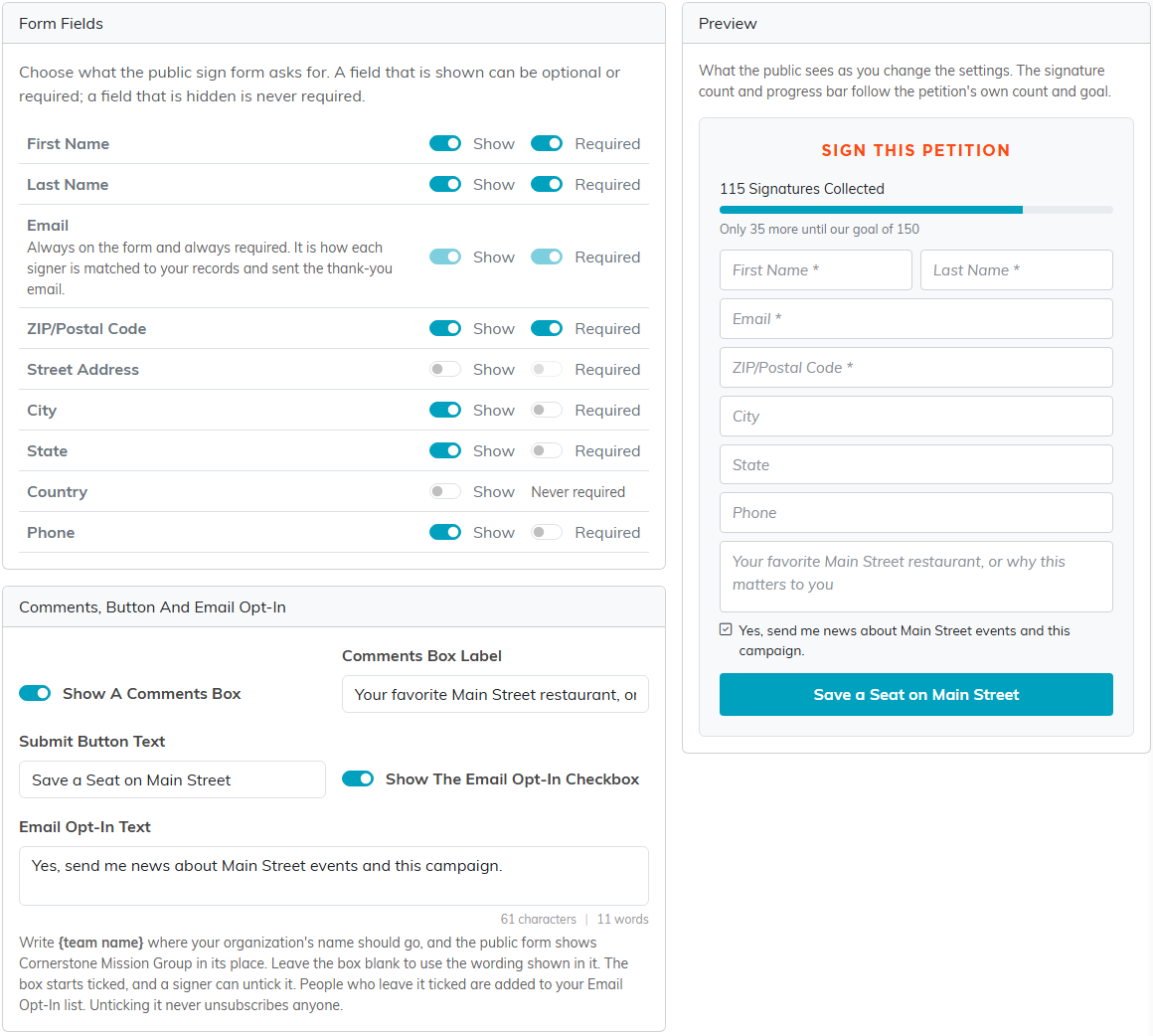
Choose the boxes on the form. The Preview shows the sign box as the public sees it.
3. Thank You & Sharing
The After Someone Signs card sets the Thank You Headline, Sub-Headline and Thank You Message that replace the sign box once someone signs. To send signers to a page on your own website instead, fill in Redirect Instead To with a full web address starting with https://. Signers who are redirected do not see the message or the share buttons.
The Sharing card sets the wording people use to pass the petition on: the Share Title and Share Description shown in link previews such as Facebook, the X / Twitter Text, and the Email Subject and Email Body for sharing by email. Argenta uses its own short wording for any box you leave blank.
The Share This Petition card gives you the petition link and a QR code, plus Tracked Links for Facebook, X, Bluesky and email. Post a different link in each place, and the Statistics tab shows how many signatures each one brought in. Under Your Own Source, type a word such as newsletter to build a link of your own. Embed On Your Website gives you code that shows the sign form on your own website; those signatures are counted under the source widget.
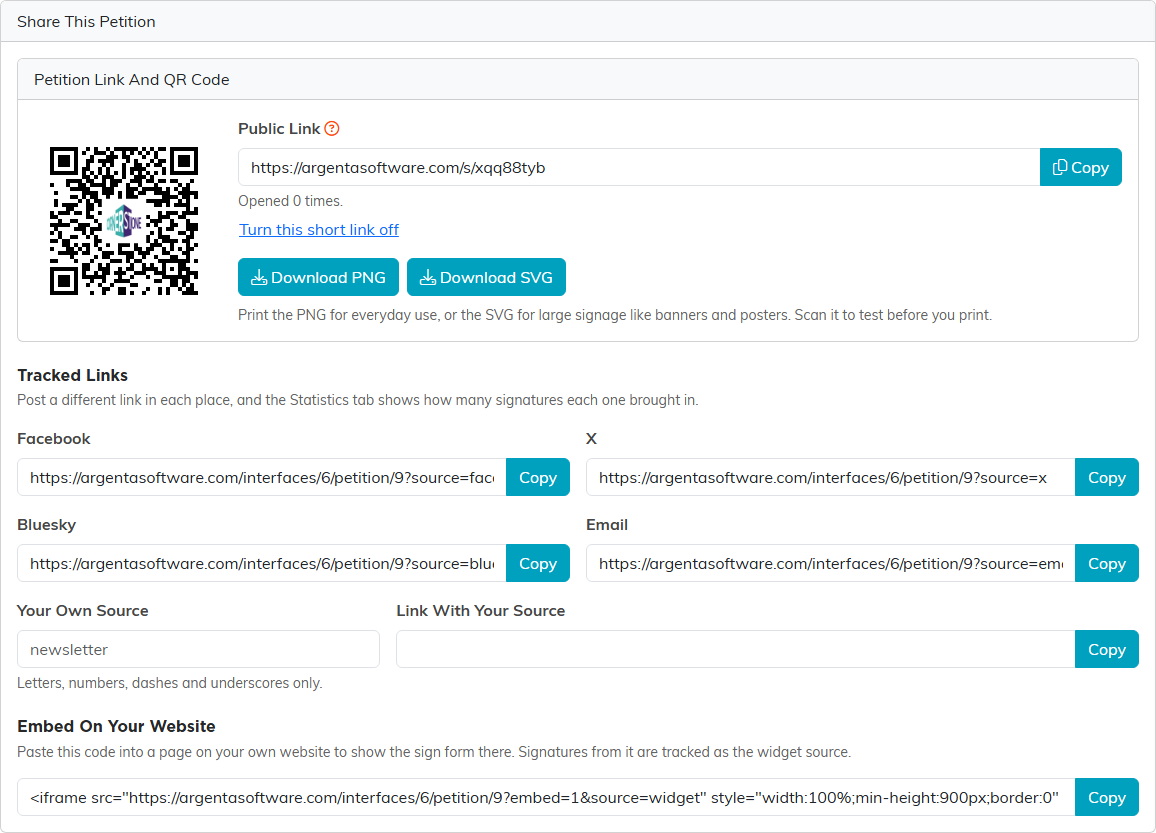
Every way to share the petition, each one tracked.
4. Emails
The Thank-You Email To The Signer card sends each person an email right after they sign. Set the From Name, a Reply-To Email, the Subject and the Body. Use the merge fields {FirstName}, {PetitionTitle} and {PetitionUrl} to personalize it. If you leave the subject or body blank, Argenta sends its own short thank-you that asks the signer to share the petition.
The Notify Staff Of Each Signature card emails your team every time someone signs. Type one or more addresses in Notification Emails, separated by commas. Each email lists the signer's details, whether they opted in, whether they are new to your records, and where they came from.
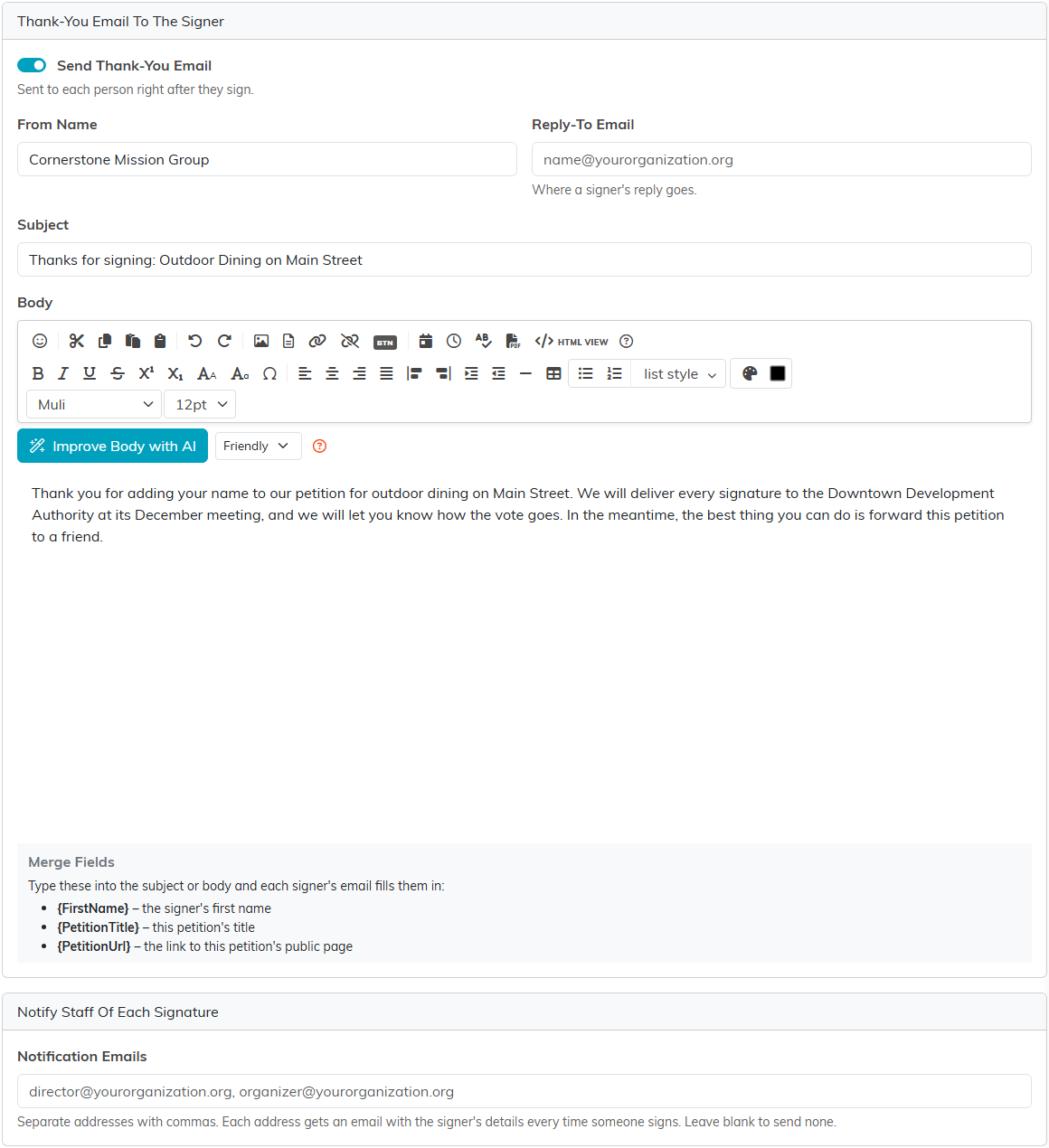
The thank-you email to each signer, and who on your staff hears about each signature.
5. Sponsors
Sponsors appear on the public petition under Sponsored By, after your own organization's name, in the order listed here. Click Add Sponsor and fill in the Sponsor Name, a Location, a Website, and a Logo uploaded or picked from your image library, then click Save Sponsor. Use the arrows on each row to change the order, or the pencil to edit.
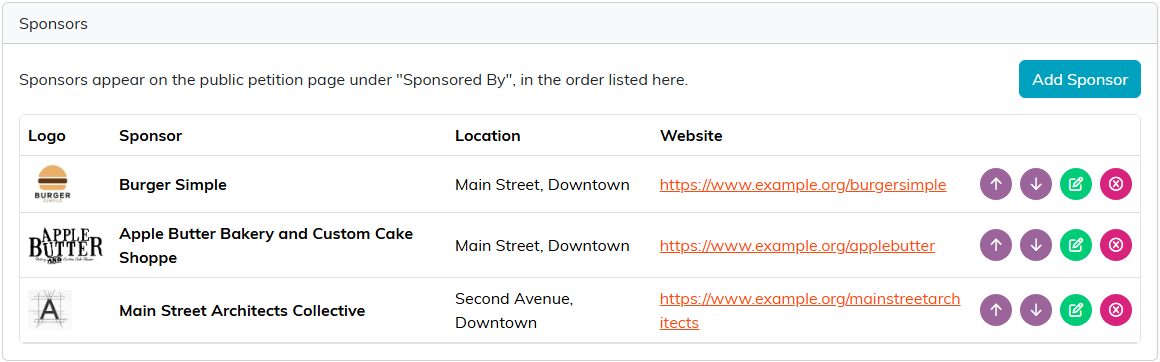
Sponsors appear on the public page in this order.
6. Signatures
The Progress card shows the signatures collected, the goal and how far there is to go. Below it is every signature, newest first, with the signer's name, email, city and state, ZIP, source, when they signed, and their comment. Tags mark signatures from people who were New Constituents, Paper signatures and people who Opted In. Search by name, email, city, ZIP or comment, filter by Source or Date Signed, and export the list to CSV.
Each person can sign a petition once. If they sign again from the public page, their one signature is updated instead of counted twice.
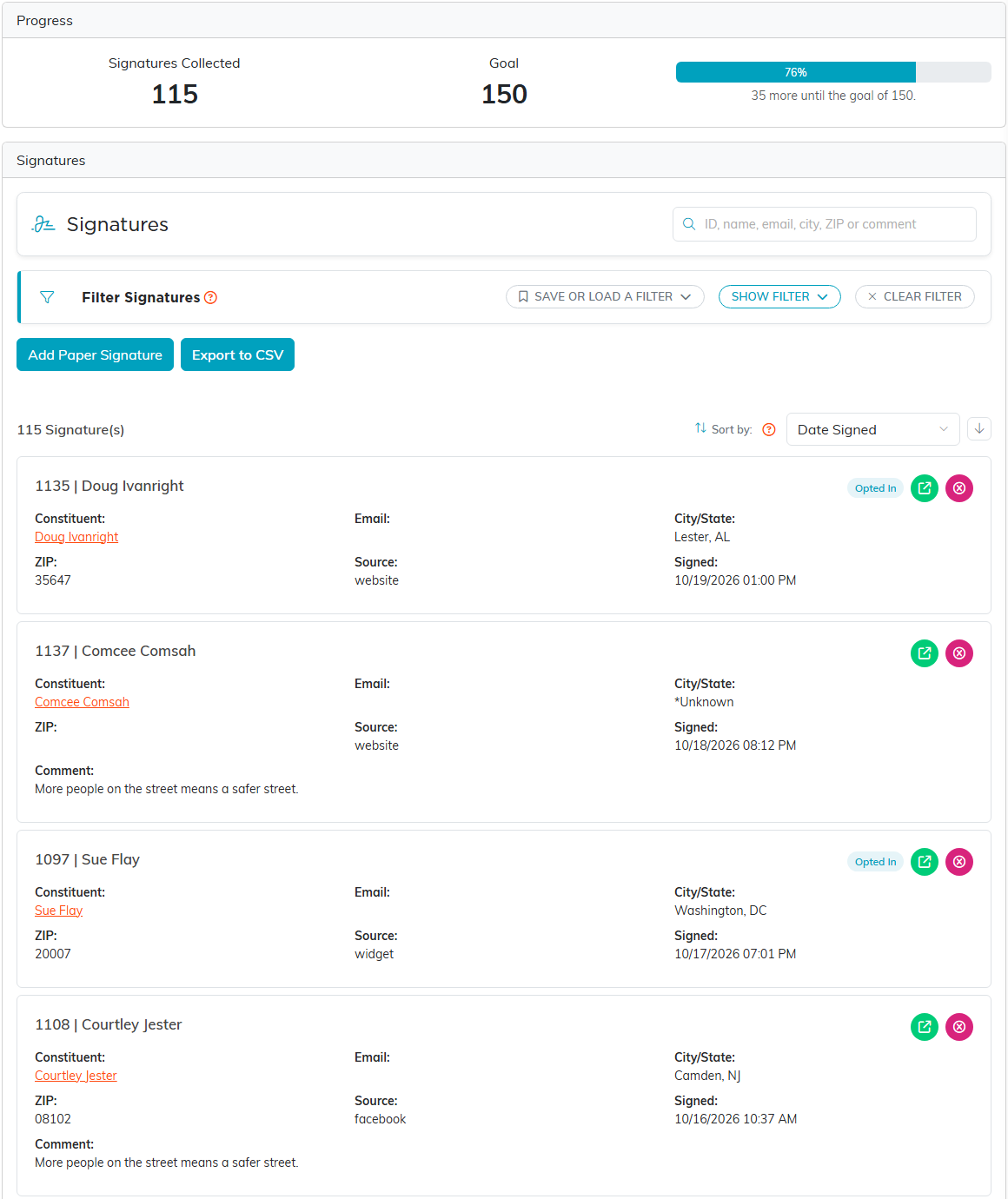
Every signature, newest first.
Signatures collected on paper. Click Add Paper Signature. If the person is already in Argenta, pick them under Existing Constituent. Otherwise type their name and details, and Argenta matches them to a constituent or adds a new one. Set the Date Signed, which cannot be after today, and click Save. Paper signatures are tagged Paper and count toward the goal like any other.
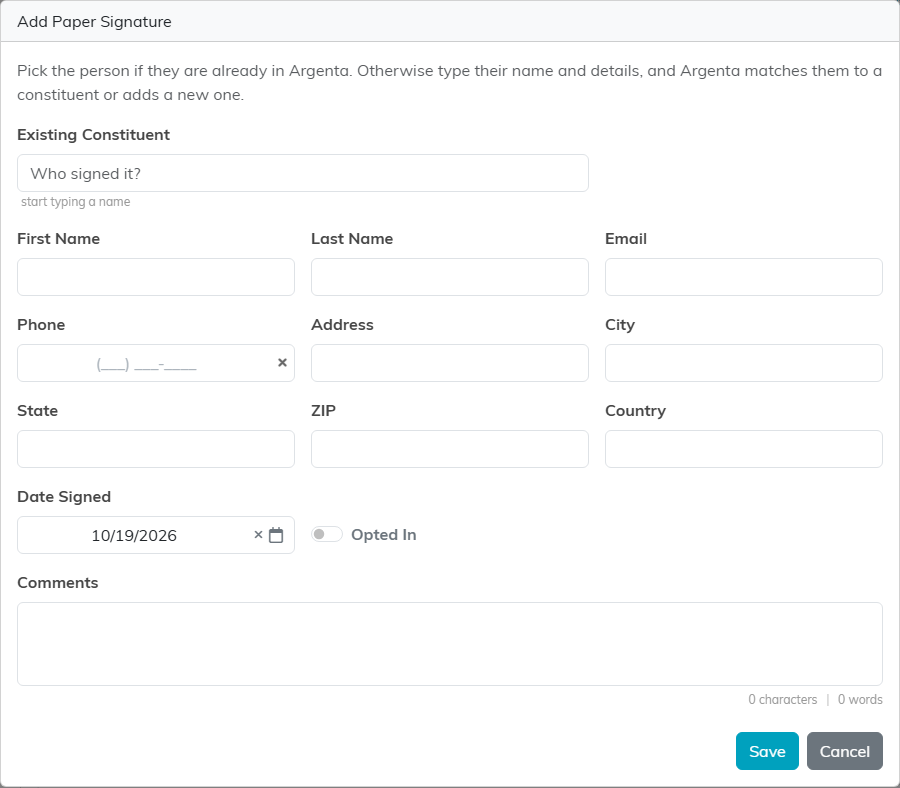
Type in a signature collected on paper.
7. Statistics
The cards show the Total Signatures against the goal, how many signers were New Constituents, how many Opted In to your emails, how many were Paper Signatures, how many left a comment, and when the first and last signatures arrived. Signatures Per Day charts the petition's momentum, and Signatures By Source shows which links brought in the most. Click a source to see just those signatures.
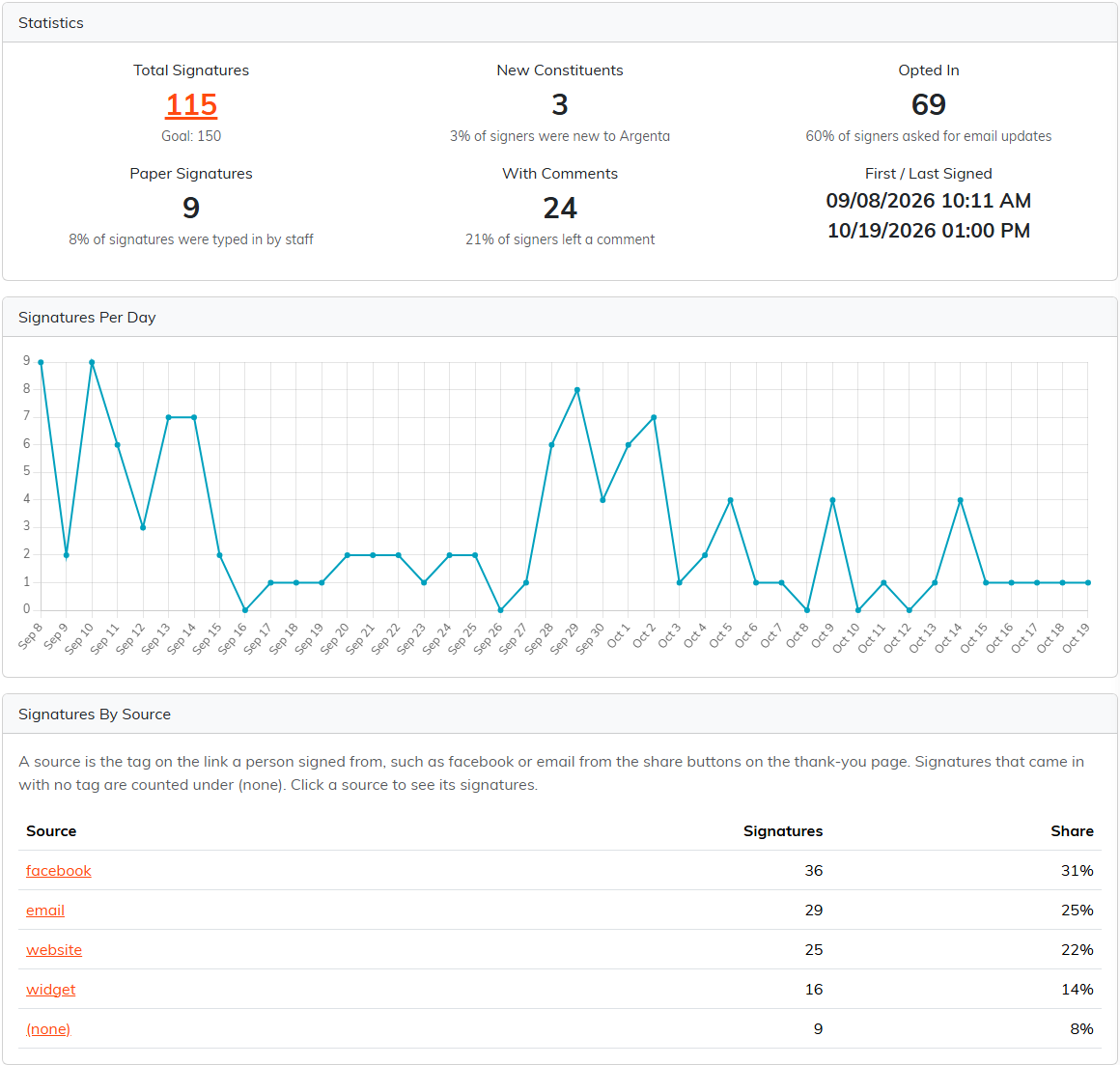
How many signed, when, and from where.
8. Delivery
When it is time to hand the petition over, the Delivery tab builds one PDF: the petition letter, then the name, location, comment and date of everyone who signed, in the order they signed. Click Download PDF to save it, or Email To Target to send it as an attachment from your organization's email address. The email goes to the Target Email from Petition Details unless you change it, and you can add a short message above the petition. Delivery needs export permission, because the document lists everyone who signed.
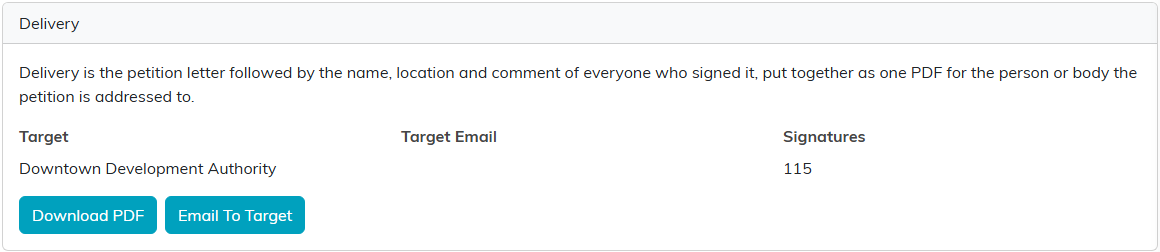
Hand over the petition and every signature as one PDF.
9. Petition Files and Petition Notes
Keep everything about the campaign with the petition. Petition Files holds documents such as a proposal or letters of support: drag them in, then click Save The Selected File(s). Petition Notes keeps a dated record of meetings, decisions and next steps.
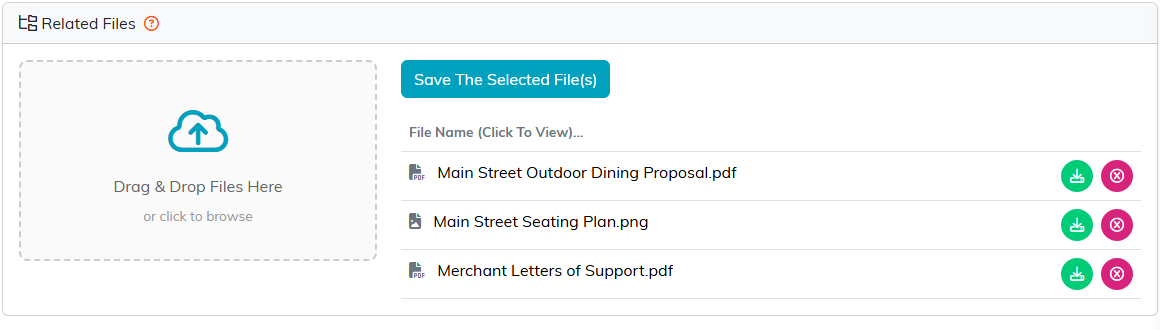
Documents kept with the petition.
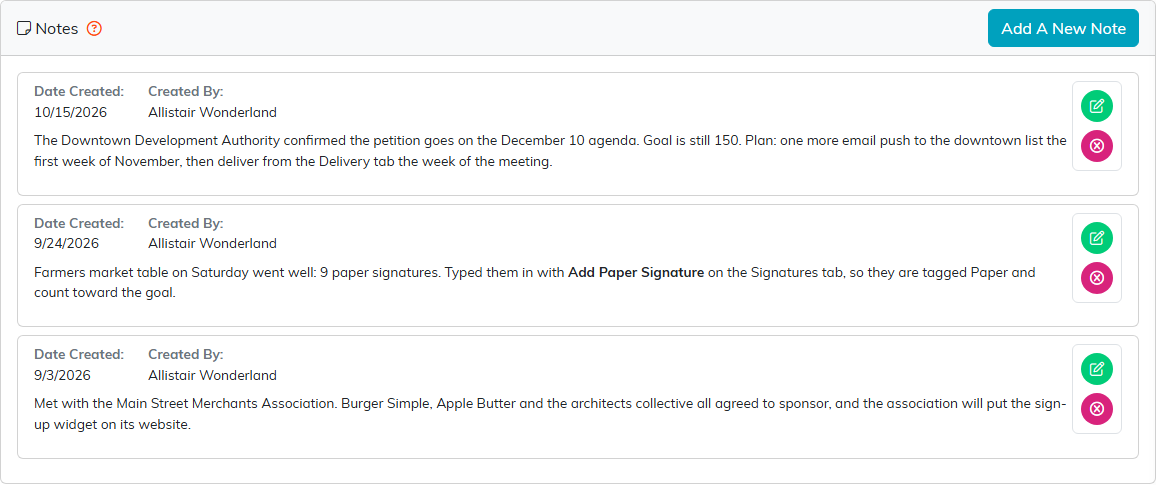
A dated record of the campaign.
10. Record Permissions
If you set the petition to view only or lock it, use this tab to name the people who still need in. Users under View Only Access can still edit the petition when it is view only, and users under Locked Record Access can still open it when it is locked.
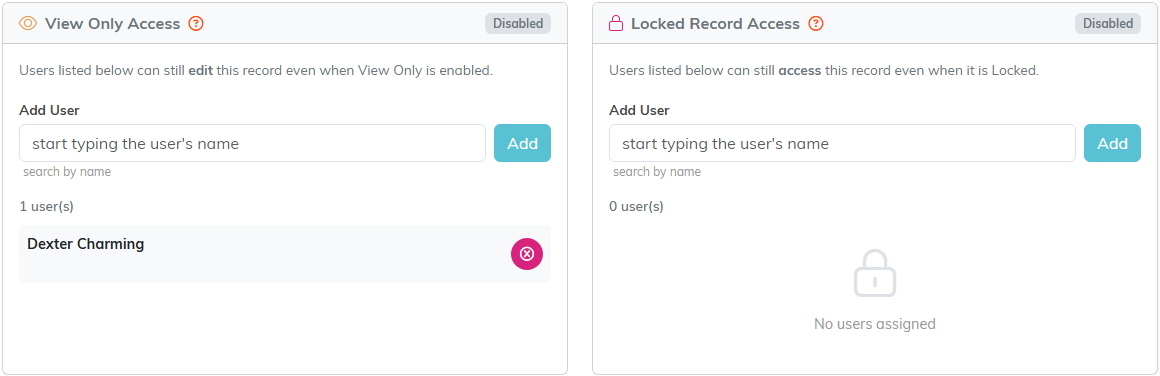
Who can still edit or open a protected petition.
What signing looks like for the public
Share the link from Public Forms > Copy Public Petition Form Link, the tracked links, the QR code or the embed code. People see your banner, the target, the description, your sponsors and the letter, with the sign box beside them showing the count and the progress bar. After signing they see your thank-you message and share buttons, or go to your own page if you set a redirect.
A draft petition cannot be found on the public page. A scheduled one says when it opens, and a closed one says it is no longer accepting signatures.
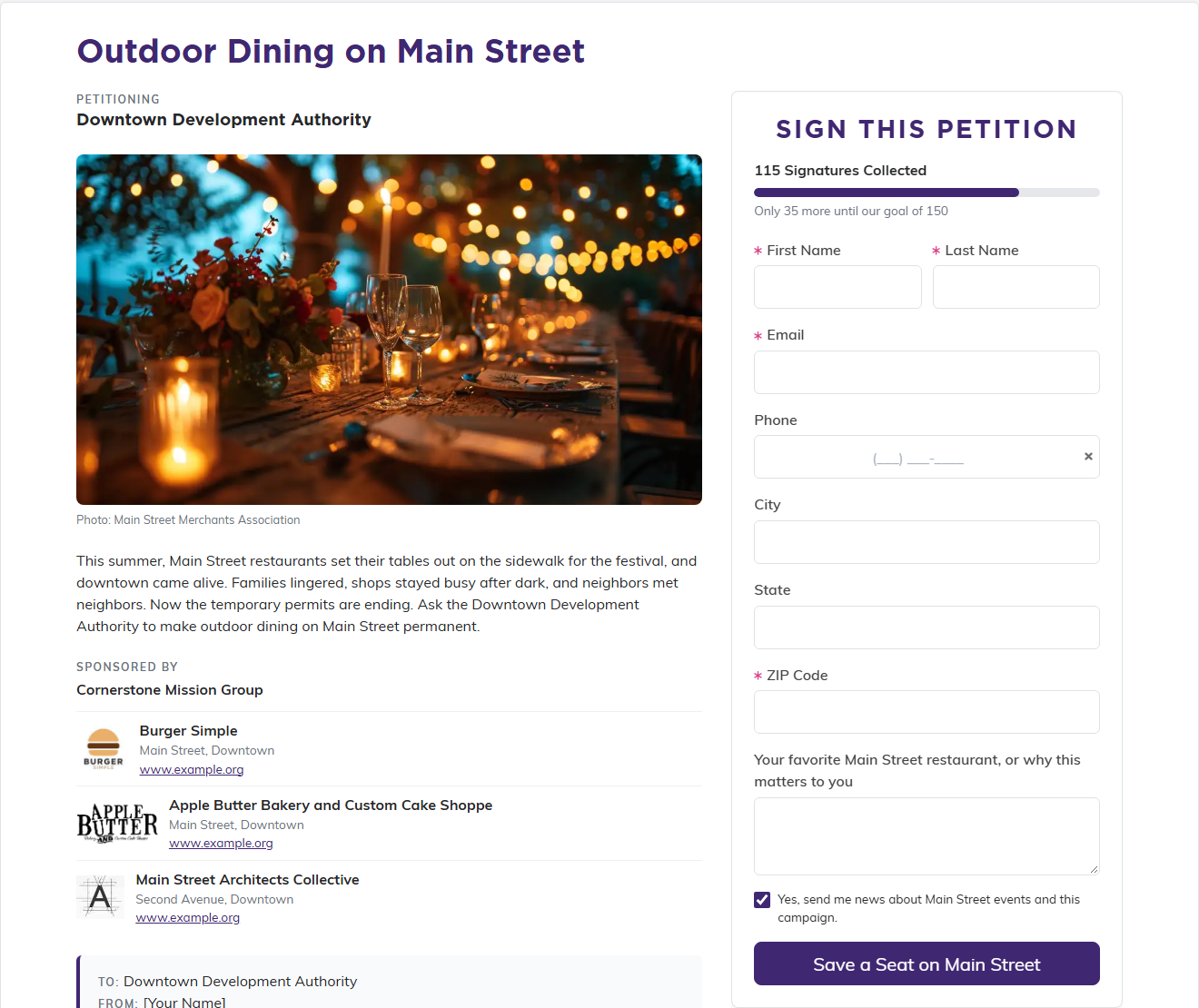
What the public sees.
How signers are matched to your records
Argenta looks for an existing person by full name and email, then by first name and email, then by name and phone. Email alone is never enough to match. If nobody matches, a new constituent is added and their signature is tagged New Constituent. A matched person's name and main email are never changed by signing. If they ticked the opt-in box, they are added to your email list, but signing never re-subscribes anyone who unsubscribed.
Frequently asked questions
Why does the goal keep going up?
You left Signature Goal blank, so Argenta sets it for you and doubles it each time it is reached. Type a number to fix the goal.
Can someone sign twice?
No. Each person signs once. Signing again updates their existing signature.
Why is a paper signature listed under "(none)" on Statistics?
Paper signatures have no source, so they are grouped as "(none)". They are still tagged Paper on the Signatures tab.
What happens if I delete a petition?
Its signatures, sponsors, notes and files are deleted with it. The people who signed stay in your records, and so do the images in your library.
I can't see Petitions in my menu.
Ask an admin to turn on Petition Manager in your user record. If you have just been given it, sign out and back in.
