Knowledge Base Article
Place an Image Beside Text in the Content Editor
There are two ways to put a picture beside your words in the content editor.
Wrap the text around the picture. Click the picture to select it, then click Wrap Text, Image Left or Wrap Text, Image Right on the toolbar. The picture moves to that side at about 40% of the width, and the words after it flow alongside and then underneath it. On a phone the picture sits back above its words. To undo it, select the picture and click Align Left, Align Center or Align Right.

Wrap Text, Image Left and Wrap Text, Image Right on the content editor toolbar.

On a computer, the words flow beside the picture and then underneath it.

On a phone, the wrapped picture moves back above its words.
Put them in two even columns. If you want the picture and the words side by side in equal halves, put them in a table with one row and two columns, as the steps below show. On a computer they sit next to each other. On a phone they stack, with the picture on top and the words underneath, so nothing gets squeezed.
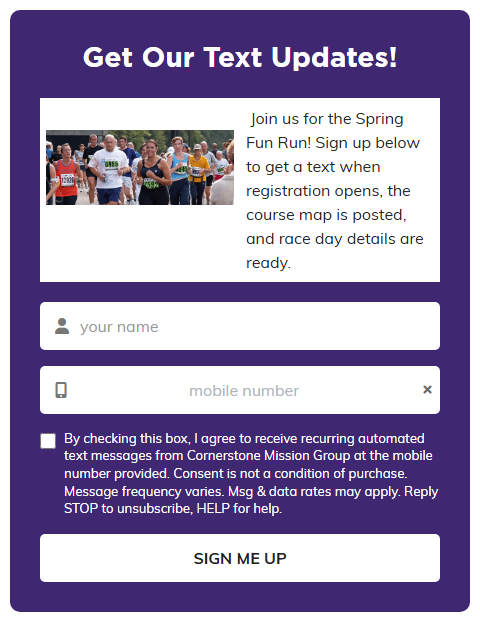
What your supporters see on a computer: the picture and the words side by side, with no lines around them.
Step 1: Insert a one-row, two-column table
- Open the form’s design page and go to the section with the content editor, such as Form Content.
- Click in the editor where you want the picture and the words to go.
- Click Insert Table on the toolbar.

The Insert Table button on the content editor toolbar.
- In the Insert Table box, point at the first two squares in the top row. The box reads 1 x 2. Click to insert the table.
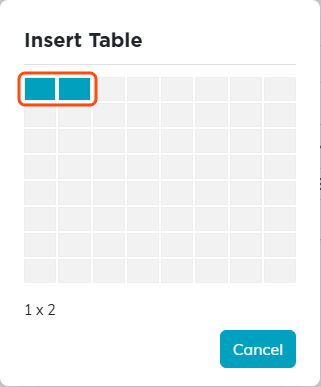
Pick 1 x 2: one row, two columns.
Step 2: Put the picture in one column
- Click inside the column where you want the picture.
- Click Insert Image on the toolbar. The Image Manager opens.
- Click the picture you want (or click Upload to add a new one), then click Insert Image.
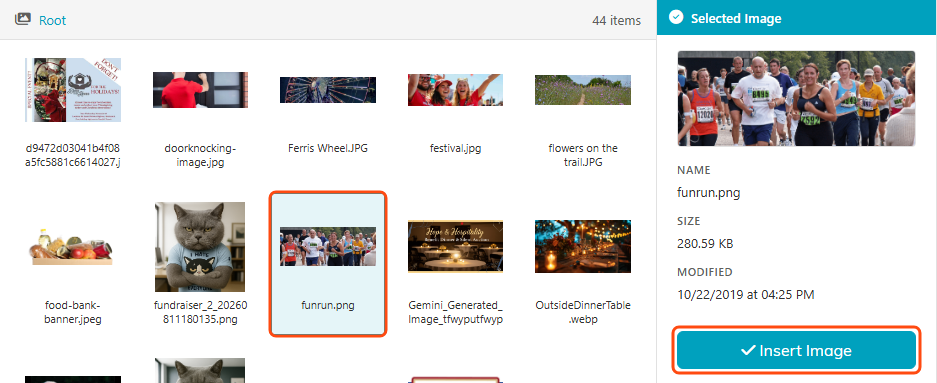
Select the picture, then click Insert Image.
The picture fills the width of its column, so it always fits.
Step 3: Type your words in the other column
Click in the other column and type. In the editor, you’ll see light gray lines around the table so you can tell where each column is.
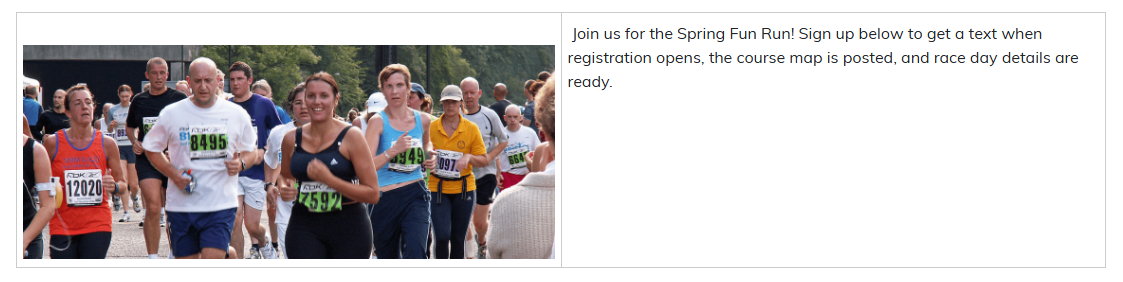
In the editor, gray lines mark the two columns.
Each new column starts with one blank space. If you want the picture or the first word to sit right at the top, delete that space.
When you’re done, save the form.
What your supporters see
- No lines. The gray lines only show in the editor. Your public form never shows a border around the table.
- Side by side on a computer. Each column takes half of the width.
- Stacked on a phone. On a screen 768 pixels wide or narrower, such as a phone, the columns stack: the left column first, then the right.

On a phone, the picture sits above the words.
Want the words on the left and the picture on the right? Type in the left column and put the picture in the right one. Just remember that on a phone, the words will then come first.
