Knowledge Base Article
How to Record Military Info on a Constituent
The Military Info page on a person's record holds their military service: whether they served, the branch, rank and status, the years, and the kind of work they did. You can then find veterans and service members with your reports.
Open Military Info
- Open the person's record.
- In the Workspace Menu, click Military Info.
Military Info is only on individuals' records. Organizations and households don't have it.
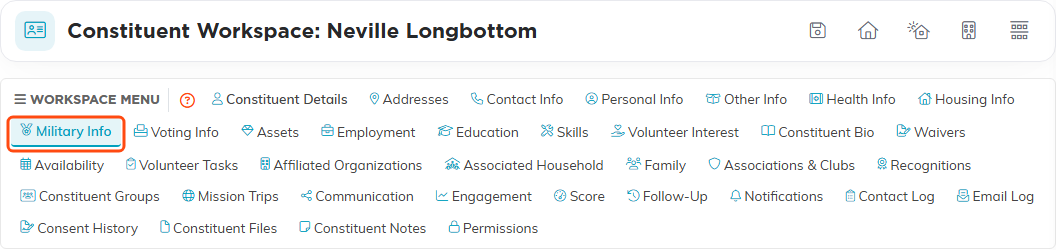
Military Info in the Workspace Menu.
Fill in the service details
- Turn on the Military switch (1) if the person has served or is serving.
- Pick the Branch, Rank and Status from the drop-downs.
- Enter the Military Start Year and Military End Year, and the Length of Service in your own words, such as "6 years".
- Add the Military Campaign, the Type of Work (Military) they did, and the Type of Work (Post-Military) they'd like now, if you know them.
- Click Save & Continue to stay on the record, or Save & Exit.
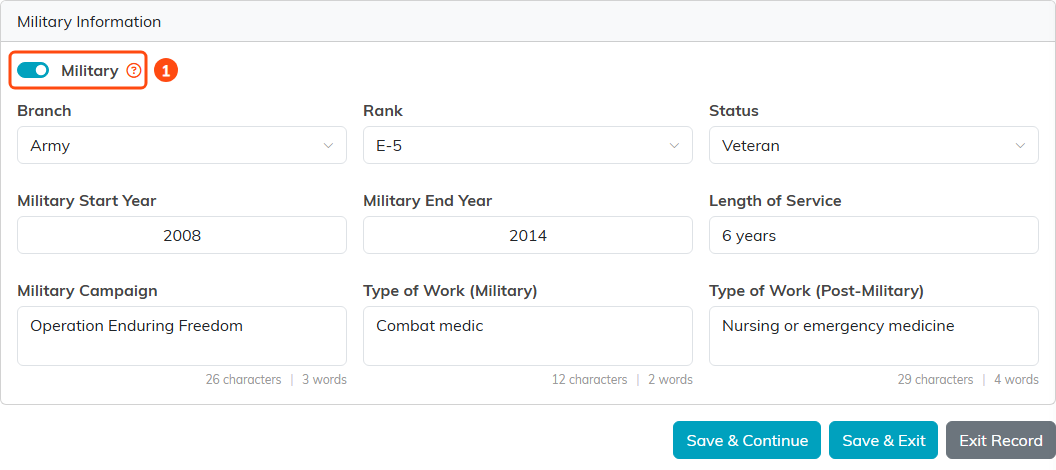
A completed Military Information card. The Military switch (1) is what the veteran filter reads.
Every field is optional. Fill in what you know and leave the rest blank.
The drop-down choices
- Branch: Army, Navy, Marine Corps, Air Force, Coast Guard, Space Force, National Guard or Other. The default, *No Military Service, means none is set.
- Rank: pay grades E-1 to E-9, WO1 to WO5 and O-1 to O-9, or Other.
- Status: Active Duty, Reserves or Veteran.
These lists are the same for every organization in Argenta. You can't add your own choices to them.
Rules for the years
- A year must be a four-digit year from 1900 through next year, or left blank.
- The Military End Year can't be before the Military Start Year.
If a year breaks either rule, you'll see a message and nothing is saved until you fix it. A record imported with an odd year can still be saved, as long as you don't change that year.
Turn on the Military switch
The Military switch is separate from the details below it. Filling in a branch or rank does not turn it on.
Turn it on for anyone who has served, because the Is Veteran? filter on the Voter Master Report reads only this switch. Someone with a branch and rank filled in but the switch off won't come back as a veteran.
When someone ticks I Am A US Military Veteran on your public political volunteer registration form, the switch is turned on for them. So it can already be on for people you never entered yourself.
Find veterans and service members
On the Master Constituents Filter report, use Military Branches and Military Status to find people by branch, or by Active Duty, Reserves or Veteran.

The military filters on the Master Constituents Filter.
On the Voter Master Report, set Is Veteran? to find everyone with the Military switch on.

Is Veteran? on the Voter Master Report.
