Knowledge Base Article
How to Add Notes to a Volunteer Task Group
Notes keep the planning behind a task group in one place: what the venue agreed to, what was ordered, which shifts still need people. Everyone who works on the group reads the same history.
Open Task Group Notes
Open the task group and click Task Group Notes in the workspace menu. Each note shows the date it was written and who wrote it, newest first. Beside the group's name is a short Show Me How To Use This Page video for this page, with a chapter for each part below.
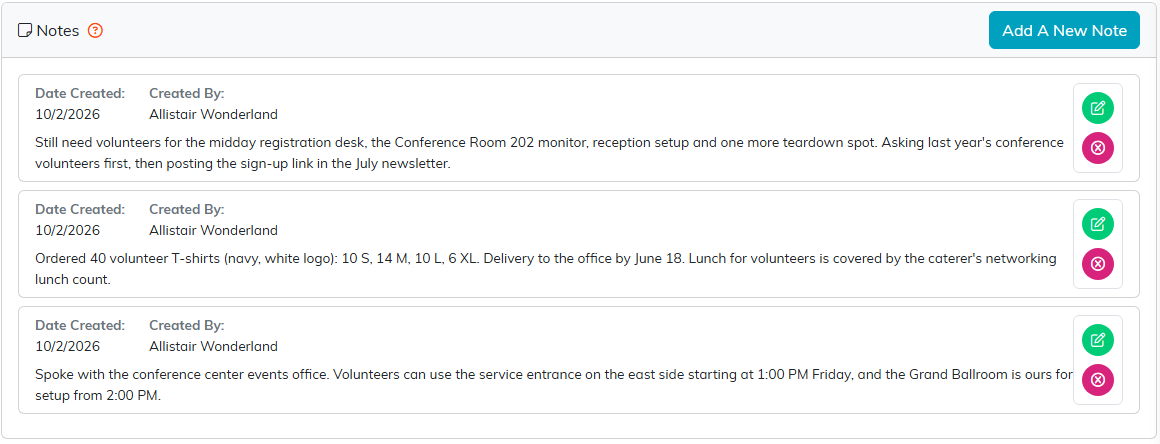
Planning notes on the conference volunteer group.
Add a note
- Click Add A New Note.
- Type the note in the editor. You can format it, add a link or a table, and Improve Body with AI can tidy the wording in the tone you pick.
- Click Add This Note.
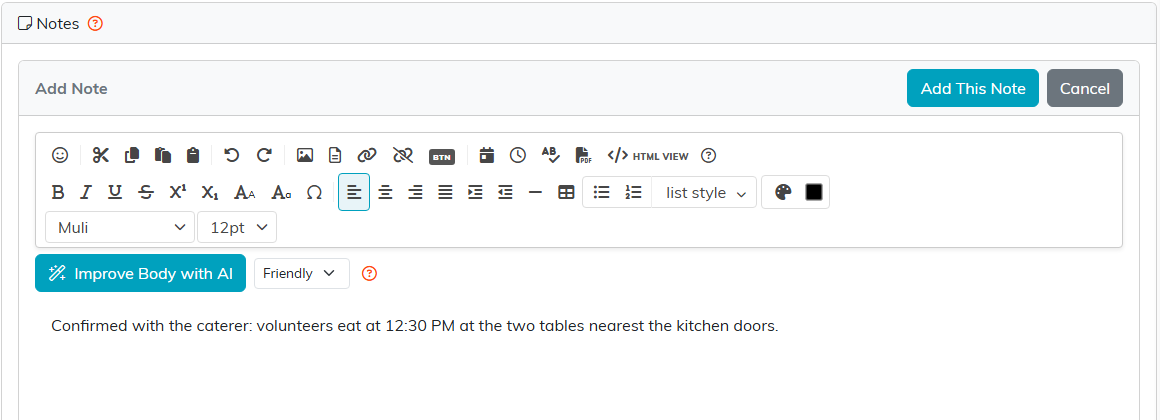
A new note about volunteer lunch, ready to add.
Change or delete a note
- To change a note, click its green icon, edit the text and save it.
- To delete a note, click its pink icon. Argenta asks you to confirm first.
A note about one shift alone belongs on that task; see How to Add Notes to a Volunteer Task.
